
Lesson 02: XR Interactables
In this lesson, we will cover the different XR Interactions that are provided to us by Unity.
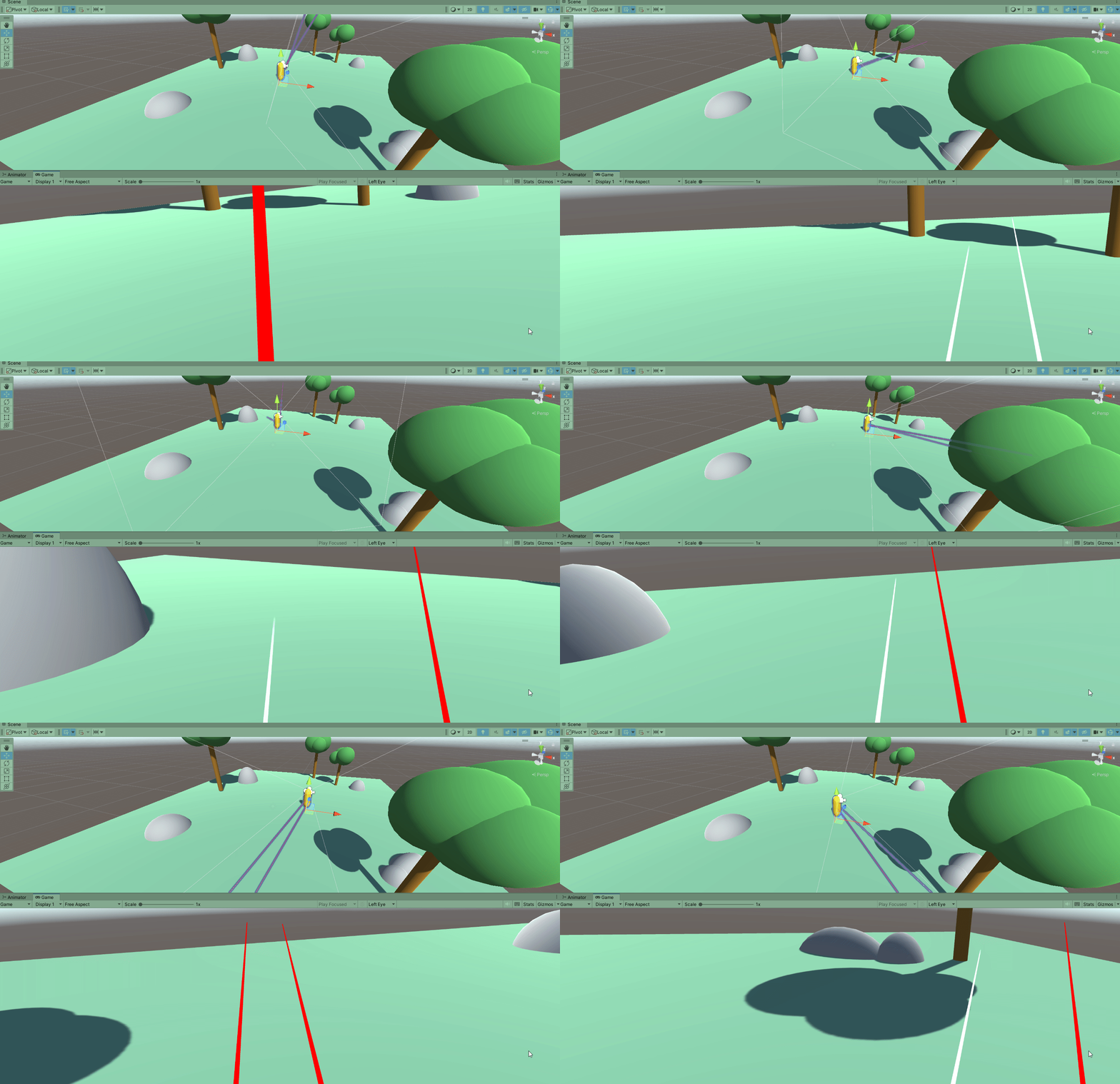
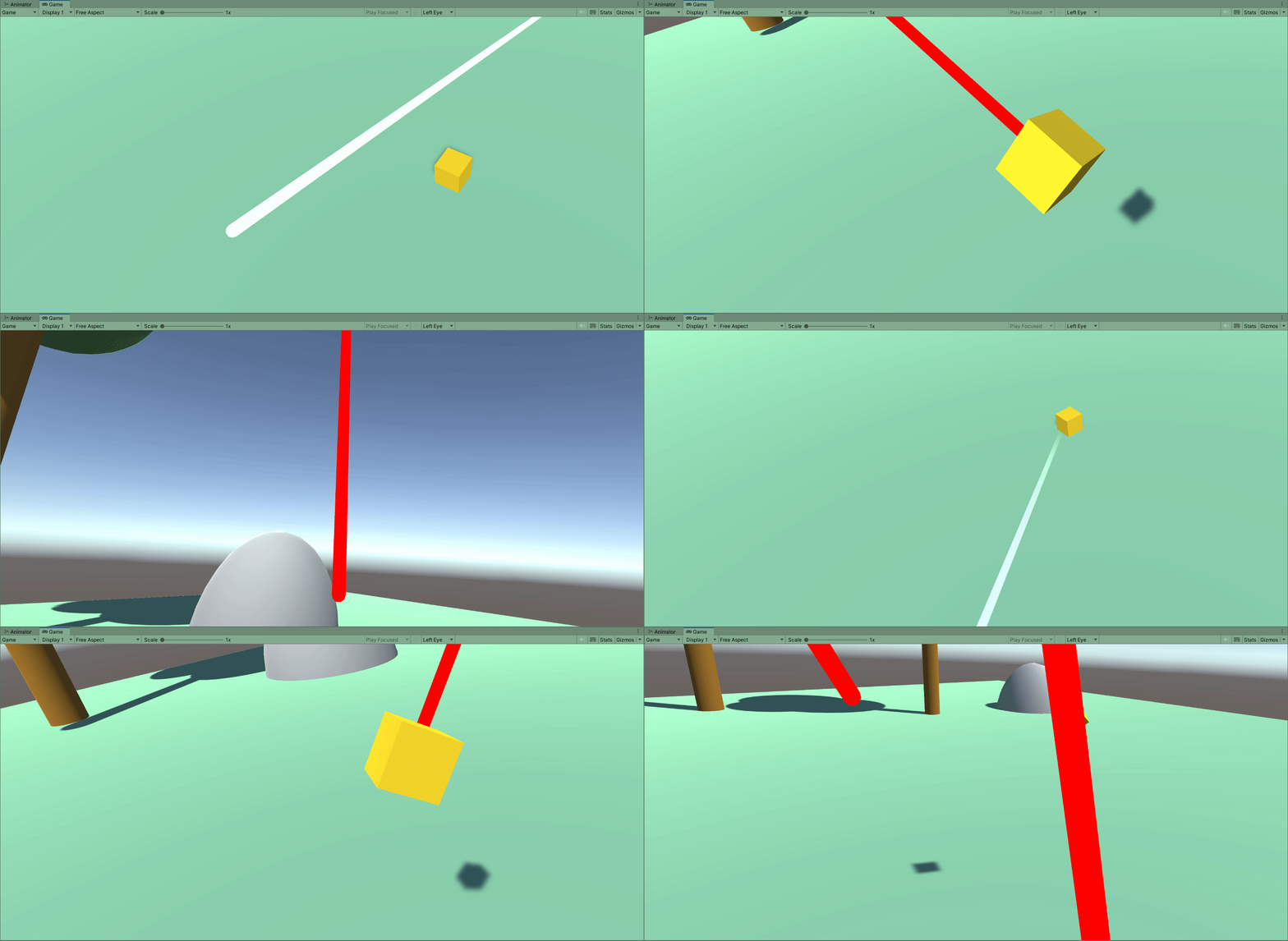
XR Interactables in Unity
Included in the XR Interaction Toolkit we installed are a number of pre-made interaction types that we can use in our project:
- Simple Interactables - The base class of any XR Interactable
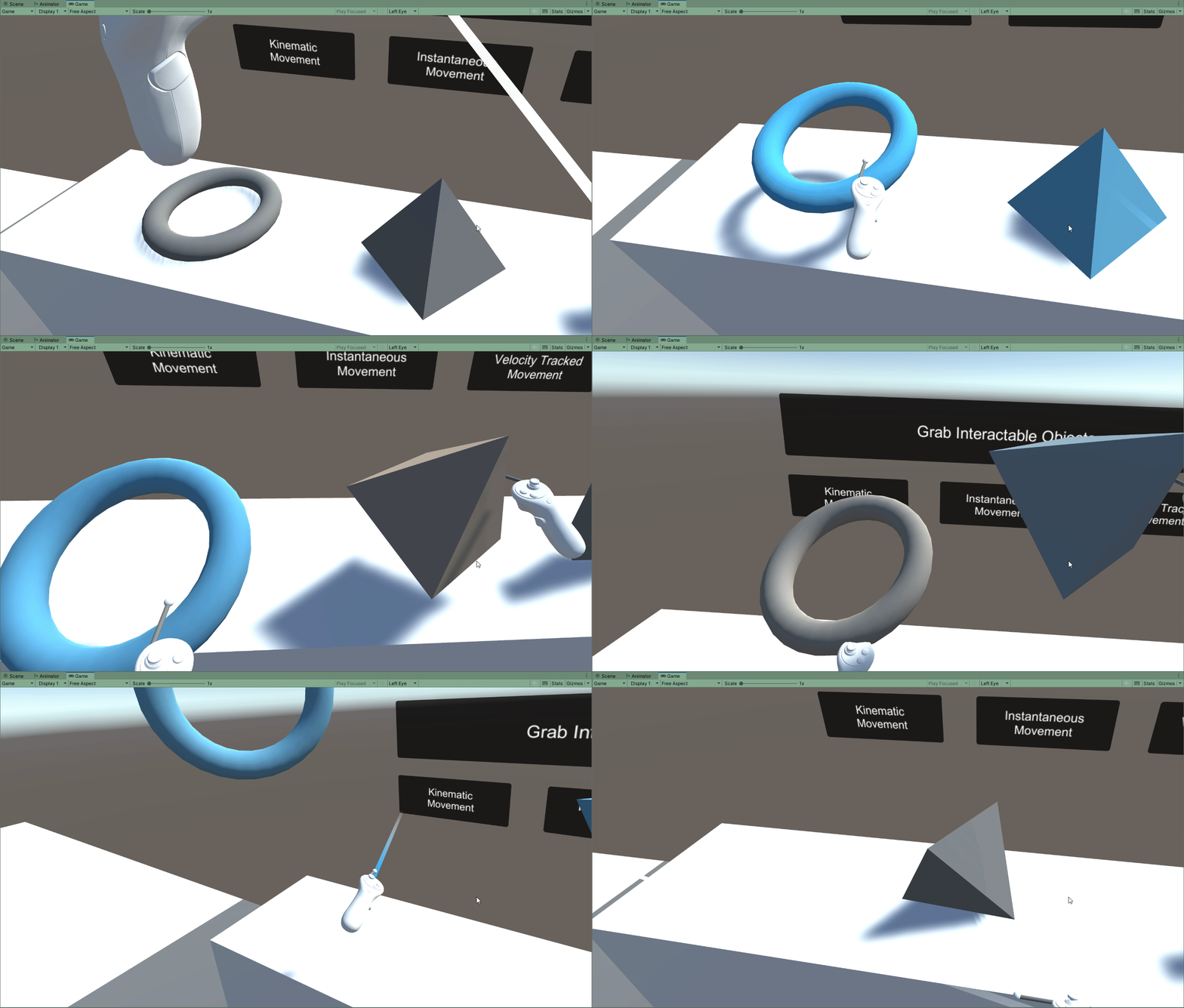
- Grab Interactables - Objects that can be grabbed and interacted with
Grab Interactables
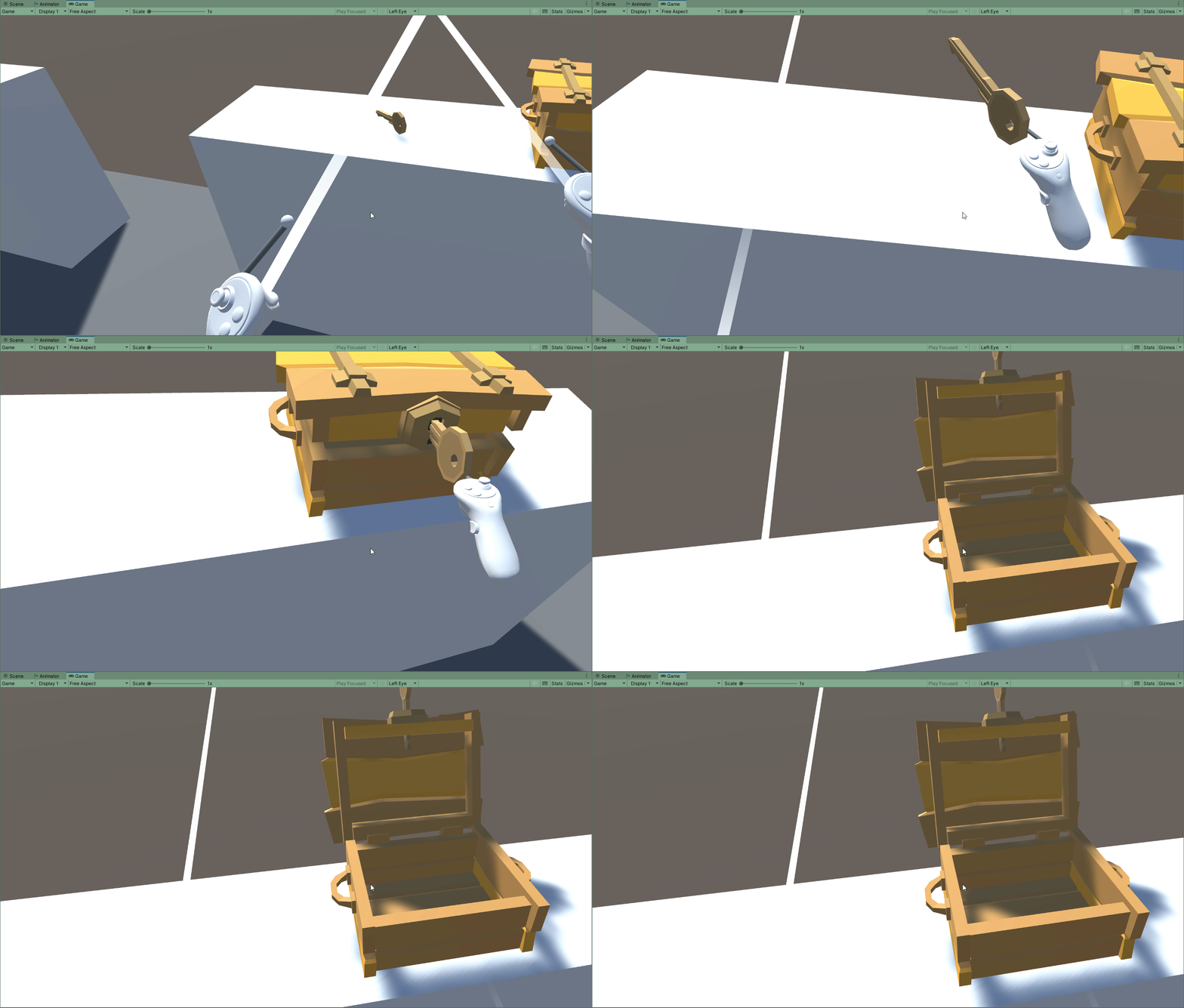
- Socket Interactables - Objects that can be placed in specific locations
Socket Interactables
- Poke Interactables - Objects that can be pushed physically like a button
Poke Interactables
Simple Interactables
A Simple Interactable is the simplest form of an XR Interactable object. It is able to respond to interaction events but has no direct built-in interactions.
For example, you could point your ray interactor at it and trigger an event, but further interaction such as grabbing the object would take place.
This is the base class that all other XR interactables inherit from.
Grab Interactables
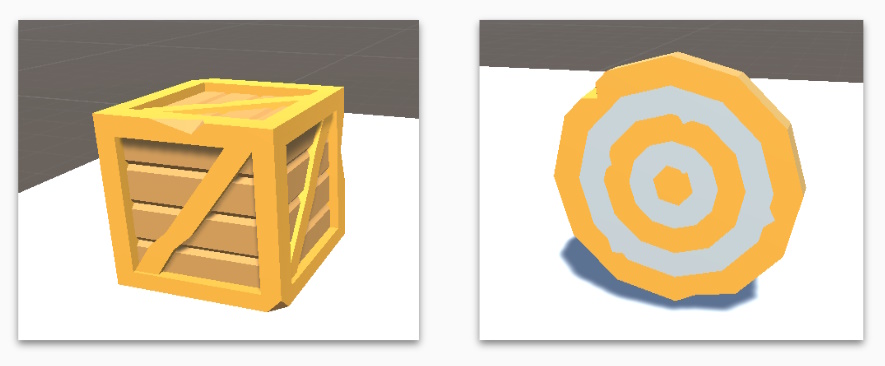
Grab Interactables are an extension of the “simple interactable” base class. In addition to interaction events, these objects can be picked physically or at a distance.
These objects can be moved with the physics engine, making throwing objects and responding to gravity possible.
Interactable objects will automatically use any colliders / meshes attached to them.
Socket Interactables
Socket interatables are another version of a :grab interactable”. The only difference is that you can specify a “layer” in which these interactions take place on.
For this to work, we also need a socket interactor. In our example to the right, this would be the “Keyhole” object.
The interactor is incharge of detecting and snapping objects that are colliding with it, i.e the key.
Poke Interactables
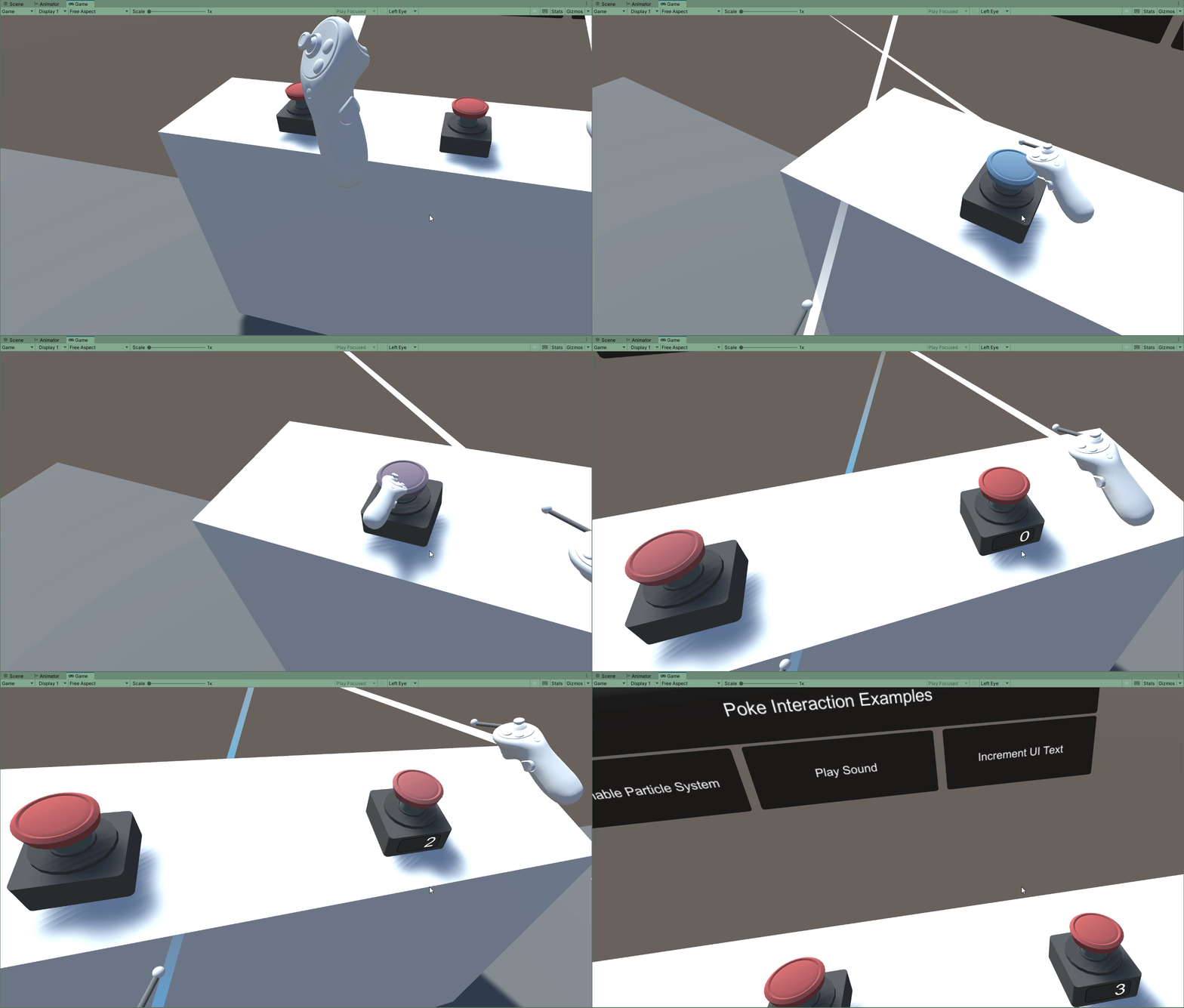
Poke interatables are actually just a “simple interactable”. They receive and process interaction events e.g playing a particle effect, increasing a number, etc…
To turn this into a poke interactable, we add a Poke Filter.
This lets the game engine know that to trigger the interactions, we need to physically push in the button using physics rather than any other method.
 Kōrero Mai: How can you use each of these interactables?
Think about how each of theses interaction types can be inside of an Escape Room like game.
- Move object around to find hidden codes or items
- Place objects in specific places such as a weighted pedestal
- Use poke interactions for physical buttons such as a keypad.
Re-creating the XR Origin Object
Before we move onto setting up locomotion for our player, lets first cover how to create an XR Origin object from scratch. This will give us more control over the player as well as gain an understanding of how an XR origin object is setup.
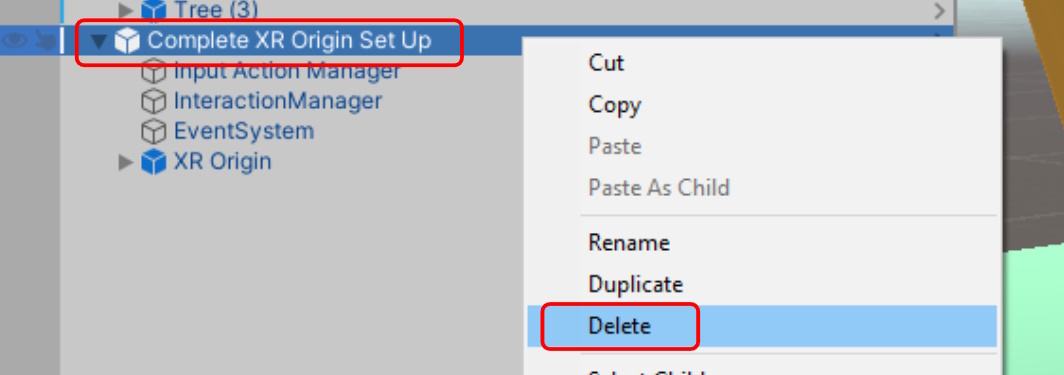
To begin with, Delete the existing “Complete XR Origin Setup” if one exists in your scene
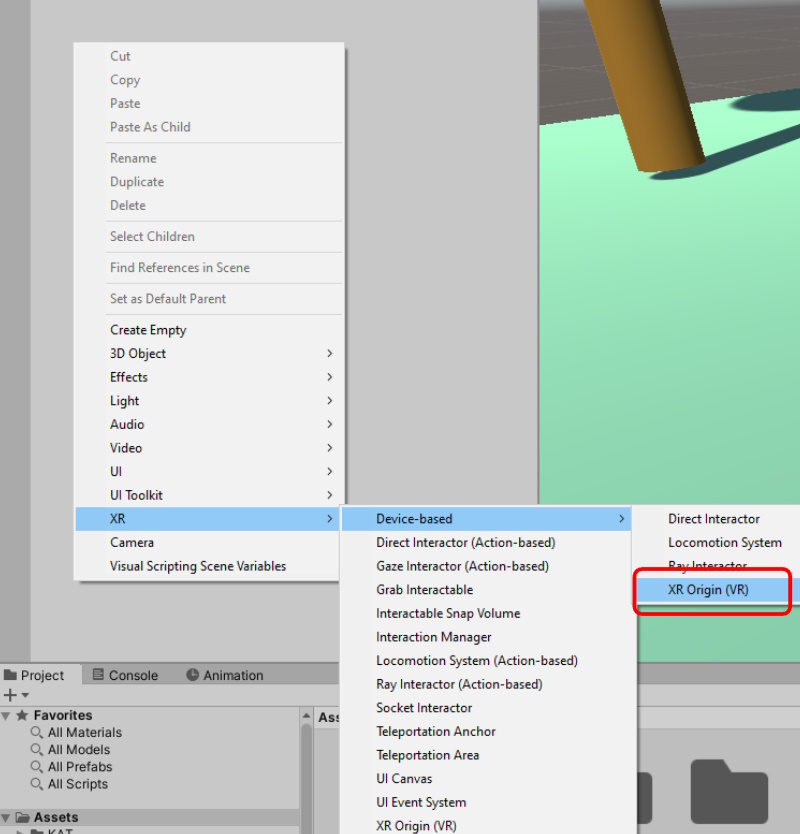
Next, Create a blank XR-Origin object by:
- Right Click to bring up the context menu
- Select XR -> Device-based -> XR Origin (VR)
- Adjust the object so that it is placed on your floor object
The XR Origin comes with a number of objects attached to it by default. This includes a Main Camera and two controller objects that are automatically tracked by your VR Hardware.
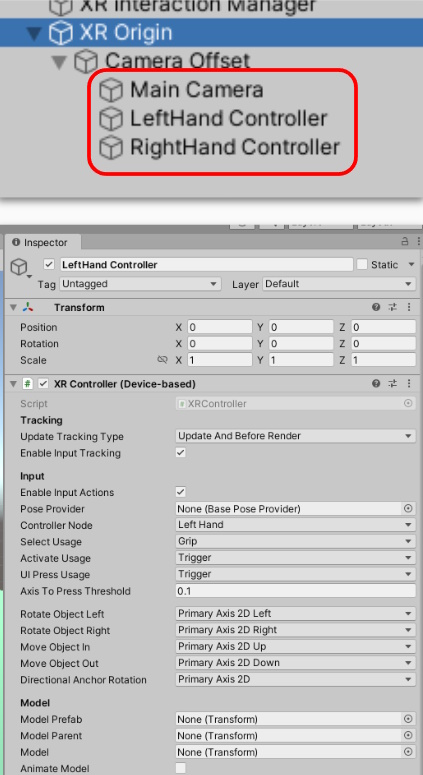
There are a number of other scripts also attached to these objects. These scripts handle additional inputs, such as button presses, Axis movements and more.
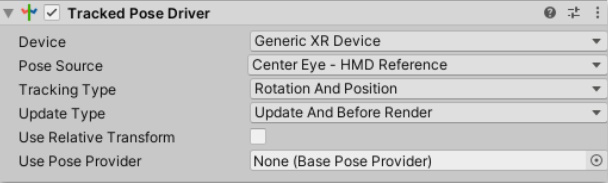
Feel free to explore each of the objects and the settings attached to each.
Locomotion Systems
An important aspect about designing an XR experience is how the player moves. There are a vast number of different locomotion styles that developers have created over the years. Each with their own pros and cons, especially when trying to reduce motion sickness.
The two main locomotion systems that most developers use are:
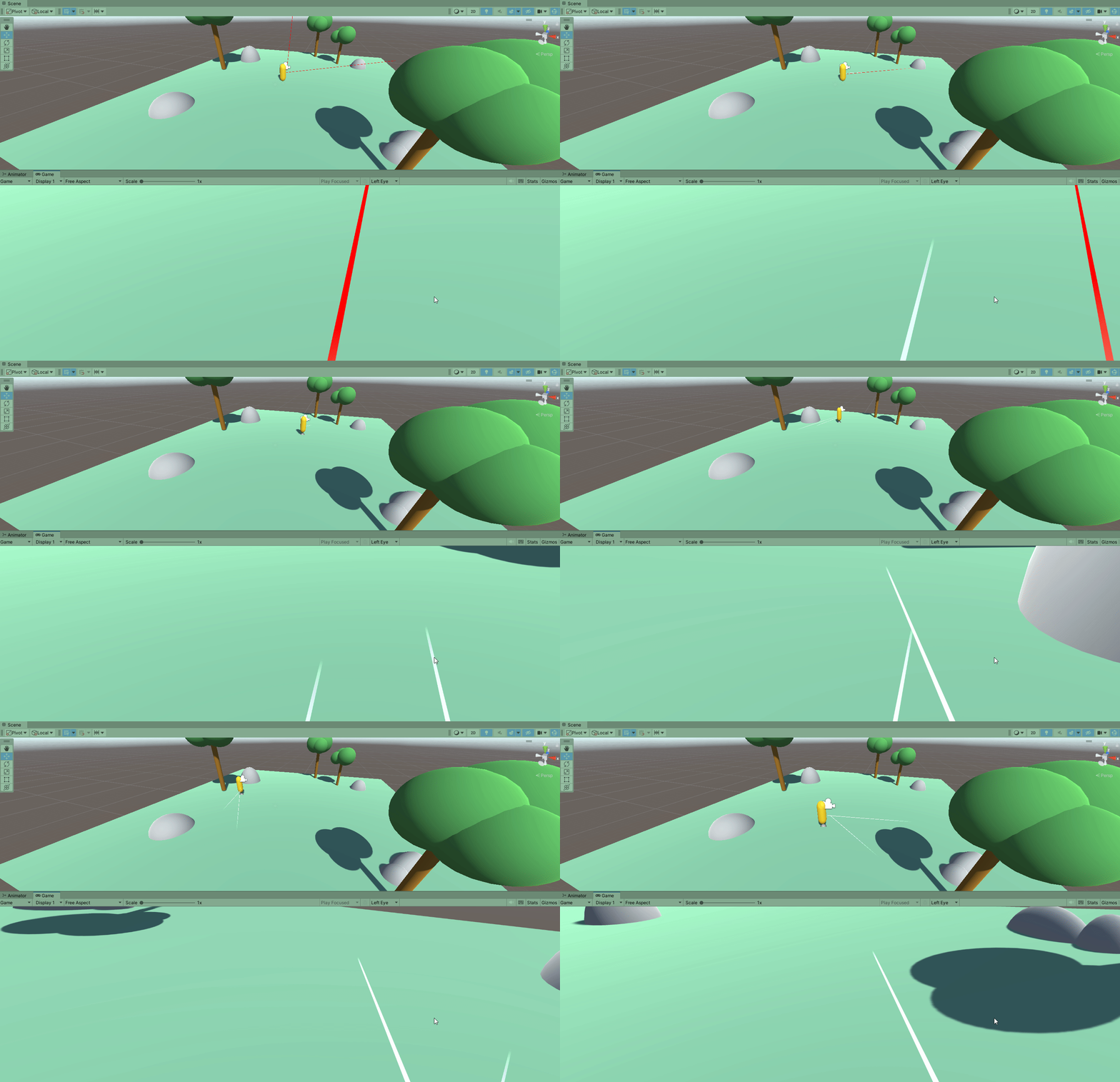
To get locomotion working inside of our game, we first require a Locomotion System to exist. This handles receiving input data and attempting to move the player.
- Select the XR Origin Object
- Click Add Component in the inspector tab
- Search for Locomotion System and add
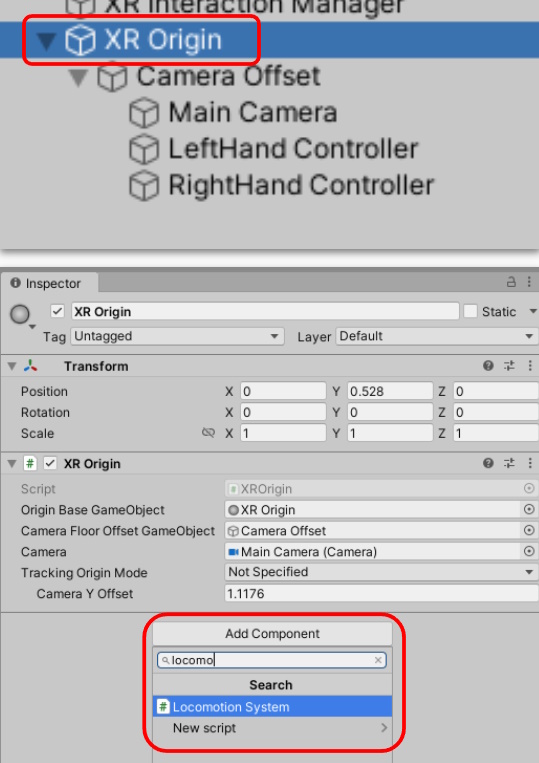
- Drag and Drop or Select the XR Origin object as the reference for the “XR Origin” Variable
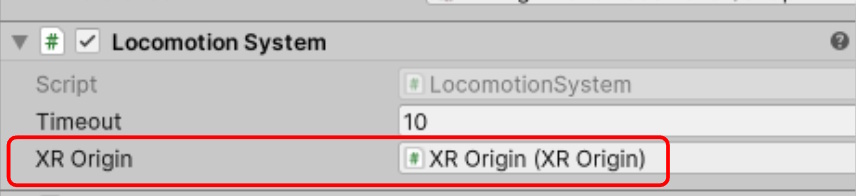
Next, we need to add a Provider. This is a script that handles receiving input from the controllers.
After receiving input from the controllers, it then processing the data and sends the end results to our Locomotion System (which then moves the player)
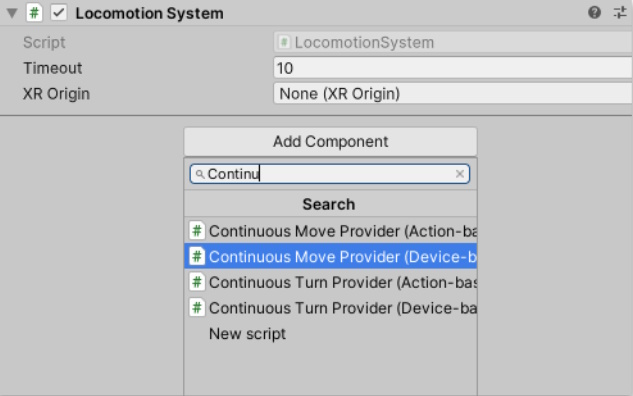
On the same object as the Locomotion System, click Add Component and search for Continuous Move Provider (Device-based)
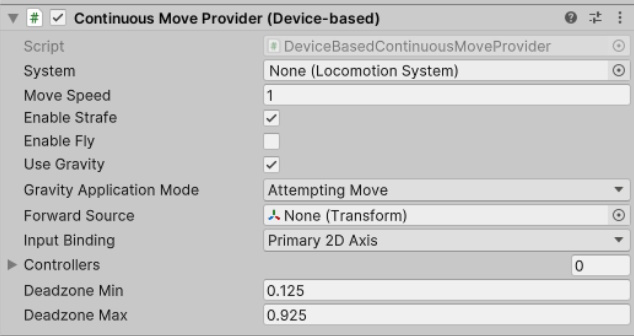
Note: It is important to to select “Device Based” as this is how we set up the origin originally.
To setup the provider, we need to assign which controller should be sending information to it.
To do this, Drag and Drop a controller object onto the “Controllers” List. You can add both controllers if you wish, but the universal standard is to use the Left Controller for this.
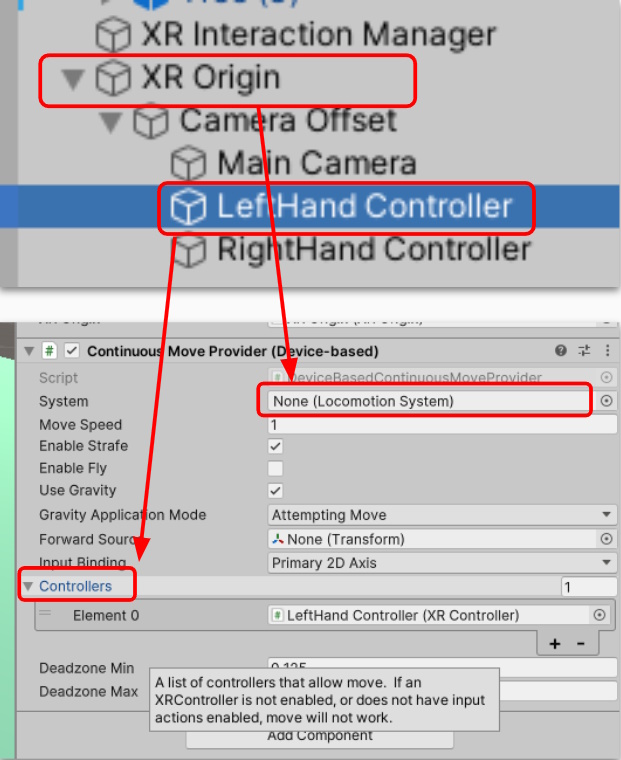
Lastly, Link the Locomotion System to your Provider by dragging the XR Origin object into the variable slot.
Play test! Run your XR Experience and try moving using the XR Controller you specified.
Try changing the “Move Speed” variable on the continuous Move Provider to something you are comfortable with.
Turning with locomotion systems
Another important aspect about designing an XR experience is how the player turns. Unless your game is designed to be played standing and turning on the spot in real life, providing a turn system to users is always beneficial.
The two main locomotion turn systems that most developers use are:
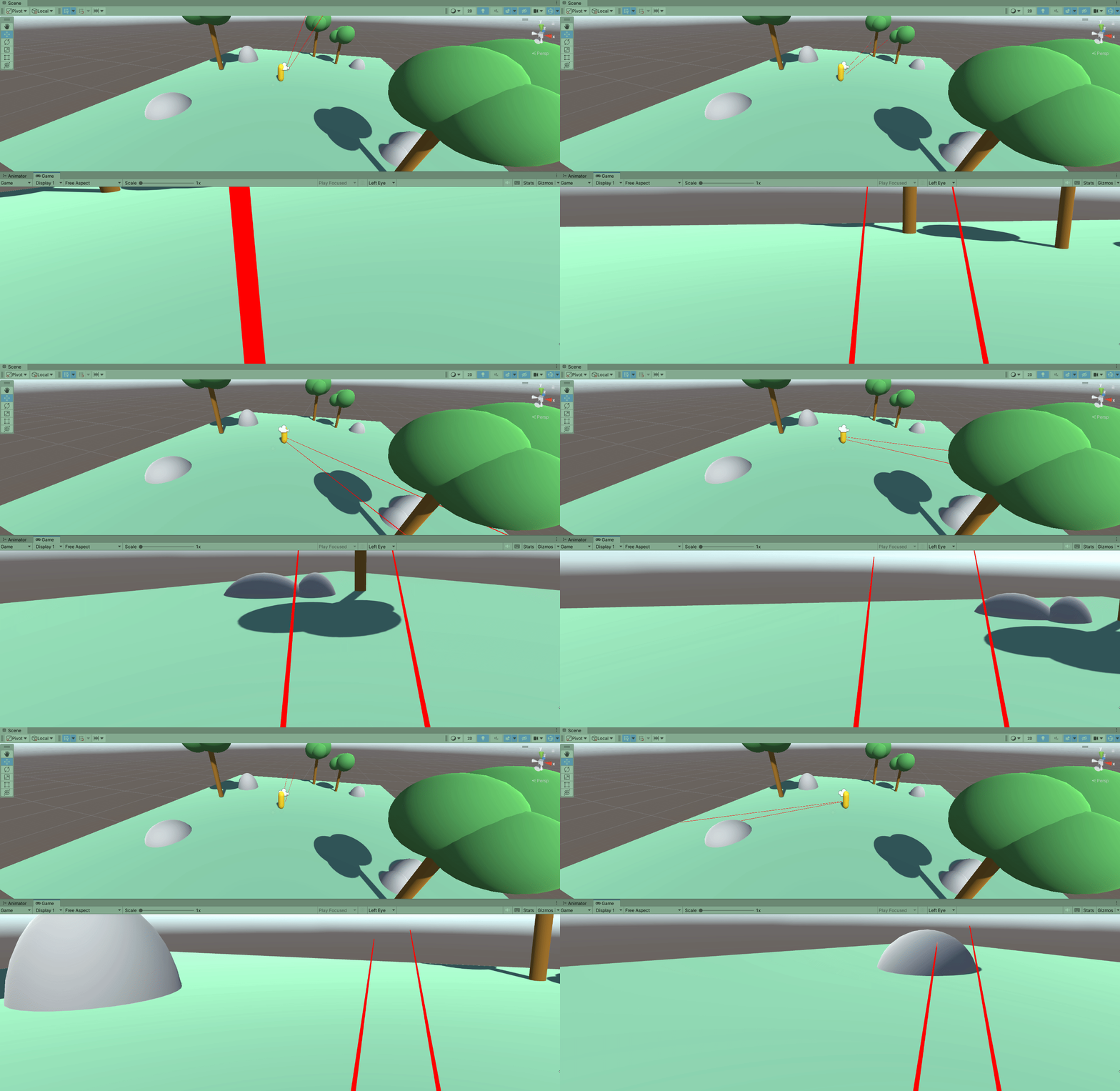
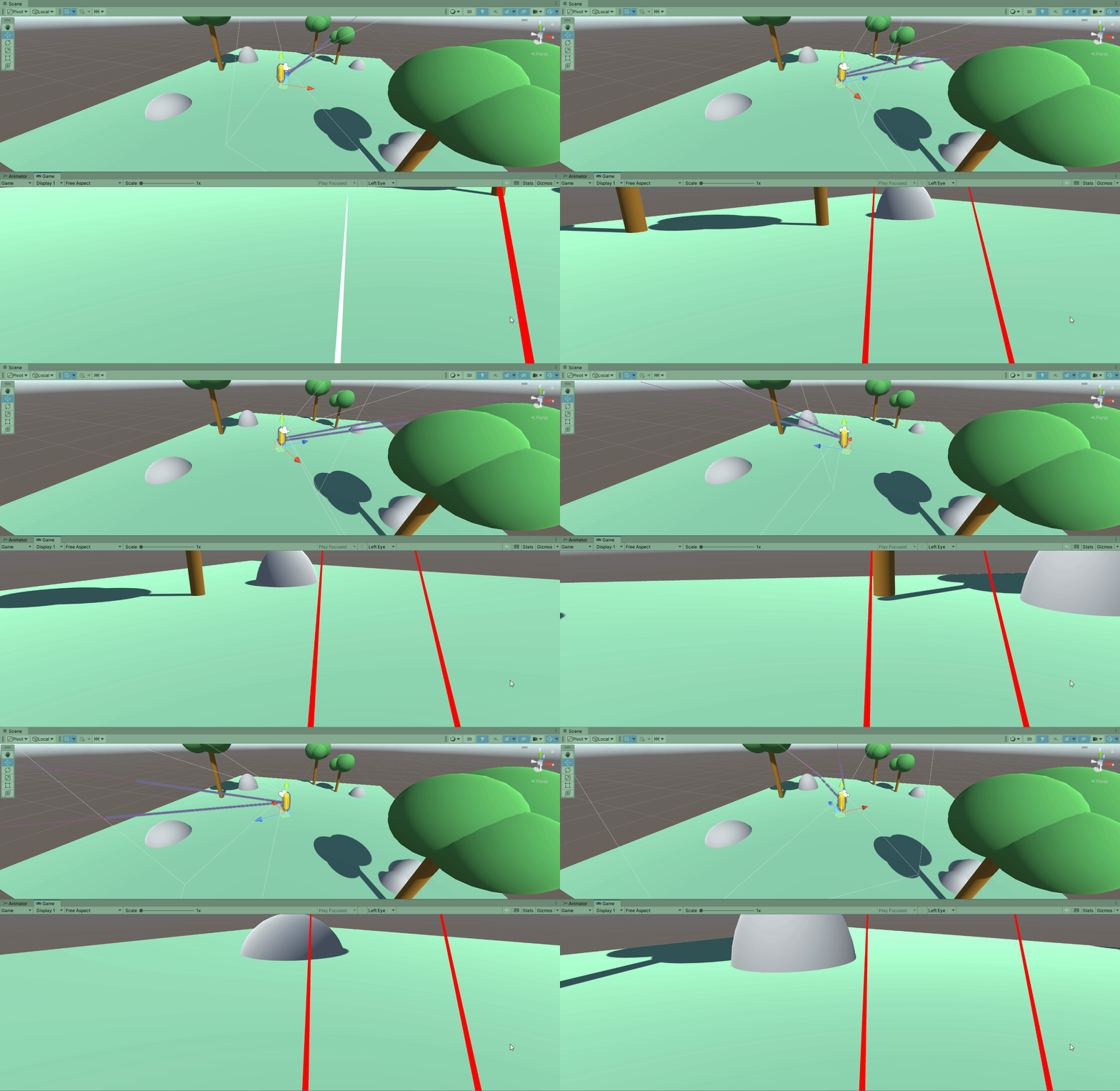
Snap Turning
Snap turning is the most comfortable for player who experience motion sickness. For that reason, we will choose Snap Turning. (Feel free to try Smooth turning instead)
- Select the XR Origin Object
- Click Add Component
- Search for and add the Snap Turn Provider (Device-Based)
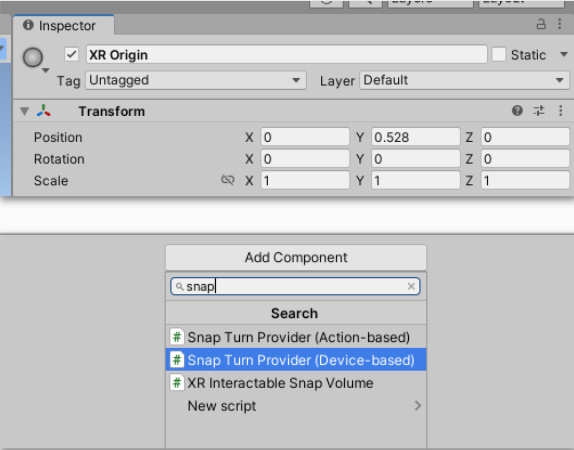
Note: Choose “Device-based” instead of “Action-based” as this is how we originally set up or XR Origin
Next, lets setup the Turn Provider. Set this up the same as our Movement provider, expect using the other Controller objects instead.
- Drag and Drop the Right Hand Controller object into the controllers list
- Link the reference to the Locomotion System by using the XR Origin object
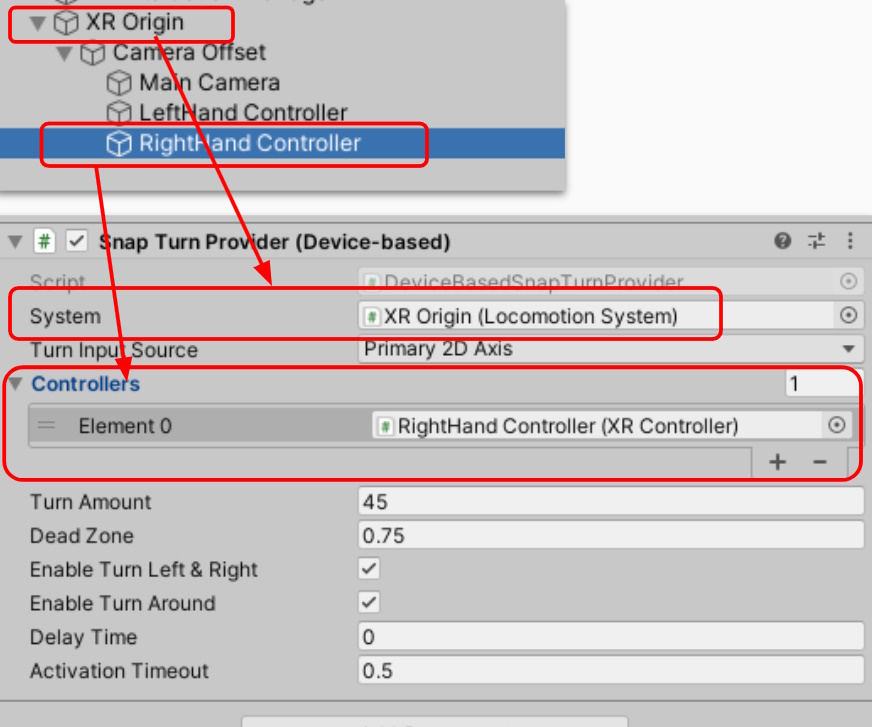
Play test! Run your XR Experience and try turning using the Right Hand Controller
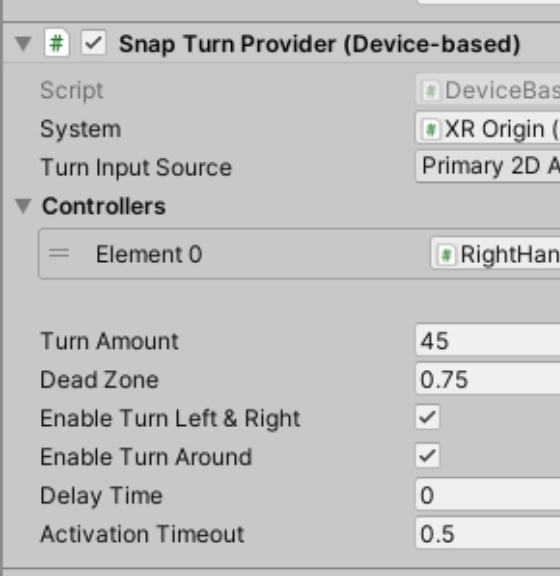
Try adjusting the Turn Amount value properties to something you are most comfortable with.
Creating an Interactable Object
To finish off this lesson, we will create a simple XR interactable object. This object will be grabbable and can be thrown with physics.
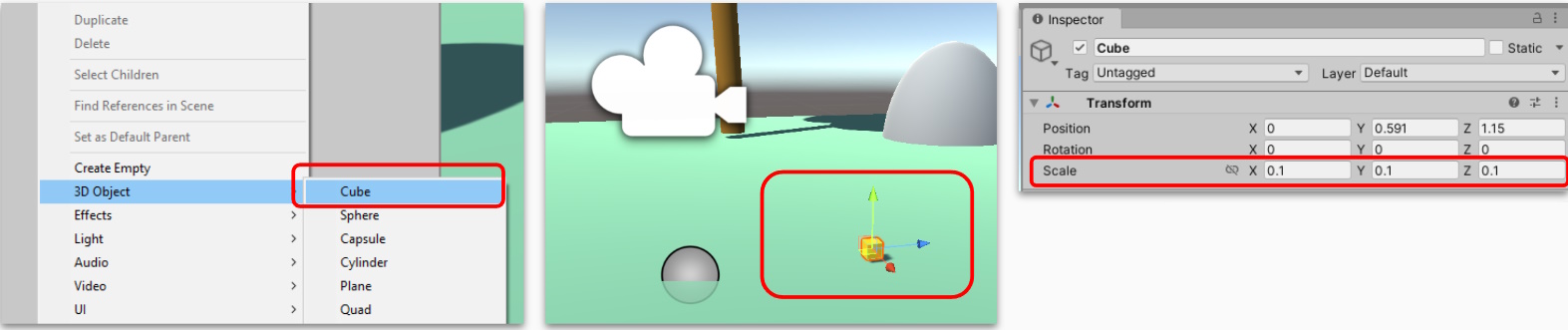
- Right Click and select 3D Object -> Cube
- Move the object to be in front of the player and above the ground object
- Scale the objects to 0.1 (10 cm) so that it won’t be too big in the players hand
- (Optionally) add a material to the object.
Next:
- Select the Cube object
- Select Add Component and search for “XR Grab Interactable”
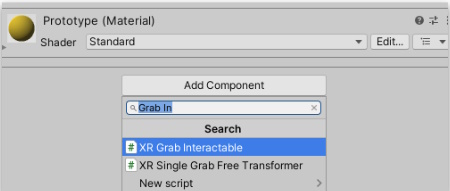
The XR Grab interactable will automatically add the RigidBody component if one is not already present.
This is because the interactable script relies on a Rigidbody being present.
A Rigidbody in Unity adds physics, gravity and forces, to the object that it is placed on.
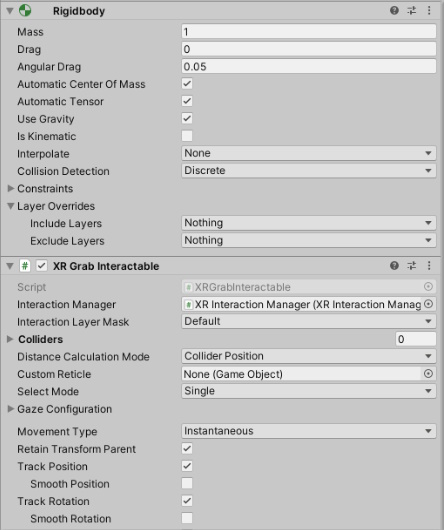
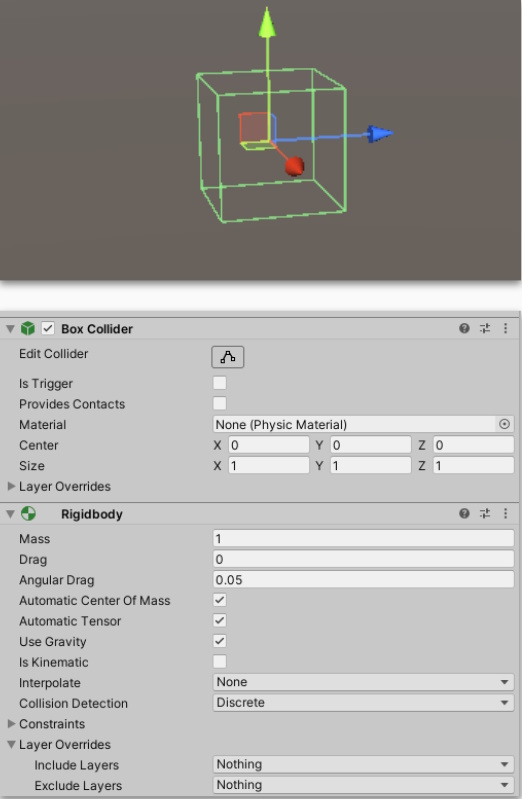
For an XR grab Interactable to function, it requires both and Collider and a Rigidbody.
The Collider is required so that the Game Engine knows what are the physical boundaries of this object. Any type of collider is fine, e.g Box, Sphere, Capsule, etc…
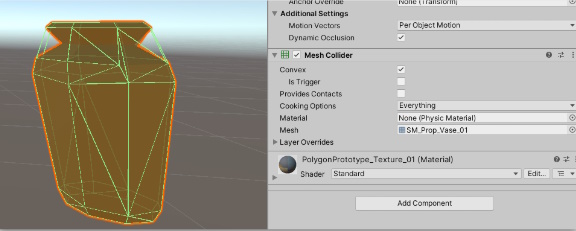
If a Mesh Collider is chosen, you are required to set “Convex” to true.
That’s it! Try playtesting and interacting with the object. You should be able to grab it with the Ray Interactors or by grabbing it Physically with your controllers.
In future lessons we will cover advanced practices such as Interaction events when we begin scripting and coding our Escape Room project.