
Lesson 01.1: (Optional) Installing KatVR Support for Unity
In this tutorial, we will cover how to download and install the required API’s for the KatVR hardware to connect with our XR Project. A KatVR Simulator will also be provided for testing installation without a KatVR device present.
This tutorial assumes you already have a project file created and have imported the necessary XR packages from the Unity package manager. If you have not yet done that, follow our Lesson 1 tutorial to make sure XR is working correctly first
Download the KatVR SDK
We first need to download KatVR’s Software Development Kit (SDK).
- Navigate to KatVR’s website or Click Here
- Locate the SDK Download page
- Make sure it says “Unity Integration”, then click “GET SDK”
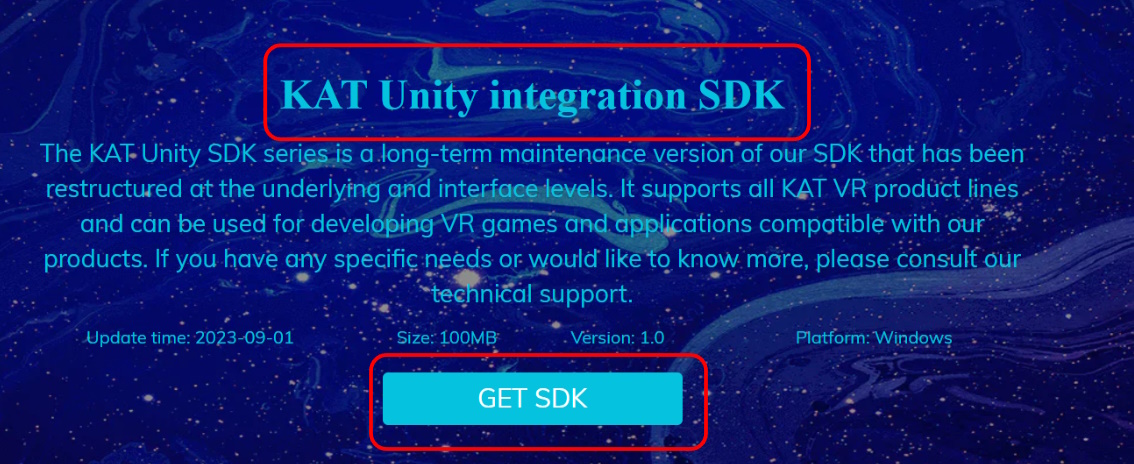
This will take you to a Google Drive link hosted by KatVR.
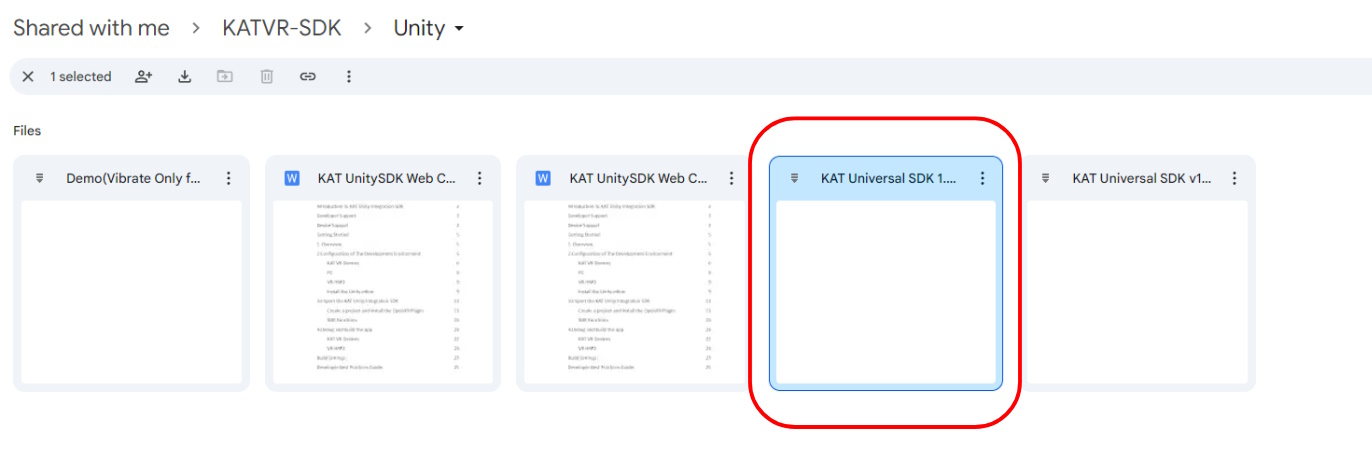
-Select and Download KAT Universal SDK 1.0 (Do not download v1.4, Though this is an improved version, it lacks support for the KatVR Simulator that we will be using for testing and development)
Import KatVR SDK
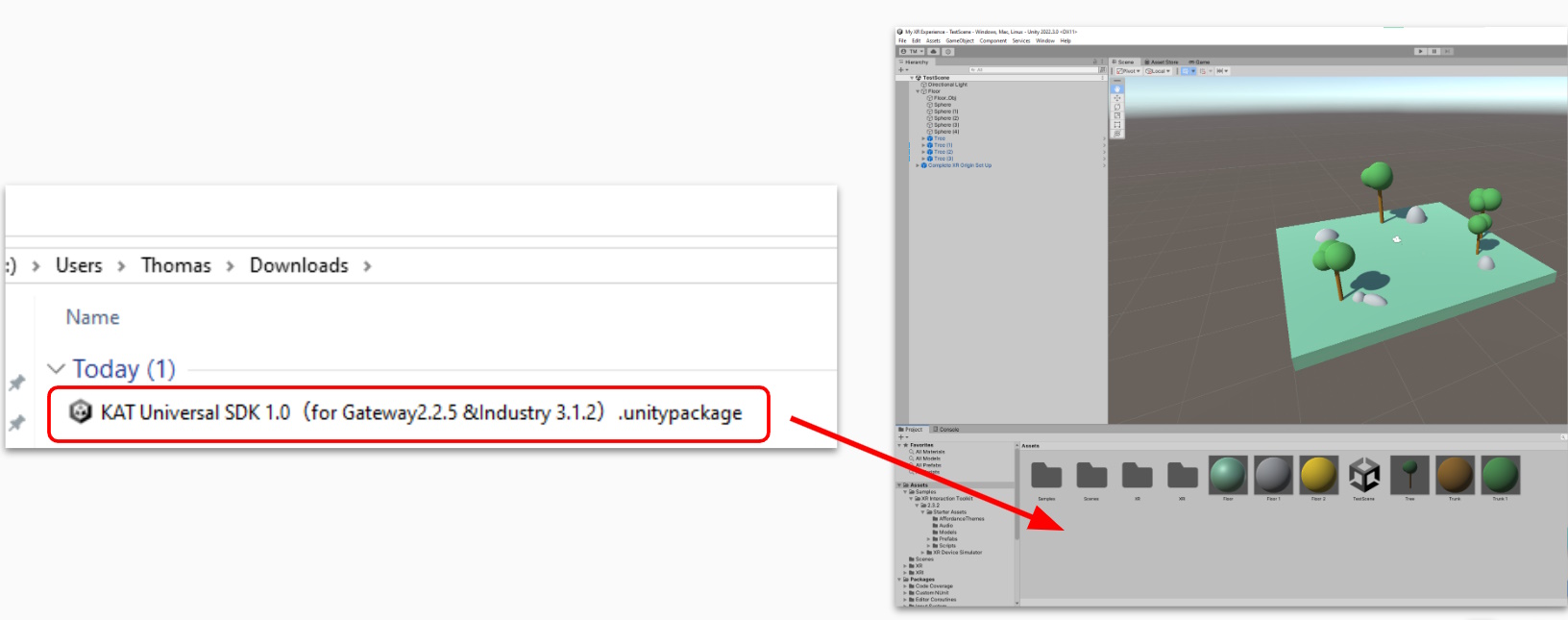
Once downloaded, you will have file with the type .unitypackage. These files can be directly imported into our Unity project. The easiest method is to Drag and Drop the file into your Unity Project
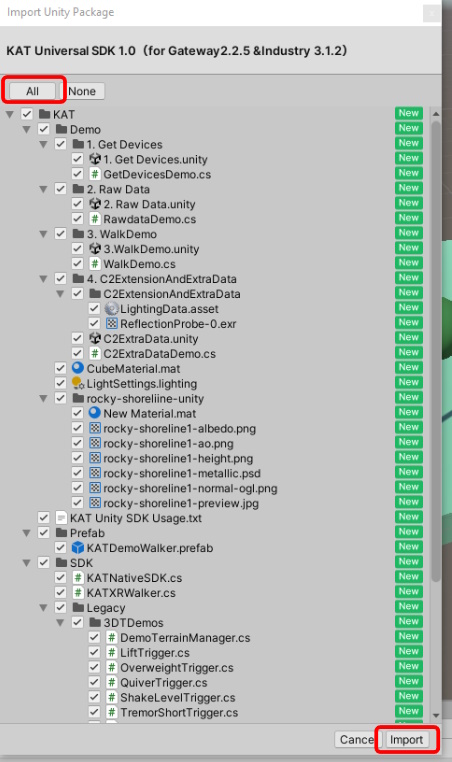
You will then be prompted with a Import Unity Package interface. Make sure everything is selected before importing as we need every script in here to insure it works correctly.
-Select “All” at the top of the screen -Double-check each box is ticked -Select Import
Setting Up the KatXR Script
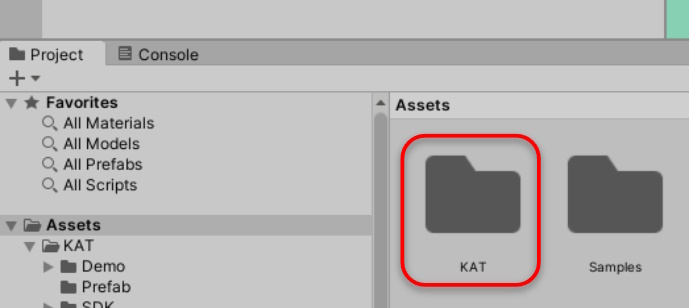
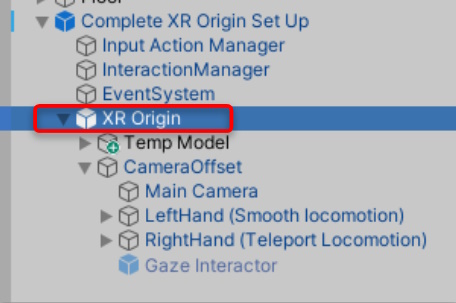
You will notice that a new Folder has been created with the KatVR SDK inside. To connect KatVR to our XR Origin (The player in our scene), add the KatXR Walker script to our XR Origin (The object that will move):
-Select the XR Origin
-In the inspector, click Add Component
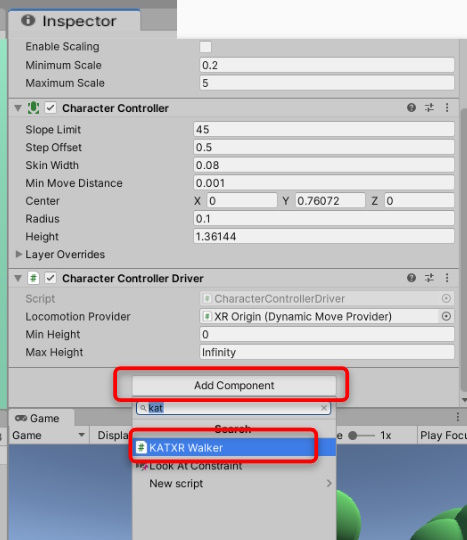
-Search for and add the KatXR Walker script
With the script attached, we need to make changes to 3 of the properties for our script to function correctly:
- Drag and Drop the ‘XR object’ into the “XR” slot
- Drag and Drop the ‘Main Camera’ into the “Eye” slot
- Select “Character Controller” from the “Execute Method” drop down
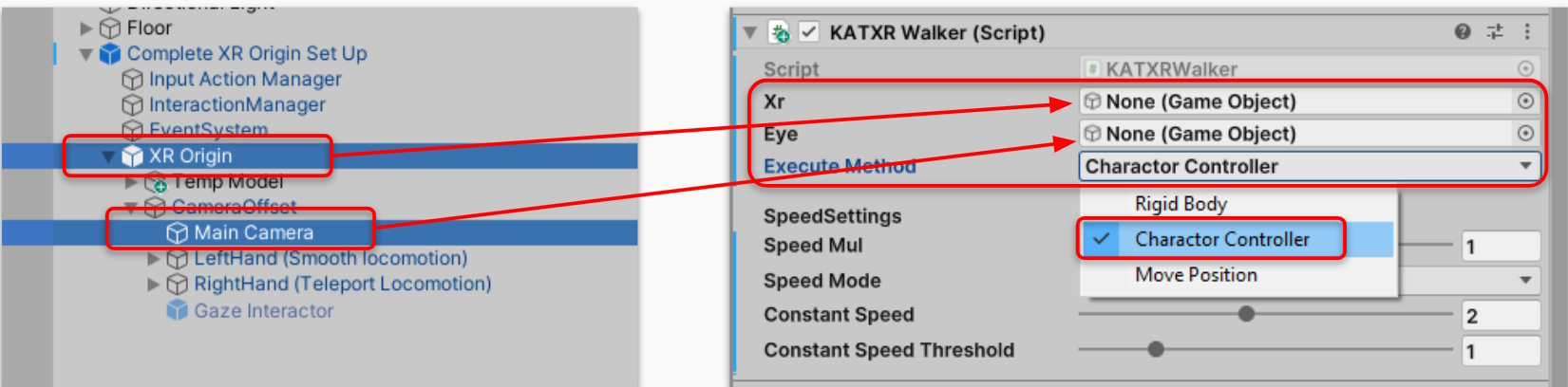
Testing KatVR SDK
Done! KatVR devices will now transmit their data into our project and will also move our character based on the input received from.
Try give it a test now! If you don’t have a KatVR device currently connect, the next few steps will cover how to use the KatVR Simulator
Testing with the KatVR Simulator
If you don’t have a KatVR device to check whether the SDK has been installed correctly, you can instead test using the KatVR Simulator Tool.
To download and use the KatVR Simulator, Click here to download the .zip file from the KatVR Google Drive
Alternatively, you can download a copy from our own Google Drive, incase KatVR changes their sharing permissions.
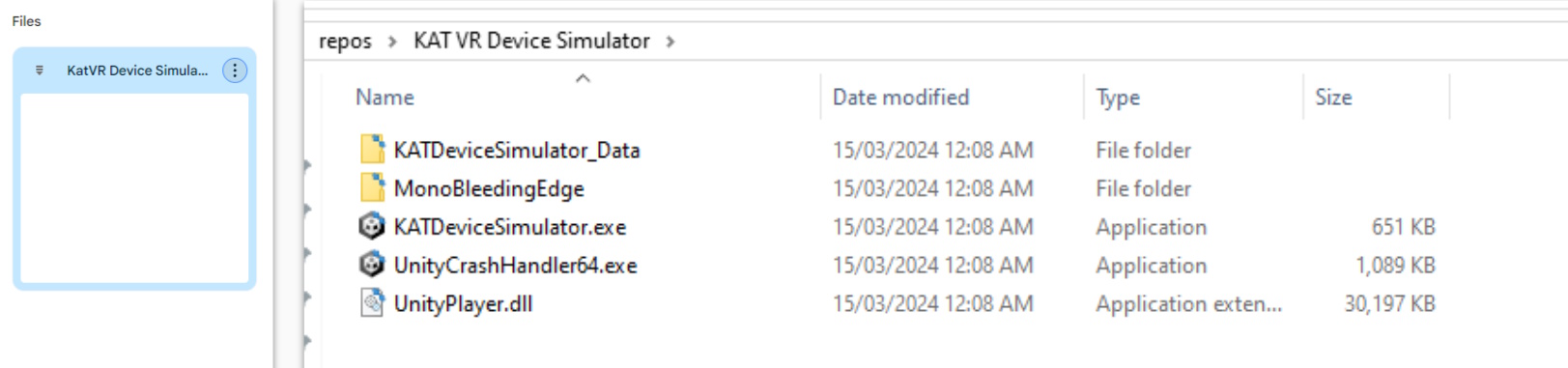
To use the KatVR Device Simulator:
- Run the KatDeviceSimulator.exe. (Leave this running in the background)
- Select which Device you want to simulate.
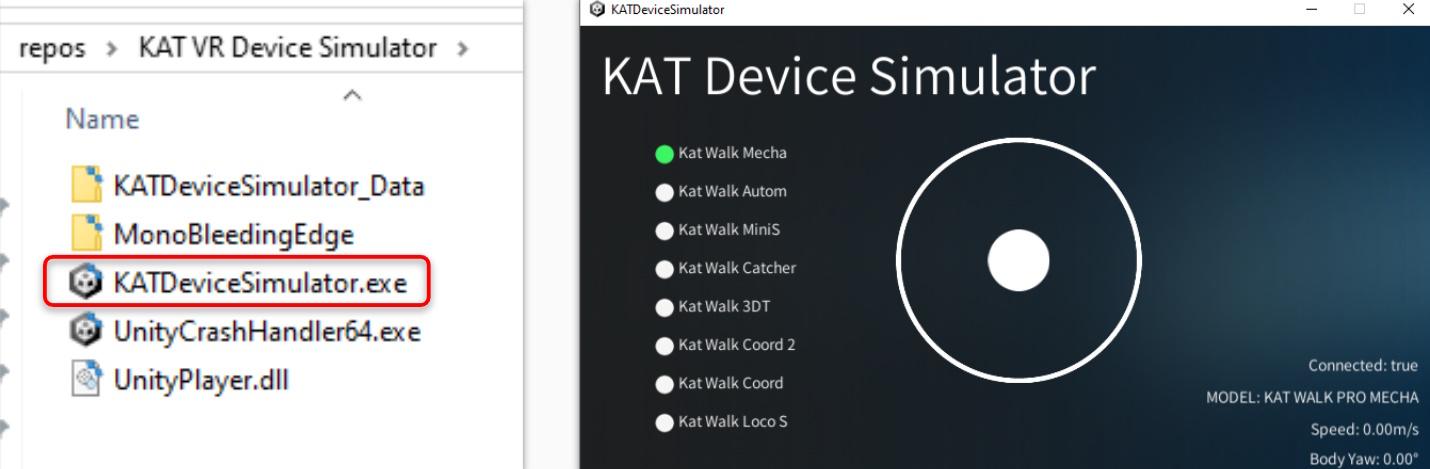
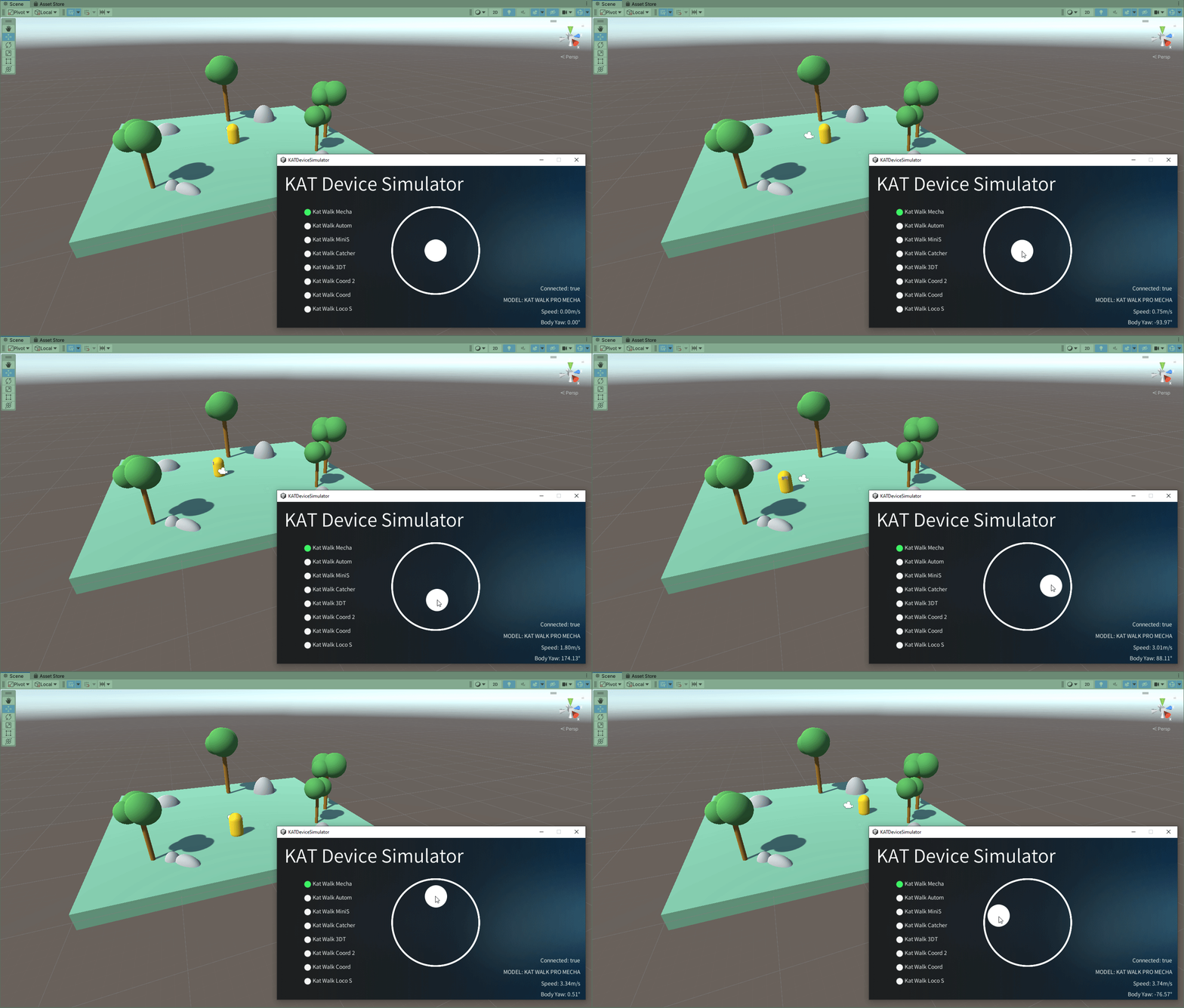
Done! Test your project again, except this time, try moving the input wheel around on the Device Simulator. You should be able to see the movement of our character being controlled.
Optionally, add a visual mesh to your character to better see the results.