Lesson 03: Asset Collection
In this lesson, you are to decide on a theme for your Escape room. This theme should help answer the following questions about your project:
 Kua reri? - Ready? It's your turn... Answer each of the following questions untill a theme starts to form
- Where does the Escape Room take place?
- What does the environment look like?
- What do the buildings look like, if any?
- What type of objects will the User interact with?
- What type of Audio and ambient effects will there be?
- What kind of Characters / NPCs will be there, if any.
- Etc...
In the tutorial project, we will be creating a Space / Sci-Fi themed escape room. Feel free to follow along with your own Theme, replacing objects where it makes sense.
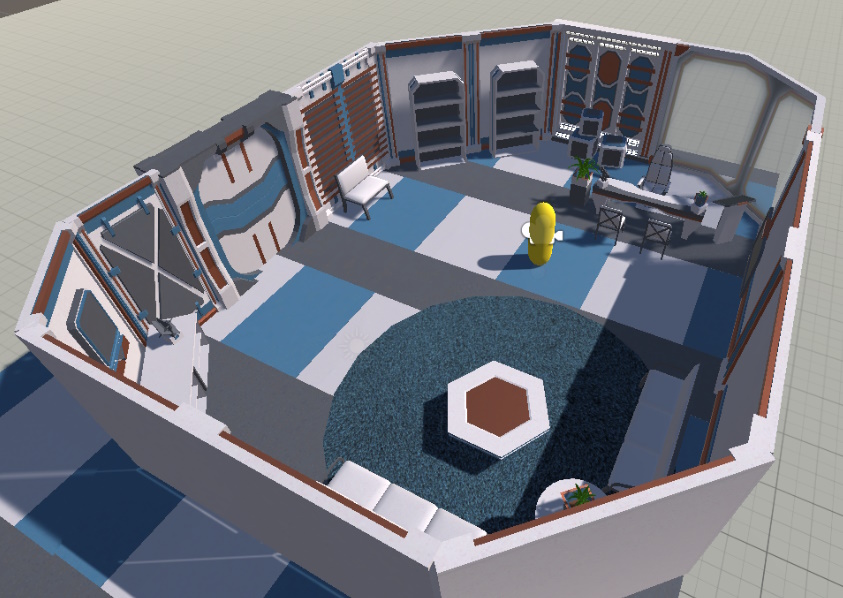
With our theme chosen, think about the following points:
- What objects will the Player be able to interact with?
- How can these objects be used in a puzzle?
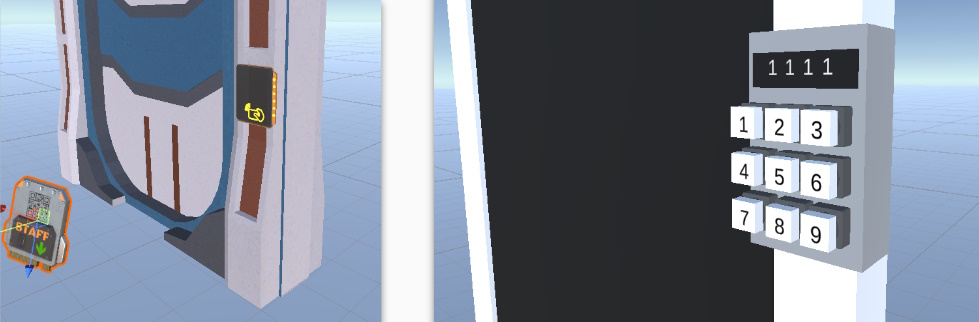
For example, one of our escape rooms will be solved using a hidden Keycard on a locked door. Another example would be a hidden code that needs to be imputed into a keypad.
Greyboxing our environment
What is Greyboxing? “ … the process of adding simple shapes to the 3D space to figure out how users will experience gameplay, before investing time into scripting the gameplay or creating complex assets.”
Essentially, it allows developers to block out environments so they understand how complex their game needs to be.
Start by creating a new scene by Duplicating our test scene.
- Select our Original Test scene
- Press Ctrl + D
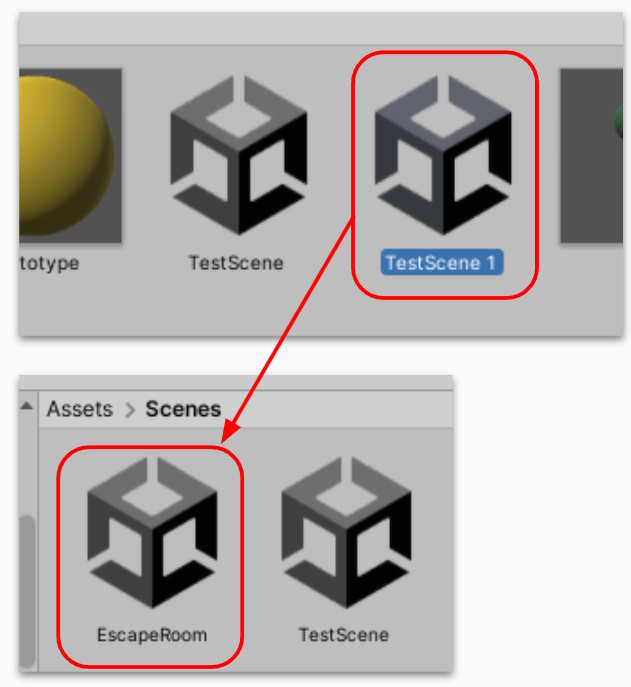
This will make sure we have a working copy of the XR Rig we setup previously
Kua reri? - Ready? It's your turn... Answer each of the following questions untill a theme starts to form
Start by creating a grey-boxed room. This room should also contain a simple puzzle and solution. For this example, we will hide a key/keycard in the room.
When greyboxing, you should:
- Try to use only primitive 3D Shapes (e.g Cubes, Spheres, Cylinders, etc…)
- Use simple materials to help define objects within the scene
- Think about the scale of the objects as you are placing them around the room (By default, 1 unit in Unity measures to be 1 meter in real life)
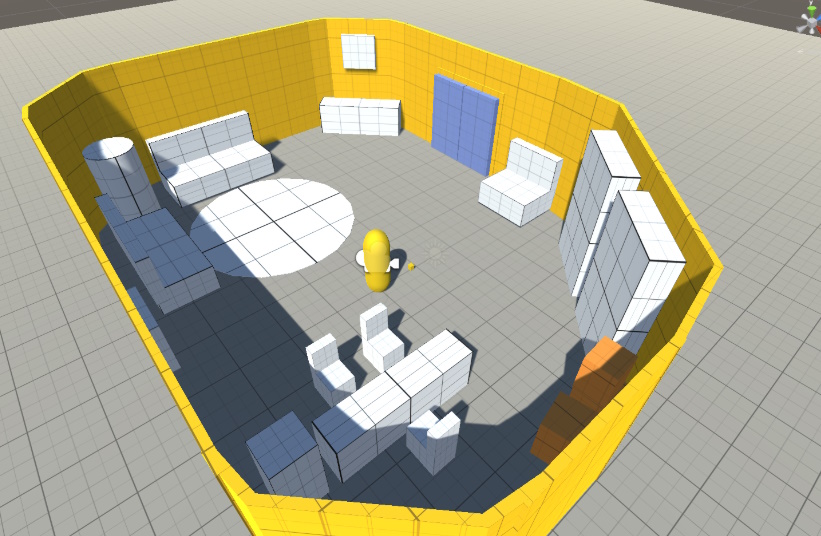
Give your game a playtest! Is the room scaled correctly? Is there enough items/furniture?
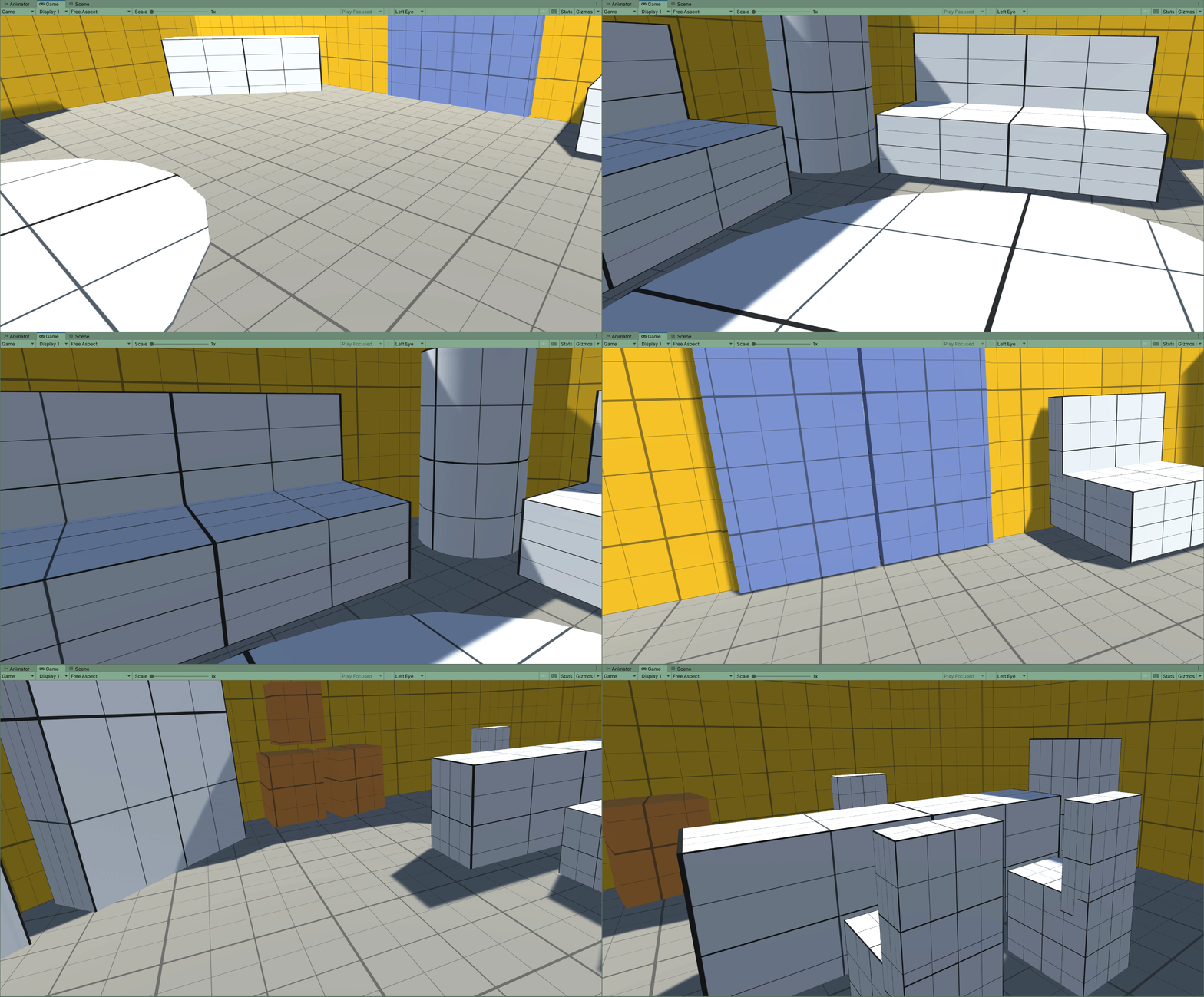
From my playtest here, I can see that much of the furniture is quite large.
My next step would be to re-scale these objects and playtest again.
Asset collection
Now that we have a room that is grey boxed, we can begin finding assets related to theme.
For my example, I need to find assets that fit a Sci-fi/Space theme while also having Office Furniture.
There are a number of ways to download assets:
- Search the Unity Asset store
- Download 3D models directly from sharing sites like TurboSquid or CGTrader
- Design your own using Blender or Maya
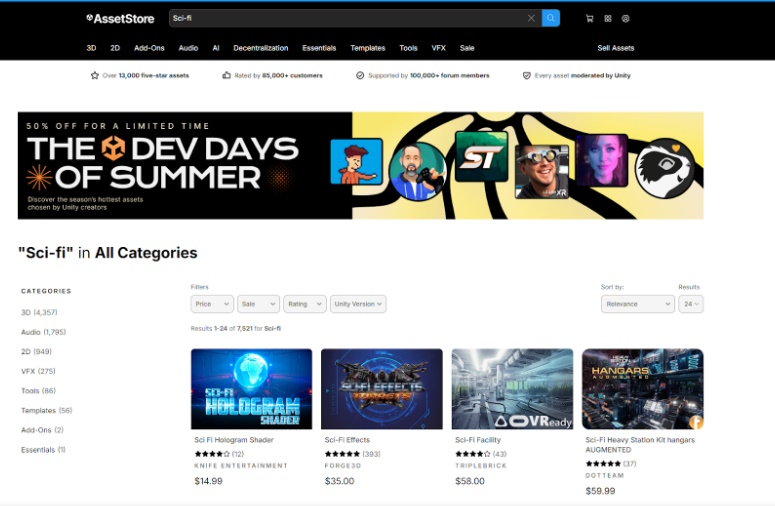
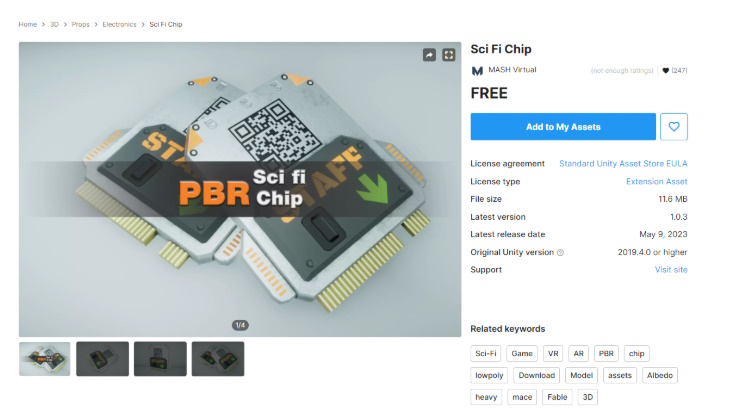
For this example, we will use the Unity Asset store and look for free asset packs. Try to find a pack that has multiple assets in it. This means we will have a fairly consistent art style. I chose:
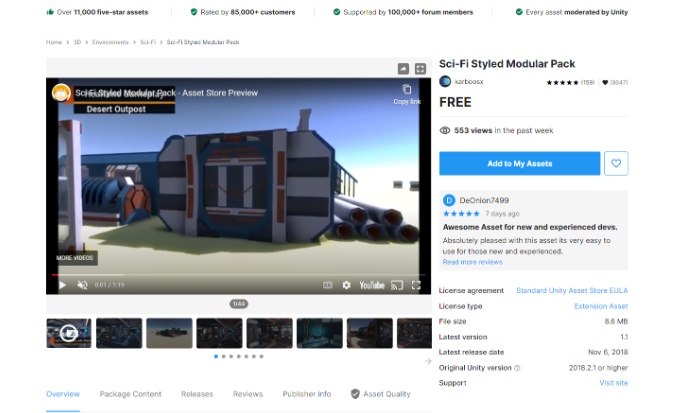
To add an asset pack and download it into Unity:
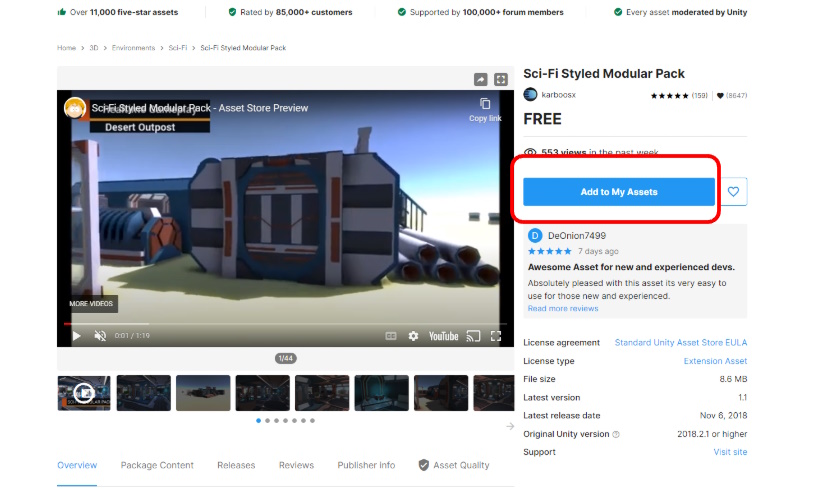
- Sign into the Asset Store with your Unity account
- Choose the asset you want
- Click Add to My Assets
- Open your Unity Project
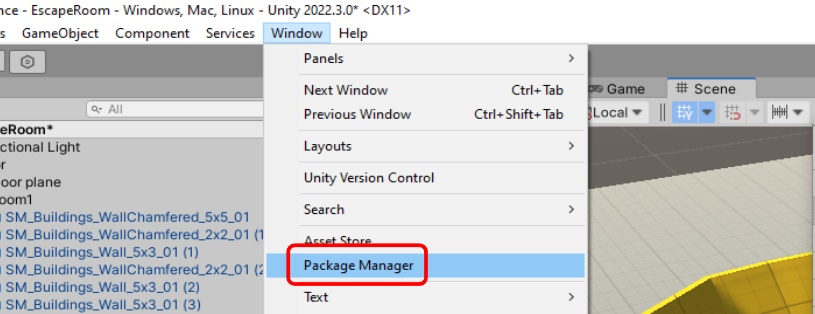
- Go to Window-> Package Manager
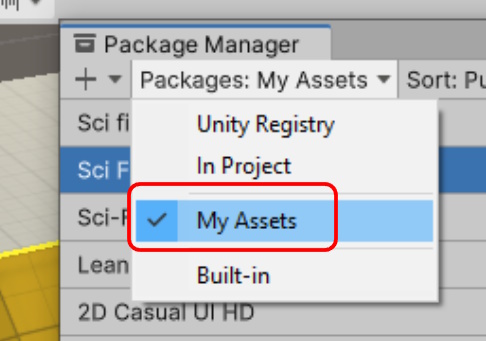
To see your assets, you first need to to filter by Packages -> My Assets.
- Select the assets you want to import
- Click download if you haven’t done so already
- Then, click import to bring them into your project.

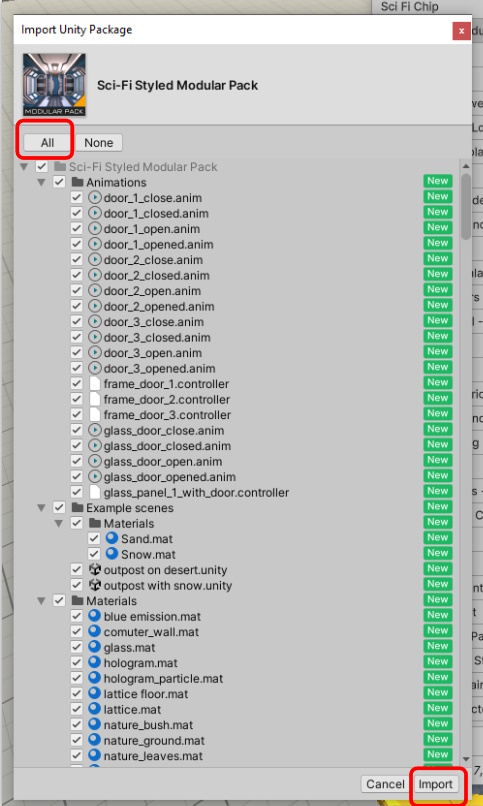
When importing you will be asked which assets from the asset back should be included.
By default, importing All assets is usually the best practice, as many assets might have dependencies on each other.
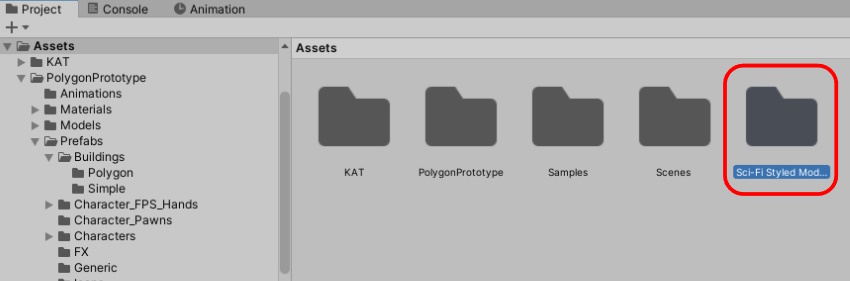
After importing assets, you should see another folder appear.
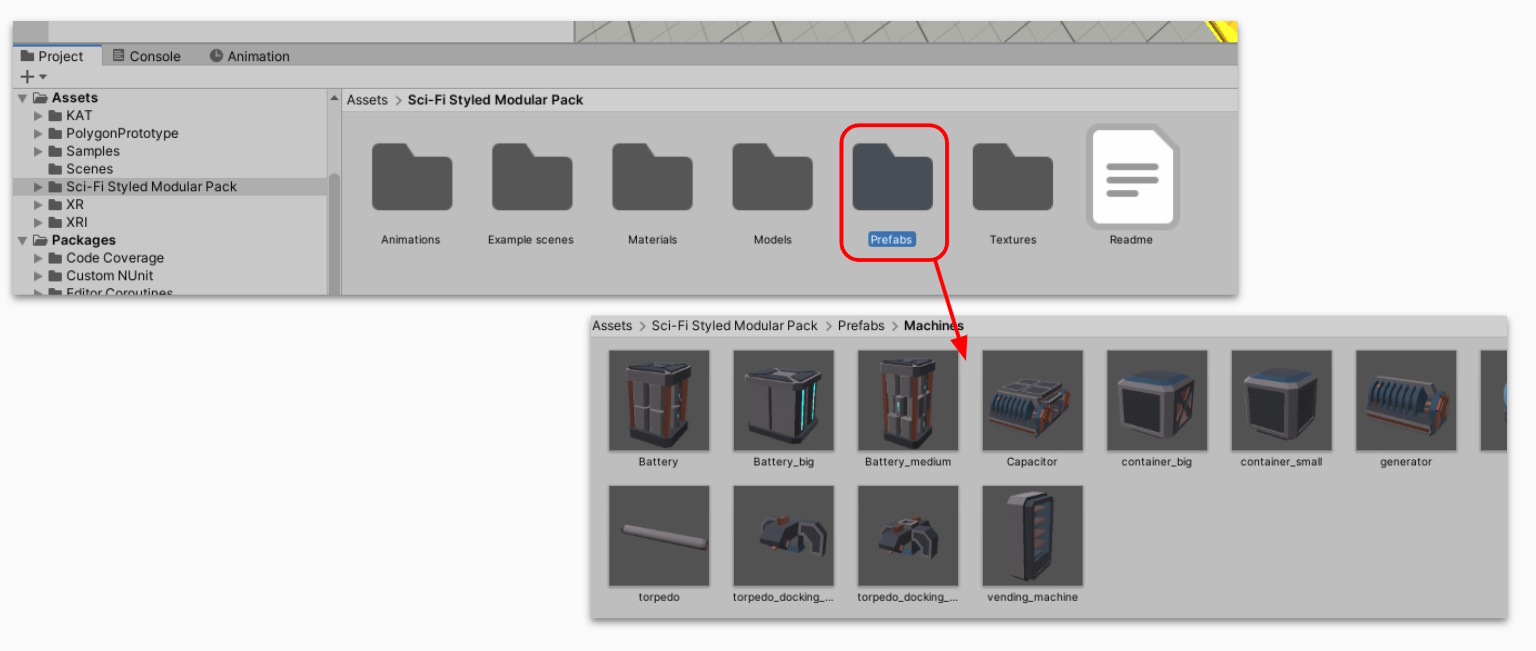
To begin using your assets, look for the Prefabs folder, not the models folder. The prefabs folder contains all of the models with their scale, textures and materials already applied.
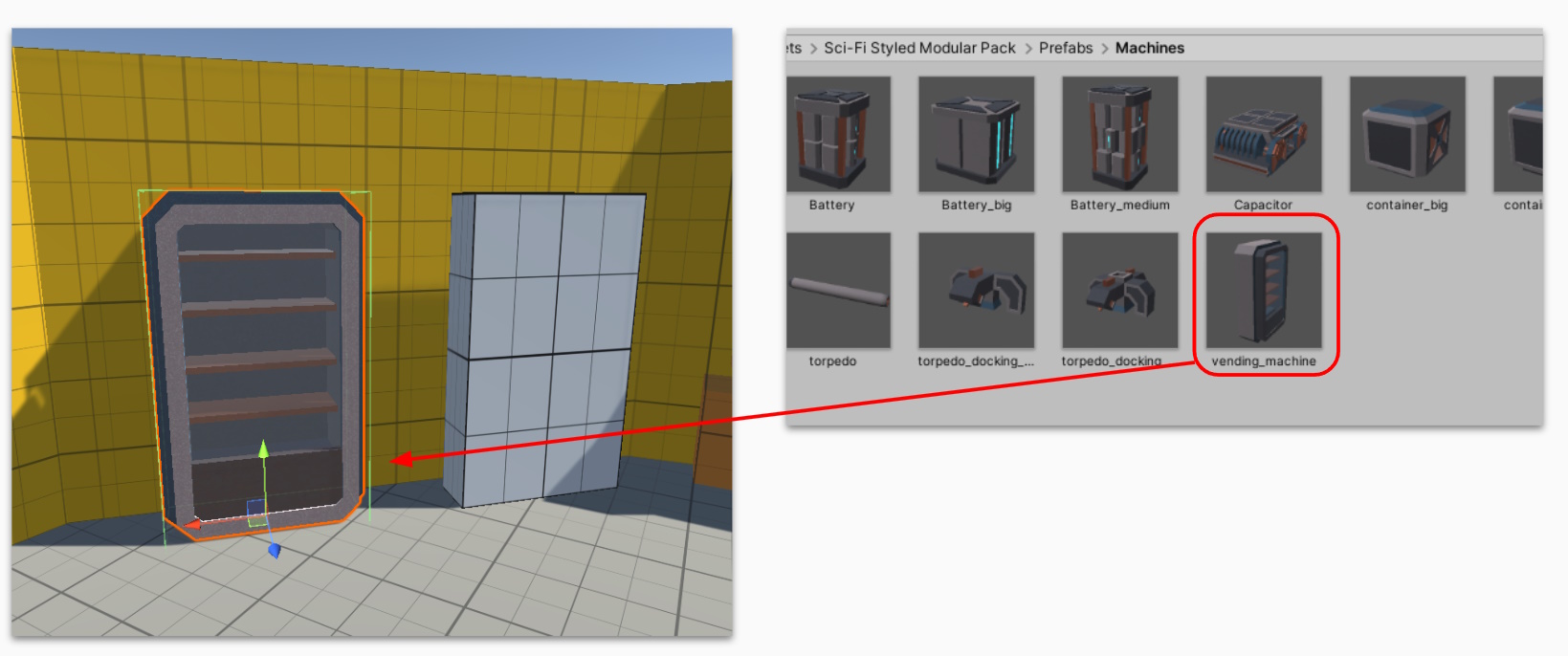
Start replacing Assets where possible. Drag and Drop them into the scene, and rescale them to fit the environment.
Downloading Extra Assets
Download additional assets from the Asset store or Online to complete your room.
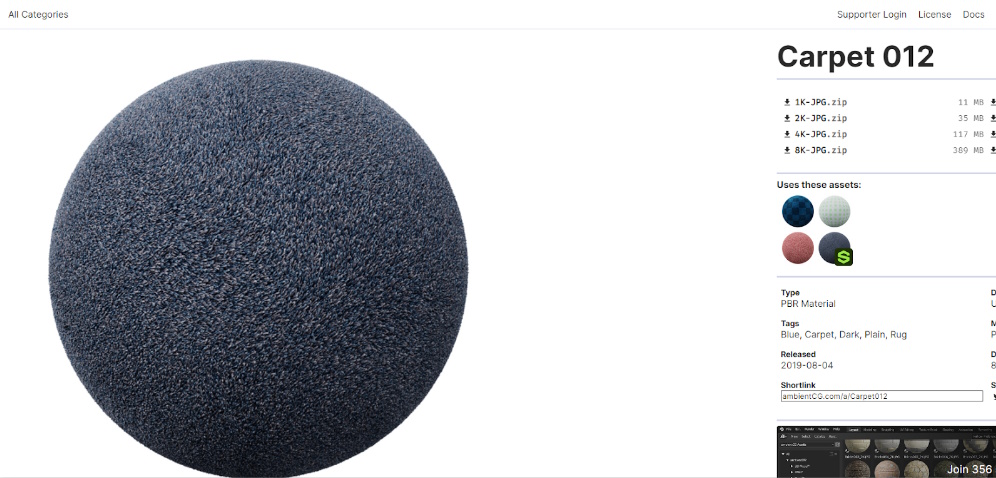
Ambient CG - A Material sharing website
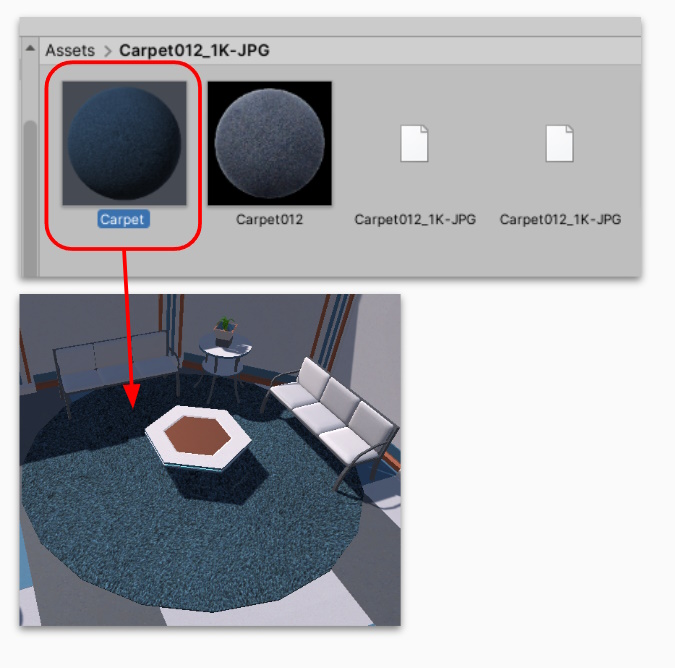
Done! Playtest again to make sure the scaling is correct and decide if you need to add anything else.
Optional - Start adding interactions
Start adding physics and XR Grabbable scripts to loose objects in the scene to increase the level of interactivity. Remember, this will be an Escape Room, so player will naturally want to look around the environment.