
Lesson 04: Socket Interactions
Socket interactions work by having two objects:
- The Grabbable Object that can be attached
- The Socket Interactor that detects certain objects
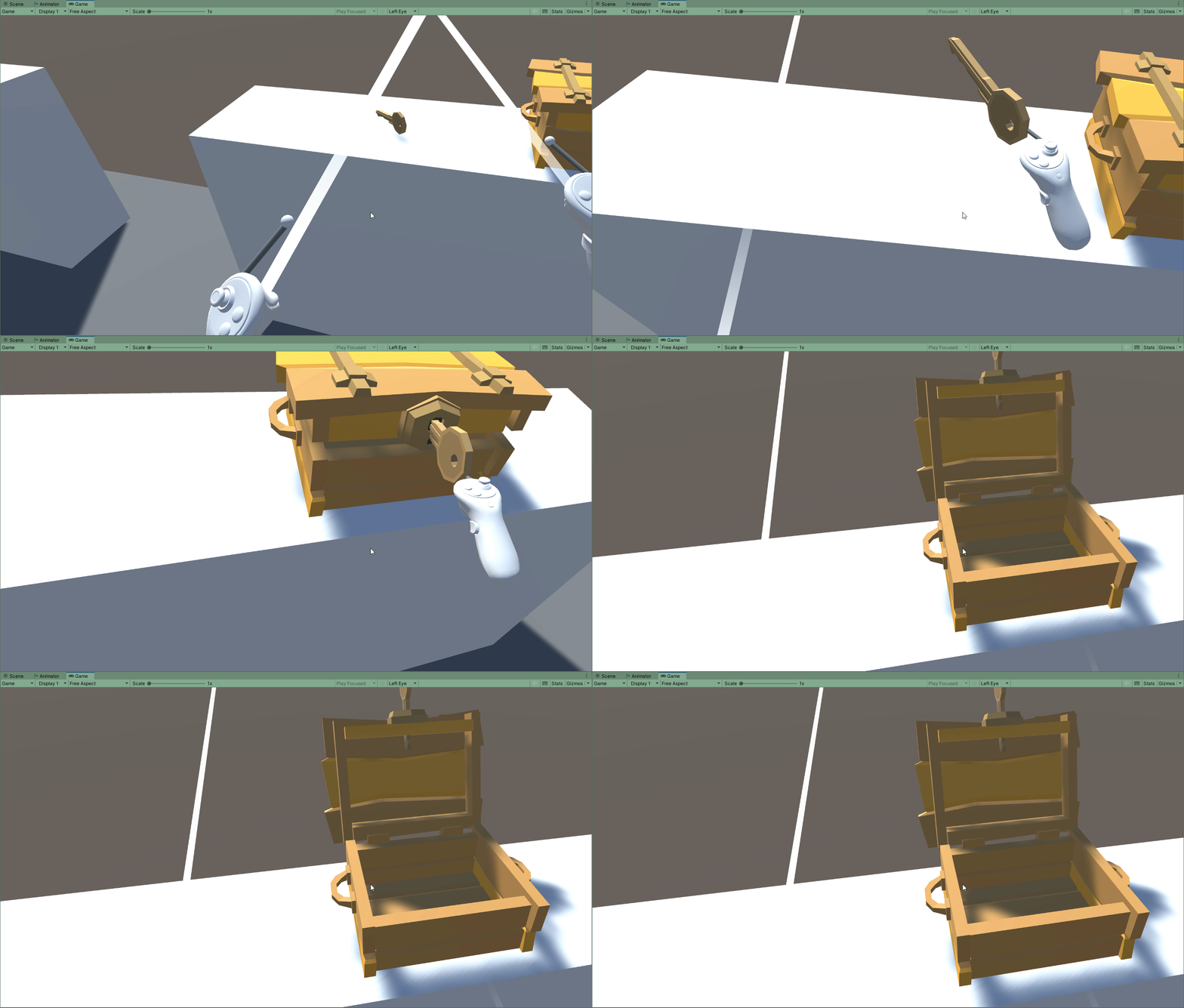
Socket Interactors can detect objects by using colliders. If a grabbable object is placed within the boundaries of the collider, it then checks if it should attach the object. This can be further filtered by using Layers.
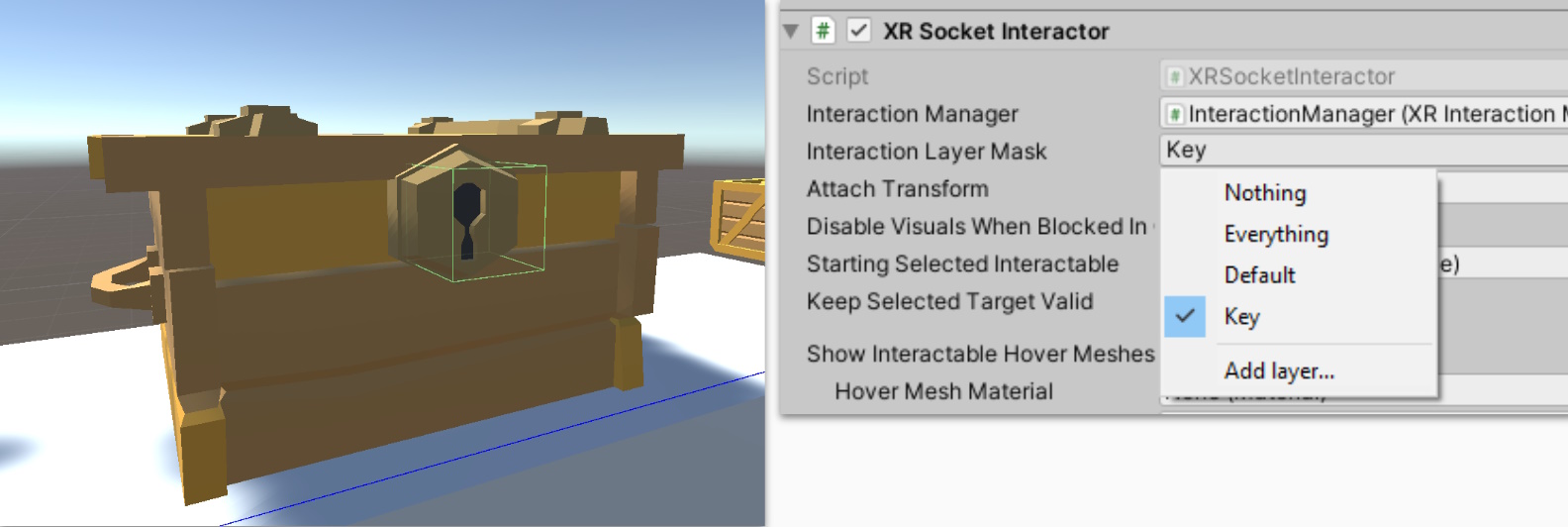
For example, we can set the Key object, to the layer of “key”. If we set the Socket to only interact with the “Key” layer, then our Key can be placed within the keyhole.
This also means that objects that do not have the “Key” layer will not interact with that specific socket. This allows us to choose what objects should snap where.
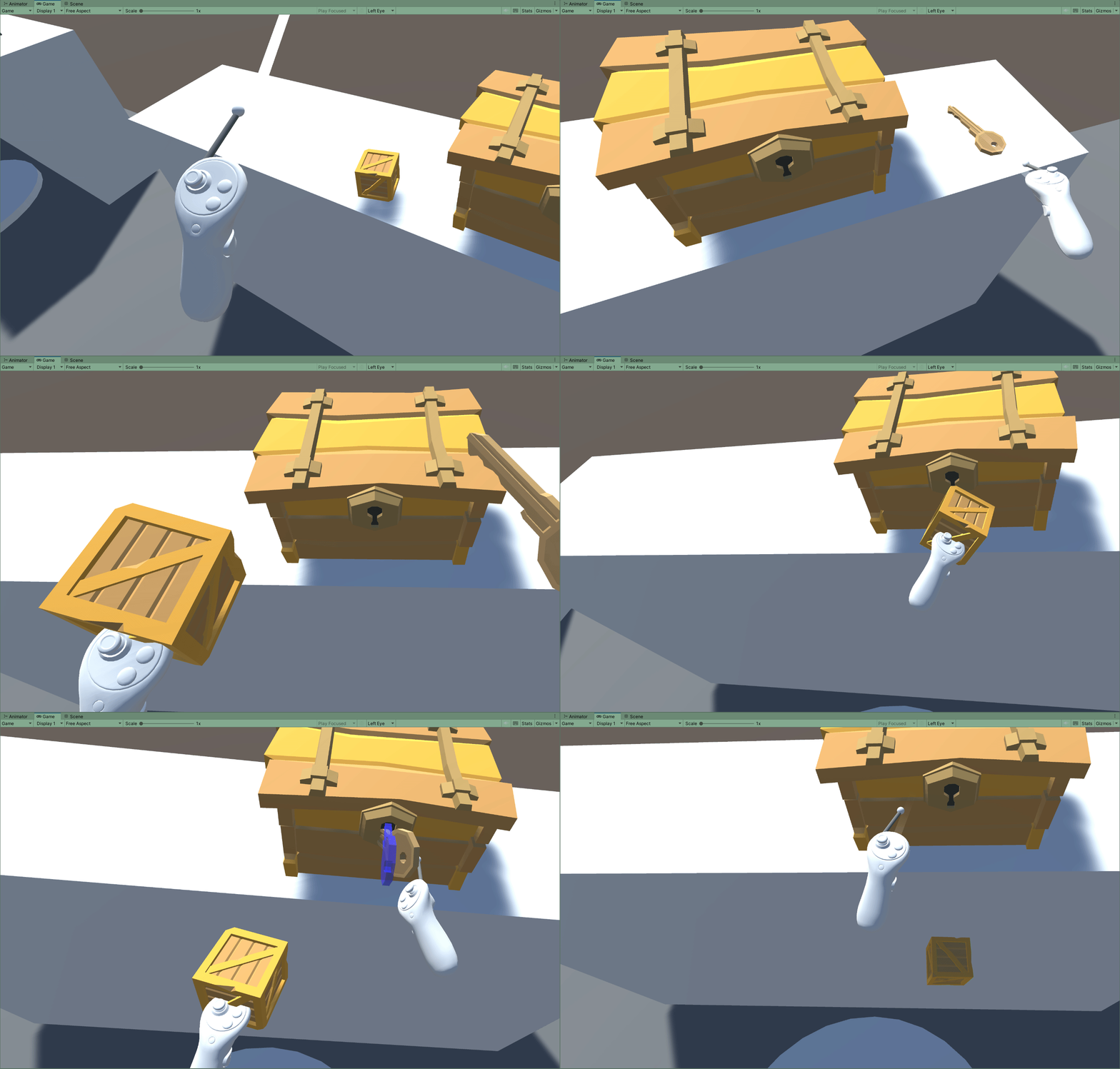
In our Escape Room, what happens if we have multiple objects on the Key layer? Will we let any key open any door?. How do we differentiate between different keys?
One Answer to that question is to use an additional Identifier. By giving a key a unique Name or Tag, we are able to verify if the key inserted into a certain socket is correct. We will cover this later in this lesson.
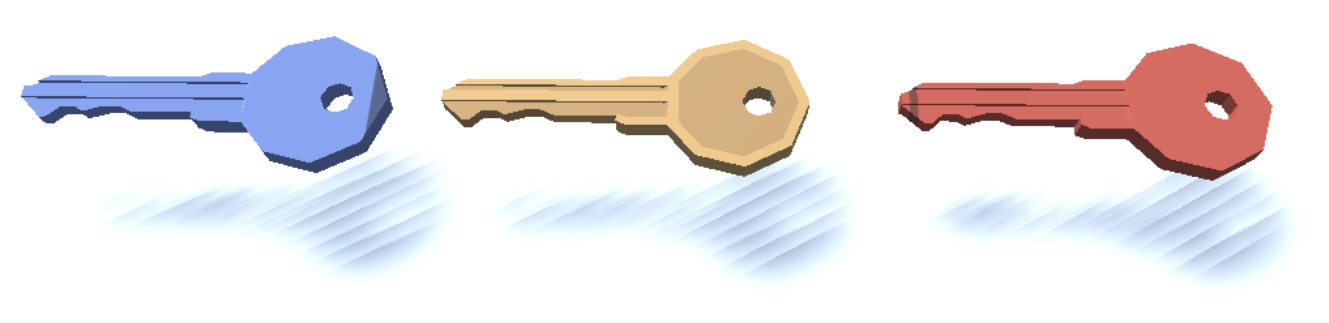
Creating our Key Object
To create our key object, first decide on what object you want to use as a Key. In this tutorial, we will be using the “KeyCard” object that we got from the Unity asset store.
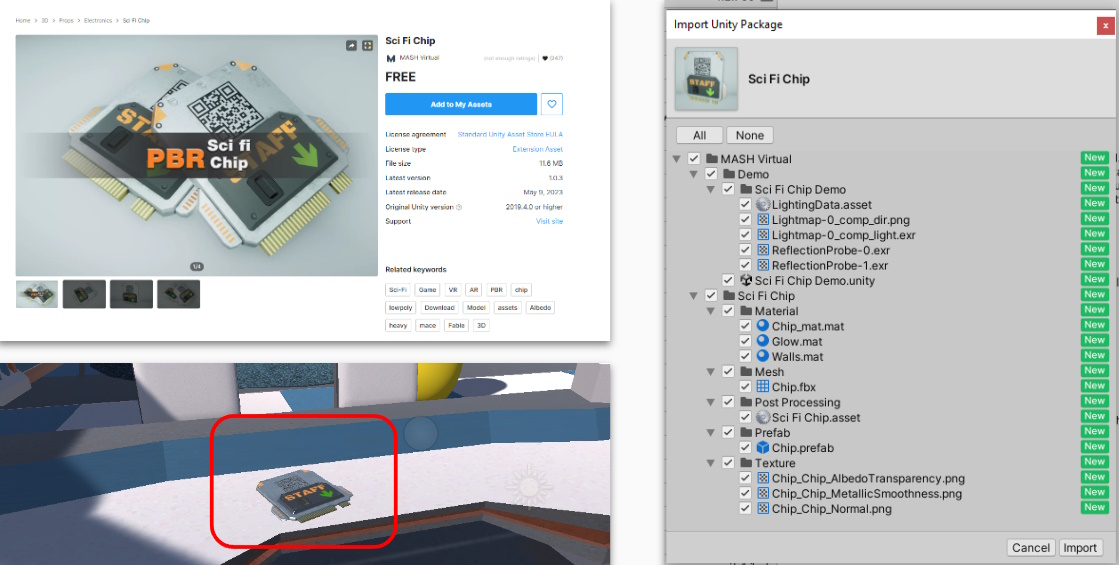
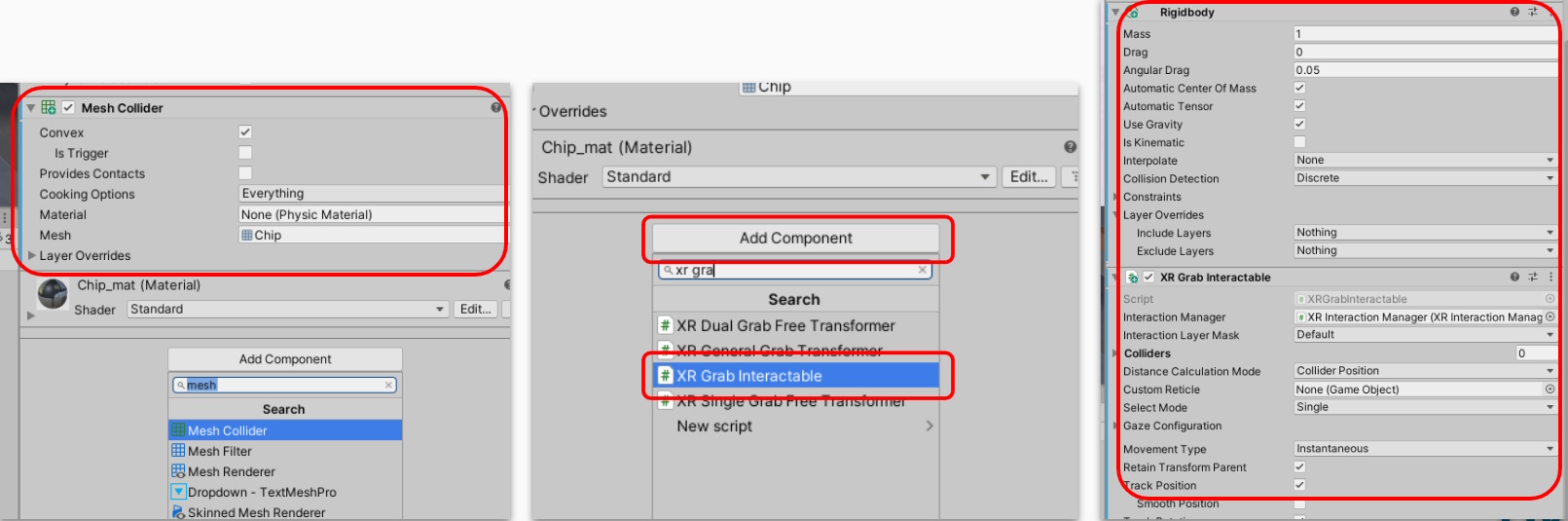
Next, we need to check and setup the components needed to make this object grabbable in VR:
- Check that is has a collider or add one if it doesn’t
- Add the XR Grab intractable script
- This will also add a Rigidbody by default
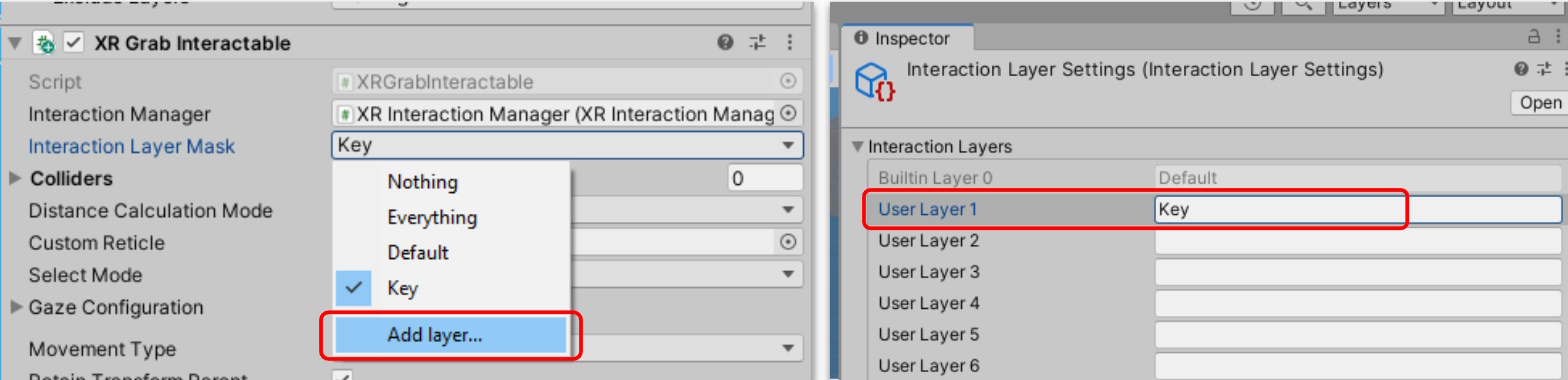
Lastly, we need to change the Interaction Layer that our grabbable objects responds to:
- Select the Key object in your scene
- Click the Interaction Layer Dropdown and select Add Layer…
- In the new window that appear, add “Key” to the list of custom layers
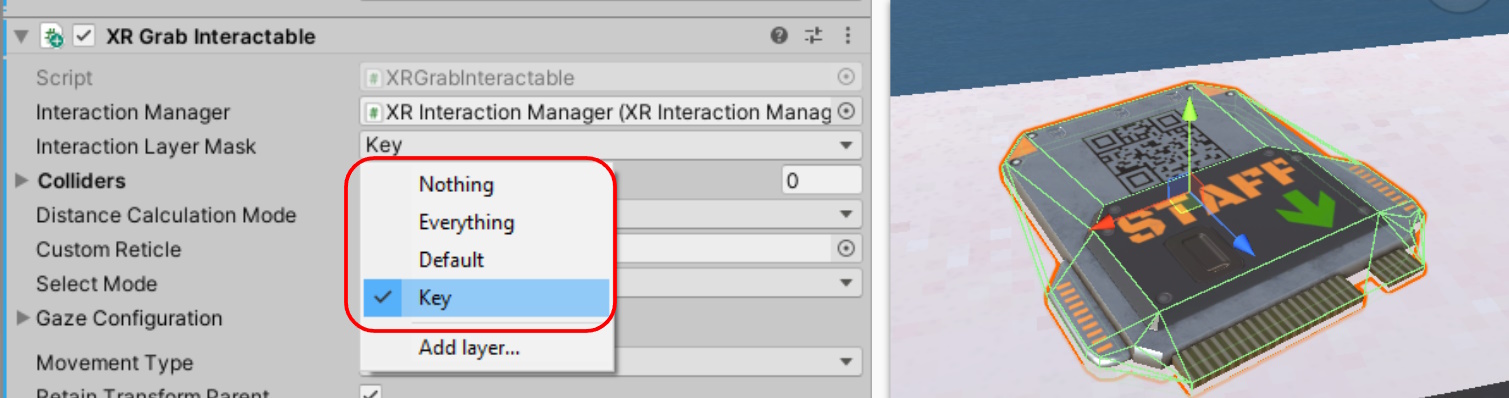
After creating your a new interaction layer(s):
- Select your Key object to bring up the inspector again
- Click on the Interaction layer Mask dropdown and Deselect everything expect your chosen layer.
Note: This means you can have multiple layers enabled for a single object
Our object is now ready to be used as a Socket Interactable. However, we mentioned earlier that we need an additional identifier to help tell objects on the same layer apart.
To do this, we will use a Tag system. Tag are similar to layers, however their only purpose is to provide additional identifiers to objects, and don’t affect gameplay at all.
- Select the Key Gameobject
- Click on Tag underneath its name
- Choose Add Tag… from the dropdown
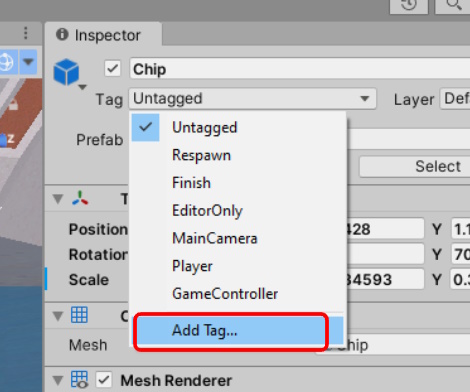
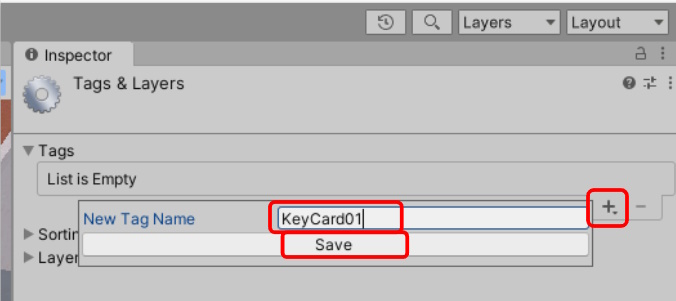
Similar to creating a new Layer, we will add a new custom tag to the list.
- Select the ‘+’ icon
- Type in a new tag (make sure that there are no duplicates)
- Press Save
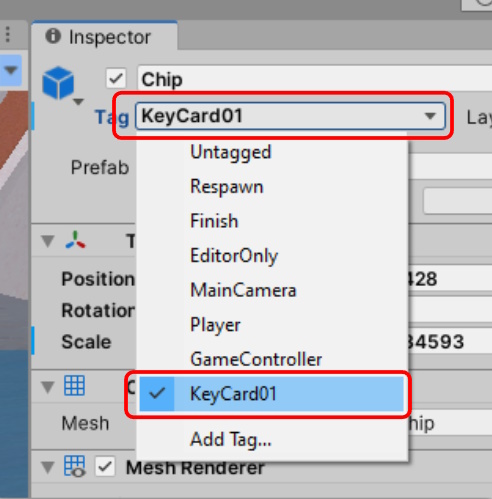
- Re-Select our Key Gameobject to bring up the inspector
- Choose the new tag that we created
Creating the socket interactor
Next, we need to create the Socket Interactor. This will be an object that “Senses” grabbable objects, and by using the Interaction Layer Mask, determine if that object can be attached to it or not.
To get started:
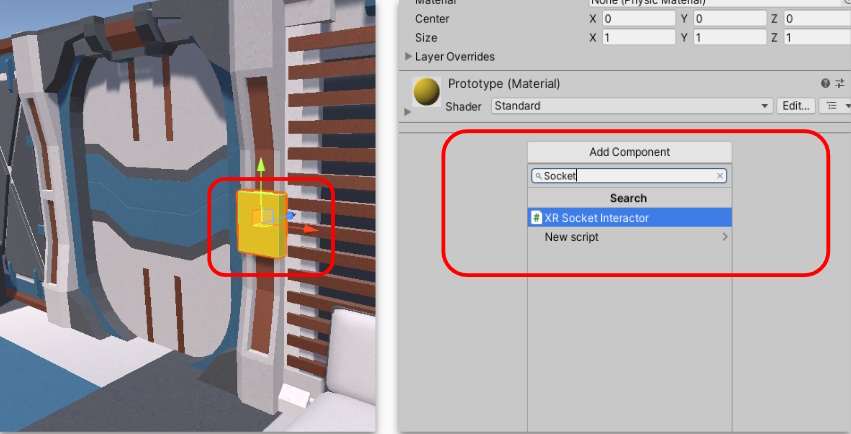
- Place an object that will be you interactor (or create a greybox version)
- Scale to be the correct size
- Click Add Component and select XR Socket Interactor
The Socket Interactor detects objects by using its attached colliders. To make this easier for the player, we will make the collider boundaries larger:
- Select your Socket Gameobject
- Locate the attached collider and set “Is Trigger” to true
- Select the “Edit Collider” button to begin editing the boundaries
- Drag the front face out so that the trigger region becomes larger
Note: Setting the collider to trigger means that physical interactions will not occur
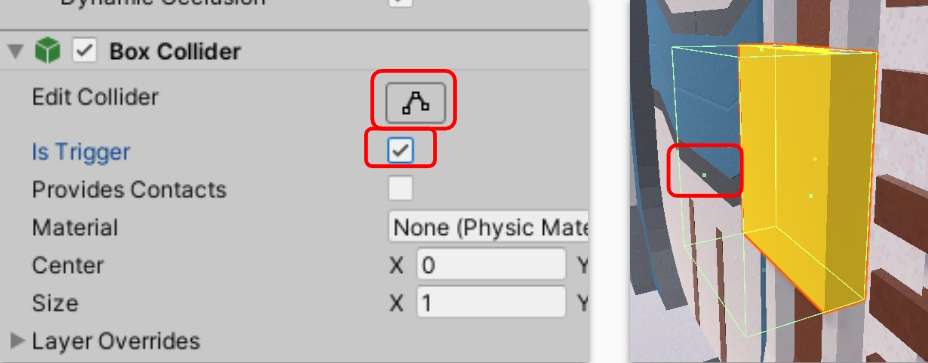
Great! Give this a playtest. Using the default socket settings, our key should still attach to the socket. If not, we will check the layer mask in the following slides
Changing the Socket Snap Point
As you can see from the example, the Snap Point of the object isn’t correct. To fix this, we can designate a different point to be the Snap Point. To do this:
- Select your Socket Gameobject in the Scene Hierarchy
- Right-Click on the object and select Create Empty
This will create a new gameobject attached to your Socket
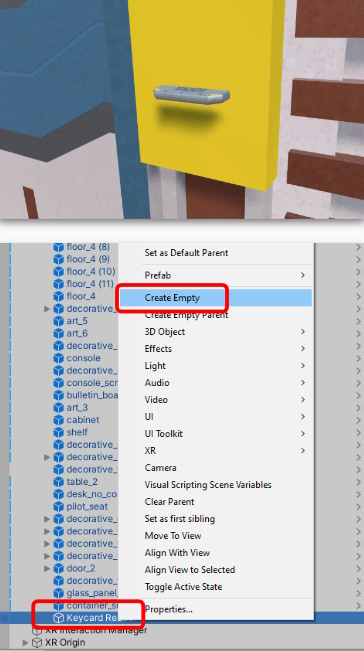
This new gameobject will act as our Snap Point.
Next, we will need to reposition the gameobject, as well as change its rotation.
- Select your new empty Gameobject
- Move the object so it sits on the surface of your “Keypad”
- Rotate the object 90 degrees away from the face of the object. This was due to the keycard sticking into it
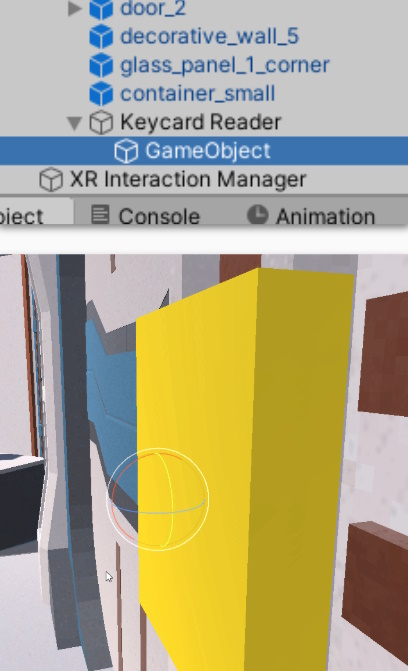
Note: You can add a temporary mesh to this object to help understand its position and rotation
Now that we have a new snap point, lets define it in the Socket interactor settings
- Select your Socket Interactor
- Find the “Attach Transform” variable
- Drag and Drop a reference to your Snap Point object from the Scene Hierarchy
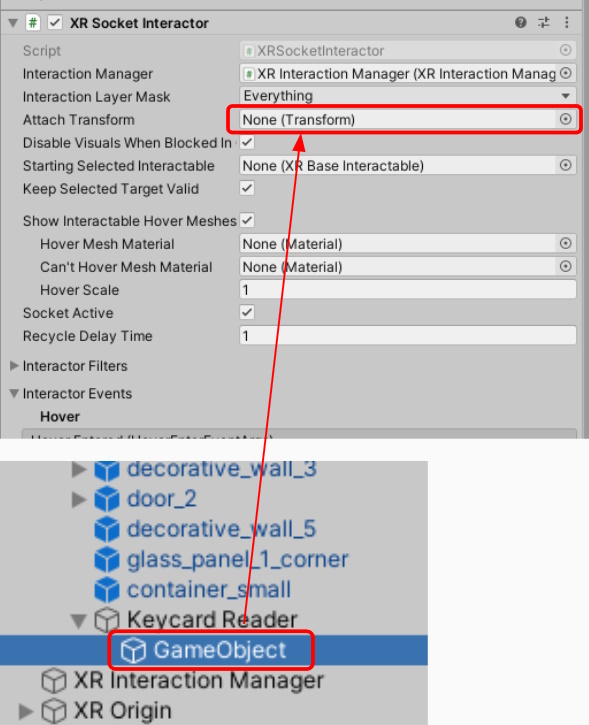
Now when the object snaps into the socket, it will attach itself to the snap point instead (which means it will inherit the new rotation as well)
Test the changed settings and see if the Snap Point is working. Does the position or the rotation need to be changed?
Advanced Socket interaction
With the XR Socket Interactor object now configured physically correct, we need to now setup Layer Interactions. We only want objects on the layer “Key” to snap to this socket.
- Select your Socket Interactor
- Click on the Interaction Layer Mask
- Deselect everything expect the “Key” layer (so it remains the only one selected)
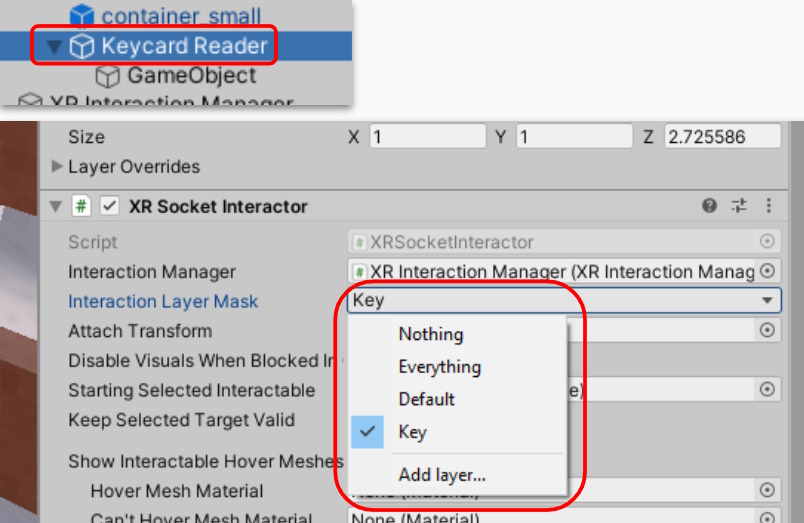
Only objects on the “Key” layer will now interact with the socket.
 Kōrero Mai: How can we use the Tag that we assigned to our key object?
How do we know if the object attached to the socket is the correct one? To help us visualise this concept, we can use a flow-chart
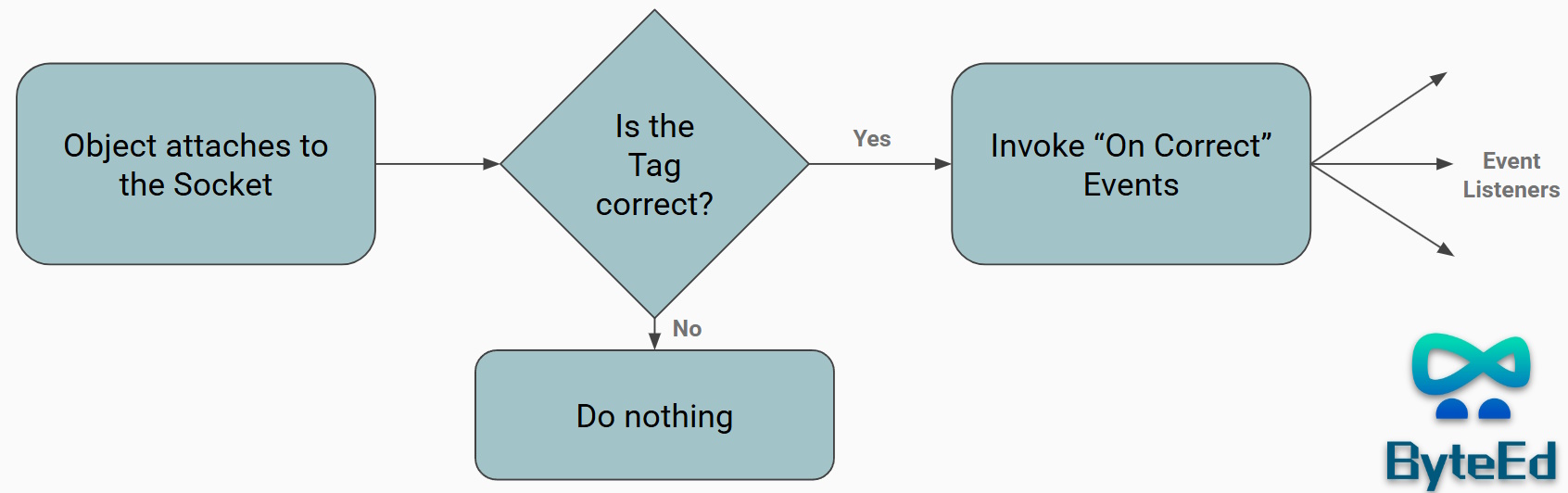
To do this, we will create a custom C# script. This script will check if the attached object matched the tag we want, and is so, invoke a unity event.
In Unity, C# Scripts are also attached as Components. The easiest way to create and attach a script is to directly add it as a component.
- Select your Socket Interactor
- Click on Add Component
- Select “New Script” at the bottom of the list
- Type in the new name for your script (Avoid Spaces and Special Characters like ‘!@#’)
- Click Create and Add
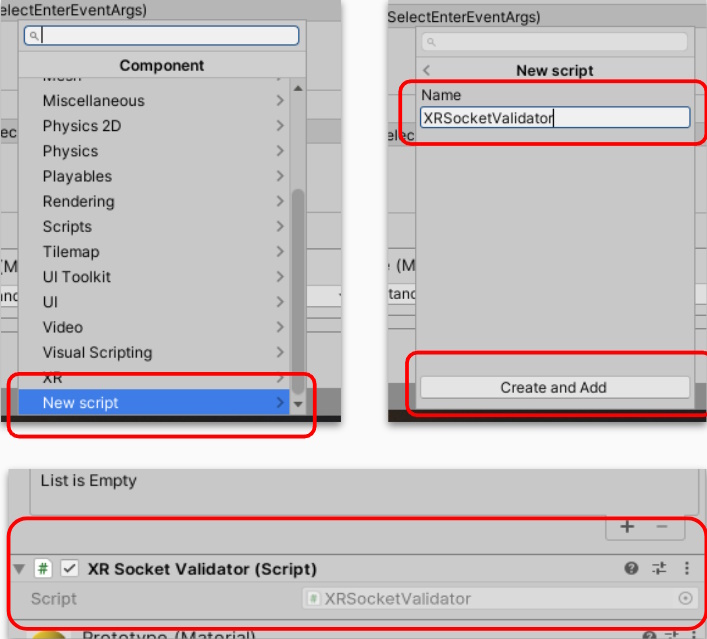
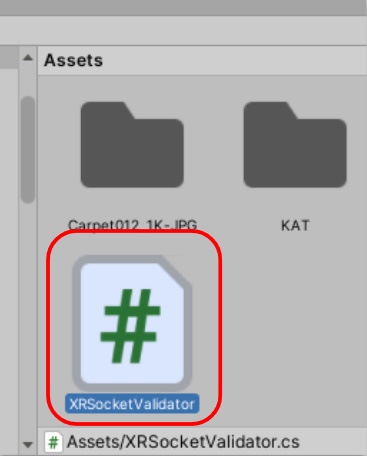
Open your new script by Double clicking on it either in the Inspector, or on the new script object in your Asset folder.
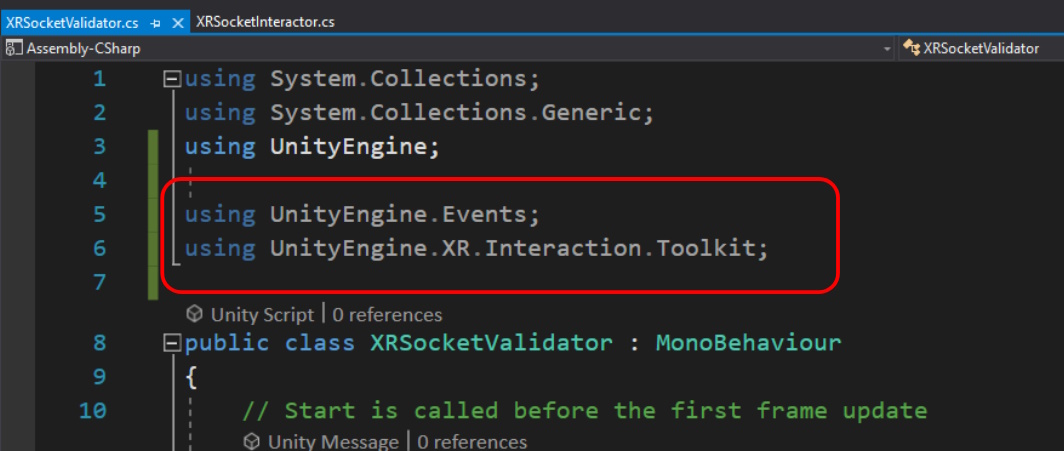
To being with, add the following Namespaces to the script. These will help keep our code readable.
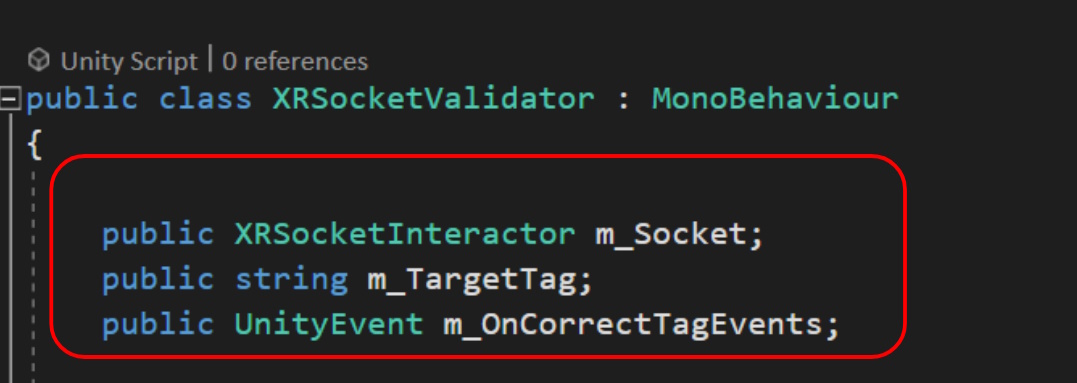
Next, we need to declare 3 public variables. Remember: public variables can be seen and edited from the Unity Inspector as well.
- XRSocketInteractor - A reference to the socket component we want to use
- String Tag - The Tag that we will use to verify if the object is correct
- UnityEvent - Unity’s built-in Event system for invoking multiple events.
When an object attaches itself to a Socket, a Unity Event is called. This event is called “selectEntered”. We can write a custom function that automatically gets called when the “selectEntered” event occurs.
We can also Listen to the arguments the event has. This is additional data about that events state. Add the following:
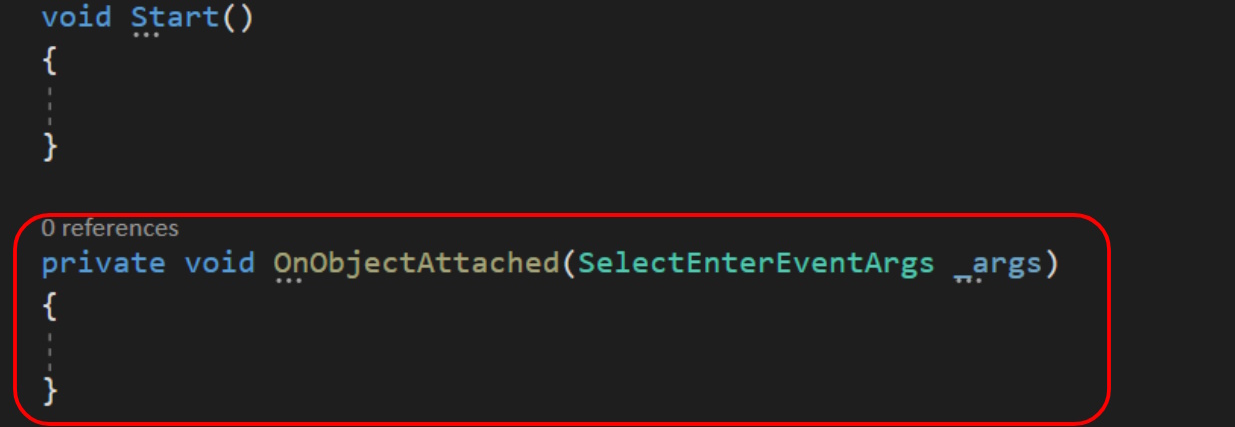
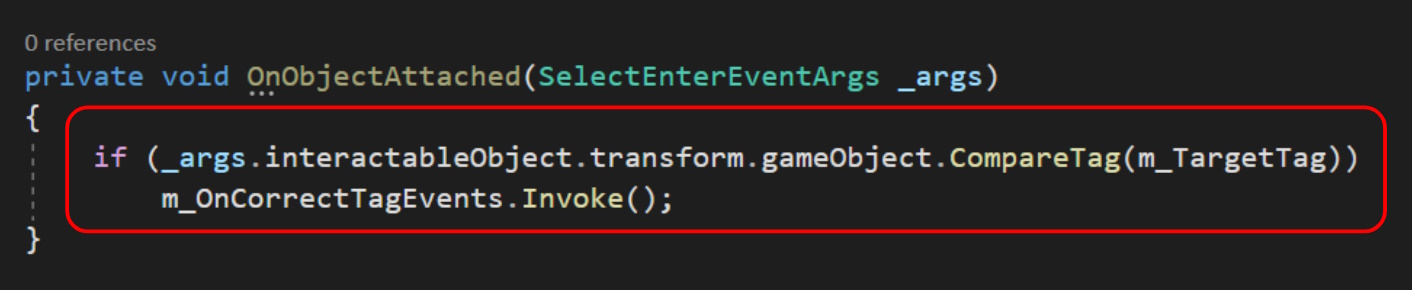
Next, we need to add the Logic of our function. This function uses a single IF statement to determine whether or not to call the “OnCorrectTagEvents”.
Inside the arguments of the event call is a reference to the attached object. In the code below, we read that reference, find the GameObject, and use a function called “CompareTag()”. This provides us with a true or false response.
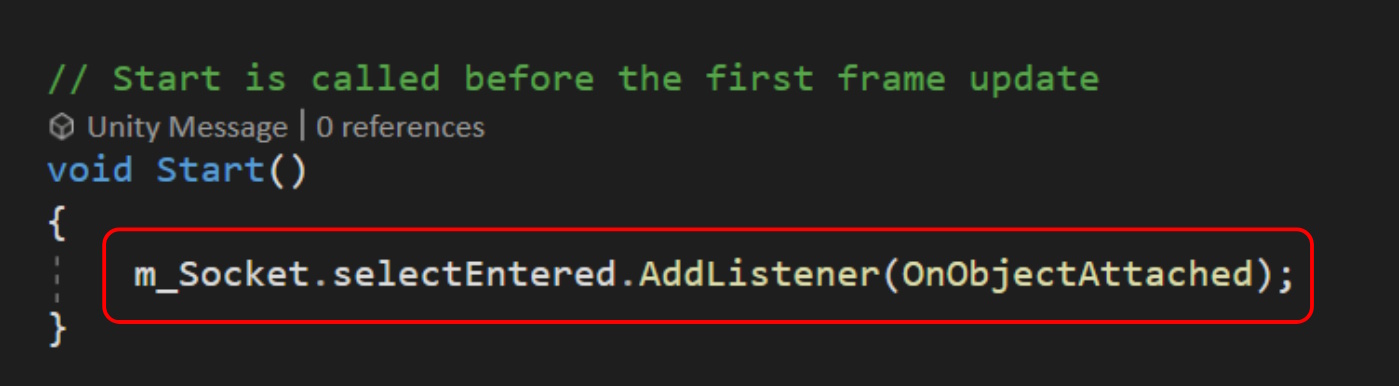
Lastly, to have the function automatically called when the event occurs, we need to set up a listener. Listener’s wait until a specific event is called, and when it is, to execute a certain action.
The listener only needs to be setup once during the objects lifetime, so we can place the code for this in the Start() method.
Save your changes and return back to the Unity Editor.
- Select the Socket Object
- Confirm your variables have appeared
- Begin attaching the correct information to your Script.
If nothing has appeared yet, make sure your script has saved correctly and that no compiler errors are appearing in Unity
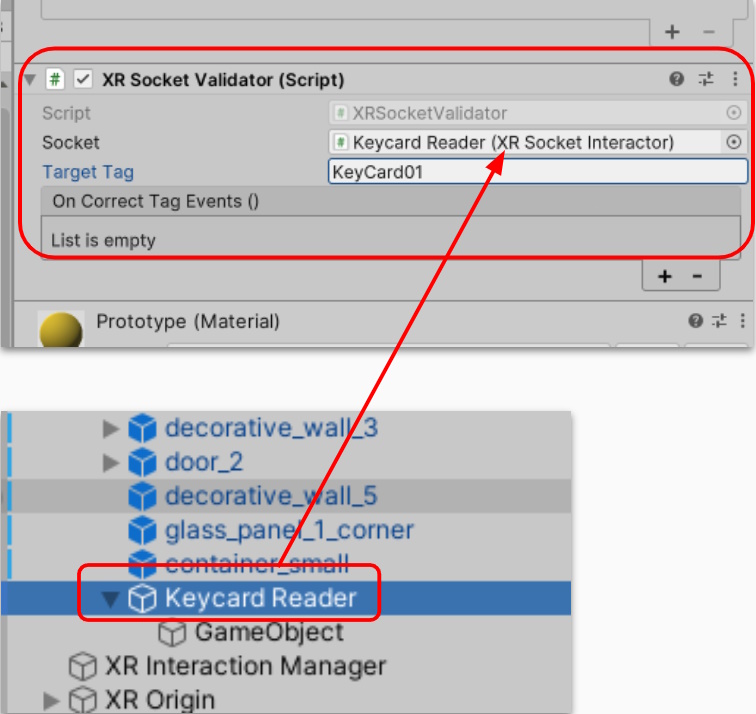
Done! To test our code, let’s setup a simple task for our “OnCorrect” event to call.
- Select the Socket Object
- Add a new event to the “OnCorrect” Event List
- Drag and Drop a reference to the Door Gameobject
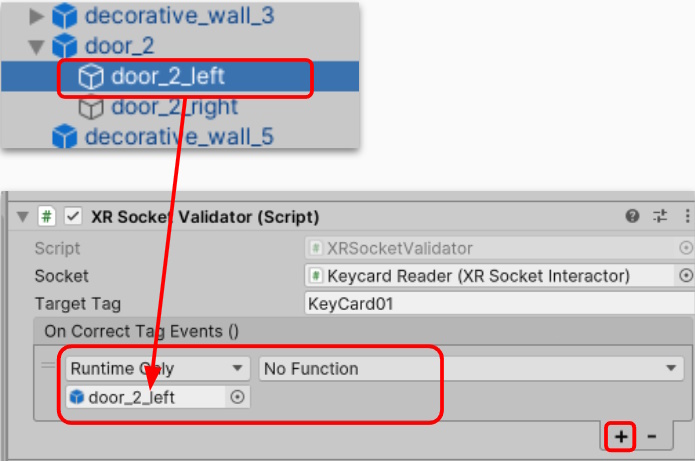
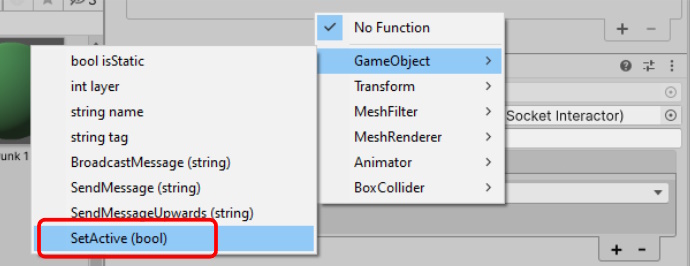
- Select the dropdown and choose Gameobject -> SetActive (bool)
- Repeat this process if you multiple objects that make up your door
Lastly, Make sure that the tick box is empty.
This now now means that if we place the correct keycard object on this specific socket, if the Tags match-up, these events will be called.
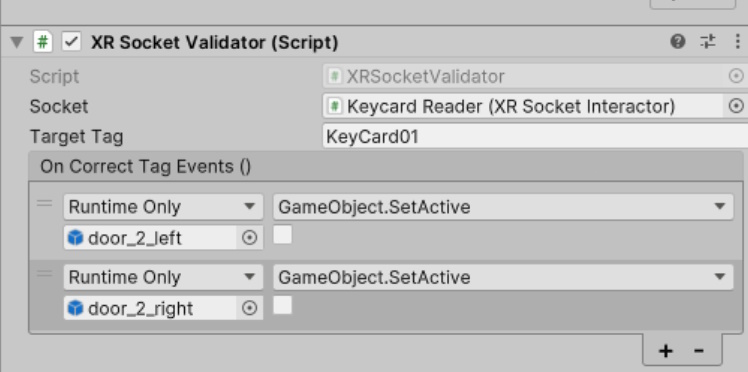
Currently, these events will simply deactivate the doors, pretending that we opened them.
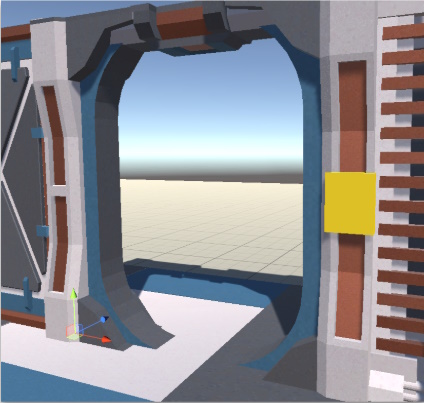
We will cover how to animate these doors in the next lesson.
Final Playtest! Test your code by seeing if placing the keycard hides the doors.
If the keycard doesn’t hide the door, check:
- If the keycard doesn’t attach, check the Layer settings
- If the keycard attaches, but nothing happens, check the Tags are spelt correctly for both the object and the script.
- Check the Console for any errors that occur when the socket is interacted with