
Lesson 05: Events and Animation
In this lesson, we will cover how the Socket Events can be used to trigger methods and functions of other components. How can we create simple custom animations for objects such as doors?
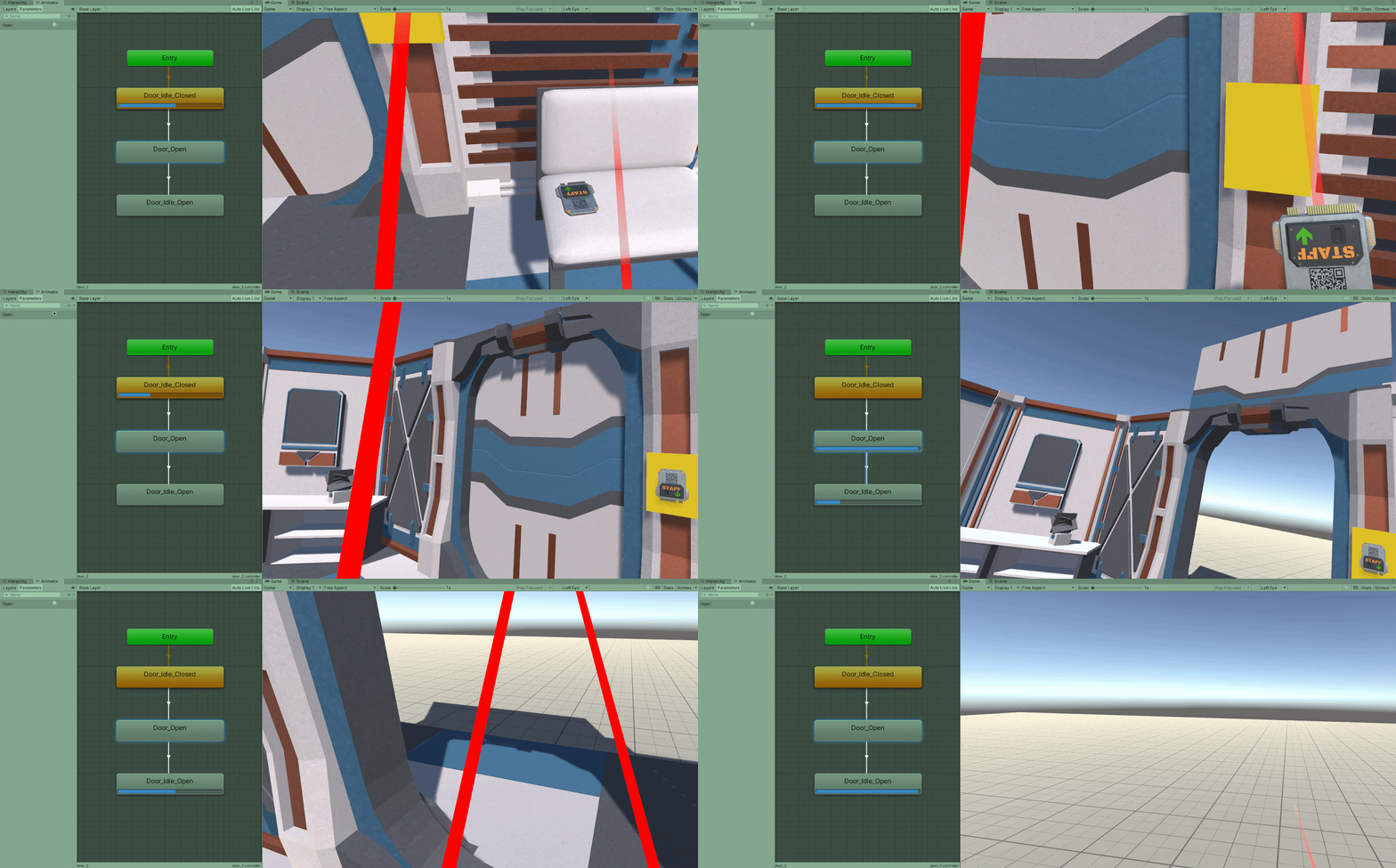
In the previous lesson, we created a script that will invoke unity events if a certain condition is met. What other Methods and Functions can be invoked?
Through using Unity Events, we can call any public method that is defined by any of the attached components.
For example, this means we can call methods from either the BoxCollider or the Animator that is attached to our XR Socket.
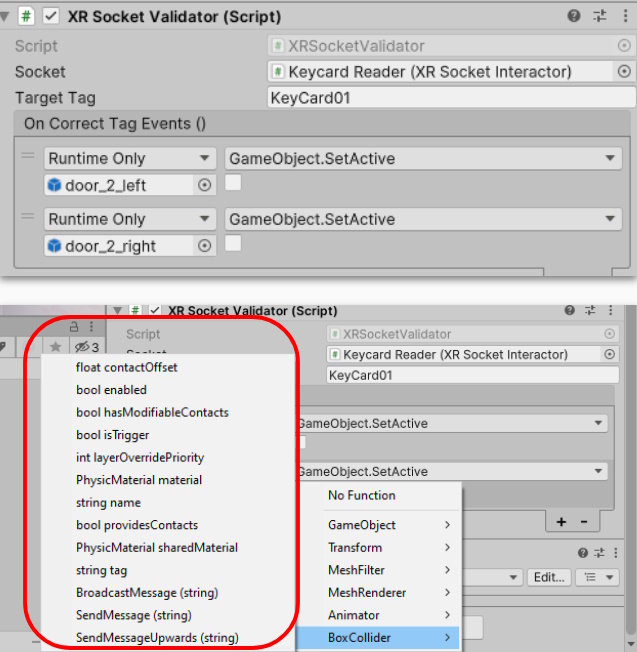
Since we can call a method from any of the components of the referenced Game Object, we can trigger an animation to take place. This works by setting a boolean to true, so the animator knows to animate.
First, we need an Animator attached to the object we wish to animate. For this example:
- Select your door object.
- Click Add Component and select Animator
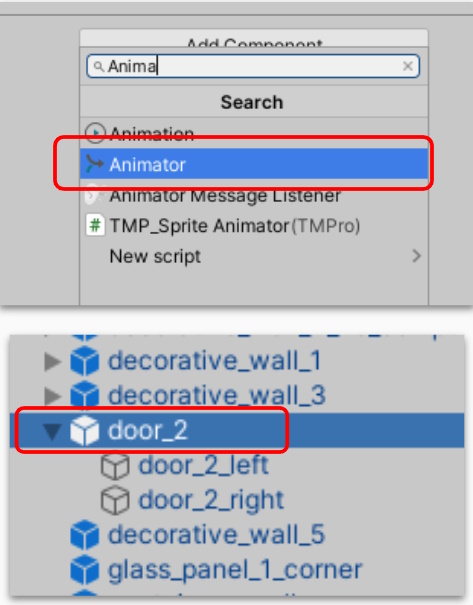
Note: This object should be the parent object of any meshes that need to animate.
Most animation software will introduce the idea of a timeline. In Unity, we do the same. To animate a 3D object, we tell the software the starting position of a value, and the ending position of a value.
When the Animation plays, the software changes that specific value over time, based on the starting and ending values.

In this example, we are changing the Position of an object over time
This will be how we open the doors in our Escape Room. By changing the Position of the doors, we can animate them as if they were opening.
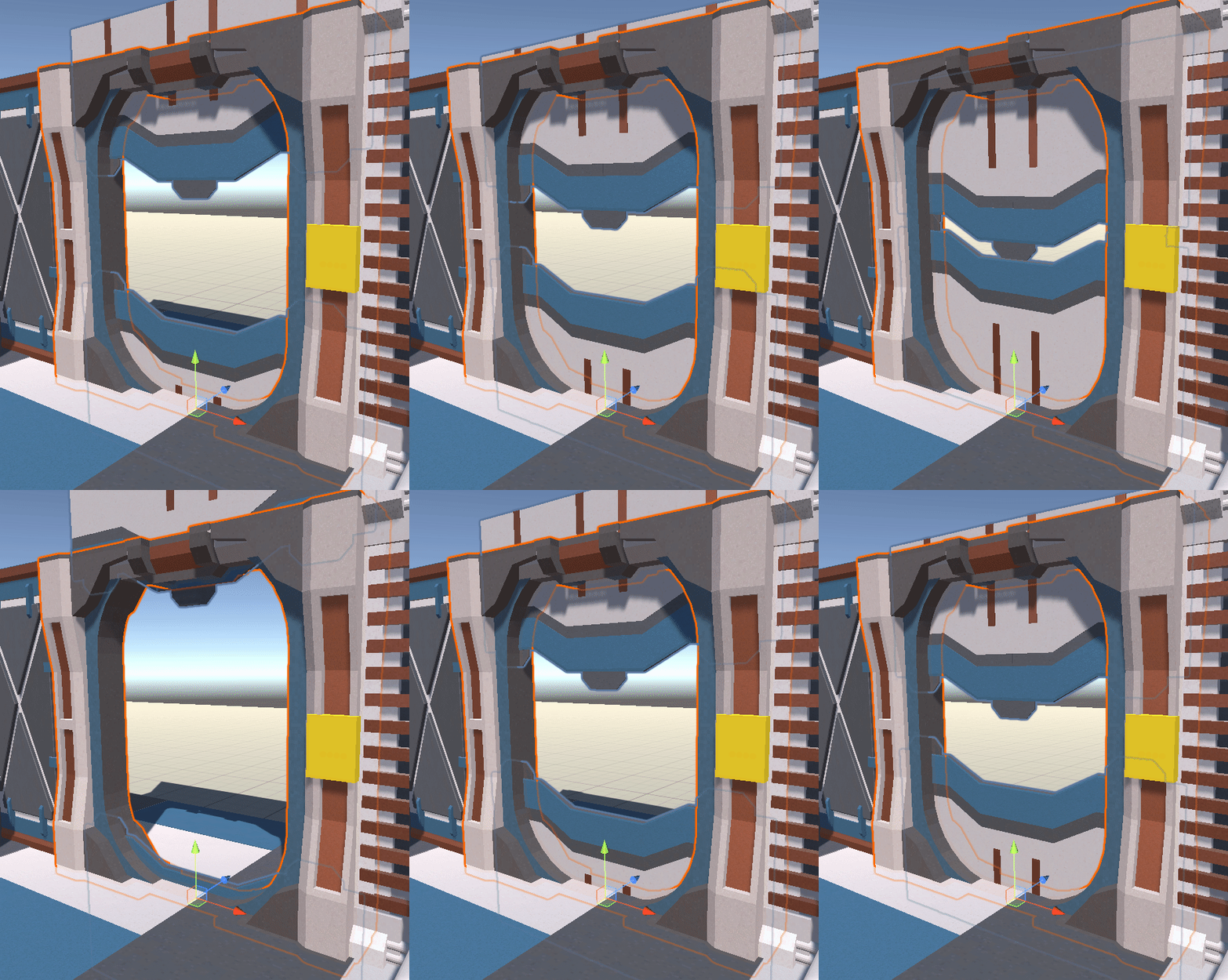
If you have a more traditional door, you can animate its rotation over time instead.
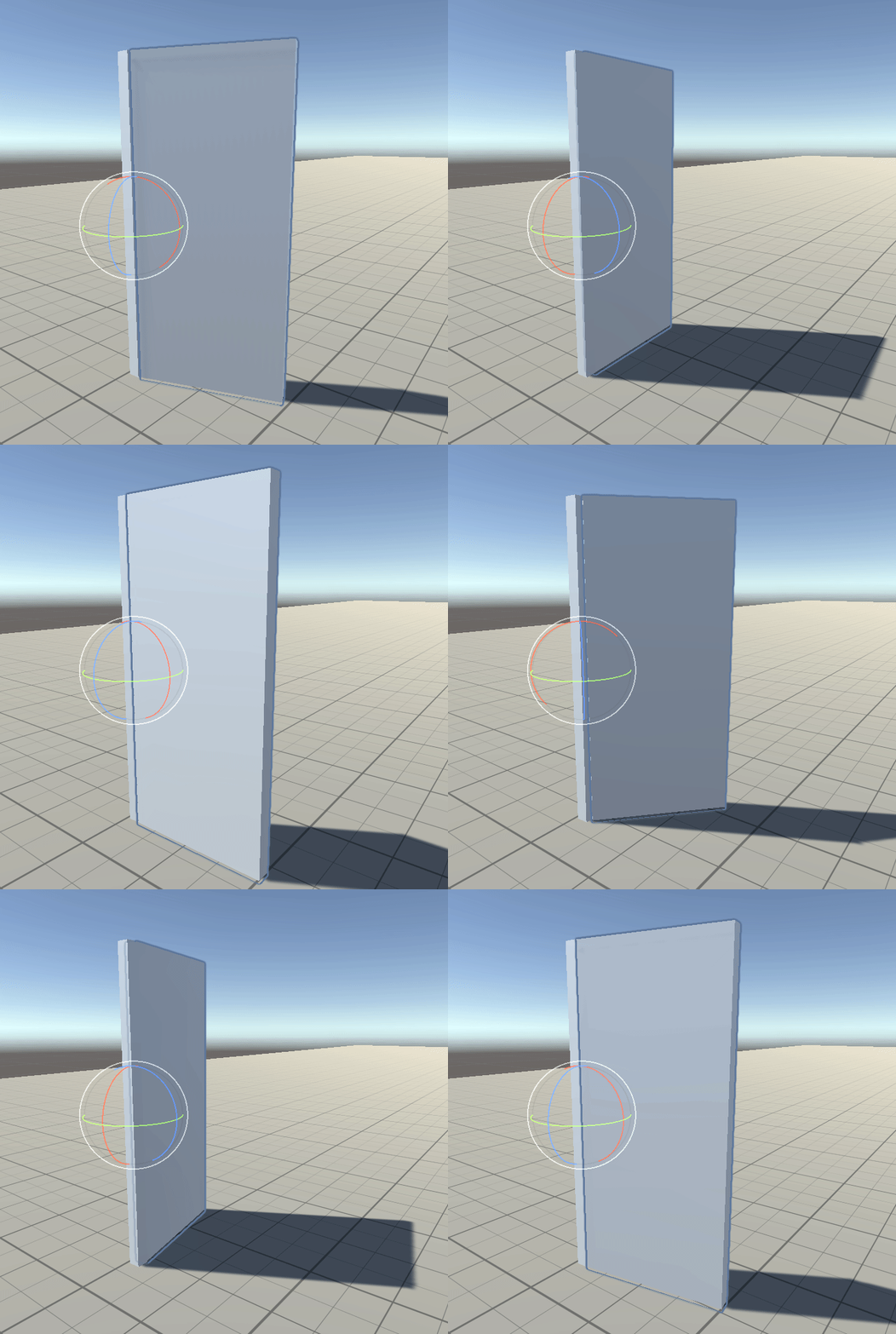
The process for setting up the animations will be the same, expect you will change the rotation value instead of the position.
<hr>
Creating an Idle Animation
The first step in creating an animation is to have an idle animation. This is the animation that plays by default when the game begins.
Most static objects will have their idle animations in the closed position. Meanwhile NPCs / Characters will usually have a standing animation.
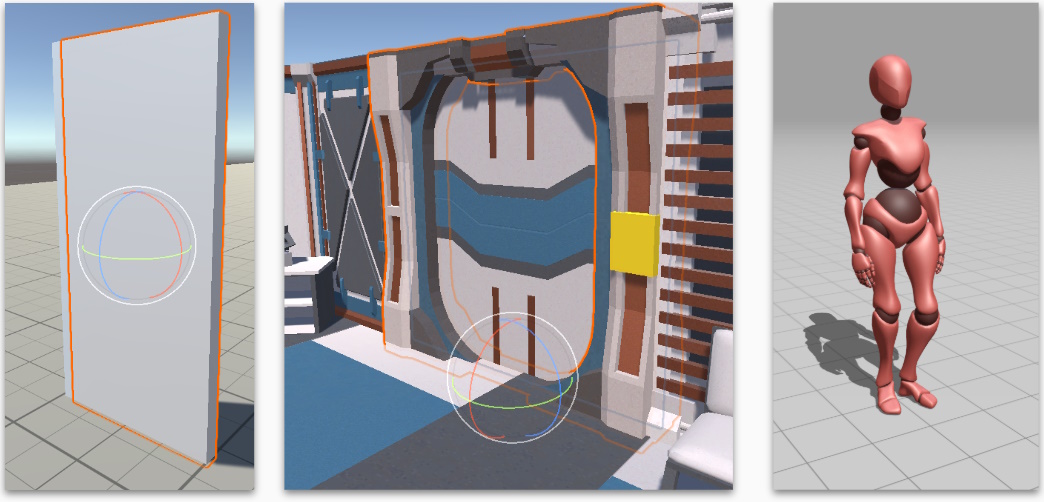
To begin animating, we need to bring up the Animation Timeline. Do this by:
- Selecting Window -> Animation -> Animation
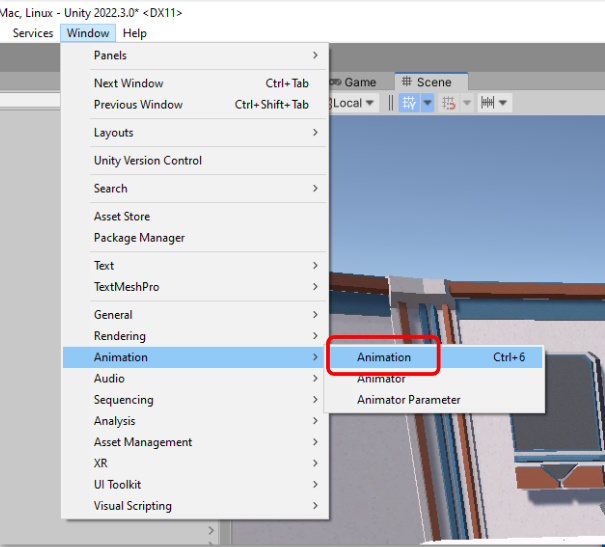
- Locate the window the appears next to the console tab.
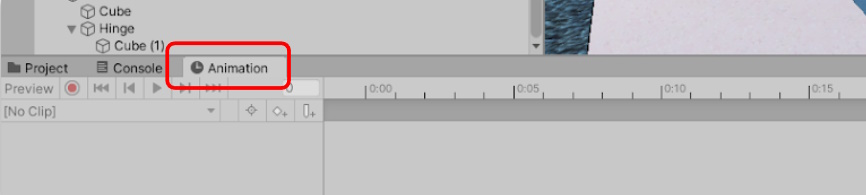
This is where we will be editing the Animations timeline.
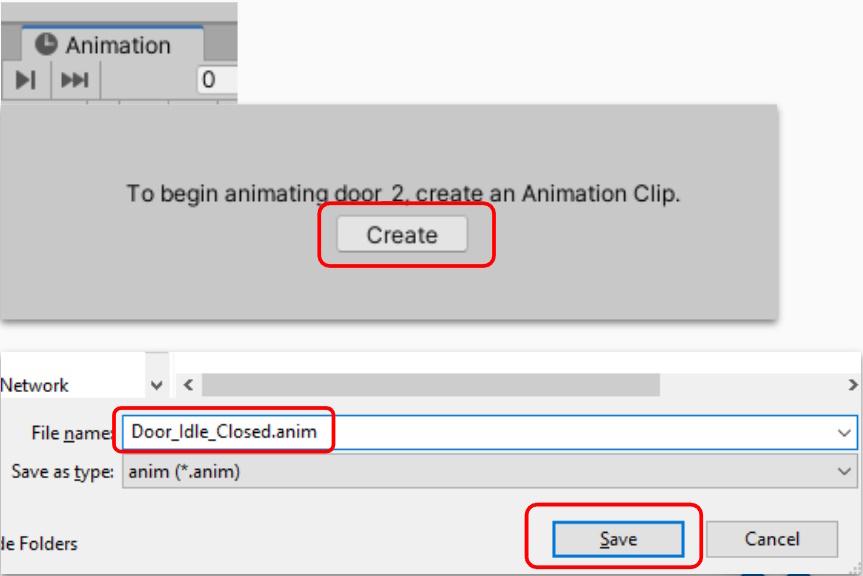
Next, we need to create an animation file that will save the data for the specific movement. This can be done automatically through the animation window
- Select the Door object (the object we added the Animator to previously)
- Select Create from the prompt inside of the animation Window
- Rename and Save the file. Name it something related to the action that will occur.
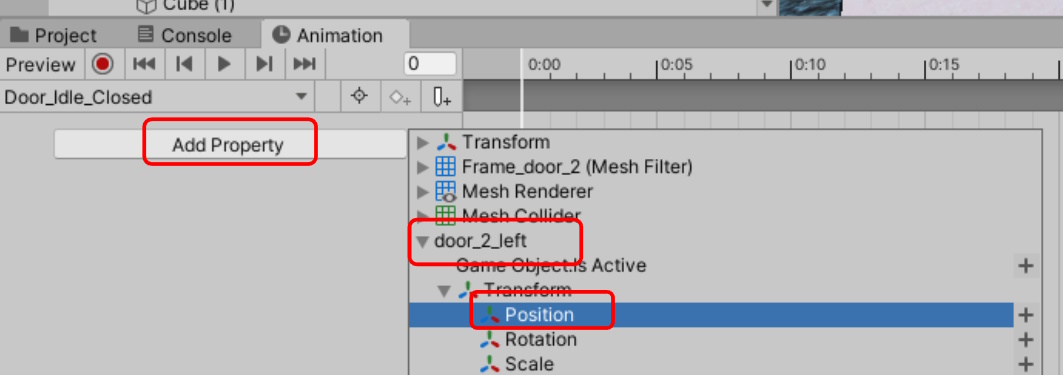
We now have an empty animation file and timeline. To begin Animating, we need to specify which components should be changed over time. In my example
- Click “Add Property” -> Door_2_left -> Transform -> Position
My door has two objects, so I will repeat this process for the Right side as well.
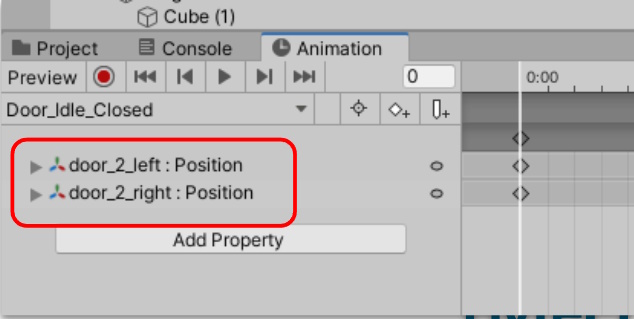
We should now have a list of properties that we can edit. But how does this work?
Animations use Keyframes. These are represented by the shapes on the Graph. Each keyframe holds a value of the property that its placed on. When the timeline moves between keyframes, it interpolates the values between them.
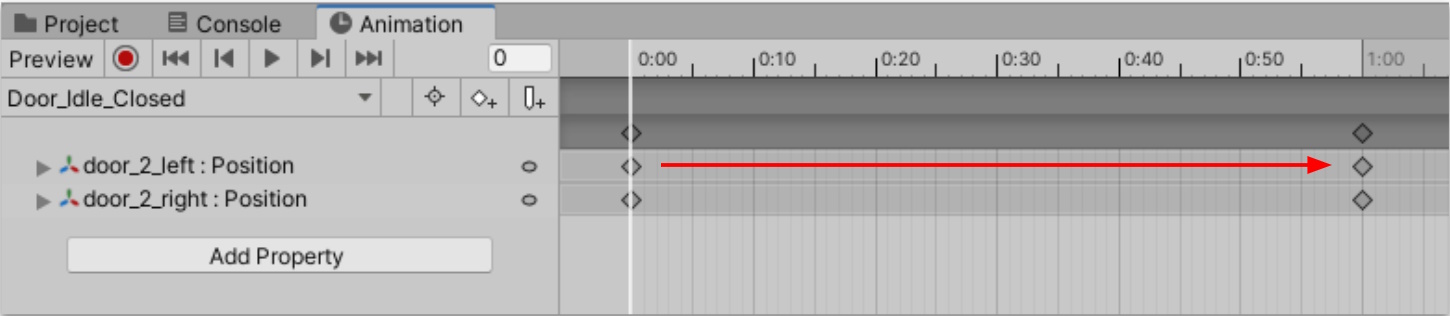
To animate the the values at each keyframe we have 2 options:
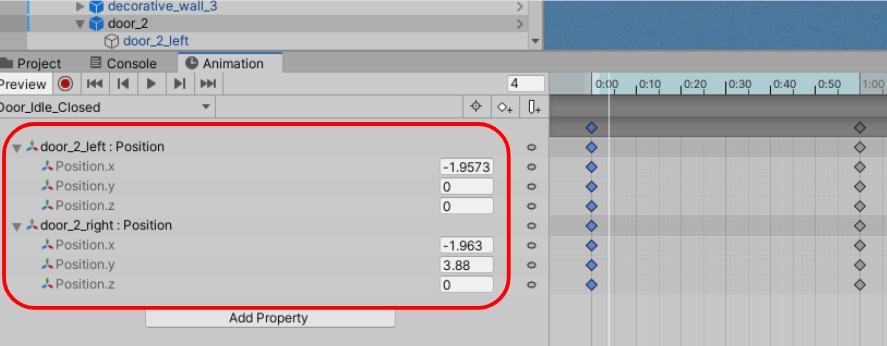
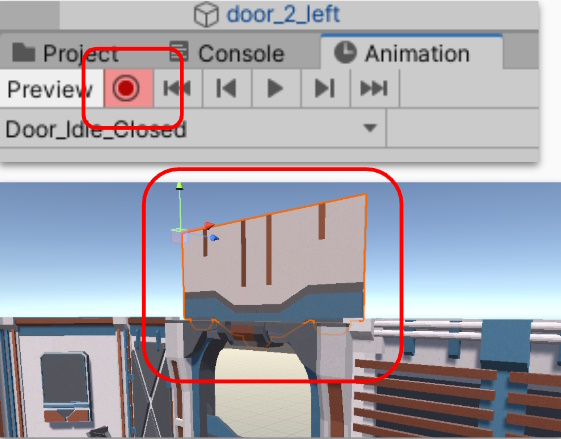
To preview the changes, click the Preview button or press the Play button to see the current animation.
If preview is selected or the animation is playing, changes made to the objects will be reverted after leaving the animator.
As we’ve made no changes yet, the door stays closed even when Animating. This is intended as we want the door to stay closed until we are ready.

Opening Animation
Next, we will create the Opening animation.
- Select the animation list dropdown menu
- Select “Create New Clip…”
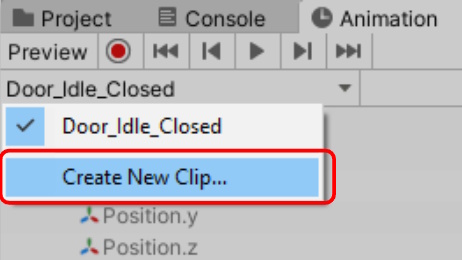
- Rename and save the animation clip “Door_Open”

You will need to add the same door properties to animate back in. Follow the steps in the previously mentioned.
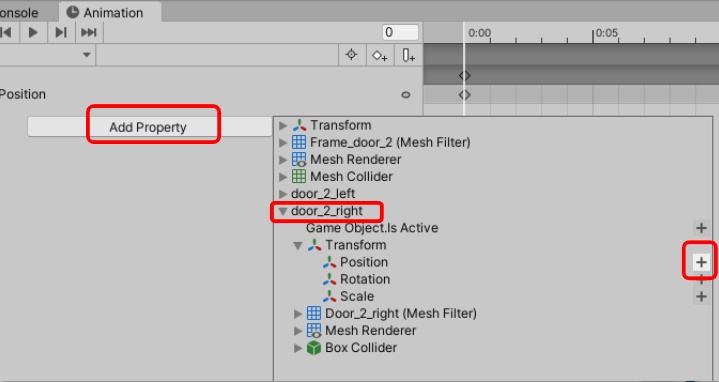
We will try and use the record method for setting our values for our animation
- Make sure the “Door_Open” animation is selected
- Set the timeline to the Final keyframe. Do this manually or by clicking the “End of animation clip” button. Look for the white line to confirm.
- Press the record button to begin recording changes made in the scene
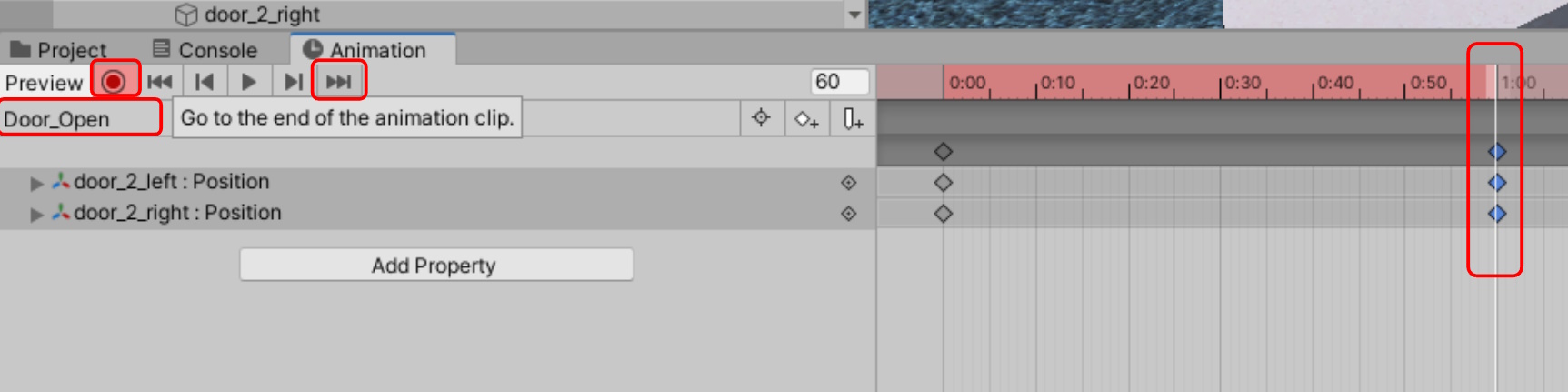
With record pressed, move the door’s Position (or rotation if you’ve selected that property) to the open position in the scene. Repeat for both doors if needed.
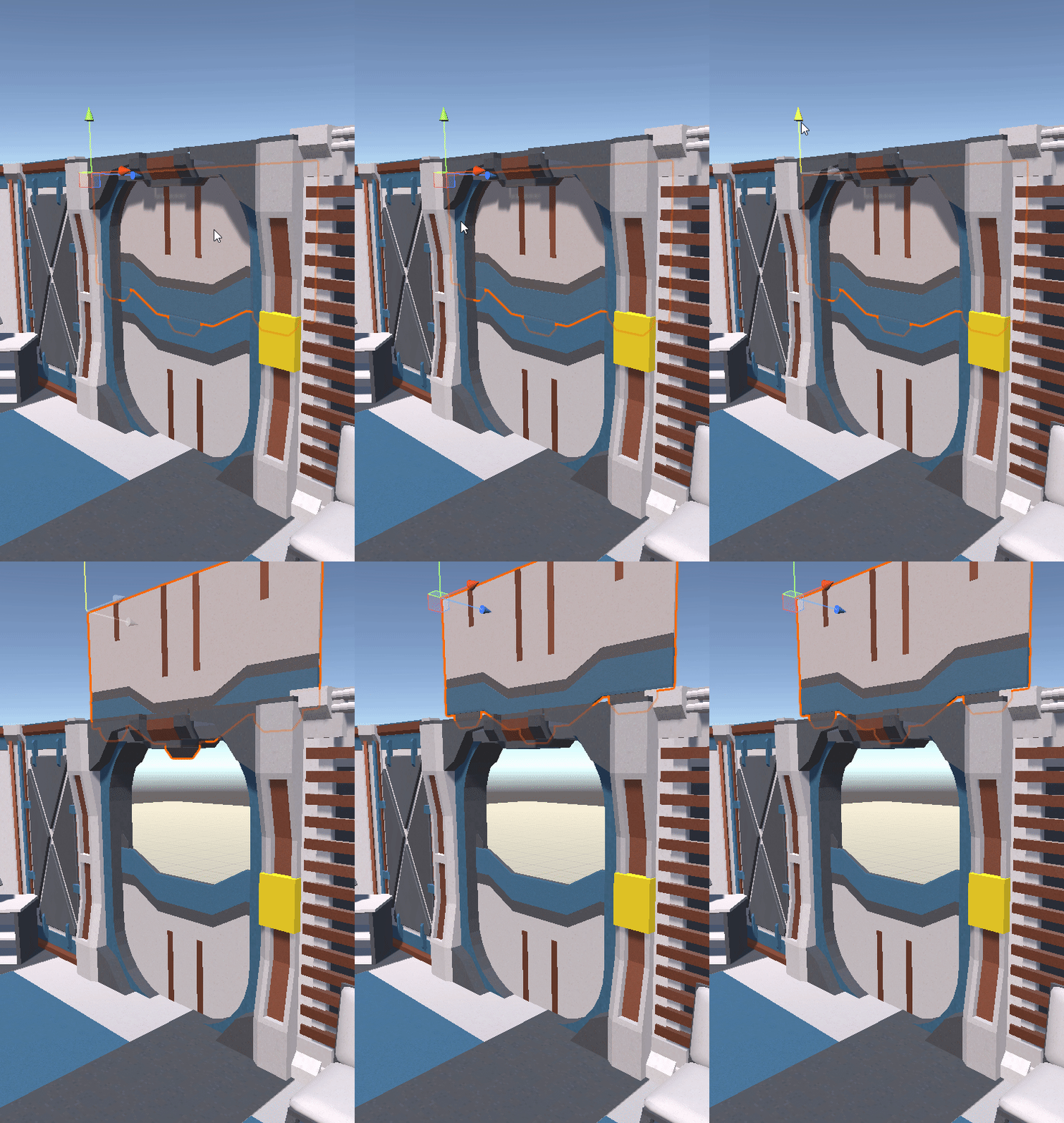
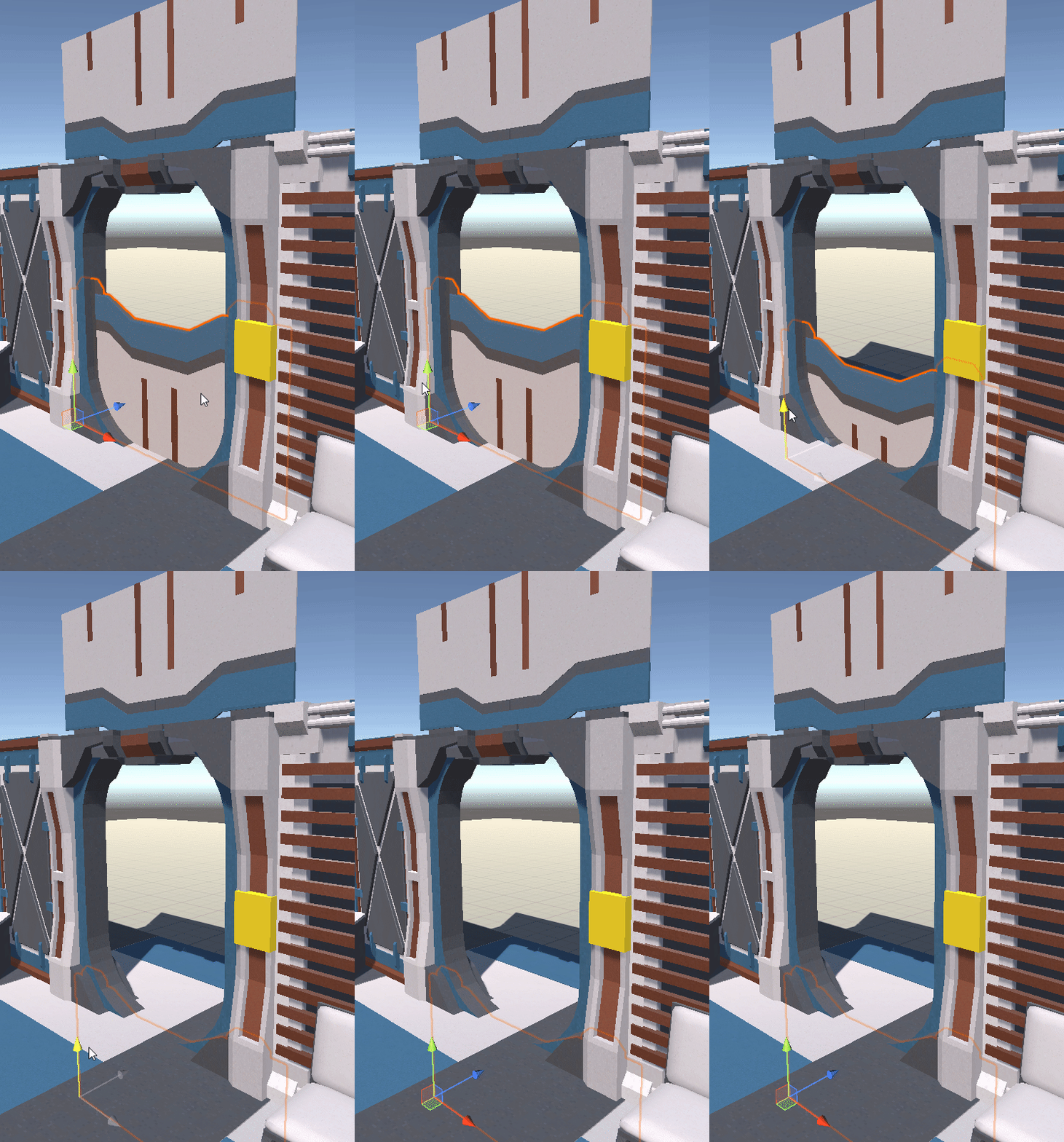
Once complete, stop recording so we don’t accidentally make any additional changes to the animation
We can now preview the animation by pressing play.
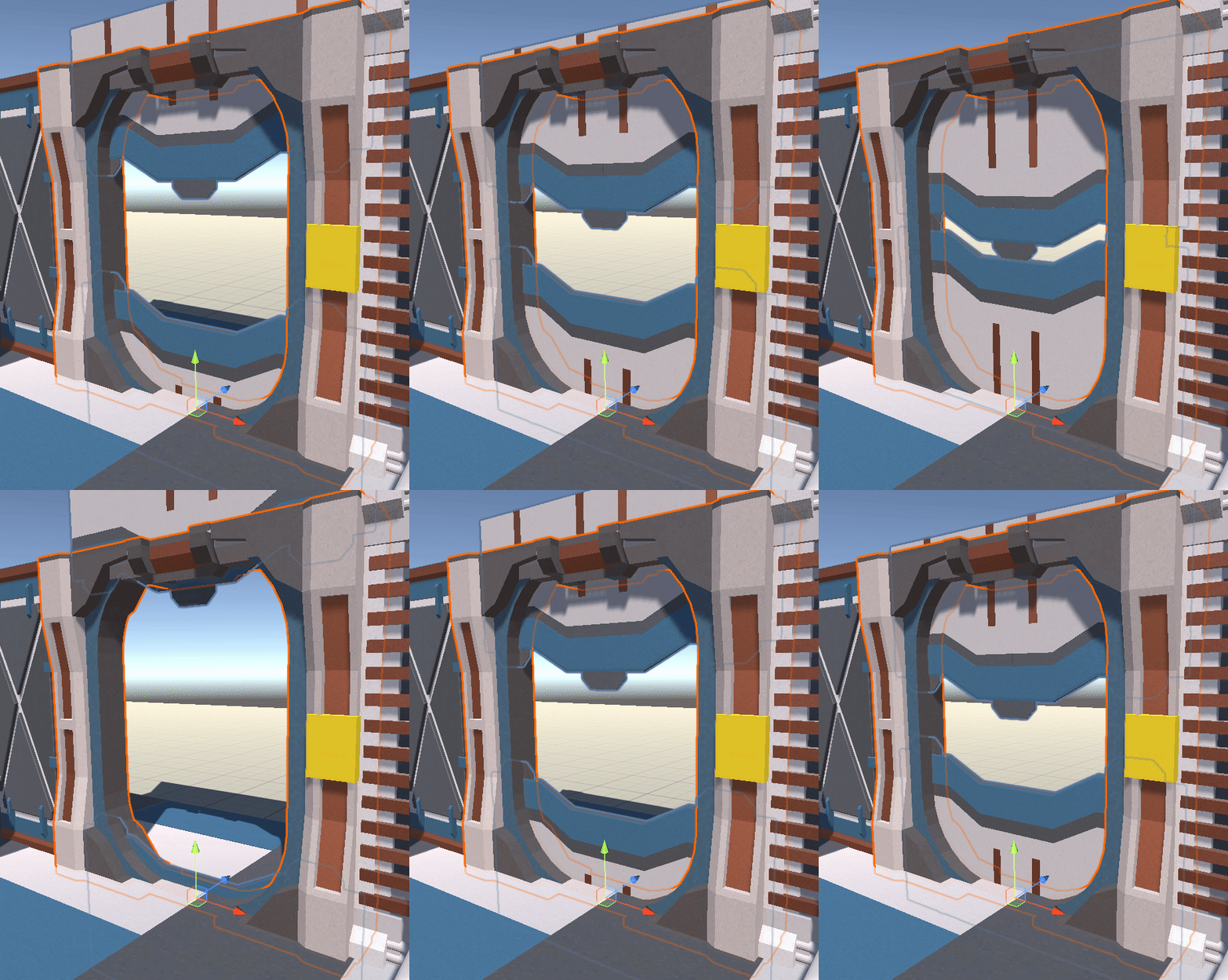
If the animation does not look correct:
- Reposition the timeline at the correct frame
- Press Record
- Make changes and preview again
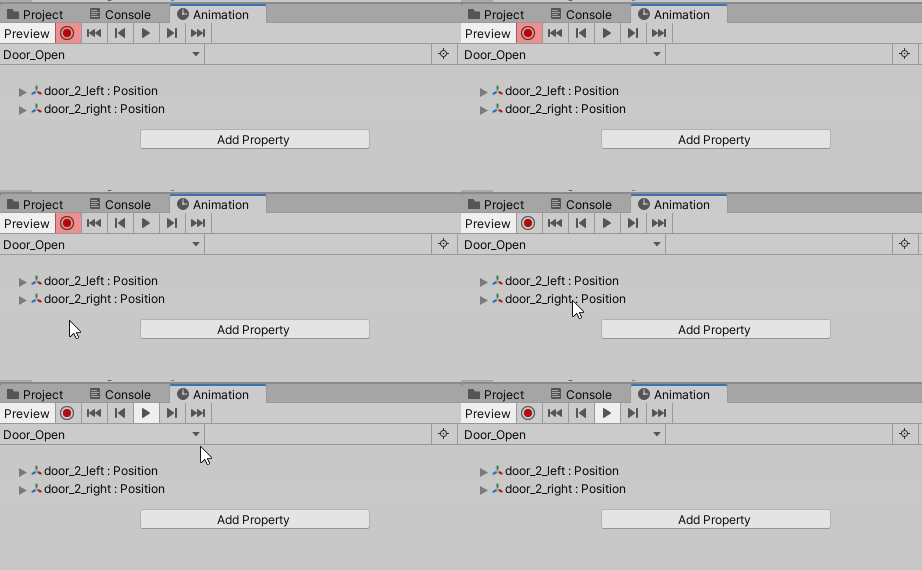
If the animation is too fast, we can extend how long it takes to animate the whole clip.
- Select all the keyframes by selecting the top frame
- Drag and drop the selected keyframes along the timeline
- Take note of the time measurements along the top

Creating a “Stay Open” idle state for the door
Next, lets create an animation state for when the door stays open. Otherwise, the door will enter back into its closed animation.
- Select the animation list dropdown menu
- Select “Create New Clip…”
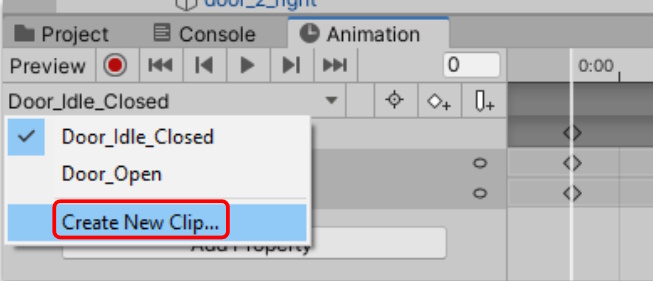
- Rename and save the animation clip “Door_Idle_Open”
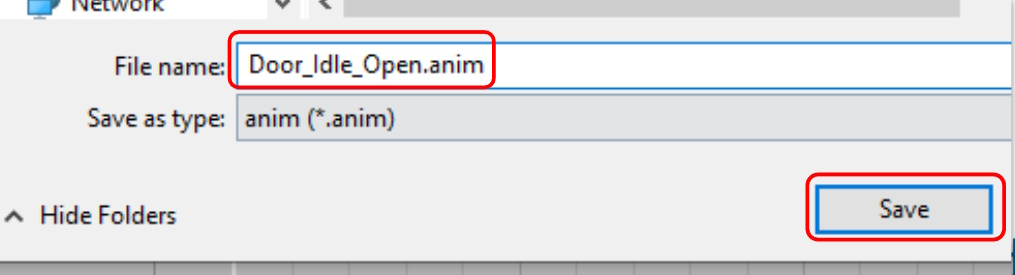
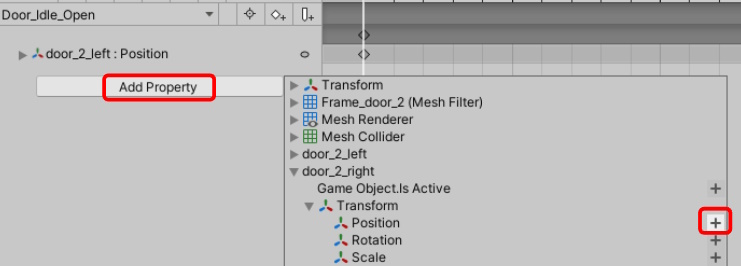
You will need to add the door properties to animate back in.
To save time, and to make sure the animations line it, we will copy and paste the animation values from the “opening” animation, to the “Idle_Open” animation.
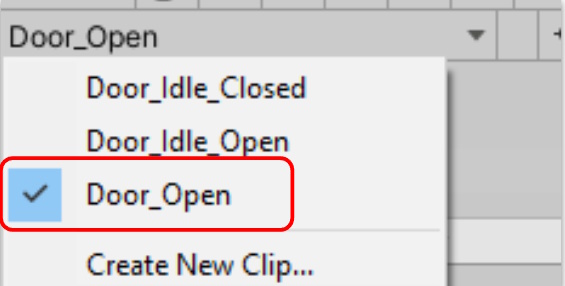
- Select the “Door_Open” animation clip from the drop down menu
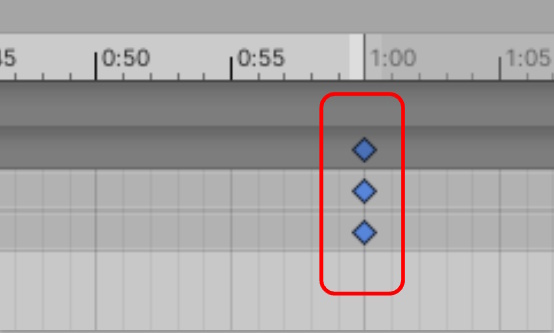
- Select all of the final keyframes of the animation
- Press Crtl+C (or Cmd+ C) to copy the animation values
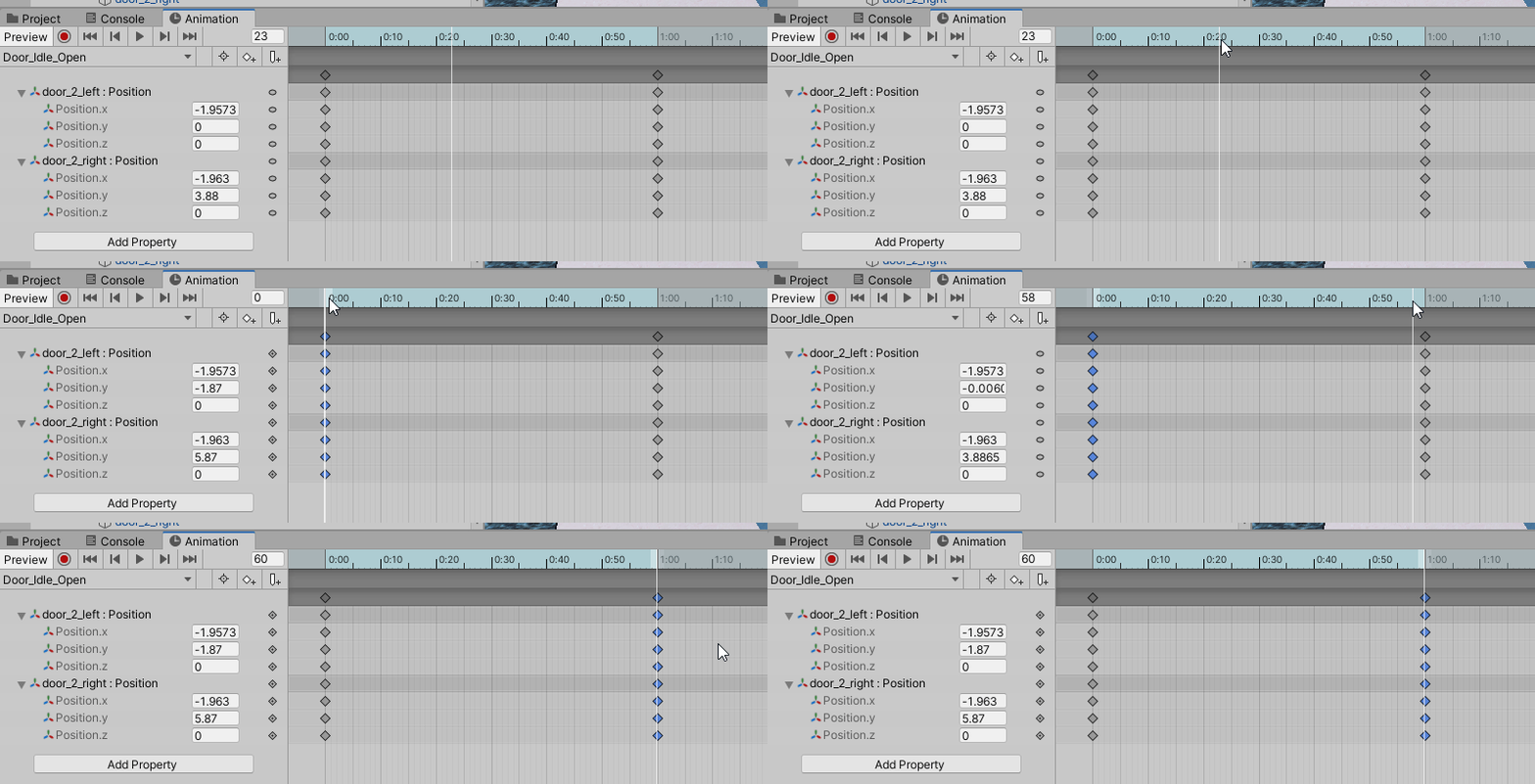
Next, we need to update the new animation clip with the new data:
- Select the “Door_Idle_Open” animation clip from the drop down menu
- Set the timeline to the first set of keyframes
- Press Crtl+V (or Cmd+ V) to paste the animation values
Repeat for all sets of keyframes in the animation.
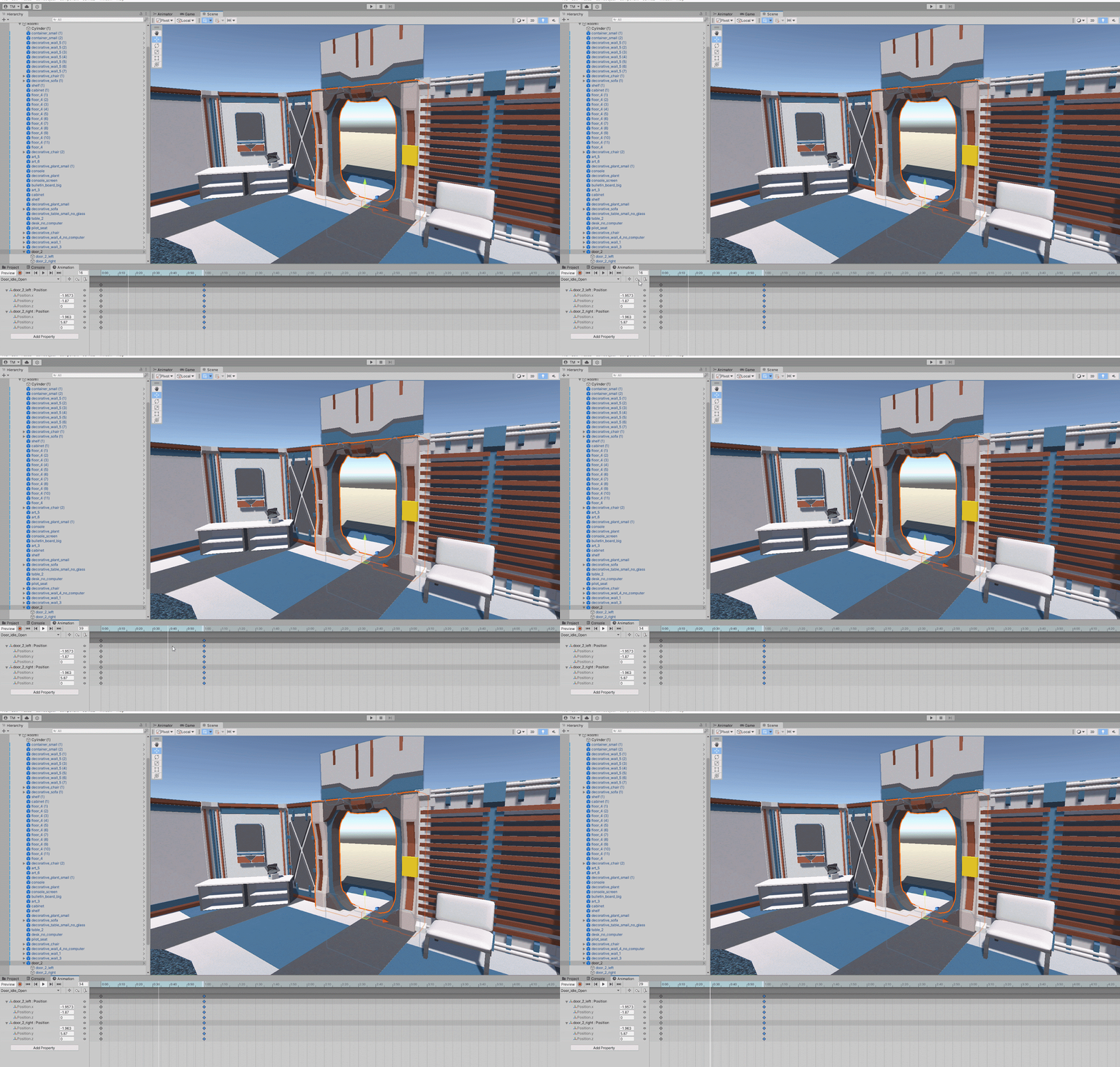
Our animation should now hold in place, try preview it.
<hr>
Triggering the Animation
Now that we have our animation clips, how do we trigger the animation to play? How do we know what animations are connected to each other?
To do this, we can use Unity’s Animator.
This is window that controls which animations play and in which order
It can also be set up to user trigger and variables to move between states
- Open the animator
- Select **Window -> Animation -> Animator **
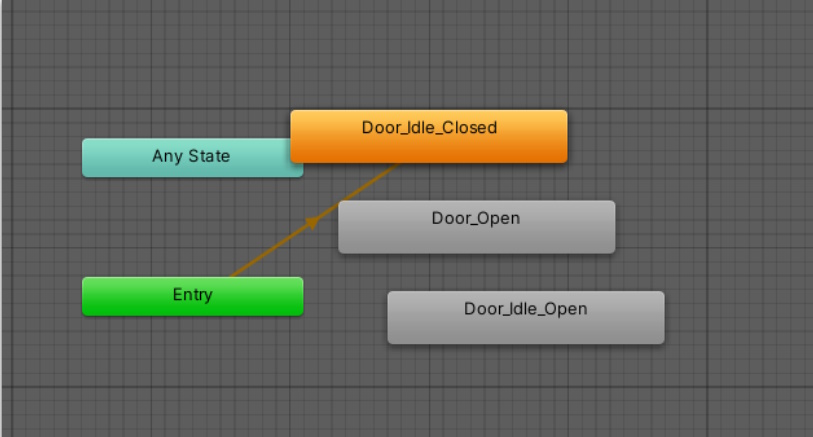
The Animator can also be rearranged in any way you want.
- Try Rearranging the animation clips in a order that makes sense
- Right-Click on the “Door_idle_Closed” clip and choose “Set as default state”
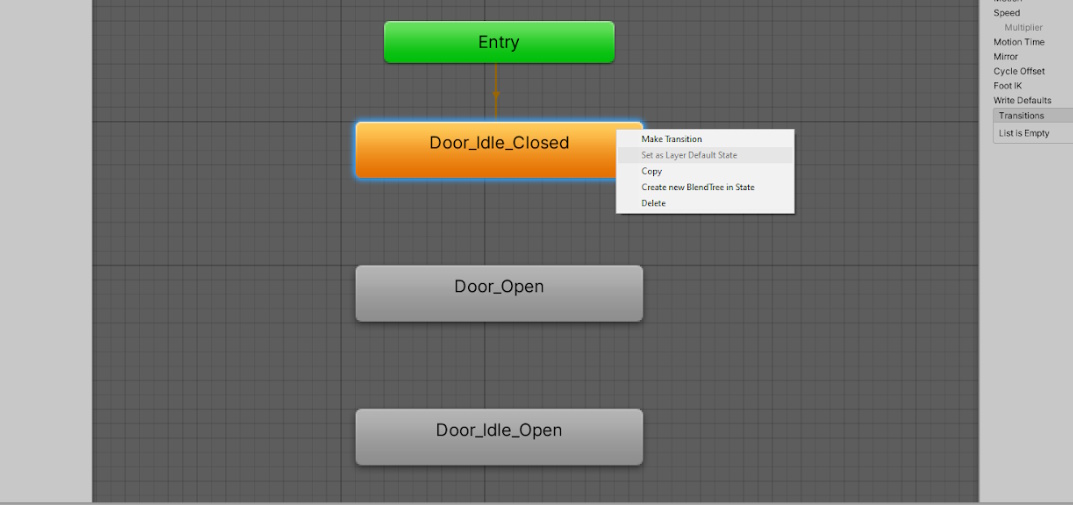
This will make it so that “Closed” clip is the starting point.
Next, we need to create a parameter to trigger a movement between clips.
- Select the Parameters tab in the top right corner
- Click “Add” and choose the Trigger type
- Rename this trigger to “Open”
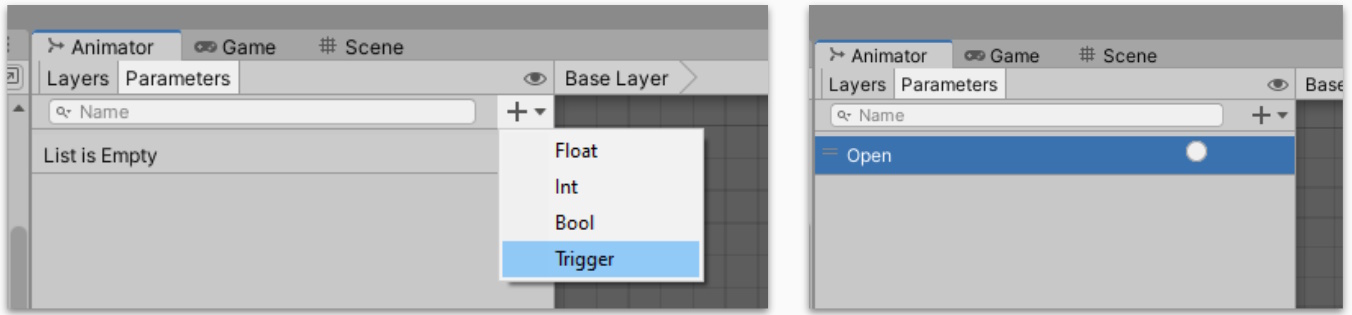
These Parameters can be edited through C# Scripts, making these animation states dynamic depending on the state of the game.
To use the parameter, we need to create a Transition. Do this by:
- Right click on the Idle clip
- Choose Make Transition
- Select the next clip you want to transition too
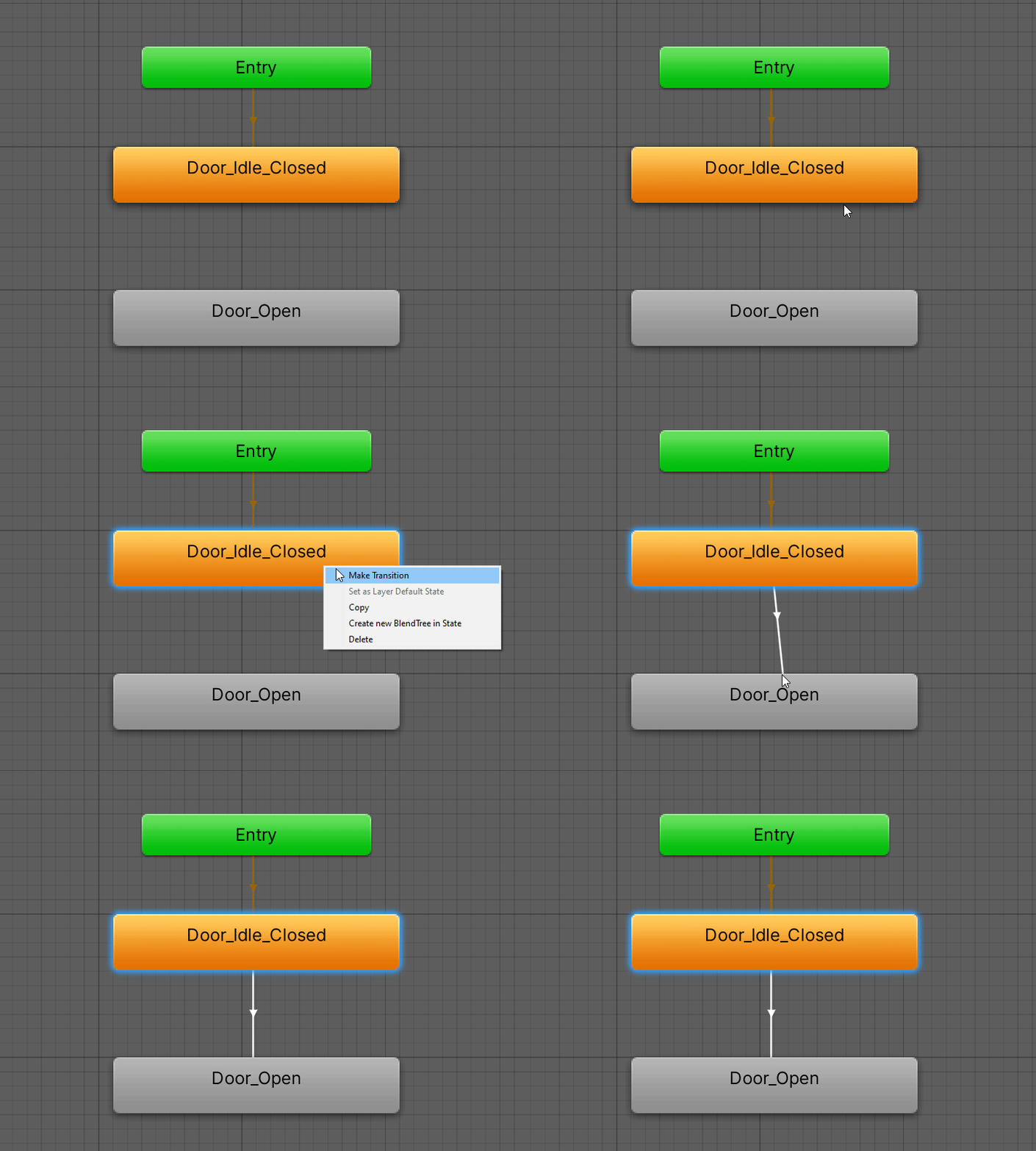
Then we can also set the parameter for that Transition:
- Select the transition arrow
- Add a condition to the list
- Choose the “Open” trigger we created
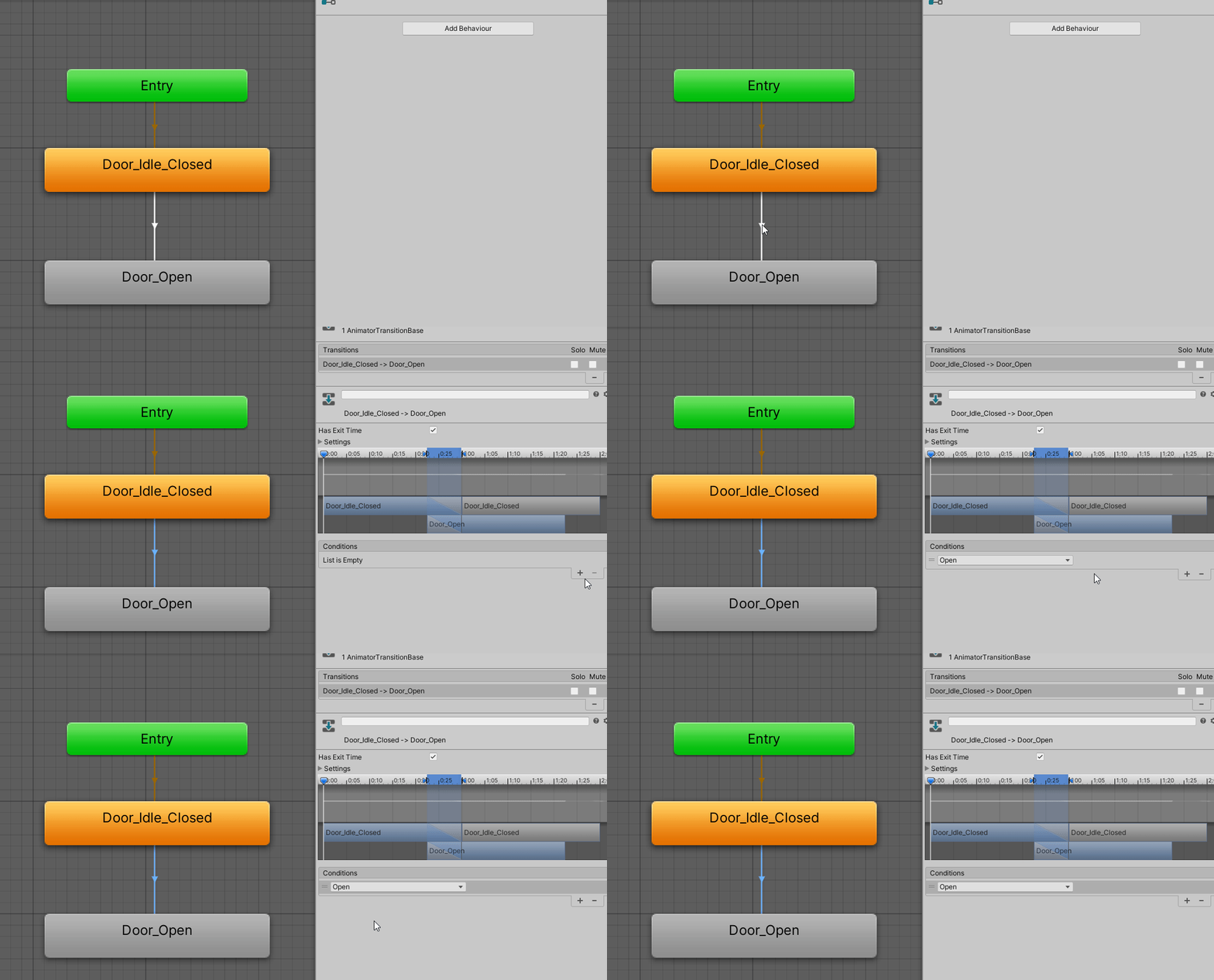
Lastly, we need to also set a transition for after the open animation plays. Otherwise, the animator will continue to play the open animation in a loop.
- Right-Click on the “Door_Open” clip
- Select Make Transition
- Select the “Door_Open_Idle” clip
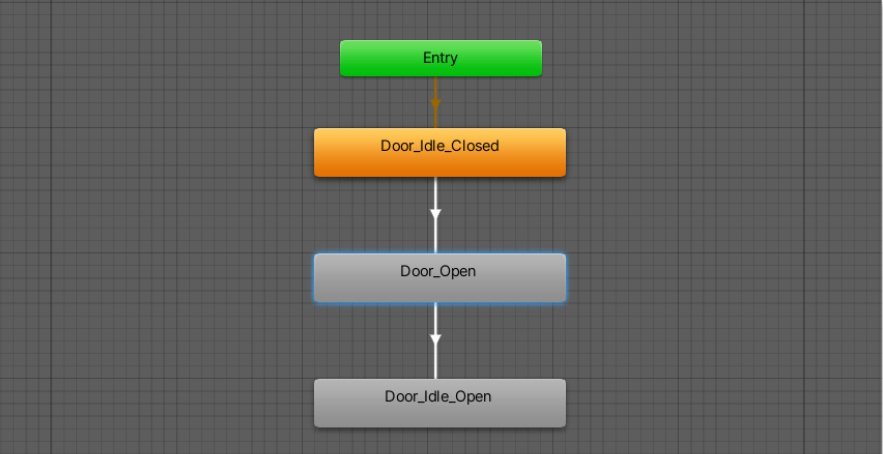
We do not need to set a specific condition for this transition. The animator will automatically follow the flow of transitions if not specific conditions are needed
Setting up link from our script
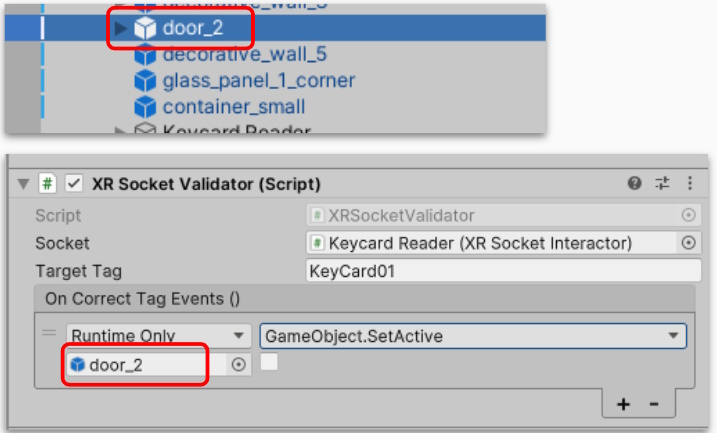
Next we need to trigger the animation. To do so, we will update the OnCorrectTag() events that we call.
- Select our Socket Object (Our Keycard reader)
- Update the referenced object to the door we are animating
- Select a new event from the dropdown list. Animator -> SetTrigger(string)
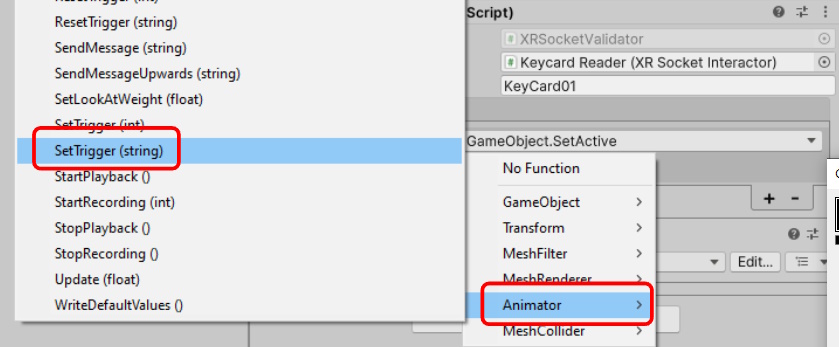
The final step is to type in the name of the trigger we want to fire. In our example, we create an “Open” trigger, so we will type in “Open”.
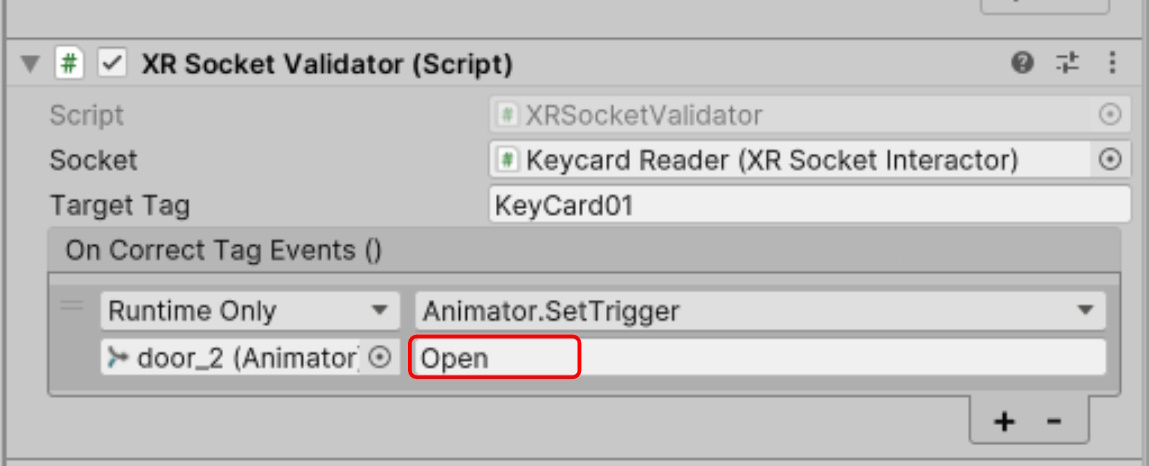
Done! Playtest the game and see if the door opens when the Keycard is inserted. You can also view the Animator at runtime to see how the animation tree is running.