
Lesson 06: Poke Interactions
In this lesson, we will cover how the Poke Interactable can be used in an Escape Room. We will first create a XR Interactive Button.
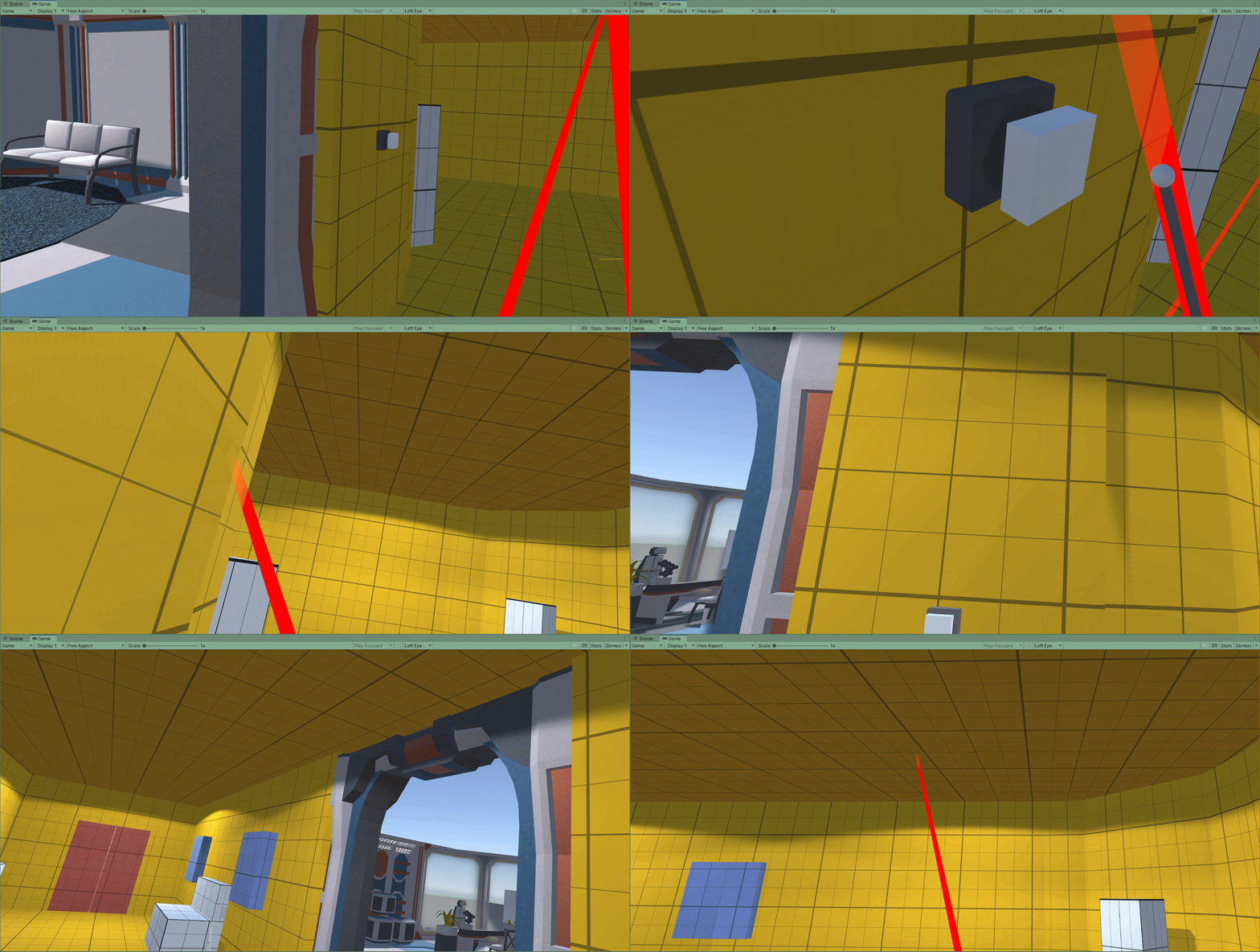
Before we can start connecting our new interactables up, we first need to create a room for this to take place in.
In this lesson, we will create a hallway for our new interaction to be placed in.
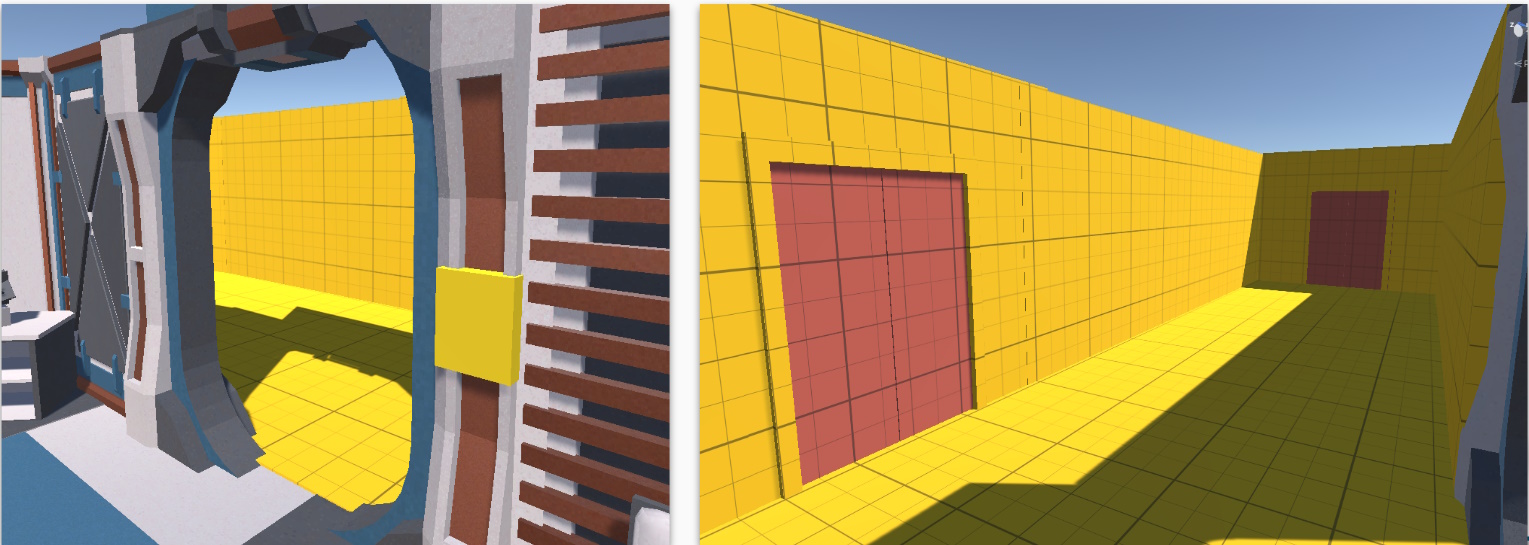
Once you are happy with the layout, start adding additional grey boxed details to the hallway.
These will be used to hide the code for our Keypad puzzle.
 Kua reri? - Ready? It's your turn... Create a new room or hallway in your Unity scene
Start by creating another grey-boxed room. In this example, i'm creating a hallway that exists outside of the first room
Kua reri? - Ready? It's your turn... Create a new room or hallway in your Unity scene
Start by creating another grey-boxed room. In this example, i'm creating a hallway that exists outside of the first room
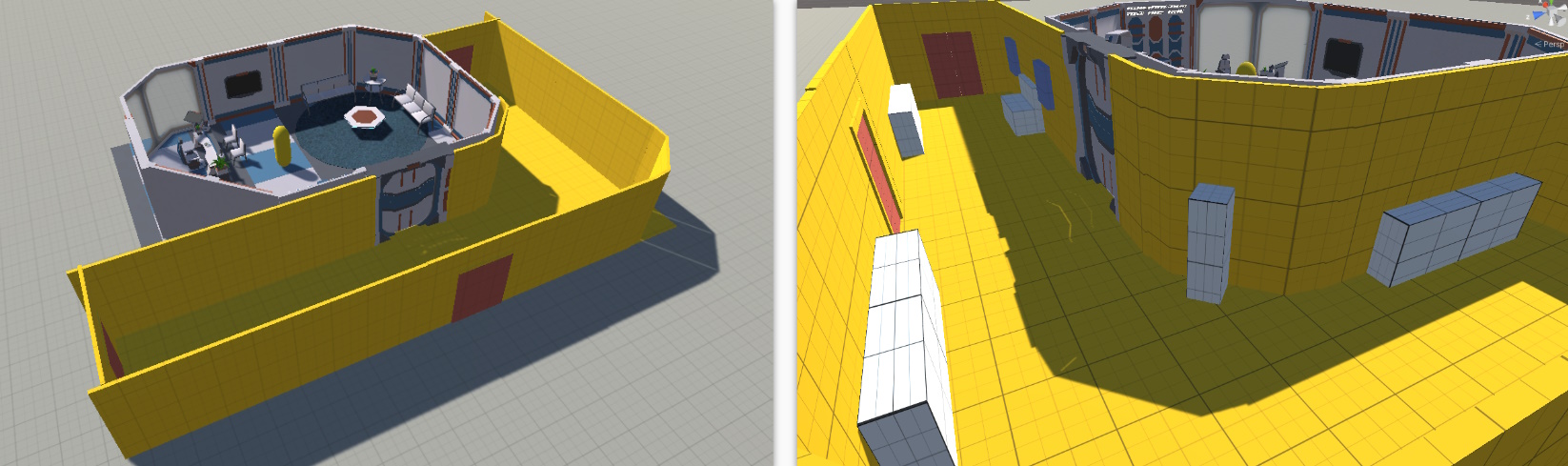
Keep it simple, as the focus of this lesson is to create the our XR Button prefab.
Poke Interactables
Poke interatables are a “simple interactable”. They receive and process interaction events. e.g playing a particle effect, increasing a number, etc…
To turn this into a poke interactable, we add a Poke Filter.
This lets the game engine know that to trigger the interactions, we need to physically push the button using physics rather than any other method.
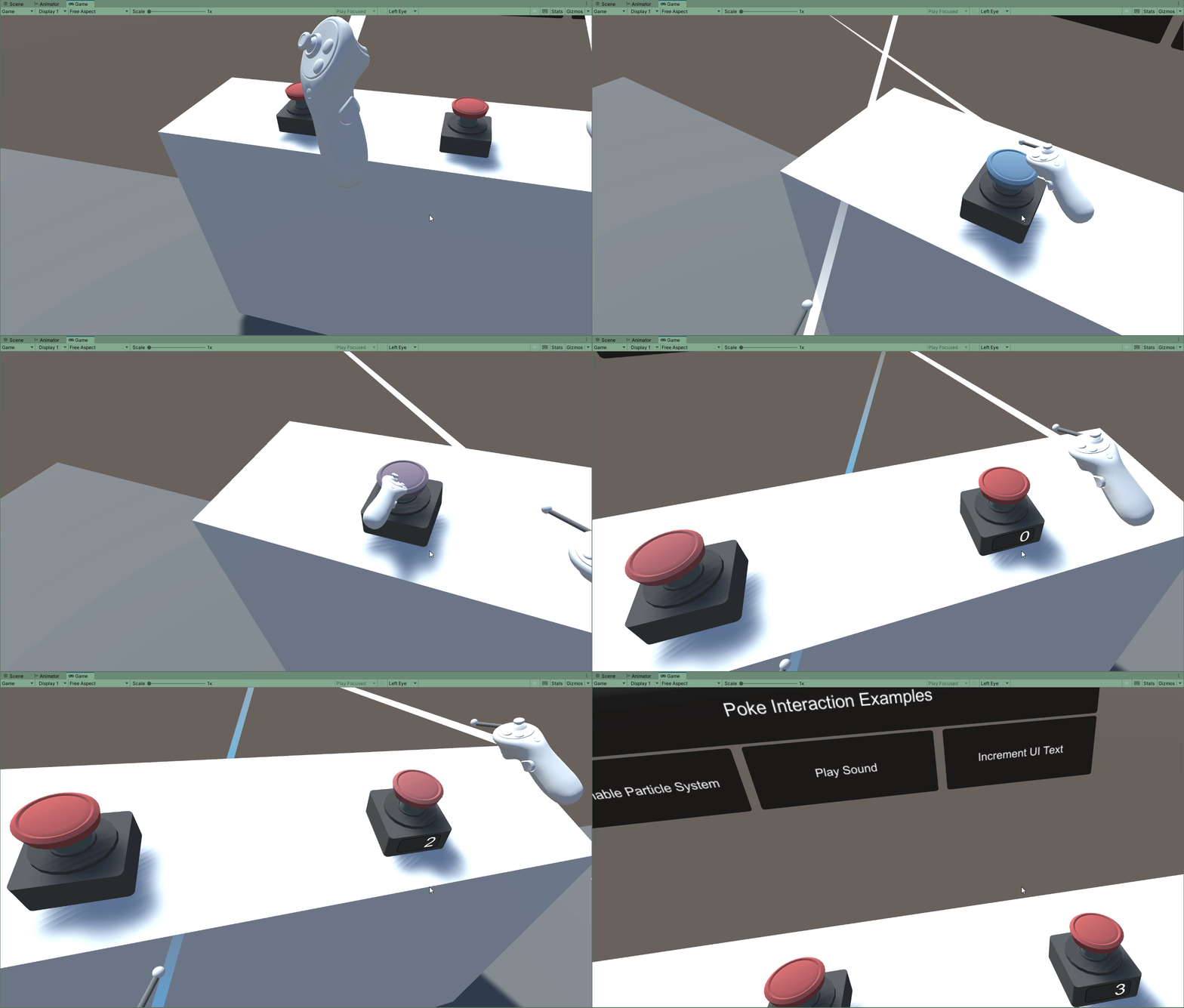
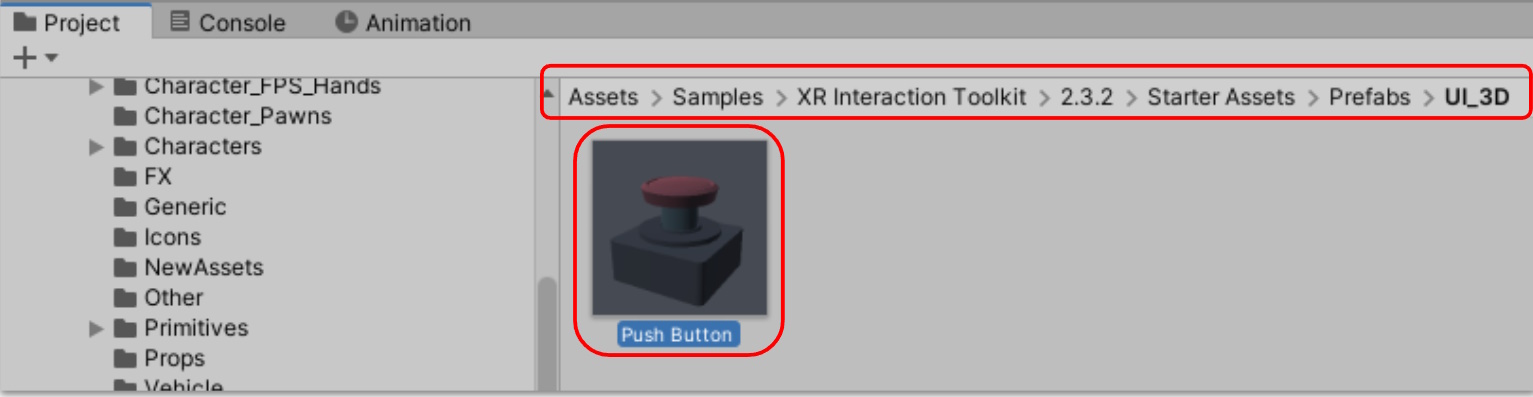
To get started, we will use Poke Button prefab from the Samples folder.
- Follow the path below or Search for “Push Button” in your asset folder
- Drag and Drop a copy of this prefab into the scene at any position.
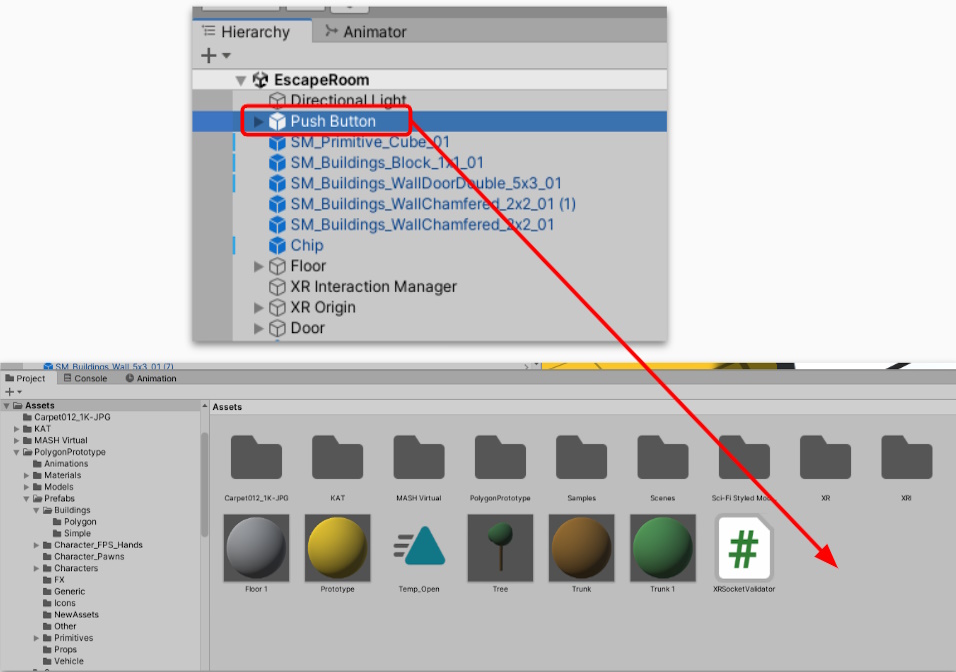
Next, we will make our own copy of the prefab so that we can make changes to it
- Drag and Drop the “Push Button” object from the scene hierarchy into your assets folder.
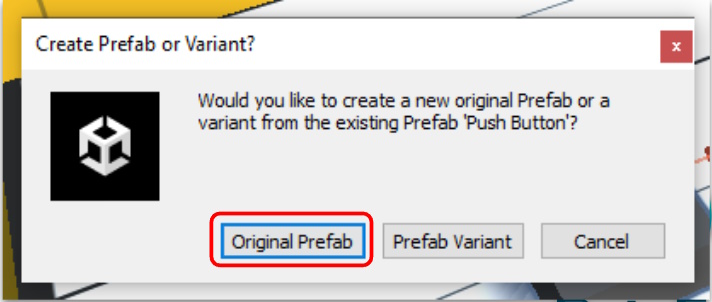
- When prompted, select Original Prefab as your choice.
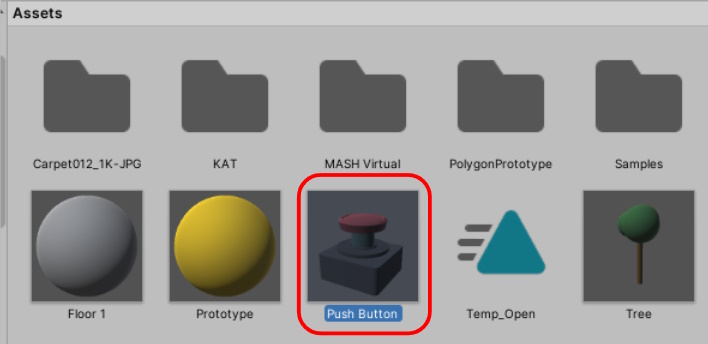
Now that we have our own copy of the Prefab, we can make changes to it without affecting the sample scenes that it came with. To begin:
- Double Click on the “Push Button” Prefab in our Assets folder
This will open a Prefab Editor to make isolated changes easier to see. It should look something like this:
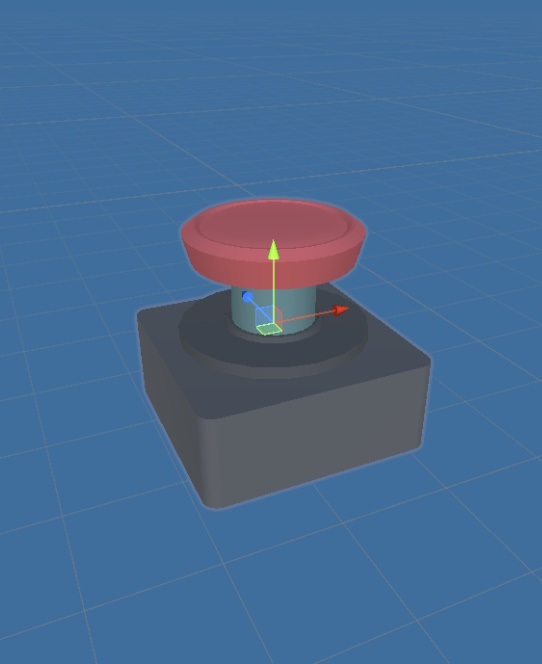
Let’s take a look at how the object is currently setup. First, we will focus only on the physical part of the Gameobject, as we can assume that the XR button works
Looking at the Scene Hierarchy we can see that there is an object that holds the Visuals of the button.
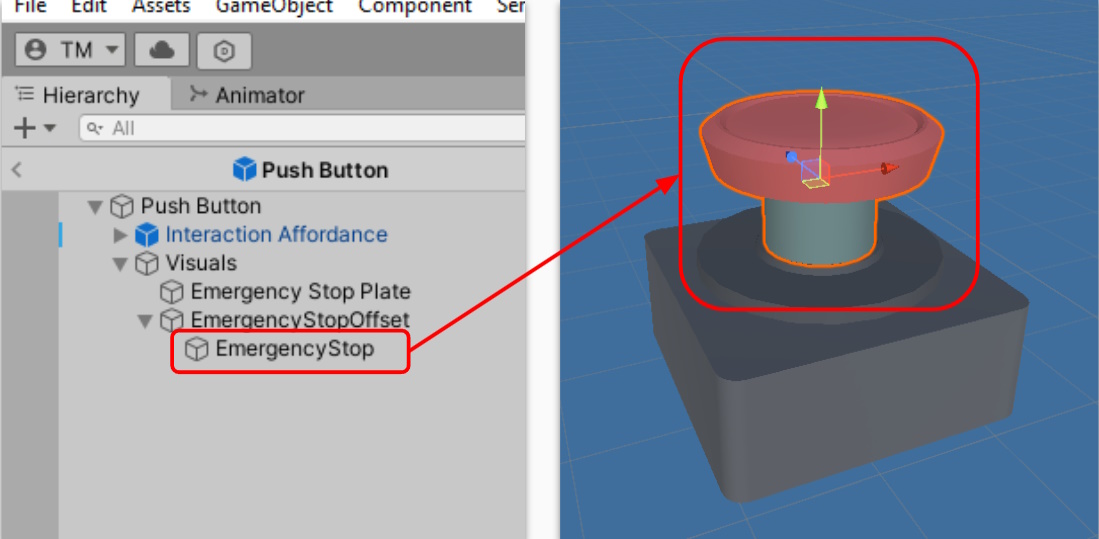
Further, we can identify that the “Emergency Stop” object is the part of the button we want to change.
Next, lets practice changing the button graphic. In this example we will use a cube, but you can use any other mesh you think would look best.
- Right-Click on the parent of the “EmergencyStop” object.
- Select 3D Object -> Cube
- Scale and Position the cube until it lines up with where the previous object was.
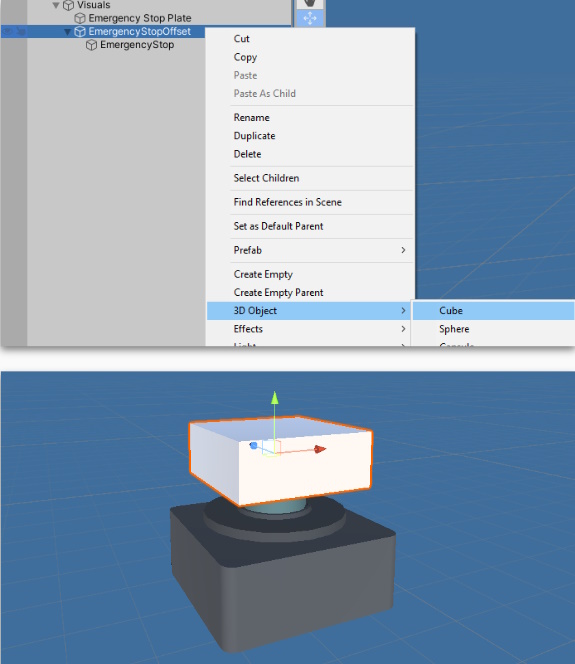
By attaching the object to the existing parents, we can assume that the new object will move in the same method as before
Test it out. Does it work?
Currently, our button does not interact with our controllers. Why is that?
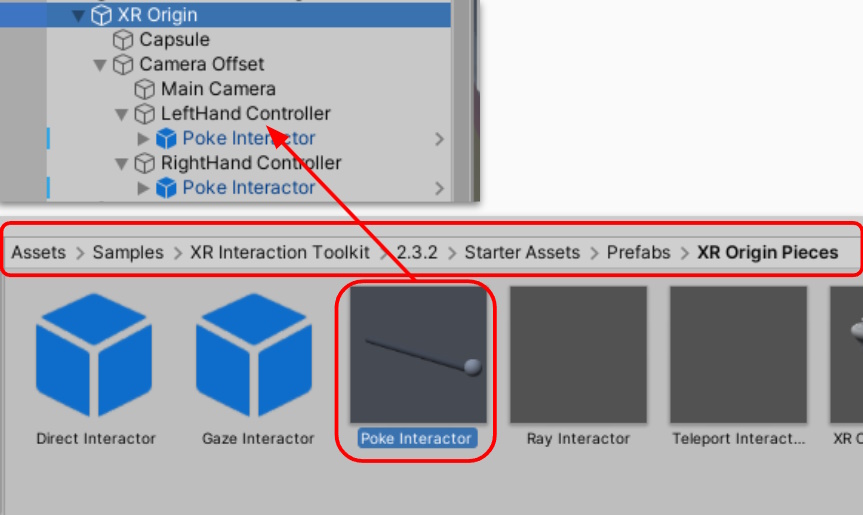
We have been using the default in XR Rig and controllers for our XR Interactions. For a Poke Interactable to work, we need to include a collider to our controllers. The Starter Assets already have a prefab ready for us to use.
- Search for Poke Interactor in the assets folder
- Drag and Drop a copy onto both controllers in the scene
- Adjust their rotation and position if needed
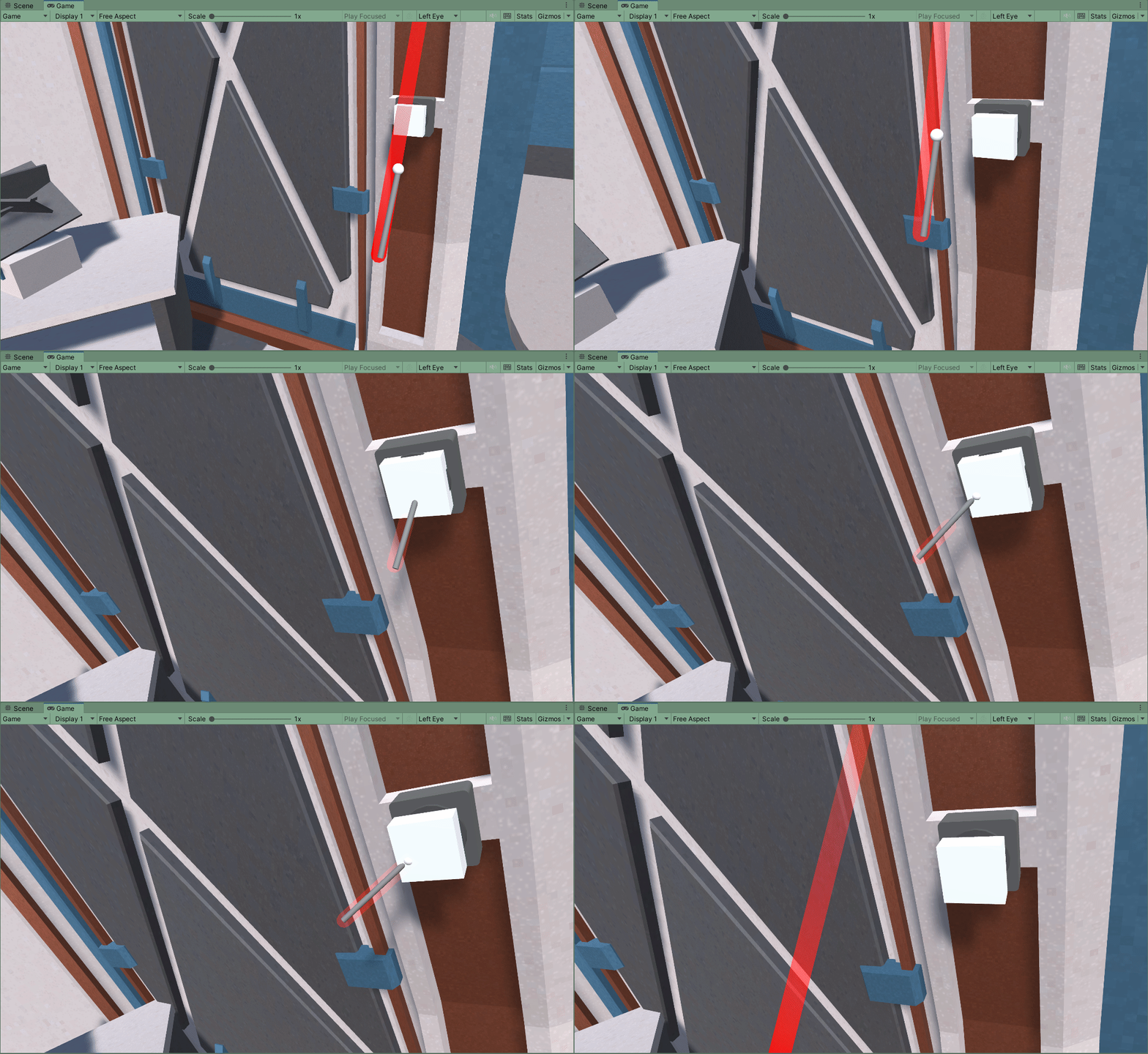
Playtest again, do they interact with the button?
Setting up script references
How do Poke Interactions send Game Events?
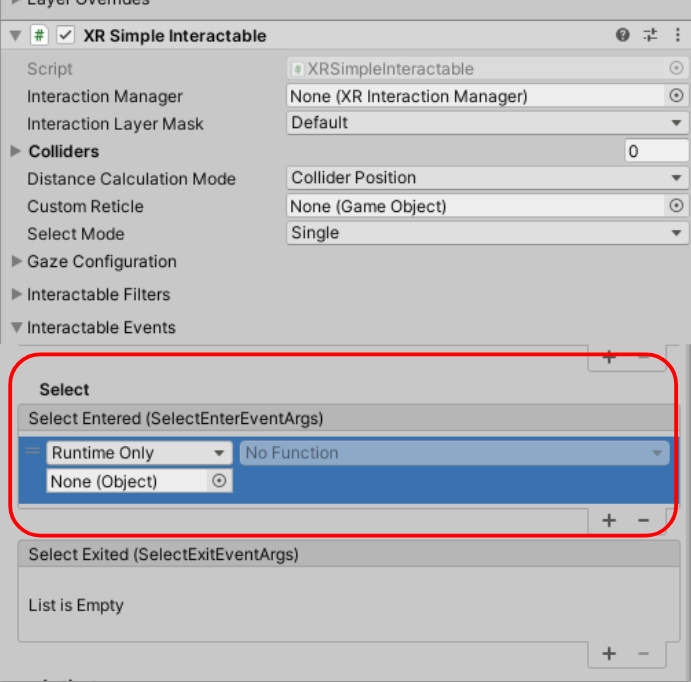
Poke Interactables use the XR Simple Intractable component. Any events tied to Select event will occur when the user pushes the button down.
The only difference between a Simple Interactable, and Poke Interable, is the Poke Filter which changes the interaction method.
To test that our button is working correctly, assign a simple action to the Select event on its XR Simple Interactable component:
- Return back to the Scene view (close prefab editor)
- Add new copy of the prefab to the scene
- Select the button and add a Select event action
- Choose a simple obvious task. In my example, I have set up a “Light” object in my Hallway. The action i’m selecting is the “SetActive()” method, which changes the objects active state (essentially, turning the light on or off)
Playtest again! Does the event occur when the button is pushed? Remember, all we are testing at this stage is if the button is sending signals correctly.