
Lesson 07: Coding our Keypad
In this lesson, We will create a XR Interactive Keypad, and allow users to input a secret code. This code will be display to the user using UI elements
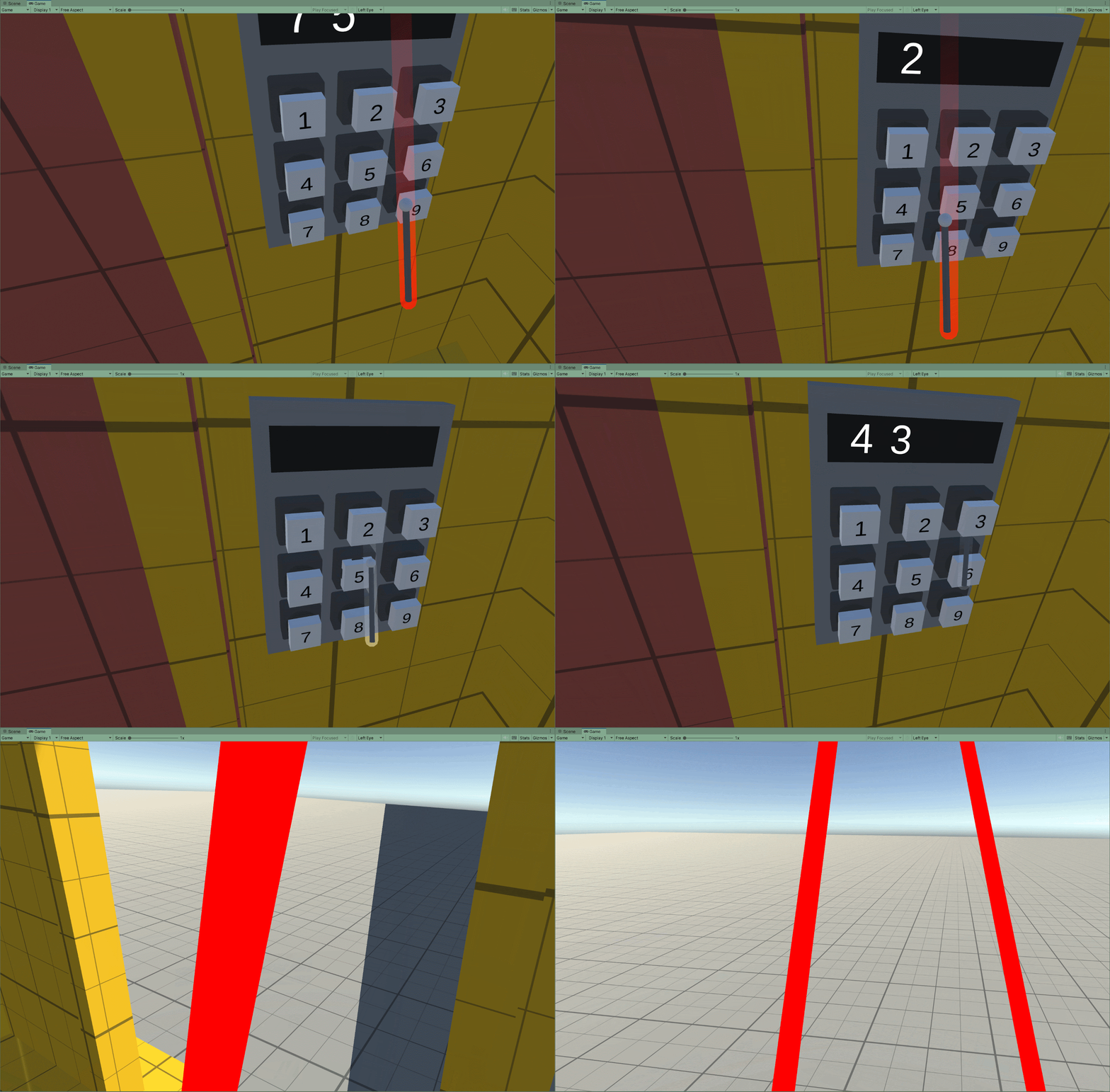
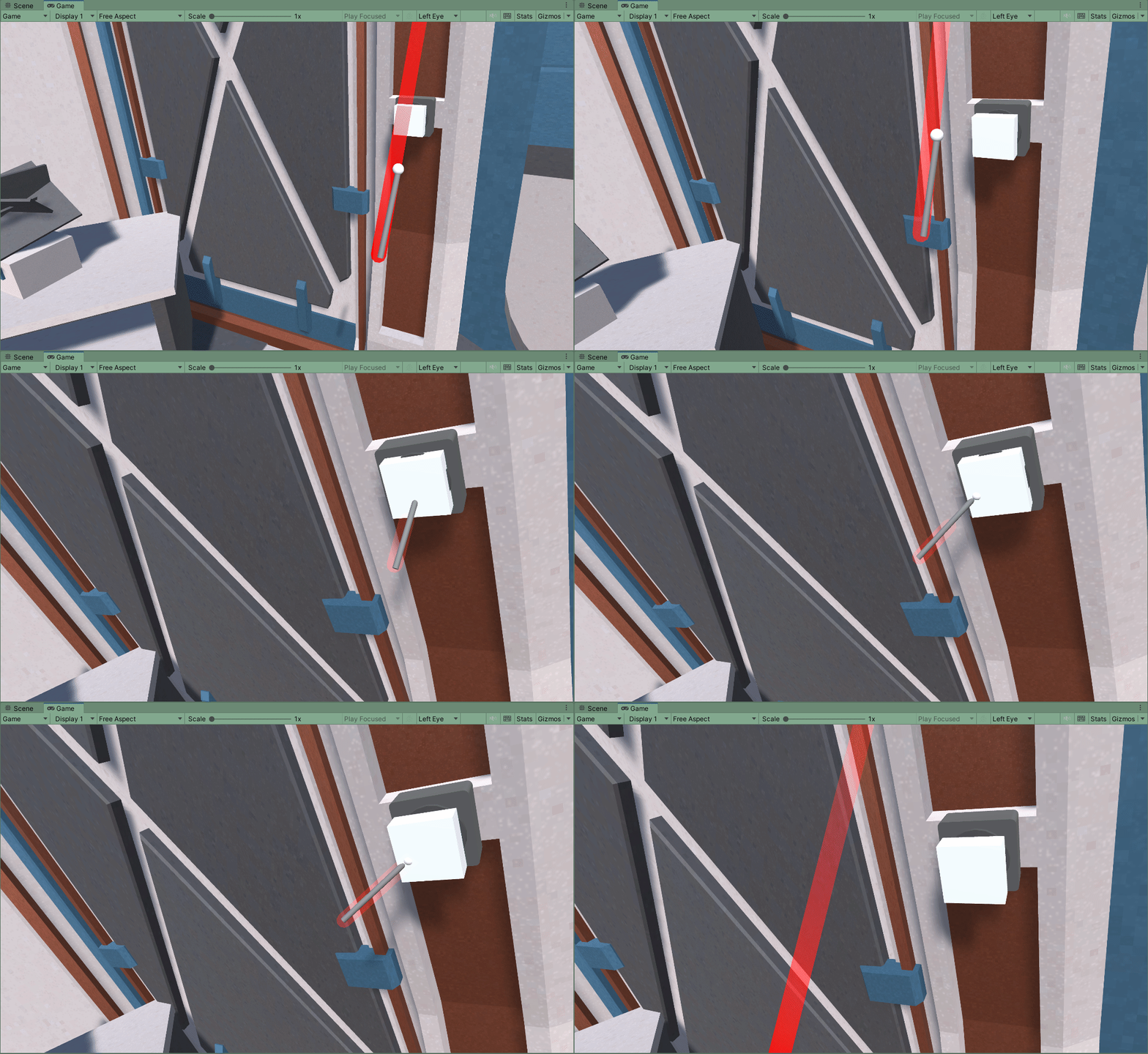
In our previous lesson, we covered how to create in XR Interaction Poke button. This allows users in VR to physically push a button down and send out game events.
Later in this lesson we will create a script that will communicate with our buttons to input a code.
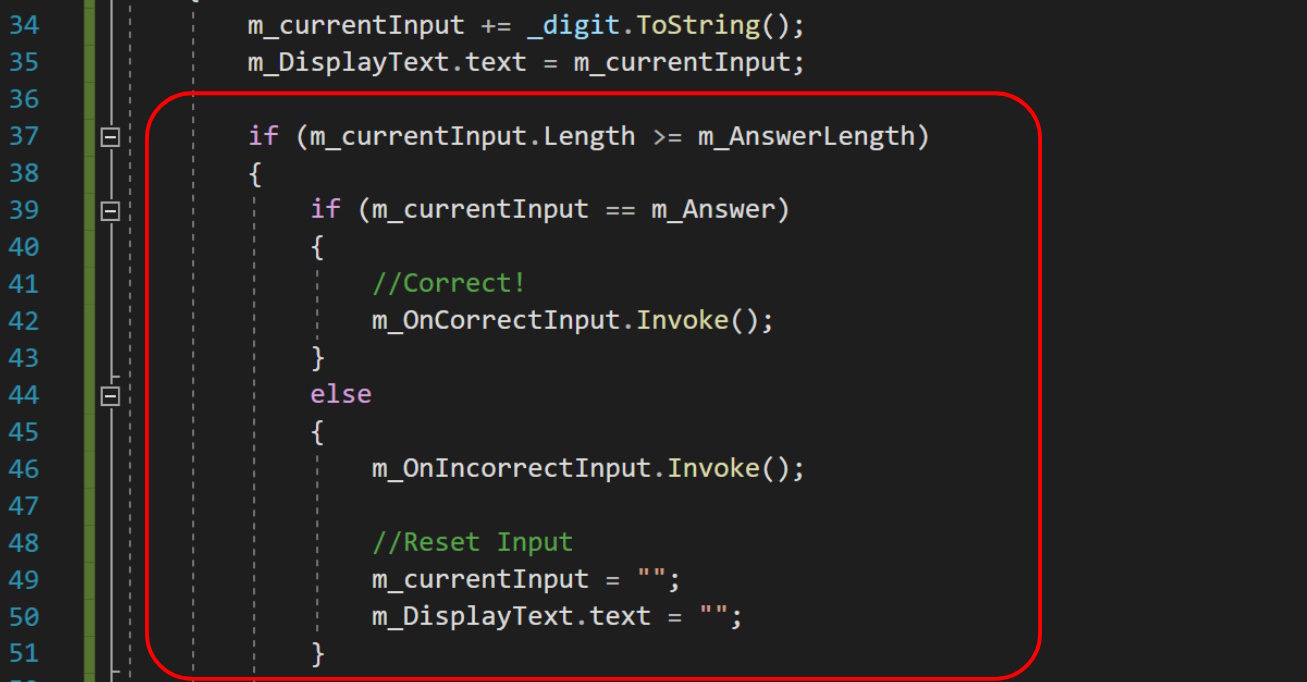
This code will receive integer values from the buttons. Once enough inputs have been received, the code will confirm if the value is correct or not.
If correct, we will invoke a list of game events.
If incorrect, we will reset the keypad.
To begin, we need to edit our XR Interactive Button Prefab and add a canvas to it, so that it can display a digit.
- Select the XR Interactive Button Prefab made previously
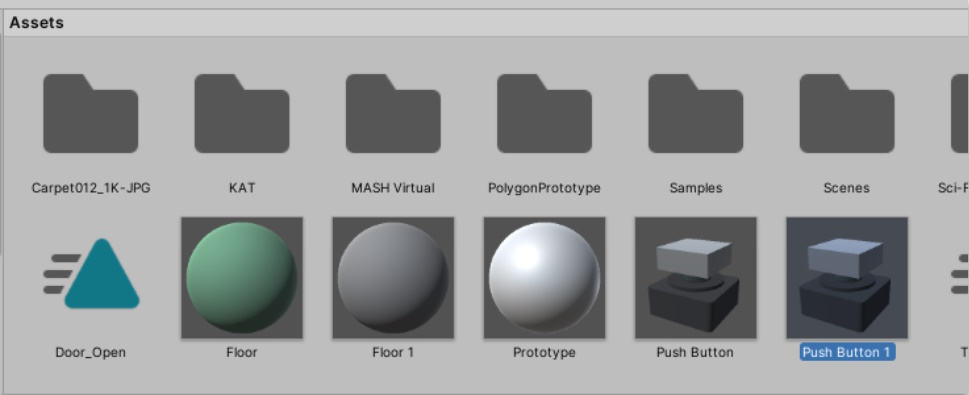
- Press ctrl+D (cmd + D) to duplicate the Prefab
- Open the new prefab
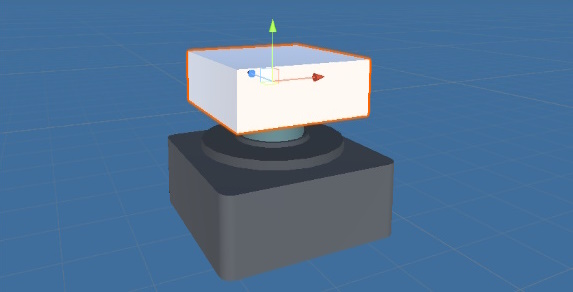
Canvas component are needed to hold UI elements. By Default, Canvases are attached to the players Camera. We instead will change it to world space so that the UI exists as a 3D object that we can then attached to objects.
- Select the mesh used for the buttons visuals
- Right-Click and add UI->Canvas
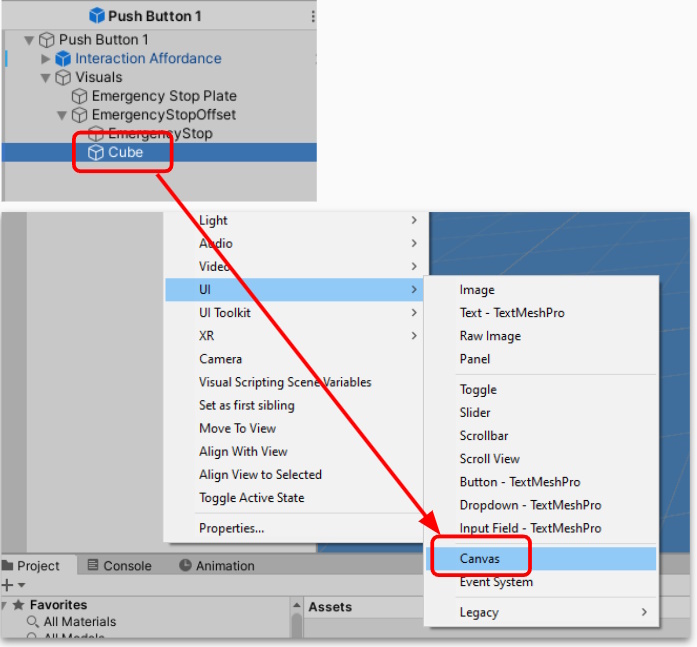
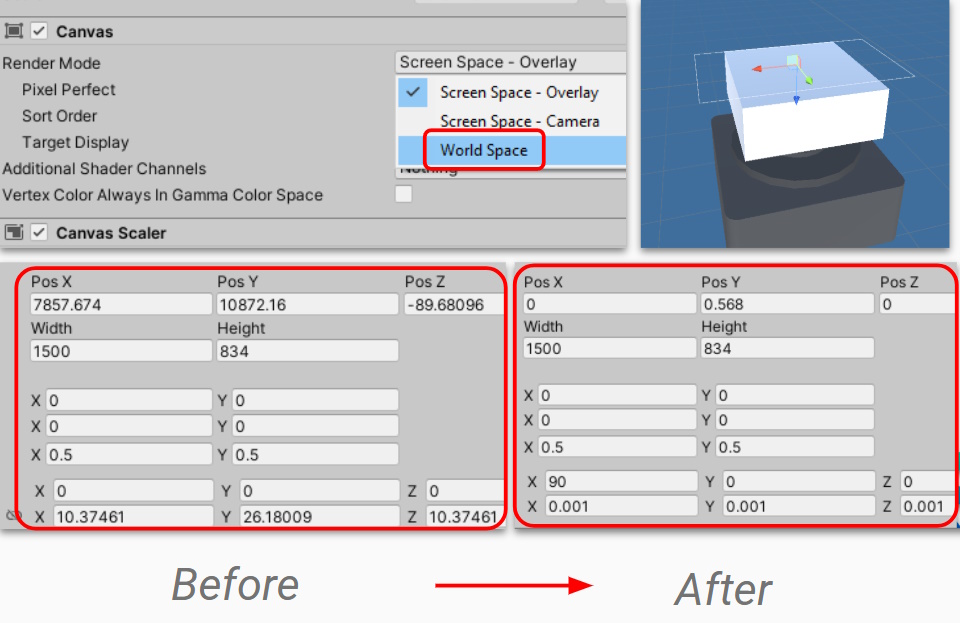
To change the canvas to world space, we will need to edit its component values. Note that we will also need to rescale the transform component, as we are changing from a “Pixel” scale to a “Meter” scale.
- Select the canvas Object
- Change the render mode to World Space.
- Edit its transform component until it lines up with your button’s surface.
- Rotate the canvas if needed
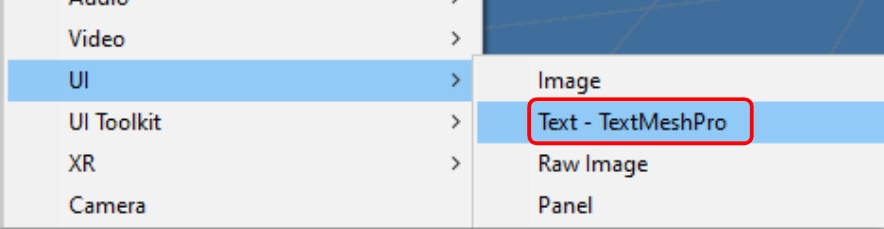
Next, we will add the Text component to the Canvas Object. Remember, UI Elements have to be attached to a canvas object in order to be rendered.
- Select the canvas Object
- Right-Click and select Text or Text-TextMeshPro
- Edit the new text element to fit the buttons size
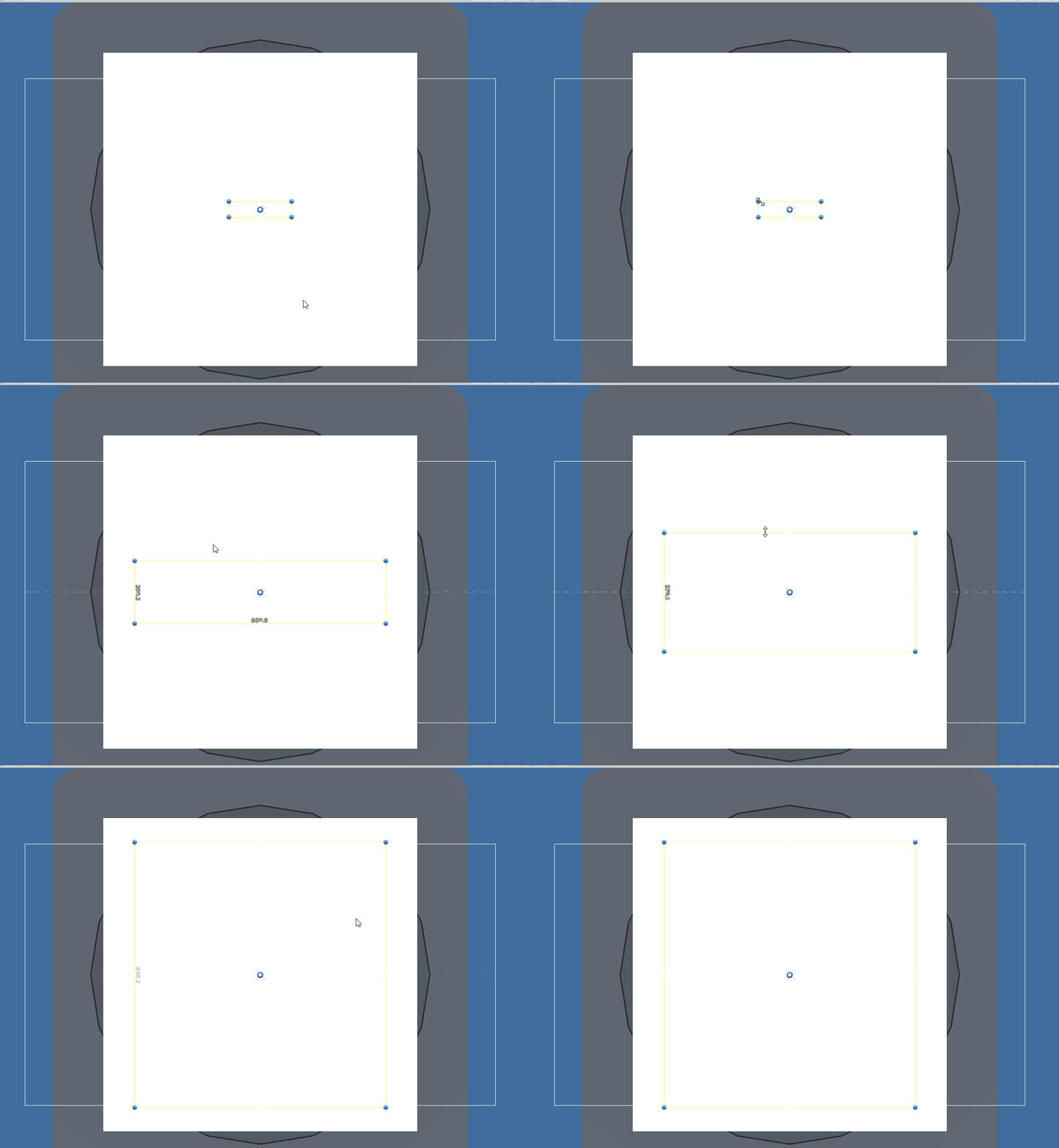
- Change any Font settings to make it more readable
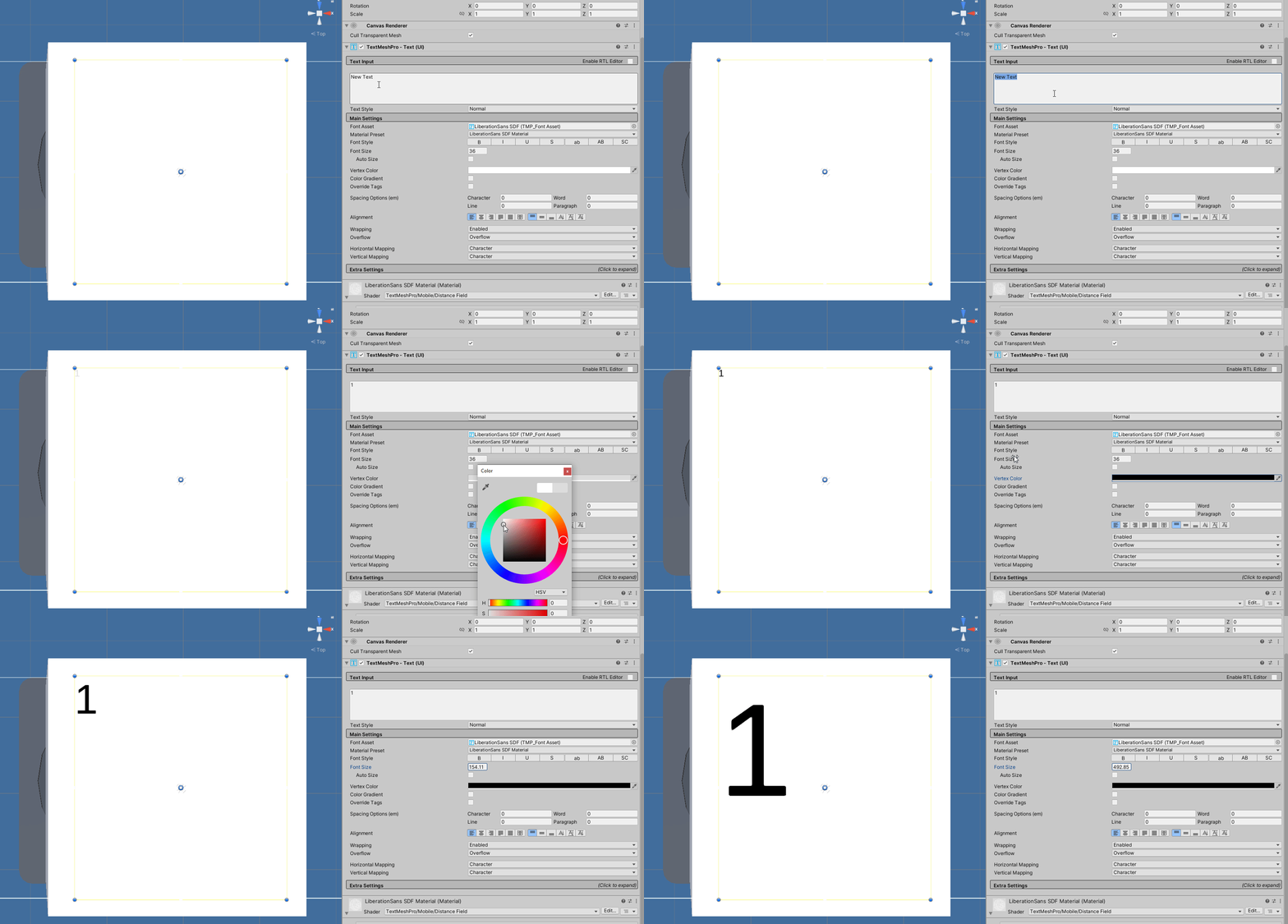
Using Text Mesh Pro gives you the most customizable fonts
Once you are happy with your button, try playtesting the changes. We want to check that the text follows the button when pushed
Creating a Keypad object
To create our Keypad, start by creating a Parent object. From there, attache the keypad button and duplicate it until you have a full array.
- Create an Empty Gameobject and name it Keypad
- Add a mesh to give it a shape (I attached another cube)
- Parent the button to the Keypad
- Duplicate it until you have 9 copies
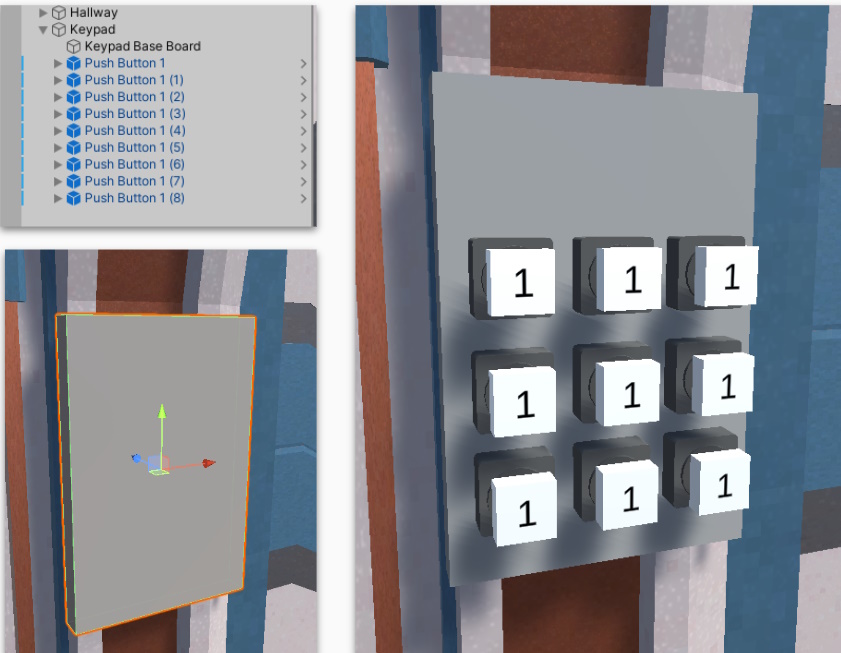
Next, update each of the keypad digits to have the numbers 1 through 9. This is a bit of a manual task that requires you edit the text of each button
- Select each text element of the buttons one by one
- Changes the text to be the numbers 1 through 9
- Update the font size if needed
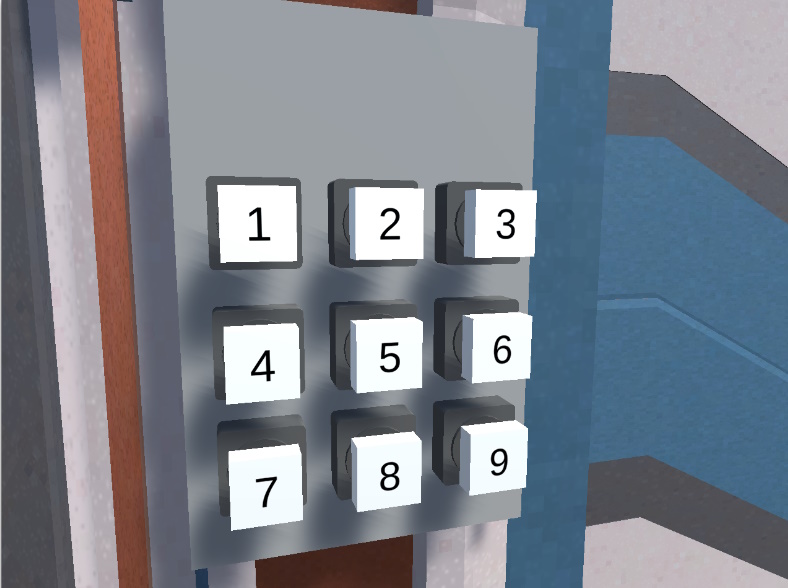
Next, we need another Canvas and Text Element to display the code as its being entered. Create a new Canvas and attach it to you Keypad Object.
- Select the Keypad and Right-Click
- Select UI-> Canvas
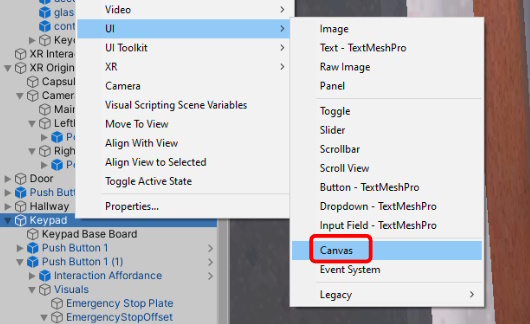
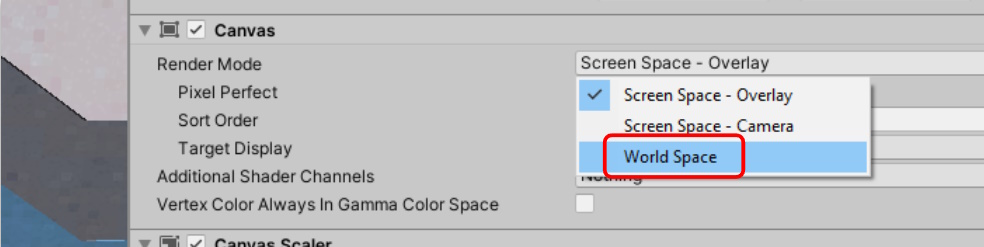
- Set the Canvas to World Space
- Adjust until it lines up with the keypad
- Add a Text Element to the canvas
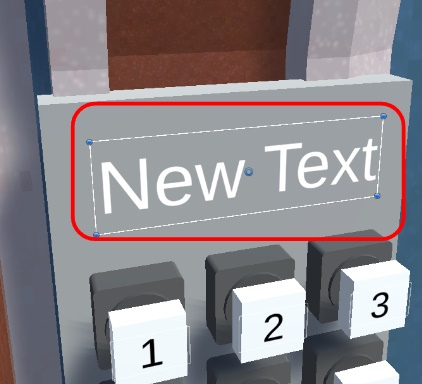
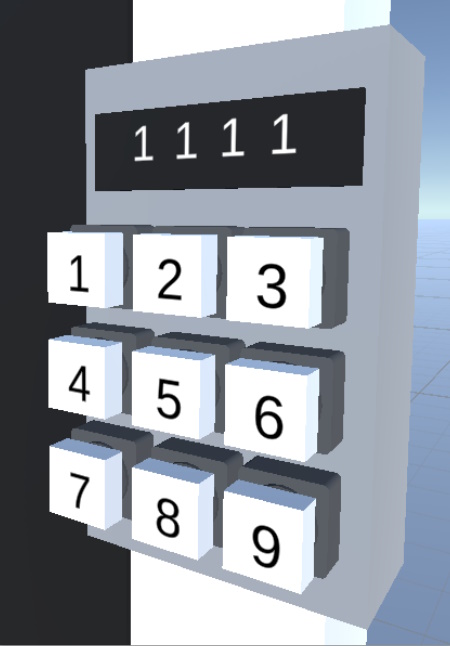
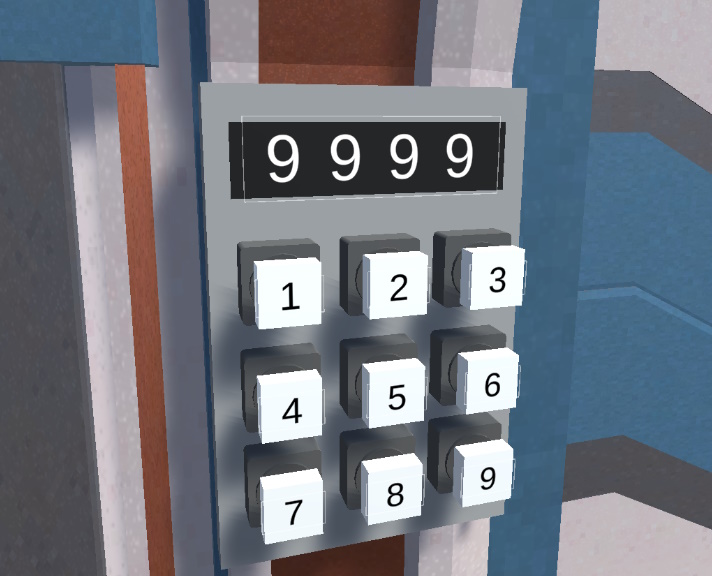
Change the new Text Element to a set of numbers, e.g “9 9 9 9”. This lets us check if the Text will fit on the Canvas correctly. Additionally, we can add an extra object to the Keypad to make reading the text easier.
- Select the Keypad Text Element
- Change the text to “9 9 9 9”
- Adjust the font size until correct
- Add an additional object to the Keypad (e.g a cube)
Scripting our Keypad object
Next, we will need to write the script for the Keypad. This script will have a public function that can be called when each of our XR Buttons are pressed.
- Select the Keypad Object
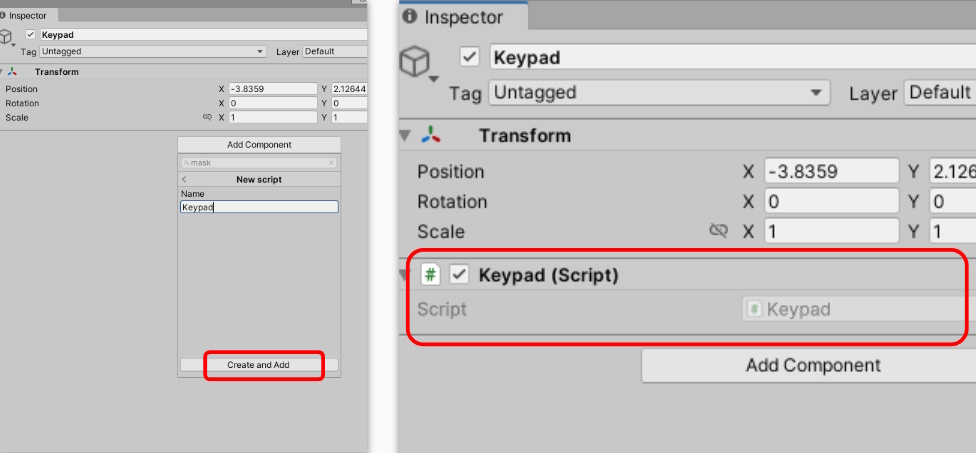
- Press Add Component… and choose New Script
- Type in the name “Keypad” and press Create and Add
- Open up the script in your coding IDE.
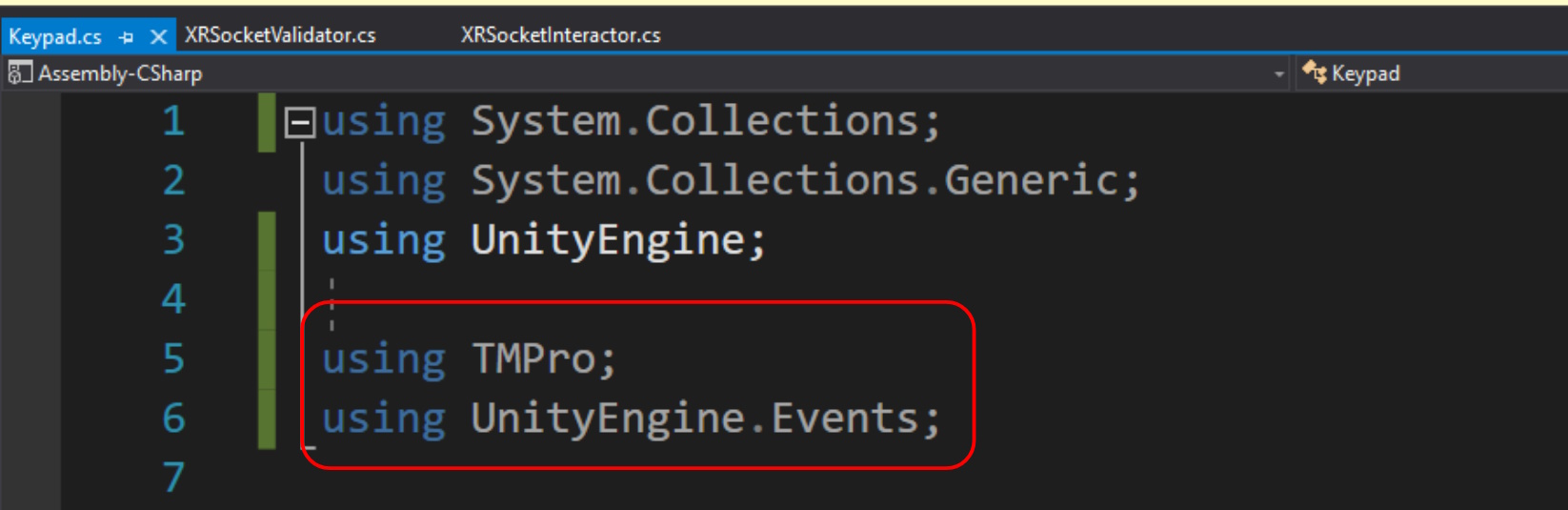
To begin with, we will add two namespaces to this script:
- TMPro - The namespace for referencing the TextMeshPro element
- UnityEngine.Events - The namespace for invoking Unity Events
 Kua reri? - Ready? It's your turn... Copy the following code
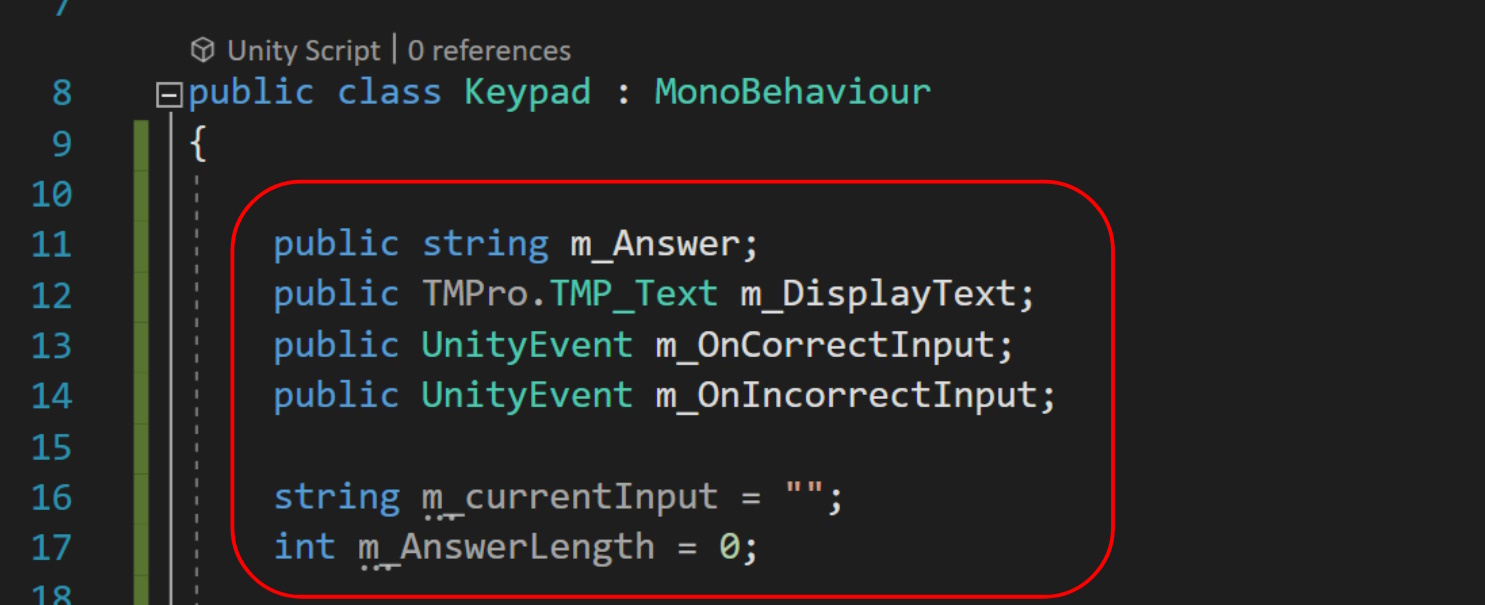
Next, add the following public and private variables to the Keypad class. The public variables will be used as references from Unity. The private variables will be used to check and store data.
We will use the Start() method to make sure certain variables are set up correctly. We will set the DisplayText to be blank, and set the AnswerLength to be equal to the public variables length.
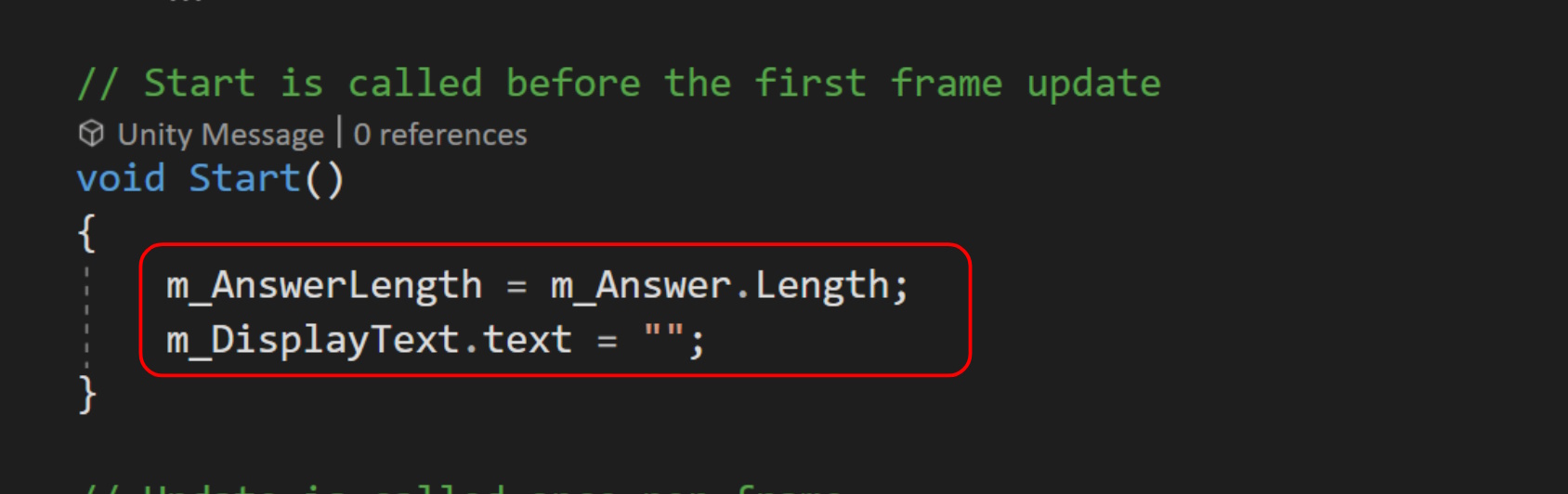
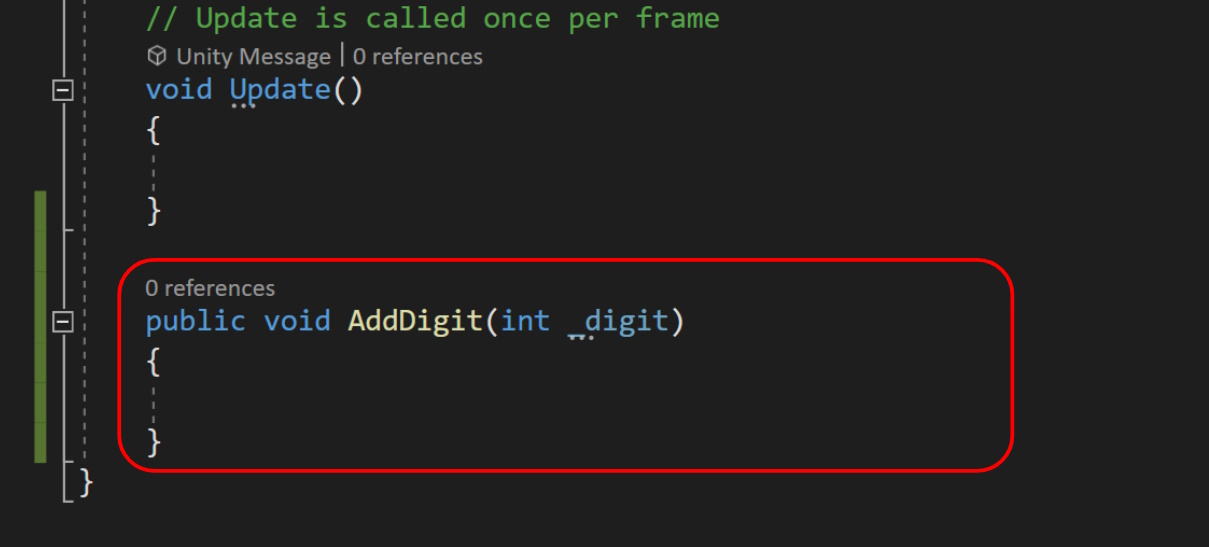
Next, we will create a new public function. This will allow Unity to call it through the button events, similar to how we call the animators methods. We will also add an integer as an argument, so we know which button was pushed
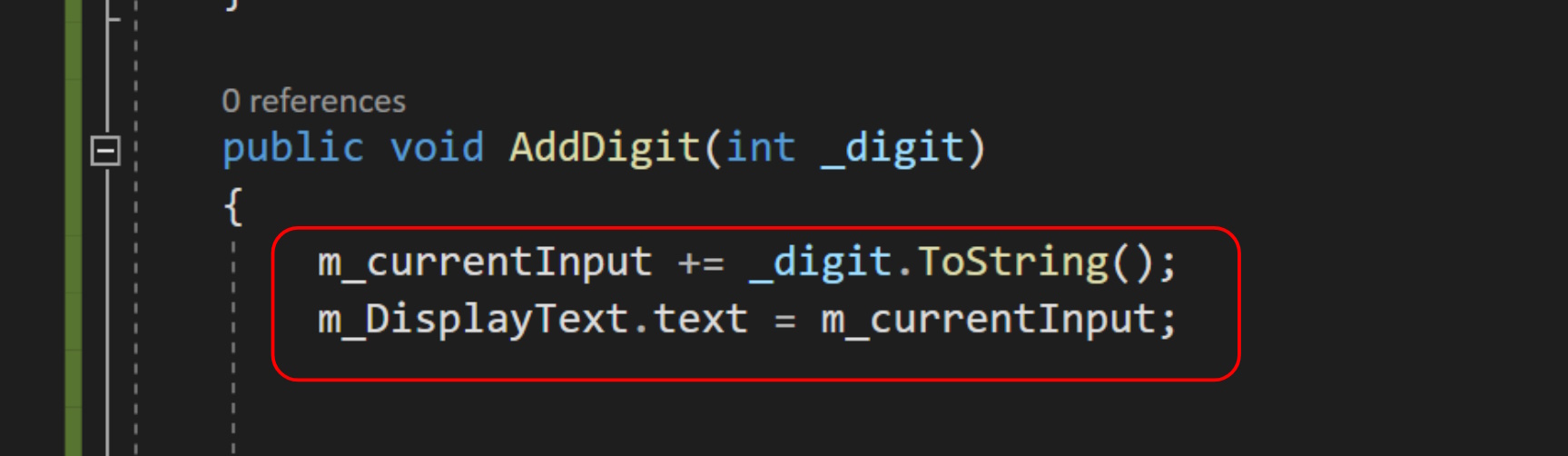
Inside of the function, add the following code. This will store the digit in our string variable and then update our Text Element with the current code.
Lastly, we will add the decision making process. This checks if we have inputted enough digits. If true, we then check if we either got the code correct or not
Setting up our script references
Save your script and head back to Unity to link the public references. Slowly fill out each variable until all references are set. We will also set the secret code.
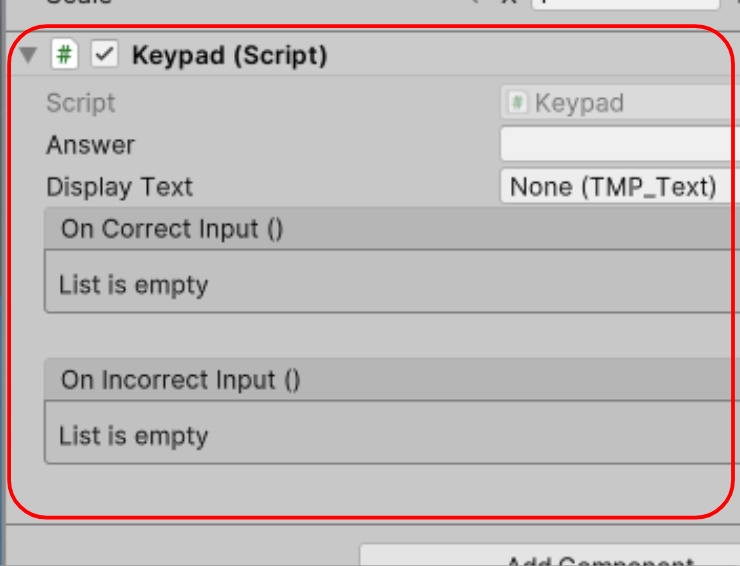
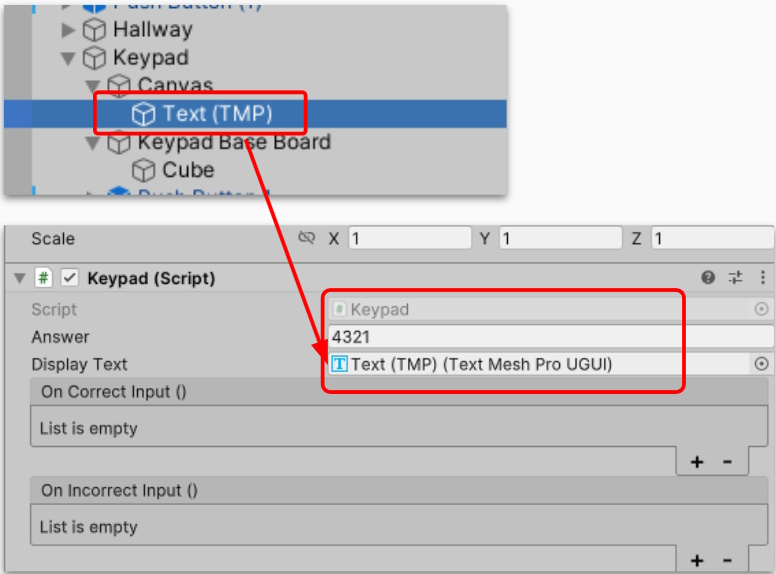
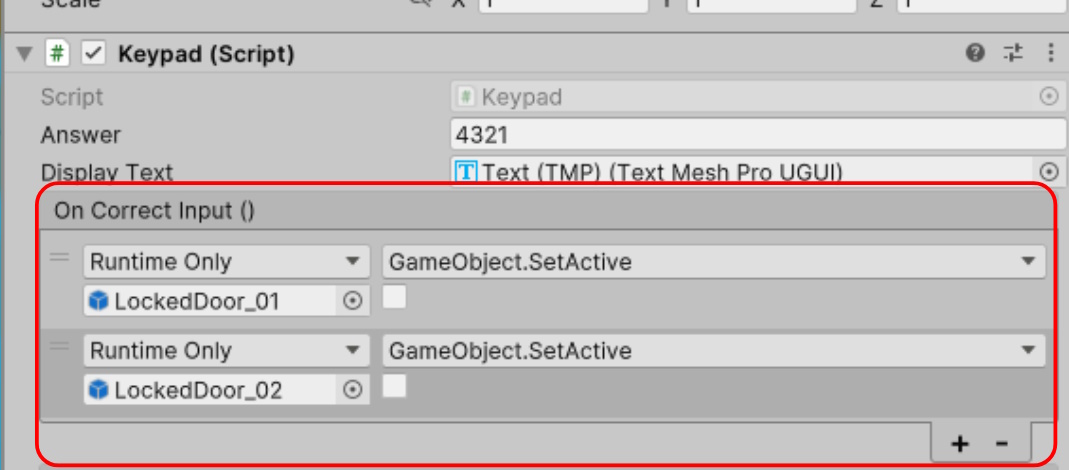
Lastly, set up some events to invoke when the correct input is detected. We can use this to playtest our game. In the example below, I had it set to make the two door objects deactivate when the correct code is placed. (we can also animate this)
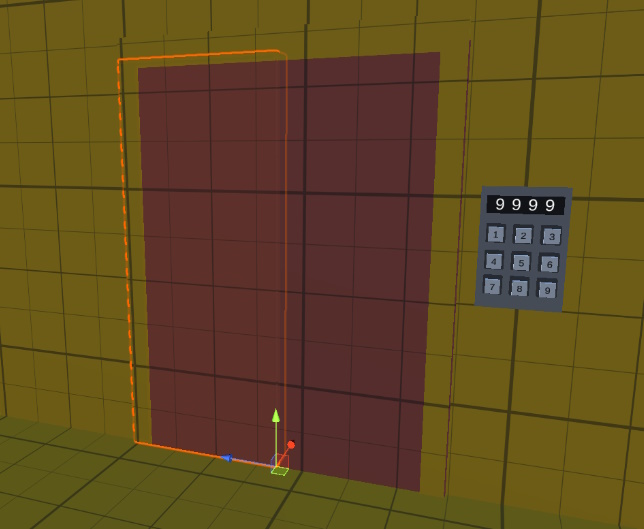
Our Keypad is set-up and ready to test! However, we first need to program each button to input a digit each time they are pressed.
- Select one of the Keypad Buttons
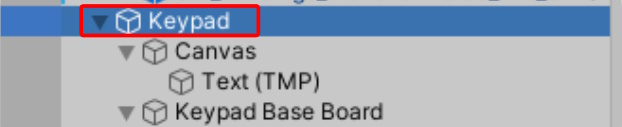
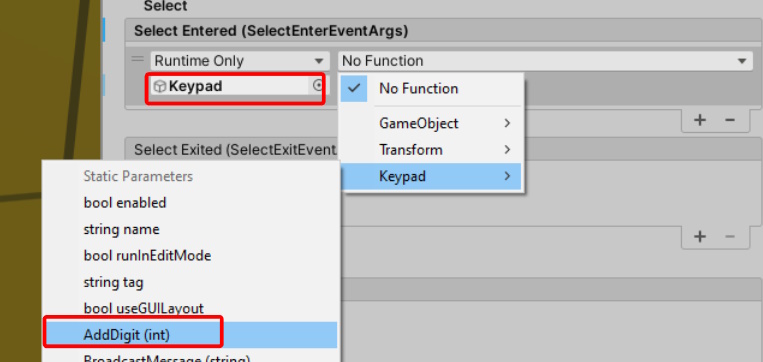
- Add a new event to the Select() section
- Drag and Drop the Keypad object as a reference
- Select the Keypad -> AddDigit(int) method we created
- Change the input to match the selected buttons digit
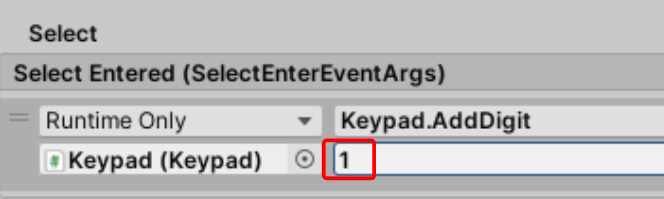
Repeat this for all 9 buttons, making sure to change match the correct input to the correct digit
Done! Each Button should add a different number as setup in our Select() event calls. Try playtesting and see what happens when you get it right or wrong?