
Lesson 09: Adding Lighting and Effects
In this lesson, We will cover how to add particle effects and more advanced lighting to your scene.
Unity has a powerful lighting system that can change and adapt depending on the render settings and environment of your project. Let’s start by covering the basics. Take a guess, what is the difference between:
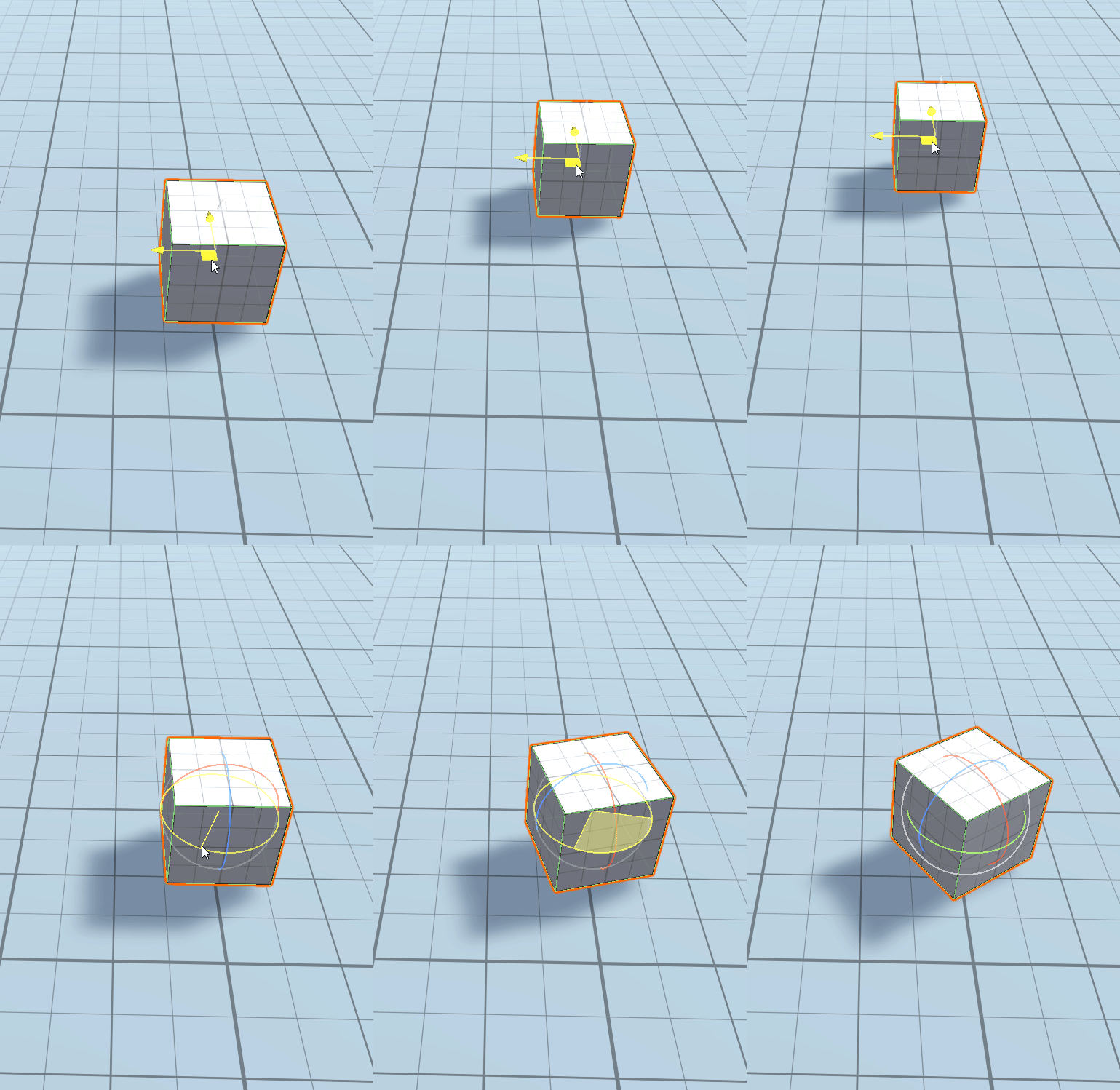
Realtime lighting in Unity is when lighting data is calculated at runtime. As the game is being played, lighting data is constantly being re-calculated to update shadows and object lighting. This is best used for objects that move as they will need their shadow re-calculated.
Note: Having too many realtime lights in your scene can heavily affect performance due to all the calculations occurring.
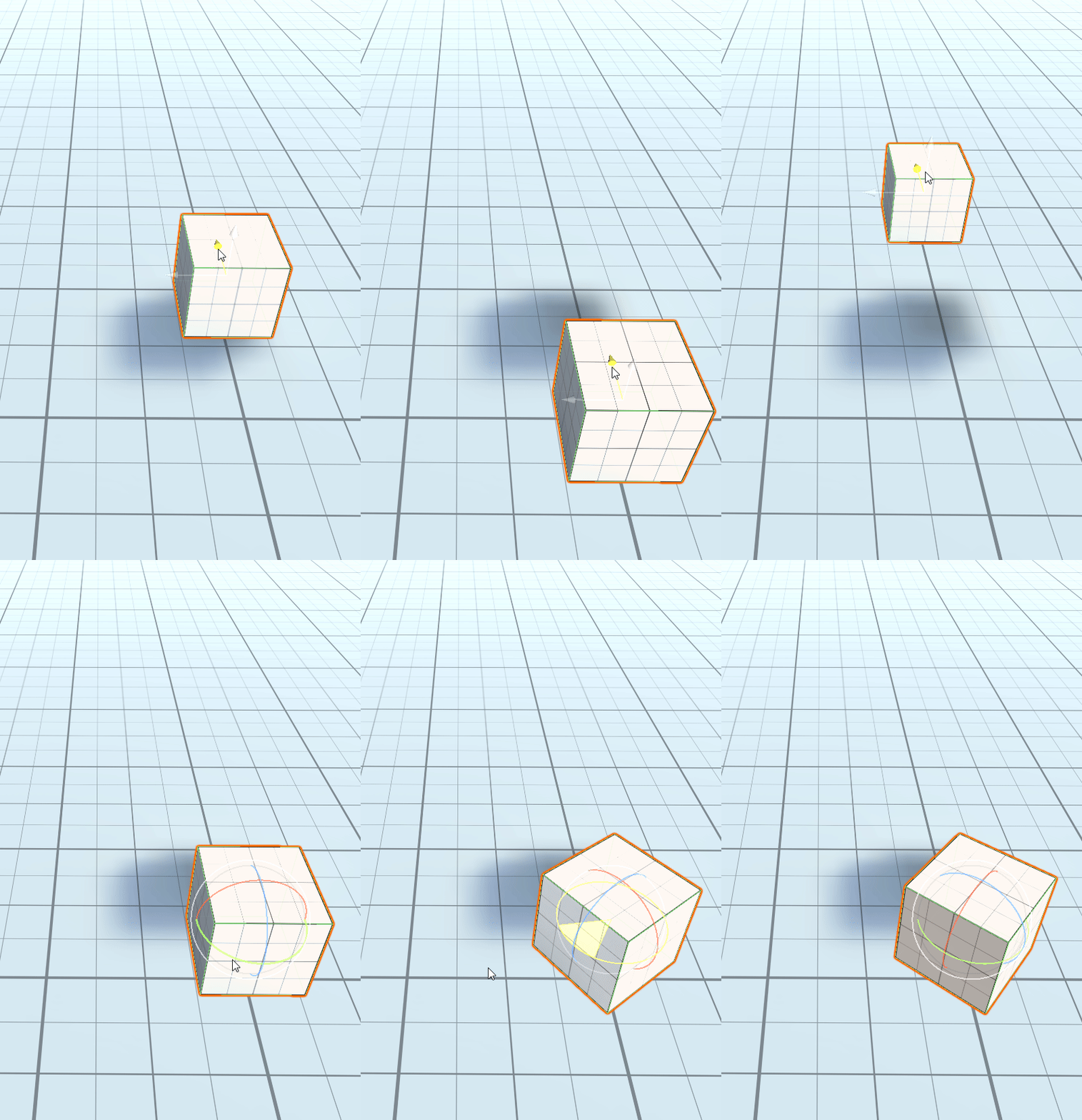
Baked lighting is where lighting data is calculated while using the editor. After calculating, this data is then stored and used instead of re-calculating lighting data every frame. This is best used for static objects that don’t move in the scene.
Baked lighting increases runtime performance but means that certain shadows won’t update due to being “Baked” into the environment already.
Which is best for us to use?
In the industry, a combination of real time, baked and mixed lighting (a smart combination of both) would be used to achieve a balance between performance and realistic lighting.
In this lesson, we will only use realtime lighting as it is the most effective and easiest option to set up.
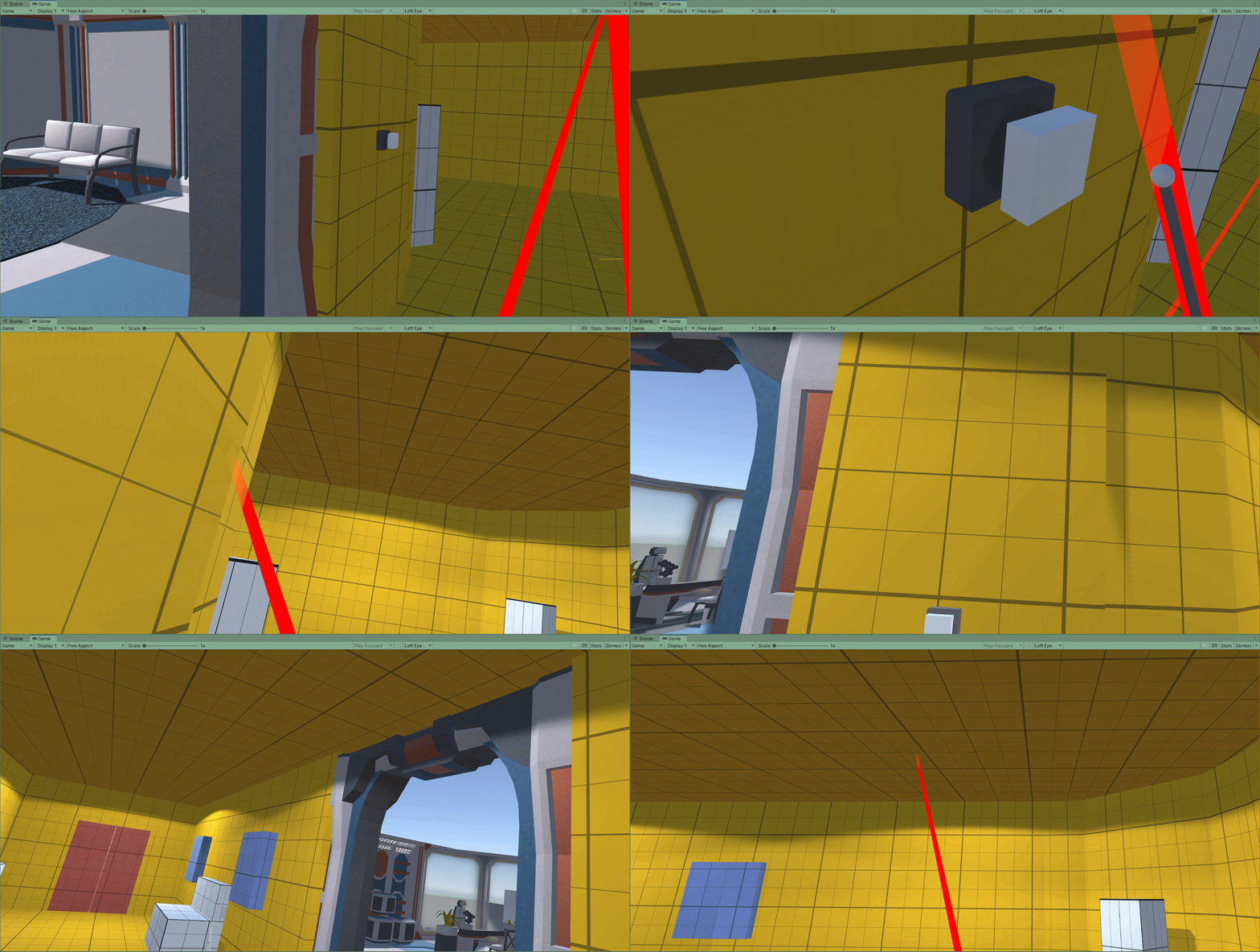
Note: Be careful not to add too many lights to the scene to keep performance smooth.
If you haven’t done so already, start by adding a ceiling to your escape room. This way the lighting will be more effective as it will be able to bounce off of the walls.
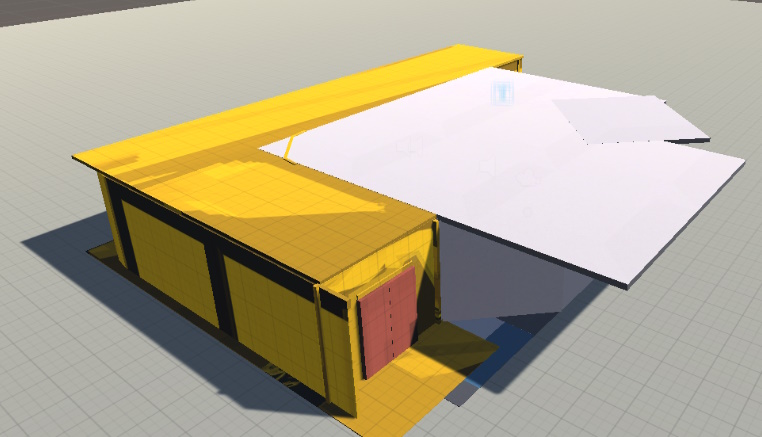
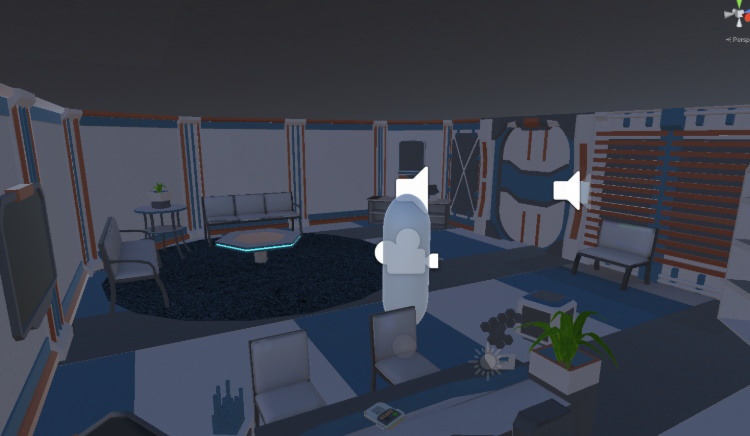
Don’t worry about how it looks on top, as long as it looks okay from inside the room.
To add a light to our scene, we simply need to add the Light Component to any 3D object. To use a Template, we can create a simply light by:
- Right-Click or press ‘+’ in the Scene Hierarchy
- Select Light -> Spotlight
- Reposition the new object so that it close to the ceiling.
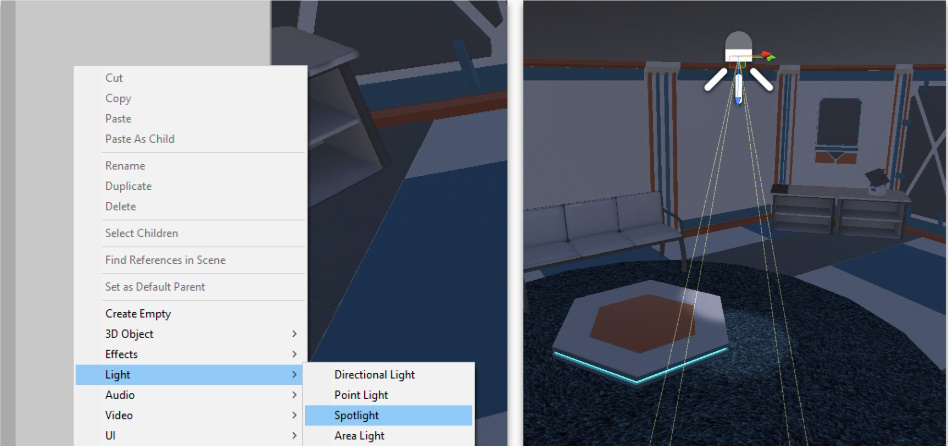
There are a few different light options, but “Spotlights” are best for ceiling lights.
Next, modify the light component so that it lights up more of the room:
- Select the Spotlight object
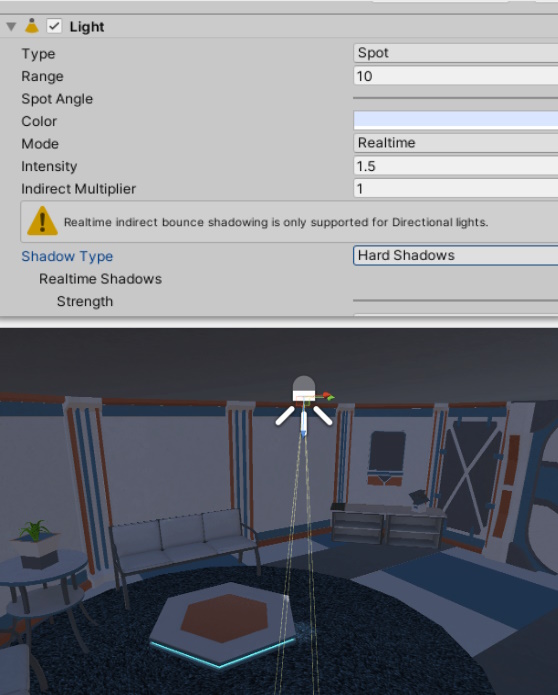
- Adjust the “spotlight Angle” to cover the room
- Adjust any other settings such as colour or intensity (brightness)
- Change “Shadow Type” if you want this light to add shadows
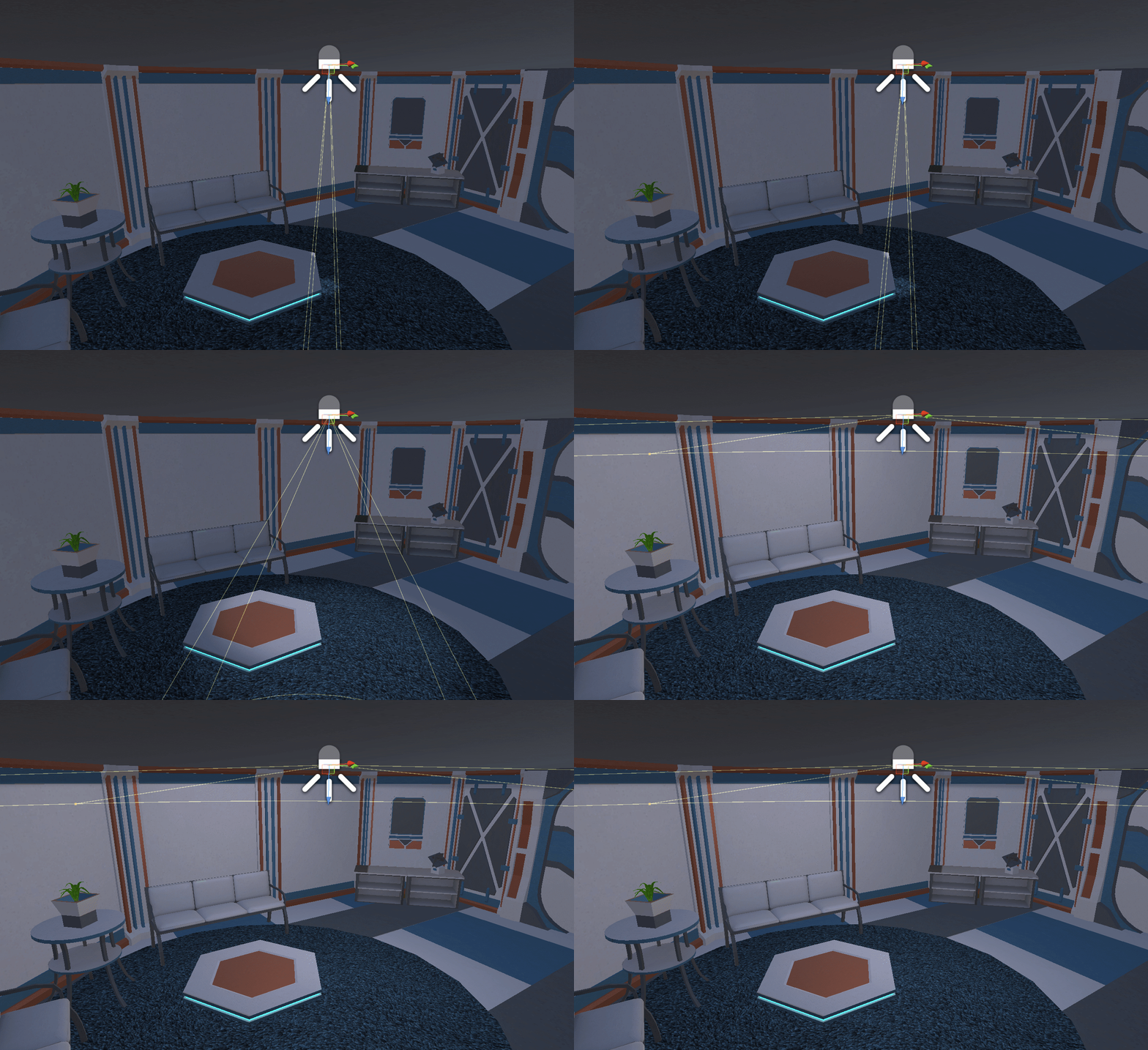
You may want to Duplicate this light to have around 2-4 lights per room if it still feels dark.
That’s it! Continue adding lights to your scene to bring life into each room. Here are some more ideas to add variety:
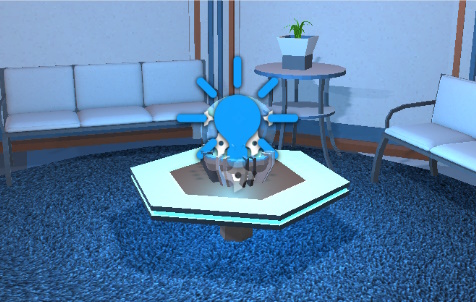
- Change the Intensity of different types of lights to add harsher shadows
- Try adding “Point Lights” to your scene for objects that emit light in all directions
- Change the colour or different lights
- Create a light switch by setting light objects to active/in-active.
Particle Systems
One last method of adding life into our scene is the use of particle systems. Particle effects are used widely in the industry and can greatly affect the outcome of game or experience. Particle systems can be used in wide variety of ways, such as:
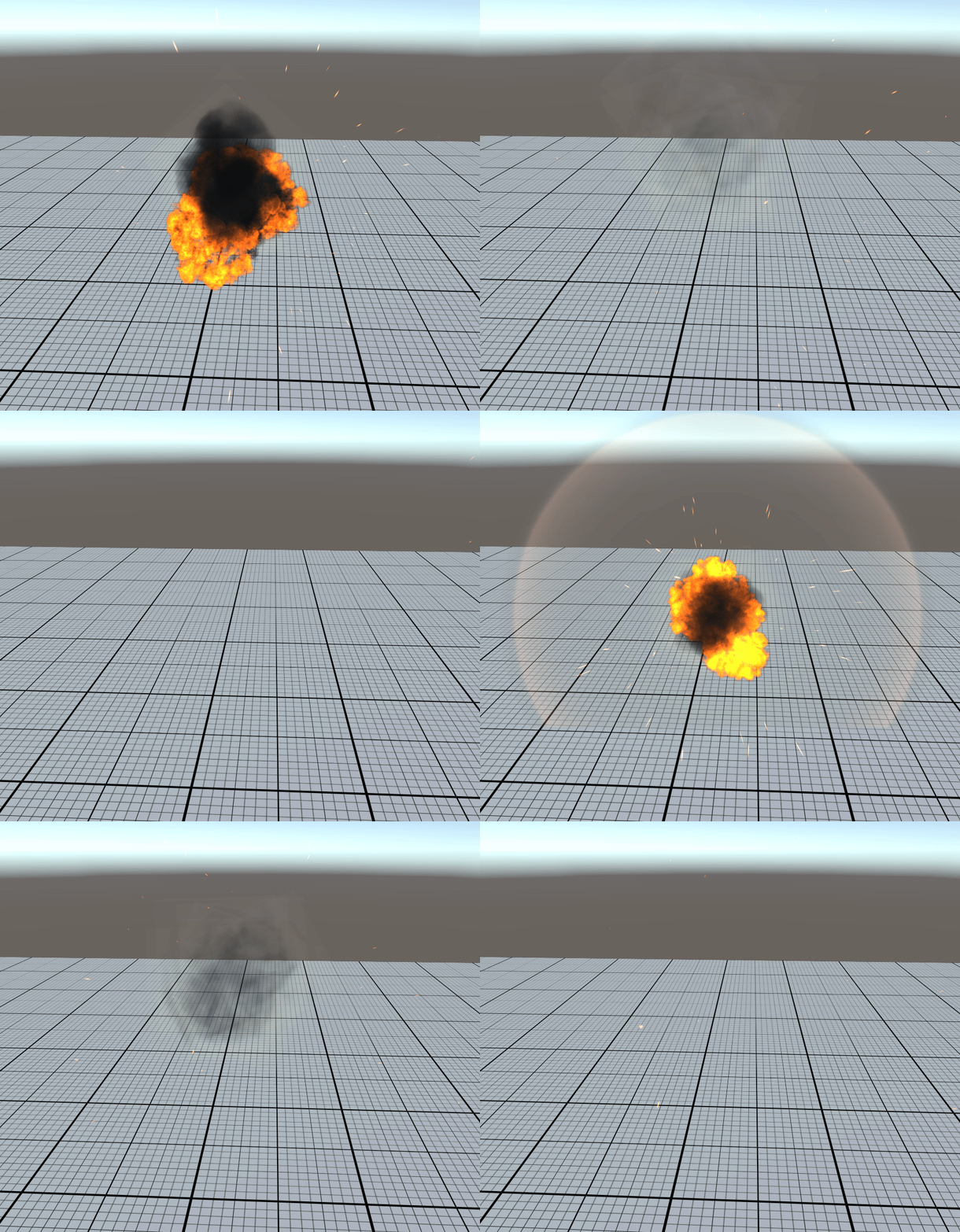
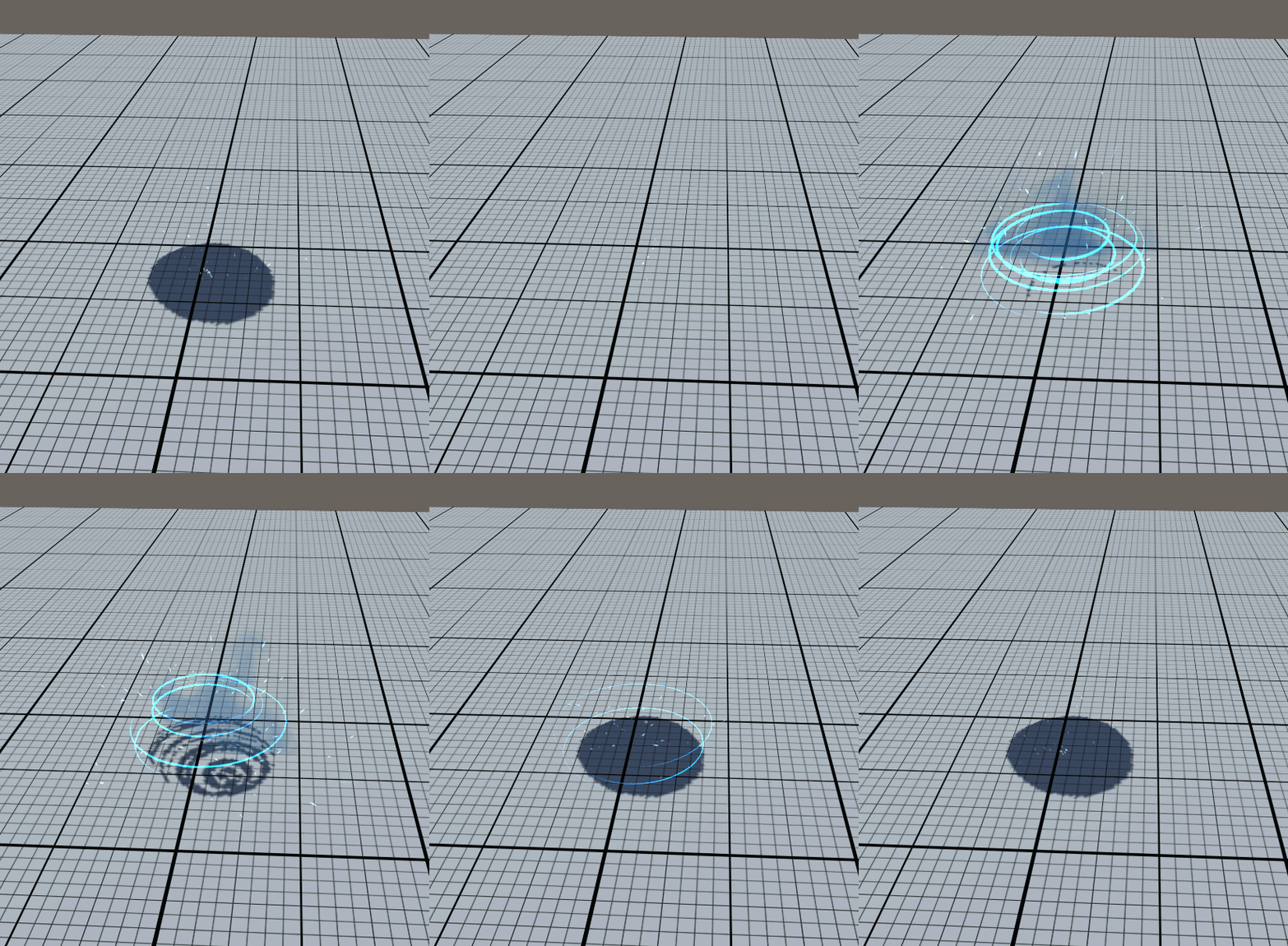
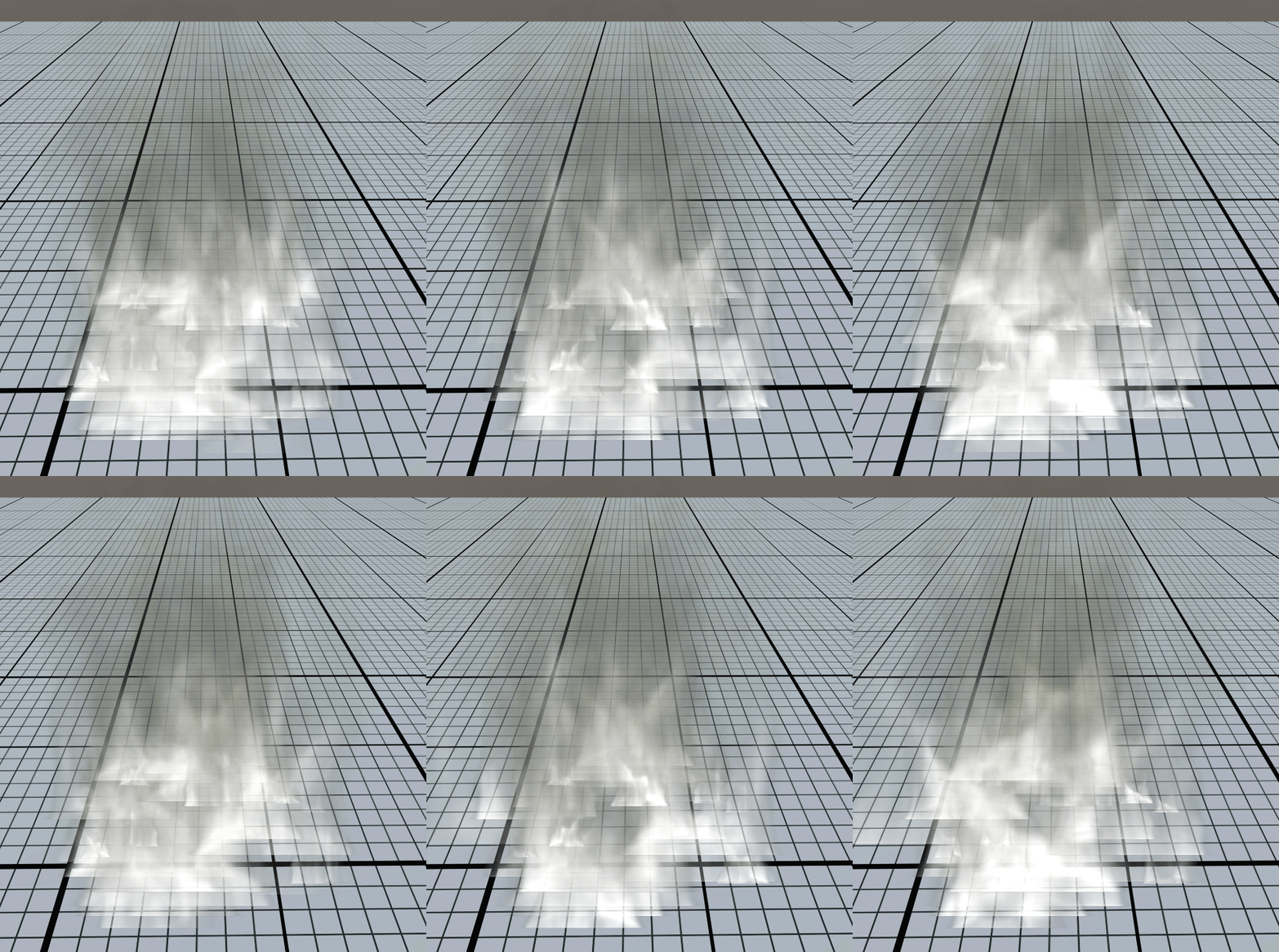
These are all free effects from Unity’s Asset store collection
Particle systems work by creating and manipulating many small individual “particles” These particles can be 2D Sprites, 3D Objects or many other things.
Particle systems are best used when developers want to simulate a certain effect, without having to pre-animate each individual object.
Many particle systems use randomness to help make the simulated effect appear more realistic.
To create an effective particle system, many smaller particle systems are often stacked together, each controller a different element.
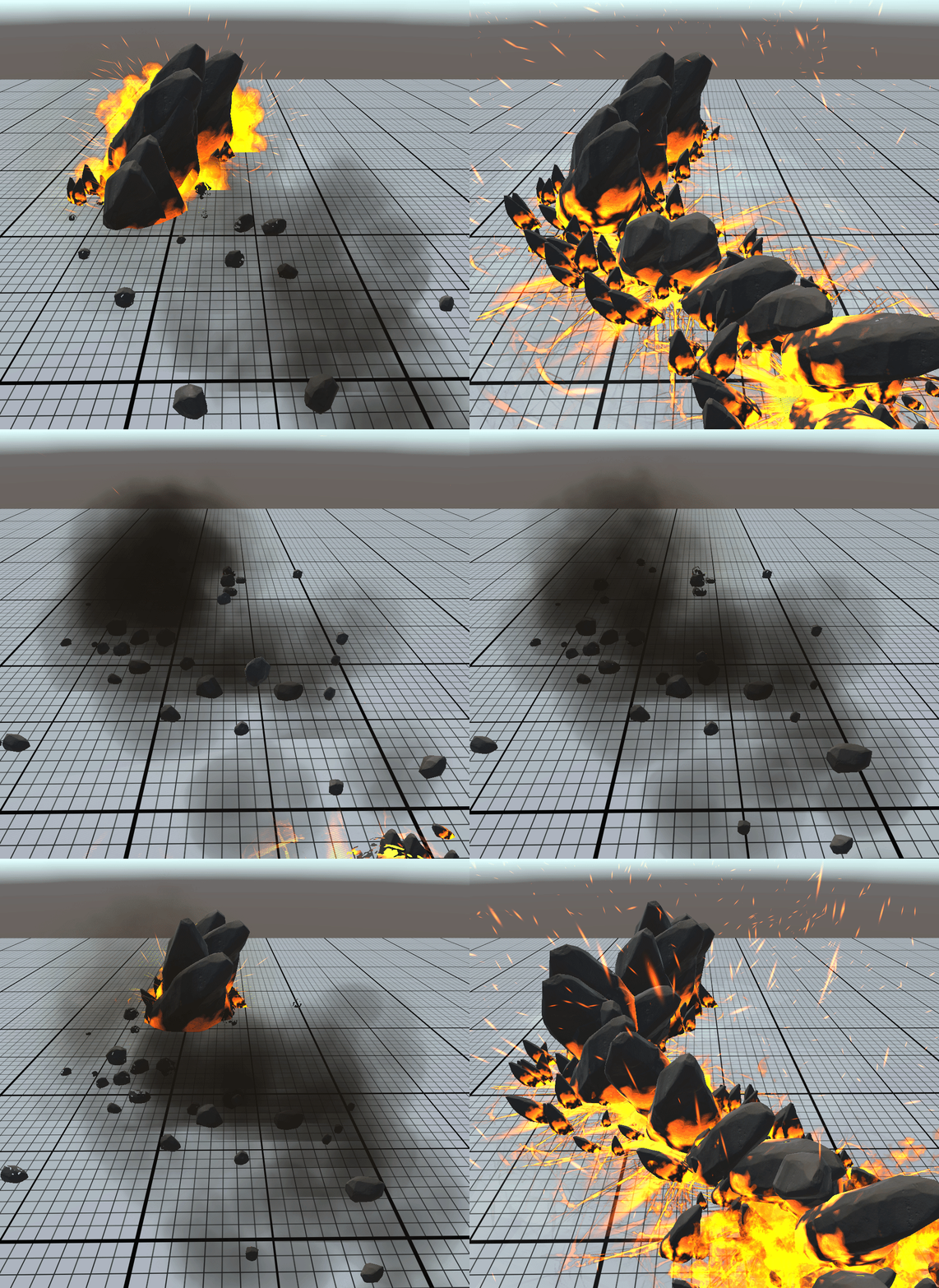
 Kōrero Mai: Take a look at the explosion effect, how many different effects can you see?
How about the:
Kōrero Mai: Take a look at the explosion effect, how many different effects can you see?
How about the:
- The fiery explosion in the middle
- The black smoke the rises and fades away
- The sparks/embers that flutter and fade out
- The shockwave that emits out of it
When creating or editing a Particle System, Unity gives you full control over each individual setting.
As this is quite a large topic, we won’t be covering how to create a particle system from scratch (though this is a great way to understand how it works!)
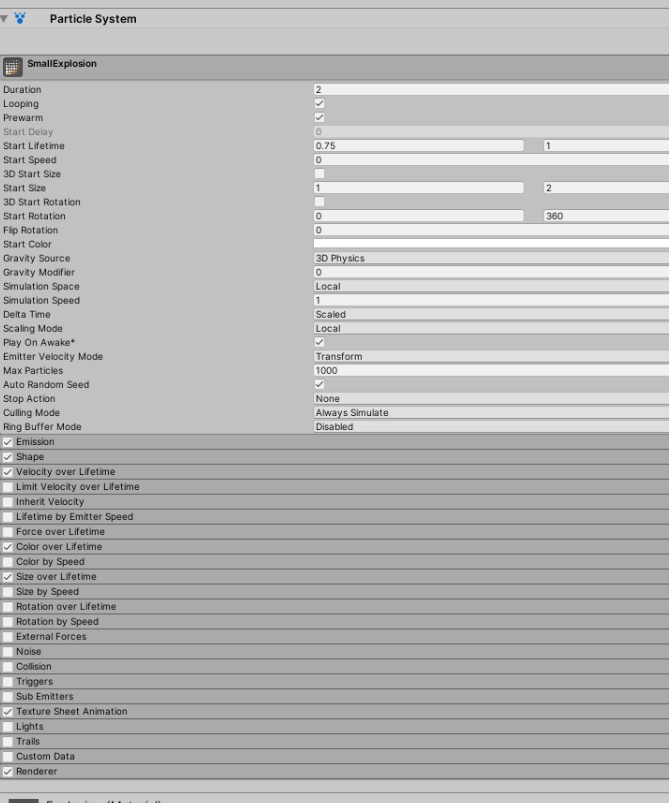
Feel free to download and edit any particle systems off the asset store to gain a stronger understanding.
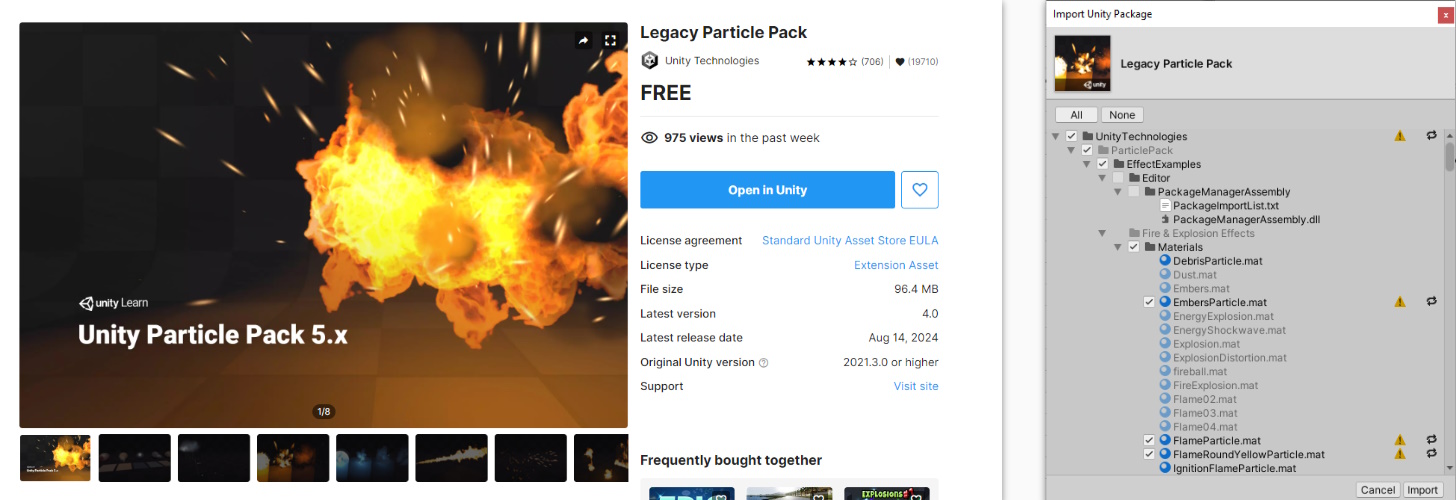
Let practice placing and using particle systems in our XR experience. Start by downloading and importing the “Legacy Particle Pack” from the Unity Asset store. (Or download the latest version if you are using a different render pipeline)
Find a particle system that can be placed in the environment and left on. This could be a flickering light, a rainstorm outside, or a dust cloud sweeping past.
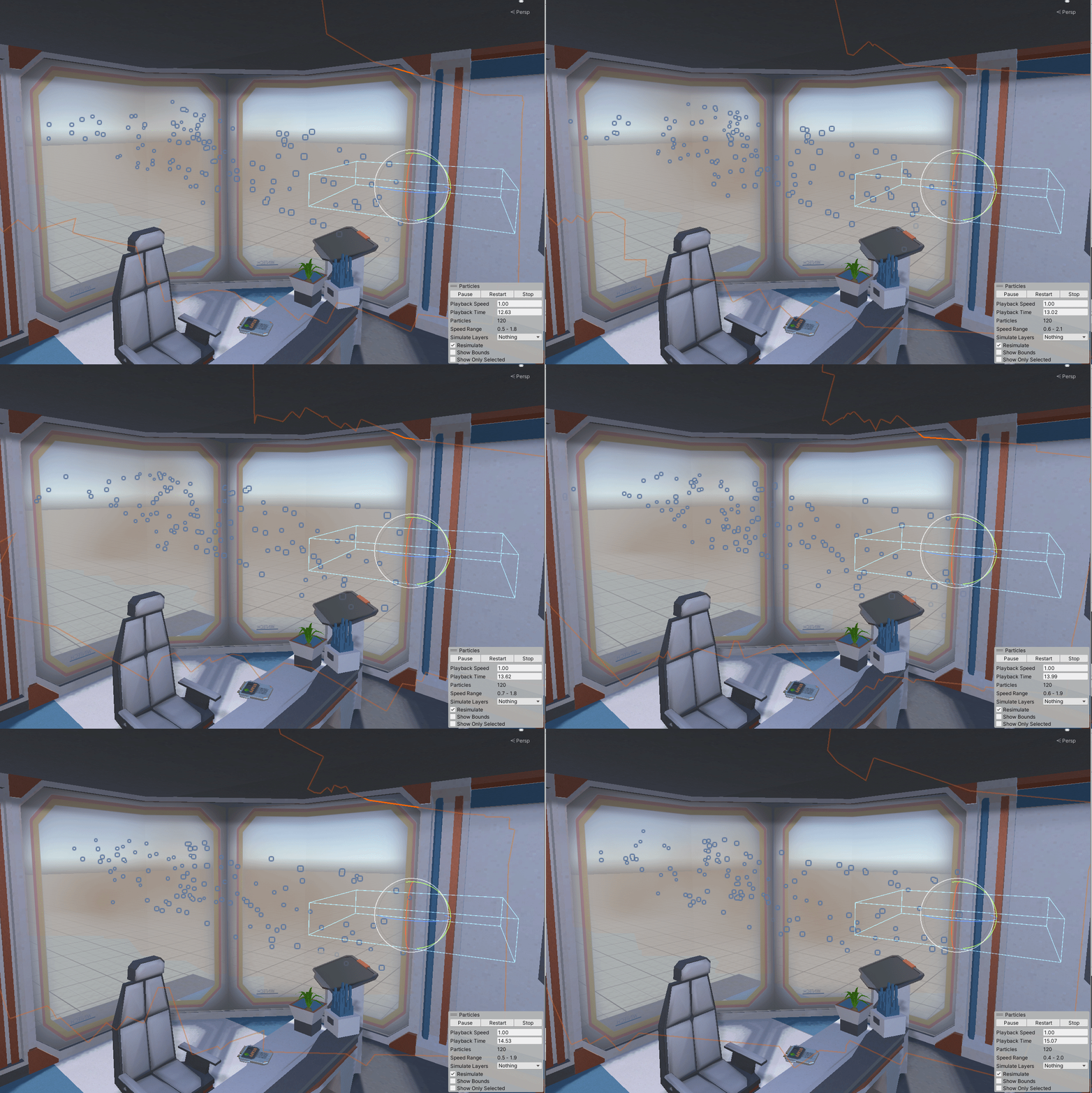
As our XR escape room takes place in a Sci-Fi setting, we’ll choose to go with a dust cloud sweeping past us on this barren landscape.
- Go to Assets -> Unity Technologies -> Effect Samples -> Misc Effects -> Prefabs
- Select the “Sand Swirl Effect”
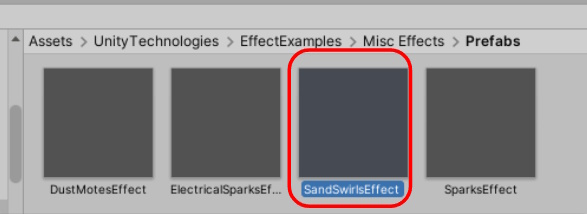
- Drag and drop it into the scene
- Rotate and reposition as needed
<div class = purple”>
</div>
To simulate your particle system, select the object in the scene hierarchy. If it doesn’t play automatically, you can try press the “play” button found on the particle interface.
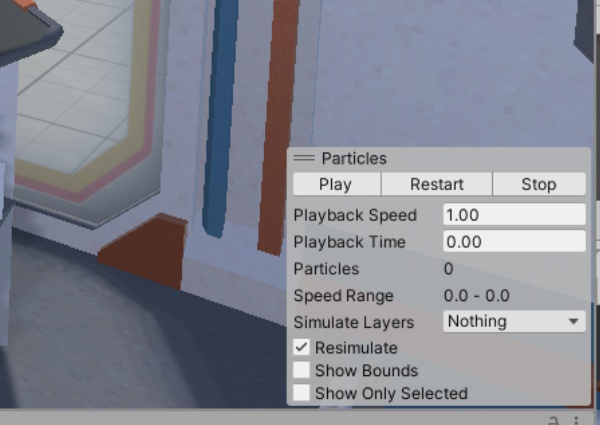
Triggering Particle Effects
How can we trigger a particle system to start playing at a specific point in time? The easiest method is to use Unity Game Events. Much like the Animator component, Particle Systems have public functions that allow us to start/stop them.
- Navigate back to the same folder and find the “Spark Effect” prefab
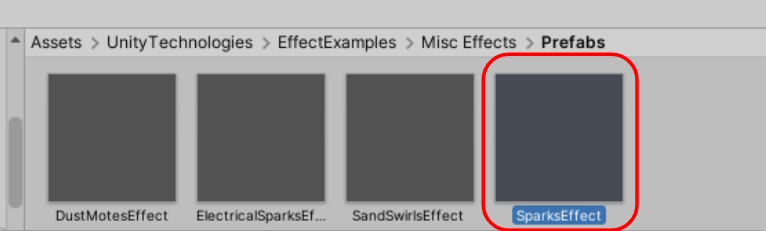
- Drag and Drop this onto our “KeyPad” object in the second room
- Reposition and scale this particle system as needed
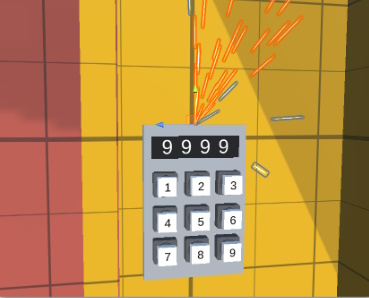
Lastly, we need to make sure the particle system only plays when we want it too. To do this, we need to check some of its options:
- Select the Spark effect in the scene hierarchy
- Deselect “Looping” as we only want this to play once
- Deselect “Play On Awake” as we want to determine when to play it.
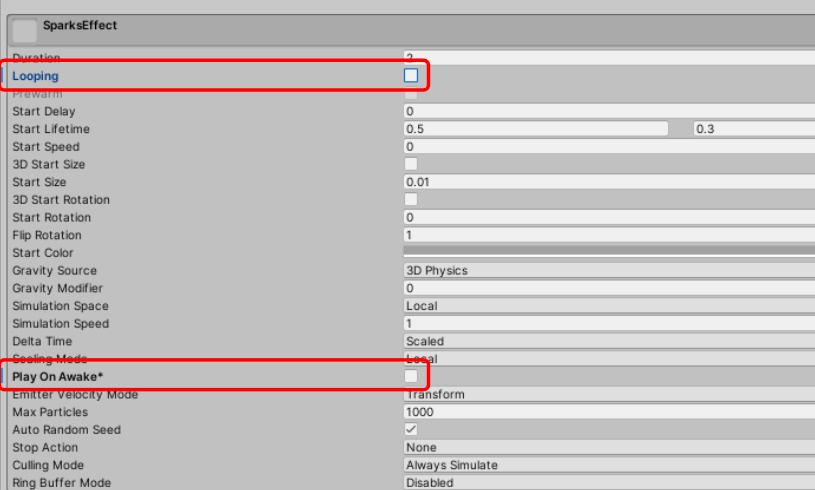
Now, all we need to do is to trigger the particle system to play. To do this:
- Select the keypad object in the scene hierarchy
- Add a new action to the “On Incorrect Input()” event
- Drag and Drop the Spark effect into the slot
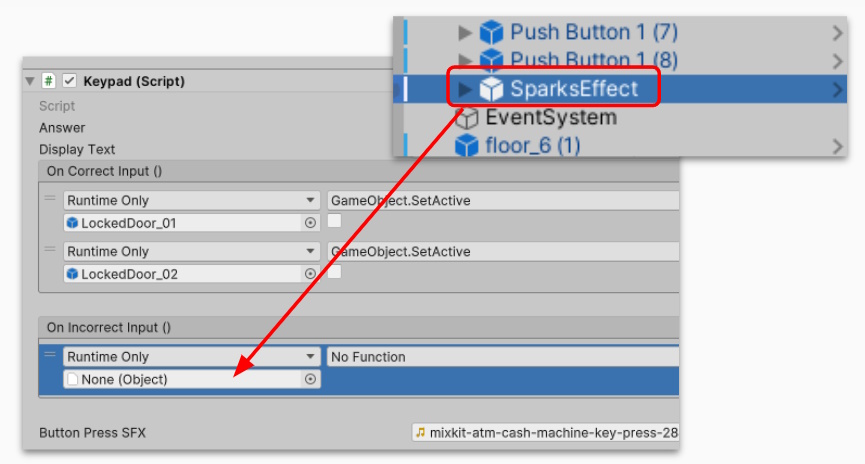
- Choose the function ParticleSystem -> Play()
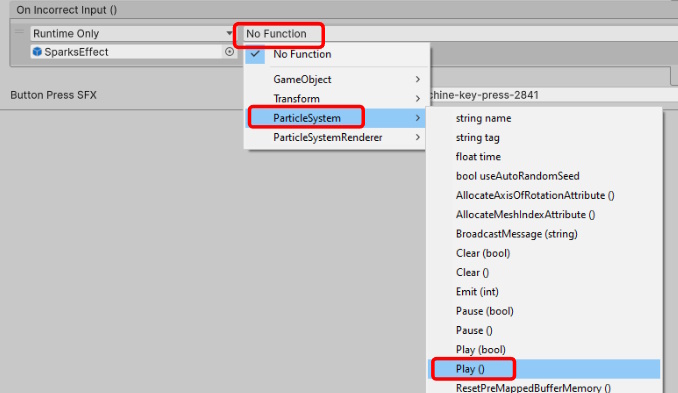
That’s it! Give it a playtest! If you get the code incorrect, you should now have a particle effect play to better enhance the XR experience.
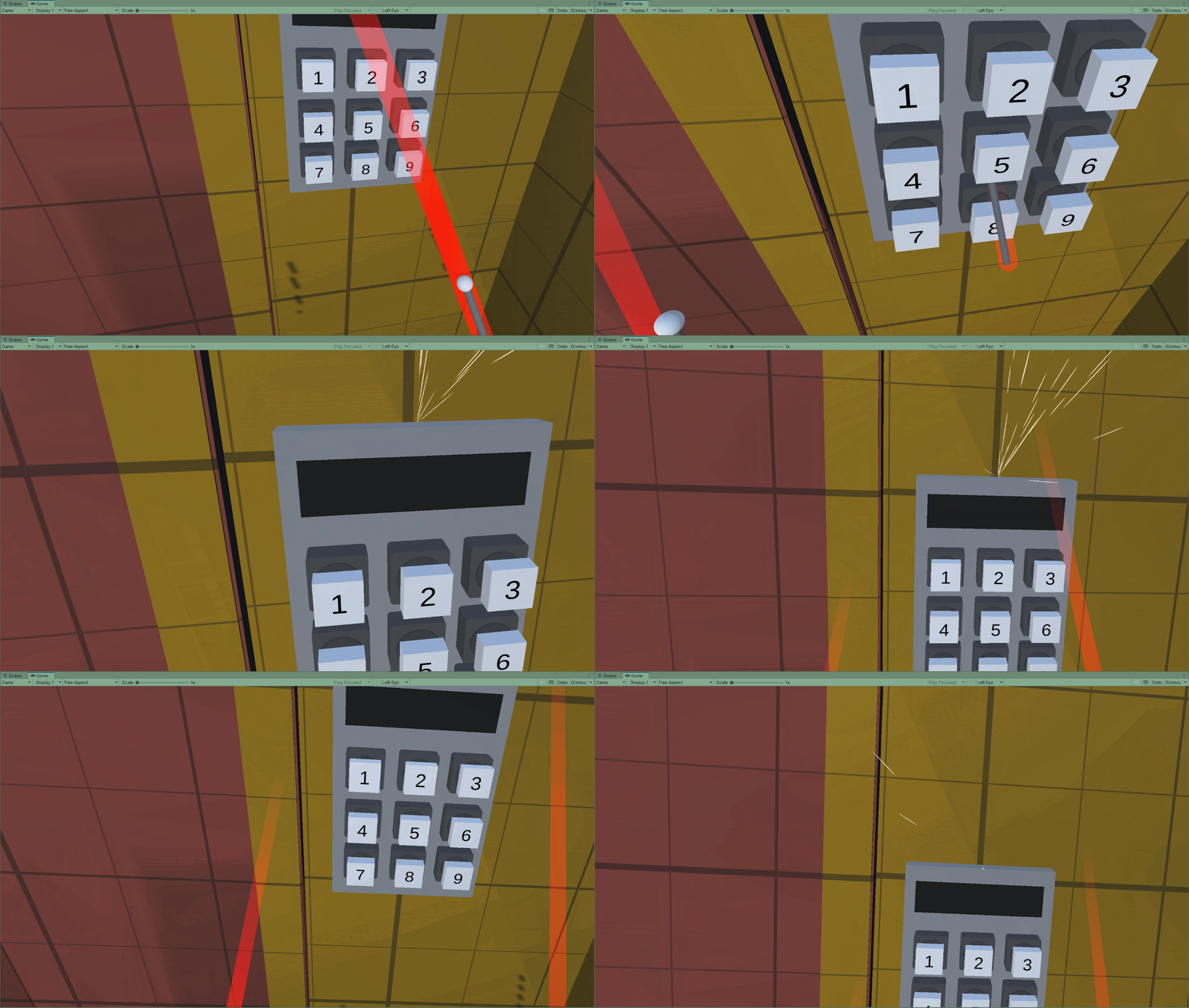
Feel free to play around with different settings such as “emission” to get more of a burst effect when the sparks come out