
Lesson 08: Adding Audio
In this lesson, We will add sound effects and sound design to our XR Experience. This will be done by using Unity’s built-in Audio components.
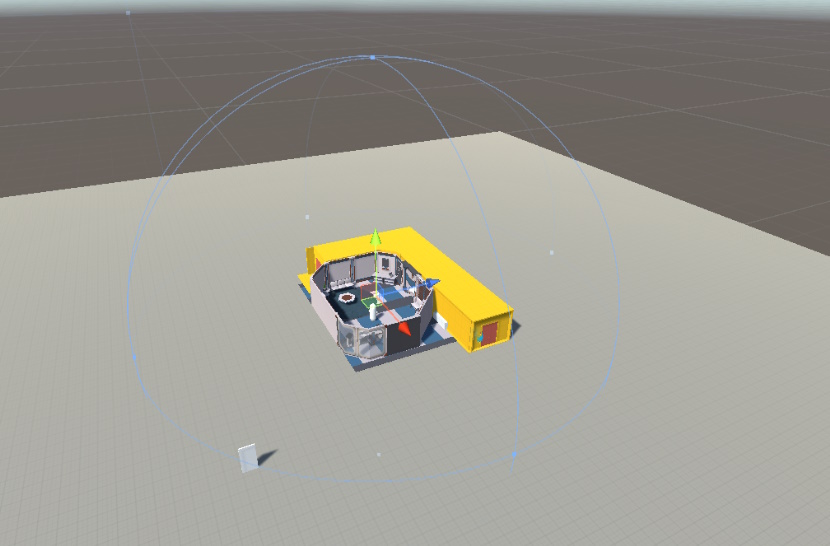
Unity’s audio system can be extremely powerful and allows you to control audio across your experience in a number of different way. We will focus on two main methods of playing audio:
- Play audio at point in 3D space using function calls
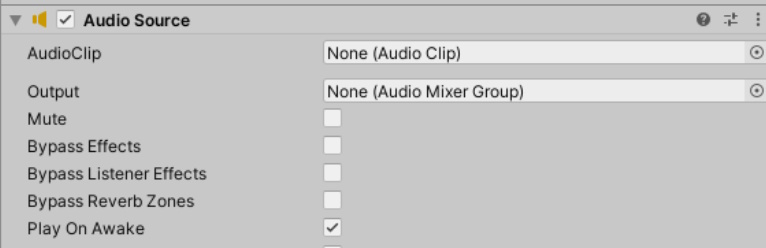
- Play audio from an attached component on a 3D objects
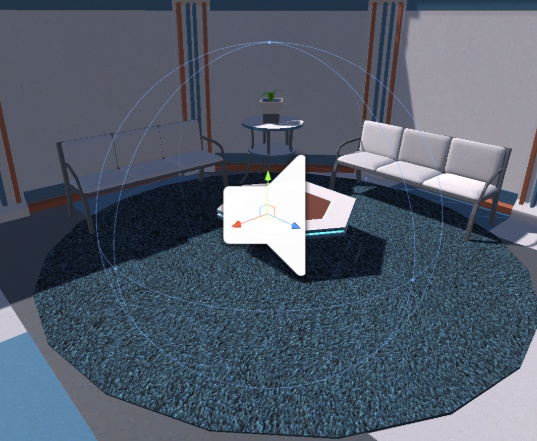
For unity’s audio system to work, we need at least two components in the scene.
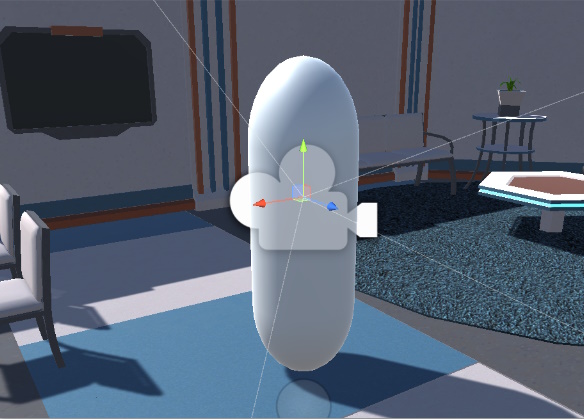
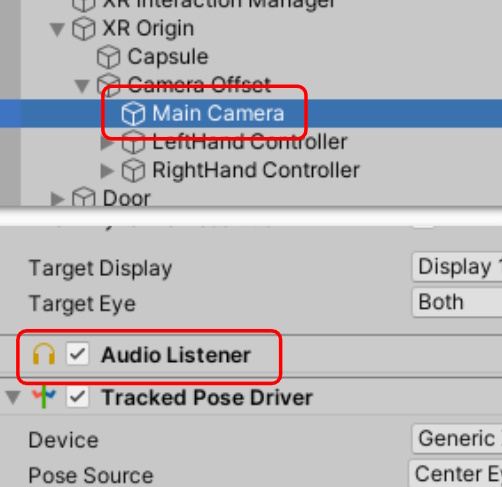
By default, Unity usually places an audio listener onto any camera that is created in the scene. You can check this by selecting your camera objects and looking for the “Audio listener” component
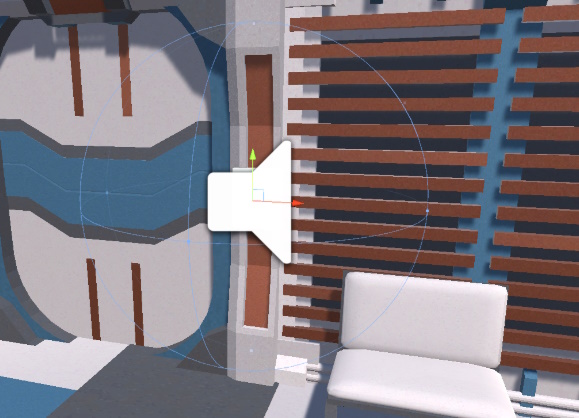
To emit a sound into a 3D environment, we need to add the “Audio Source” component to any 3D object in the scene. It’s important to choose which object to add audio too so that the sounds effects come for the correct object.
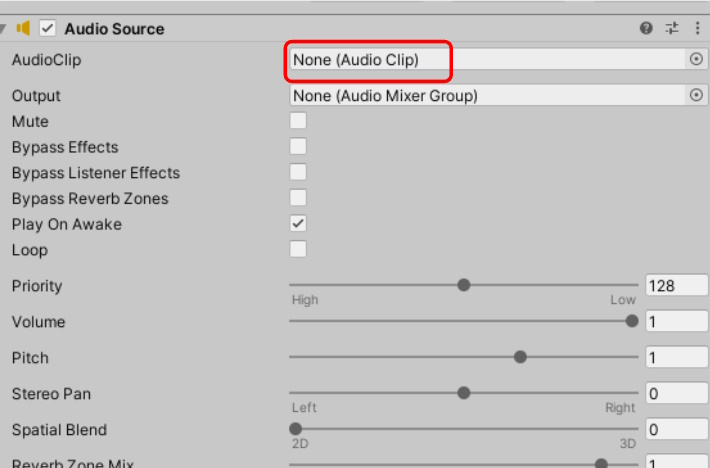
To define what sound will be played, we need to select an audio clip. This is can be any standard audio format, such as .wav, .mp3, and more!
Start planning:
- Decide what theme of music you would like to add.
- Decide what objects will make sounds in the 3D environment
- What kind of sounds will those objects make?
Download Audio Assets
Next, start searching for some audio clips and sounds that can be used in your XR experience. You can download these from anywhere. Mixkit.co is a great place to start for free music clips.
Try to find audio clips that can be played:
- In the background or ambient sounds that will play throughout your environment.
- When our keycard attaches to the reader.
- When our door opens.
- When the keypad buttons are clicked.
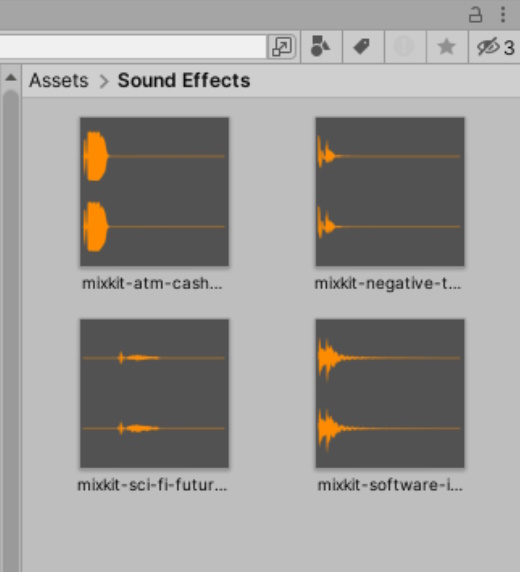
Once you have some sound effects downloaded, add them to your project assets by dragging and dropping them into a folder.
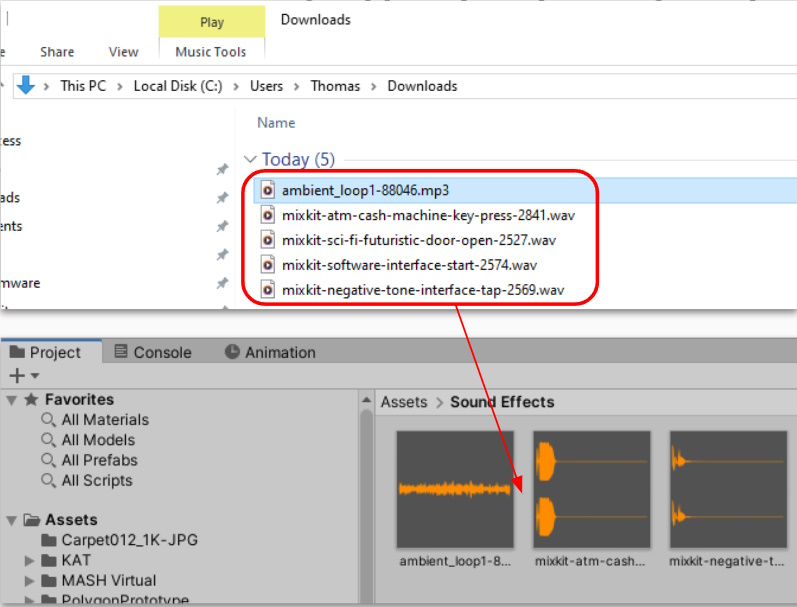
Playing Background Music
If you have downloaded a background music track, or a looping ambiance track, we will now add it to our scene so that it can be heard while playing.
To do this, start by:
- Creating a new empty Gameobject in the scene hierarchy
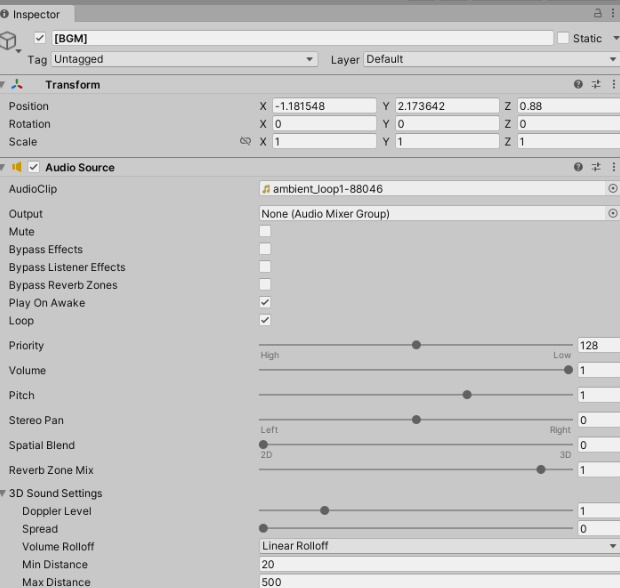
- Rename it to “[BGM]” (Background Music)
- Add an Audio Source component
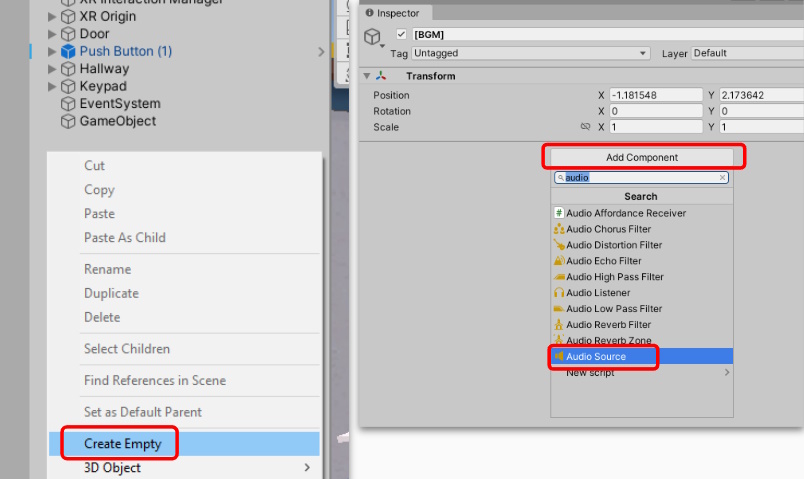
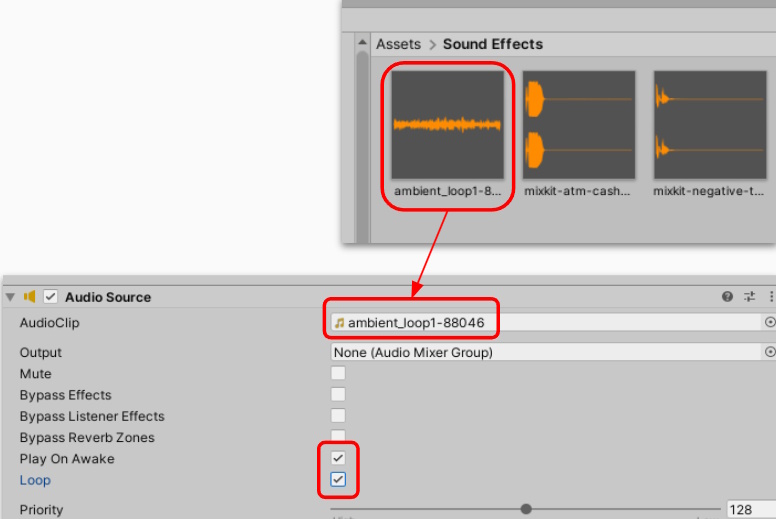
Next, we need to modify the Audio Source Component and link the audio clip we wish to play. To do this:
- Select the BGM gameobject
- Drag and Drop the audio file into the “AudioClip” slot
- Tick “Play On Awake” as we want the music to automatically start
- Tick “Loop” if you want your music to continue playing.
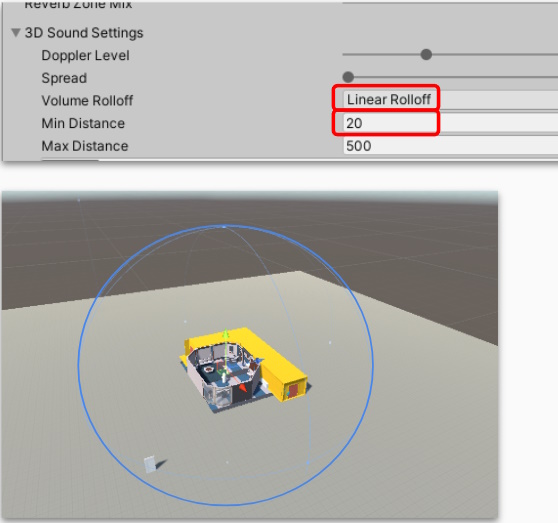
Lastly, we need to modify the 3D sound settings. This determines from which direction and how loud to play the audio. As we want this audio to always be playing for the player, we will change the minimum distance to cover the entire play area.
- Select the BGM gameobject
- Change “Volume Rolloff” to linear
- Change min distance until it covers the entire play space
Playtest!
Give your game a playtest! You should be able to hear your audio playing in the background! If not, check through these instructions:
- Is there an Audio Listener in the scene somewhere?
- Is the Audio Source set to play On Awake?
- Is the volume for the Audio Source set to good value?
Playing sound effects using events
Next, we will cover how to play sound effects at runtime using function calls. There are two methods for playing sound effects at runtime. These are:
- Playing the Audio Clip from a Game Event
- Playing the Audio Clip through C# Scripting
In this lesson, we will cover how to do both.
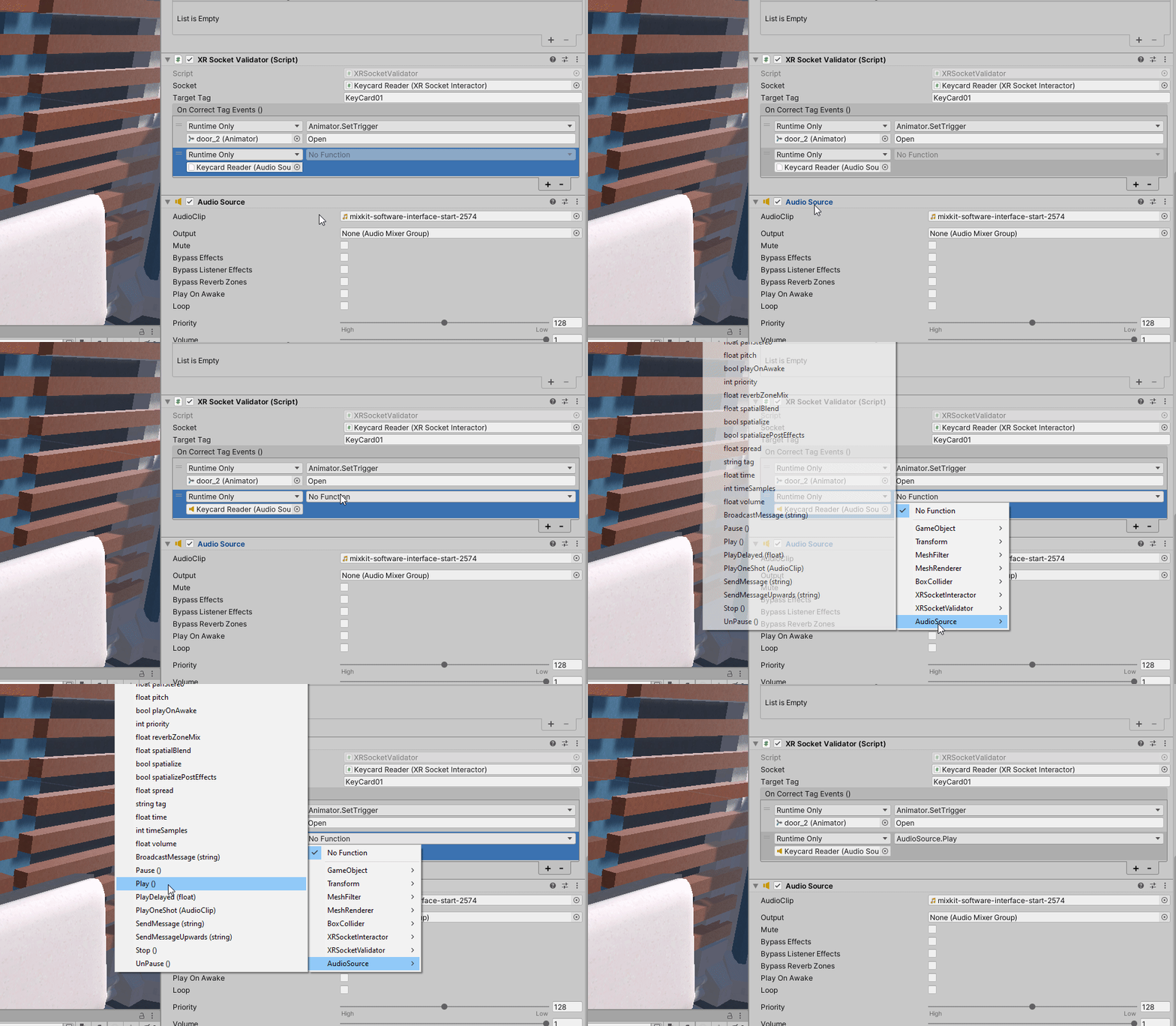
First, lets play a sound effect using GameEvents. In this example, we will setup a sound to play when our Keycard attaches to the Keycard Socket, using the “On Correct Tag” gamevent we created in a previous lesson.
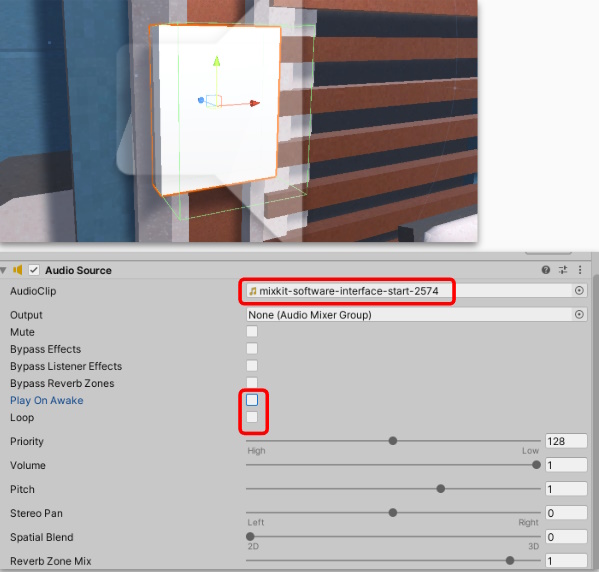
- Select the Keycard Reader Gameobject
- Click Add Component and select Audio Source
- Setup the Audio Source by attaching an audio clip and adjusting any values.
- Untick “Loop” and “Play On Awake”
Next, we will add an additional action to the game event “On Correct Tag”. This action will tell the audio source to play the sound effect.
- Select the Keycard Reader Gameobject
- Click ‘+’ to add a new action in the “On Correct Tag” list
- Drag and Drop the audio source component into the new slot.
- Select the dropdown and choose Audio Source -> Play()
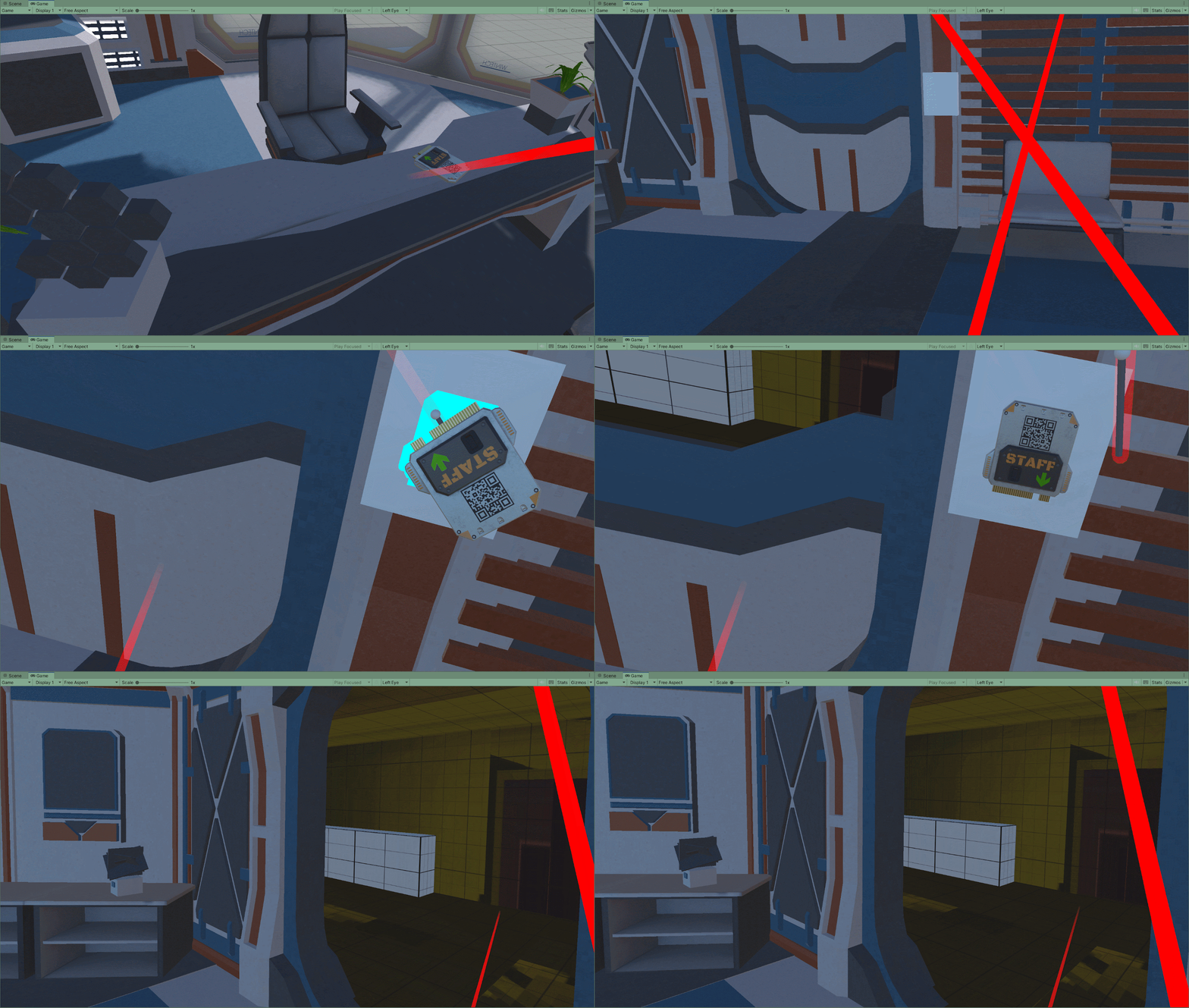
Done! Try playtesting and see if your audio plays when the insert the correct keycard. Remember to check:
- Is there an Audio Listener in the scene somewhere?
- Is the volume for the Audio Source set to good value?
- Does the Sound effect suit the Theme of your chosen experience?
Playing sound effects using C# Scripting
We can also play sound effects using C# Scripting. Sometimes this may be the easier method when we don’t already have a Game Event ready to use. In this example, we will add sound effects to the “pressing of buttons” on our keypad.
- Select the Keypad object
- Open the “Keypad.cs” script
- Add the following code to create a reference to the Audio Clip we wish to play
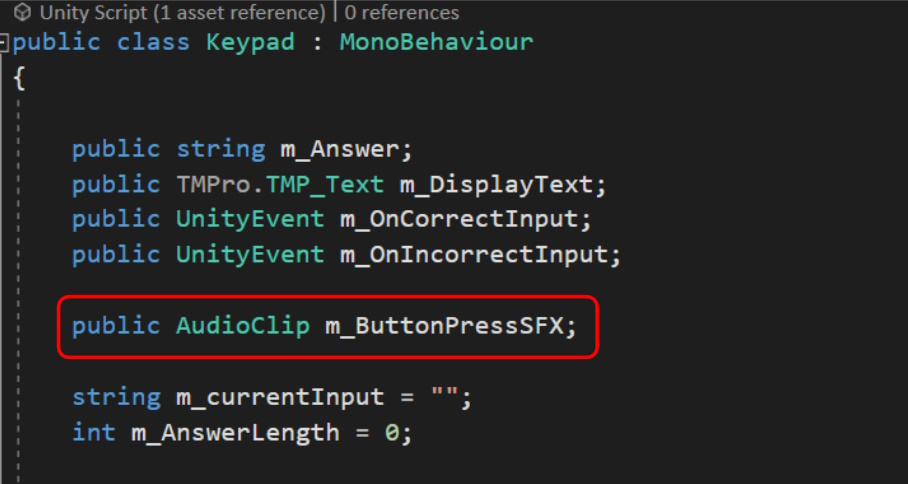
Next, we need to add a line of code to play the audio clip. We will play this line of code in out AddDigit() method, as this is called every time a button is pressed. Add the following code:
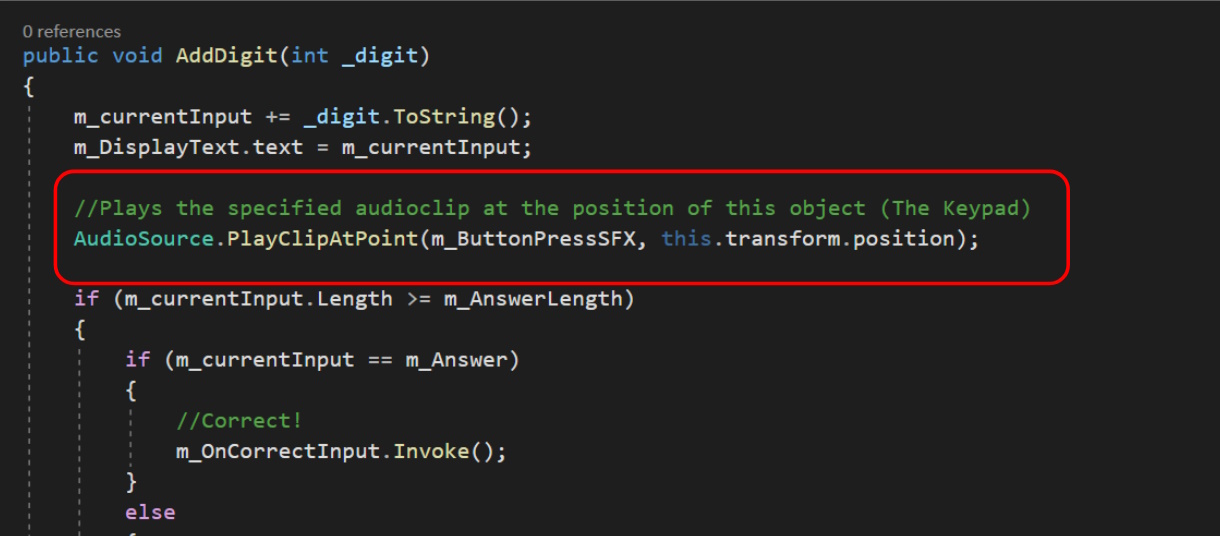
Save your script and check for any syntax errors. Once ready, head back to Unity.
- Select the Keypad object
- Drag and Drop an audio clip into the new empty variable we created.
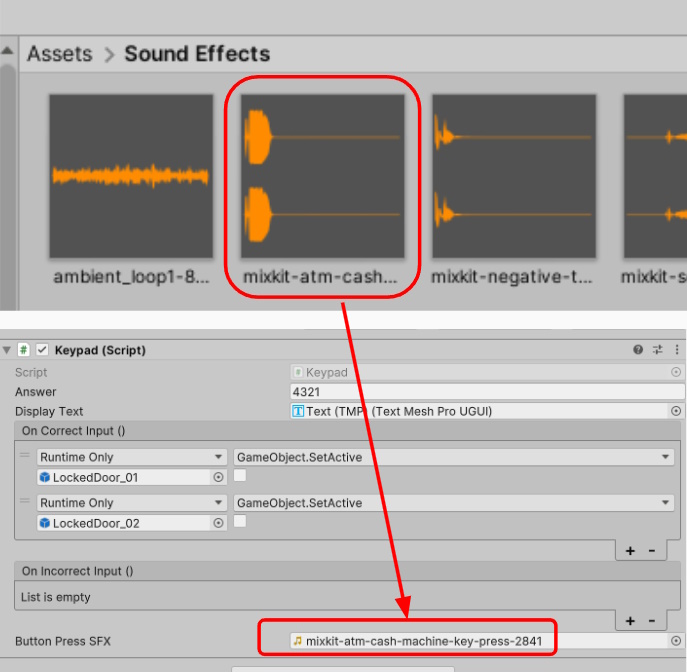
That’s it! Now whenever the method “Add Digit” is called by one of our buttons, and sound effect will play at the position of our Keypad. Give it a try!
Now that we know how to add sound effects into our experience, try adding more. Think about actions or interactions that would benefit from having sound effects or music:
- A Handheld radio playing a music track on repeat that can be moved around the room.
- A hidden speaker playing a clue to where to find the next code.
- Additional sound effects for picking up certain items.
- Playing sound effects on the “OnCorrect” and “OnIncorrect” Game events of our keypad.
…and more!