
Lesson 10: Creating a Game Loop
In this final lesson, We will cover how to create a game loop that allows the users to restart or quit the game once complete. We will then tie up any loose ends.
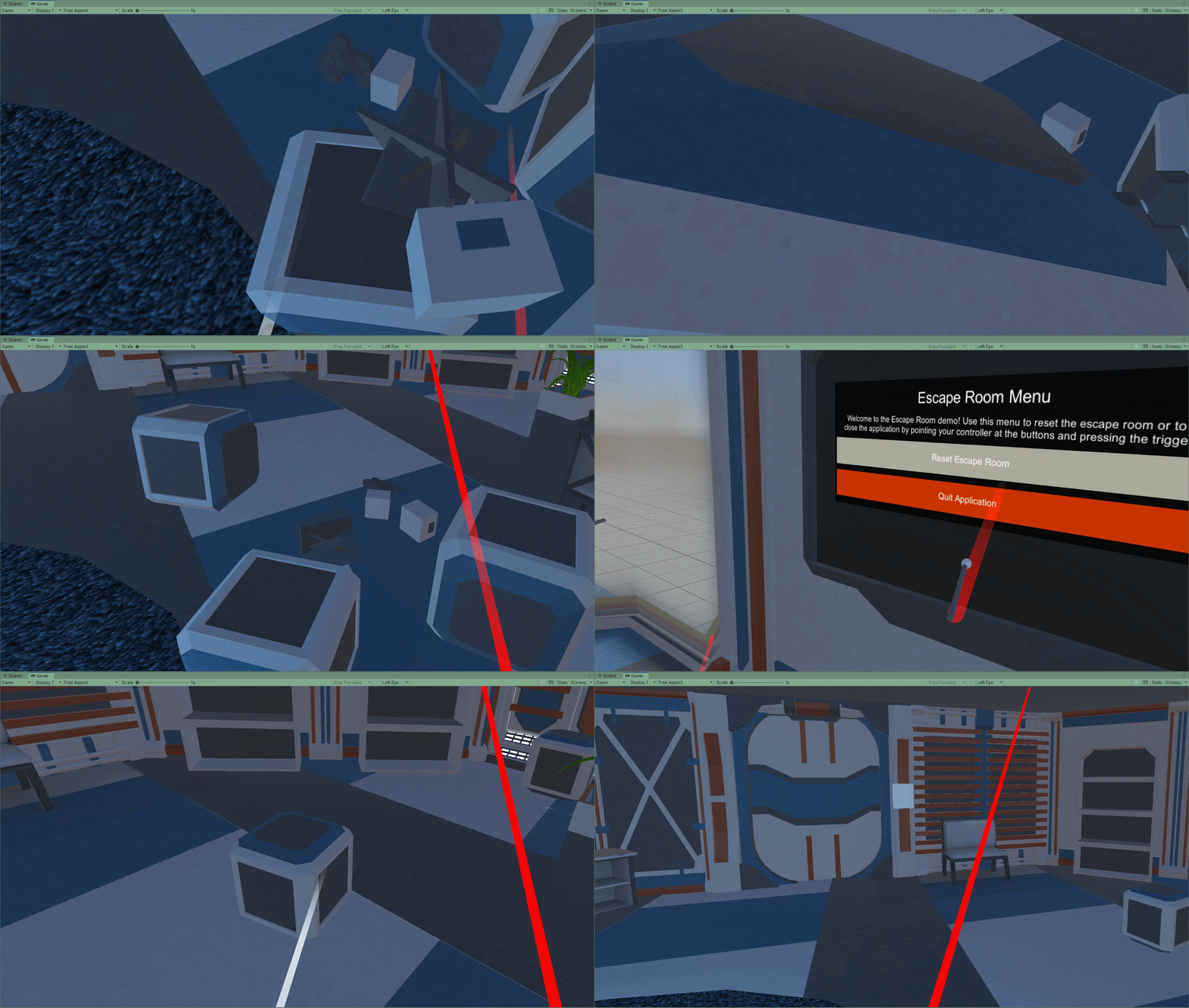
Most game experiences will have a menu that allows users to start, stop and quit the game. As our game will be experienced in VR, users will be placed in the game immediately.
We should however still have a menu that allows users to quit the game or reset the game to refresh any puzzles.
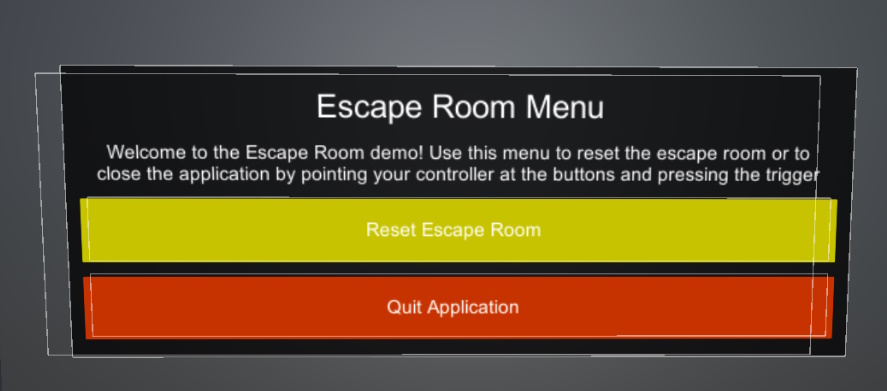
To do this, we will use floating UI panels in worldspace
To start with, lets create a custom c# script that will handle quitting the application and resetting the scene. To do this, start by:
-
Creating a new C# Script File in the Assets window
-
Remember to immediately name the new script, such as “MyVRMenu”
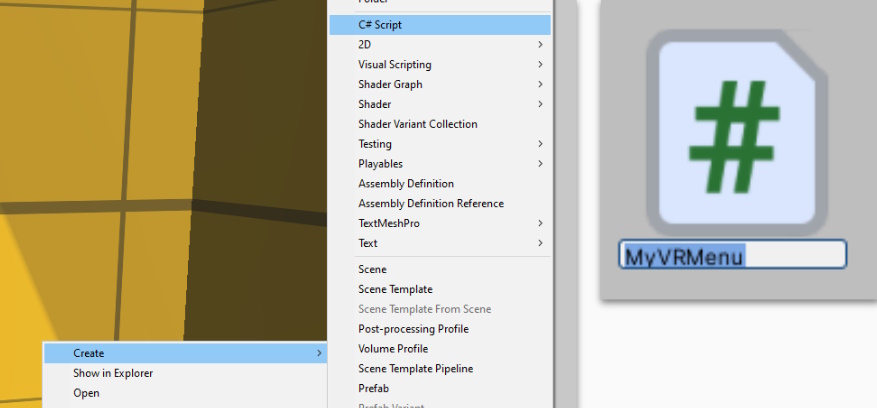
- Double-click to open the script file.
 Kua reri? - Ready? It's your turn... With your new script open, add the following code:
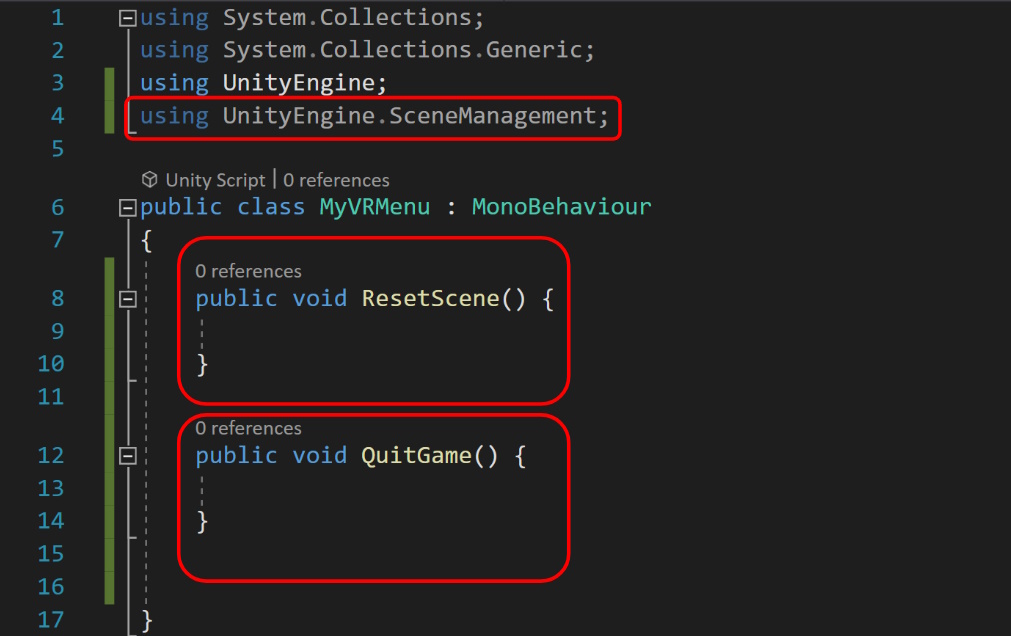
This is the foundation of our script. **SceneManagement** is a library that will help us reset the scene **ResetScene()** will be called to reset the scene **QuitGame()** will be called to quit the game Next, make the following changes to the “ResetScene()” method. All we need is one line of code that uses the SceneManager library.
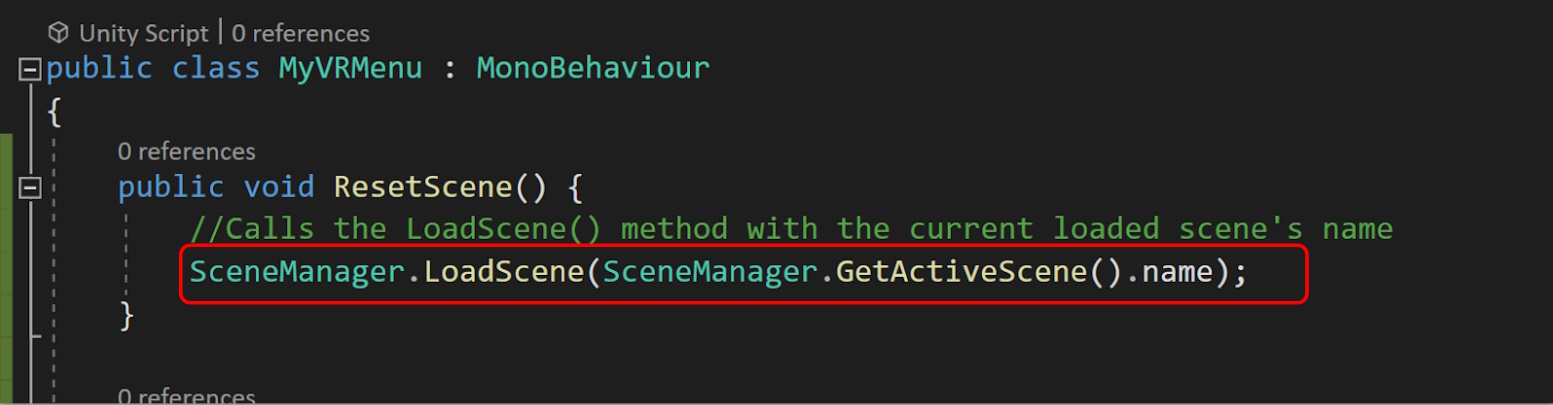
This code essentially causes the scene to reload itself, resetting the scene back to its original state. Next, make the following changes to the “QuitGame()” method. This will quit the current application. Note that this will not work while playtesting in the Editor.
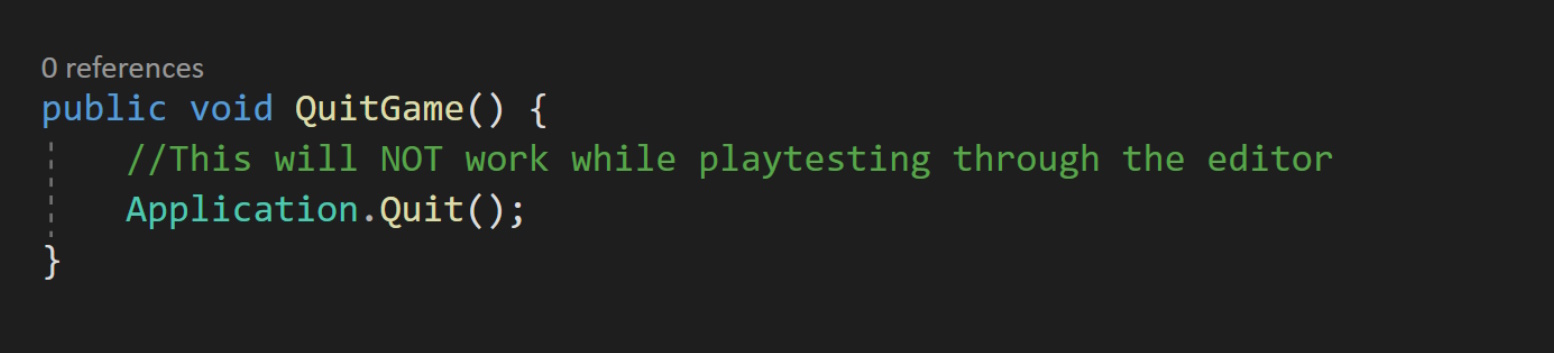
Note: Make sure that both of the methods are defined as public. This is important later one when we need to call the functions.
Creating the XR Interactive UI Panel
Save the script and head back to the Unity Editor. Next we will create an interactive UI with buttons that can be used to call the functions we just created.
To save some time, lets use a UI Prefab from the XR Interaction Samples folder:
- Go to “Assets -> Samples -> XR Interaction Toolkit -> 2.x.x -> Starter Assets -> Prefabs”
- Drag and Drop the “UI Sample” into your scene
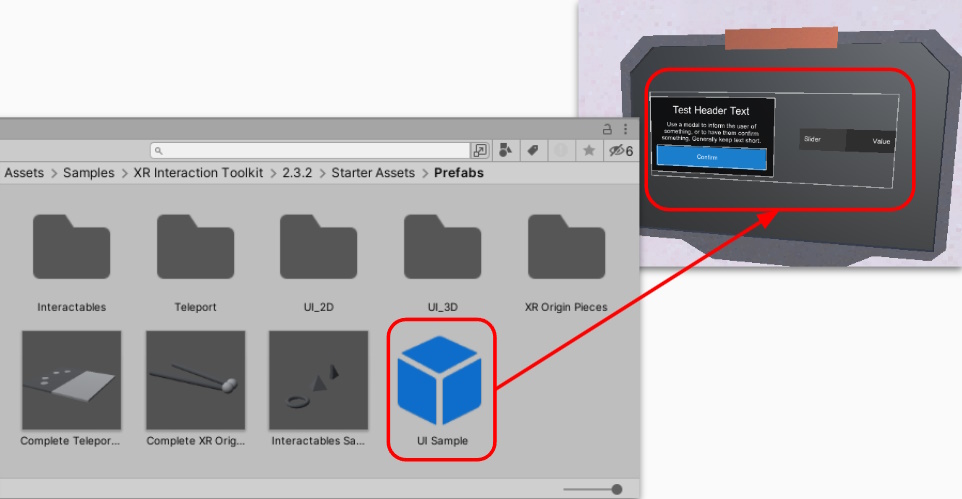
- Reposition and scale the prefab parent as needed
This UI Prefab comes with a few extra parts that we don’t need. We also need to duplicate the button so that we have two pressable buttons. Start by:
- Deleting the “MinMaxSlider”
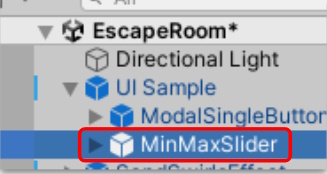
- Edit the “ModalSingleButton” object as needed
- Select the “Confirm” button and duplicate another copy
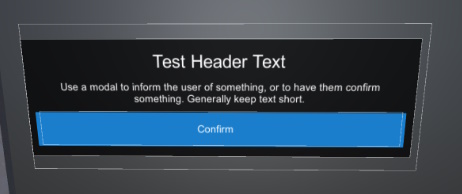
- Reposition the buttons as needed and change any colours
- Edit any text values as needed
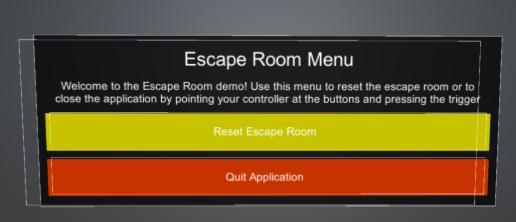
Now that we have our UI elements setup, we need to attach our C# script to the object so that we can use the code we created.
- Select the “UI Sample” Gameobject
- Press “Add component” in the inspector window
- Search for “MyVRMenu” or the name you used for naming your script
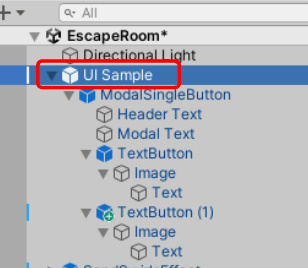
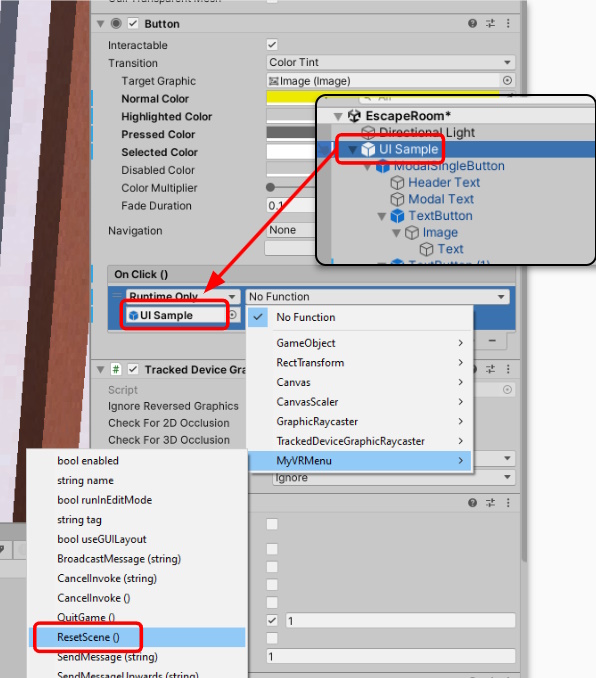
Lastly, we need to assign which function to call when the button is pressed. This is done using Unity Events. Start by:
- Selecting the “Reset Escape Room” button and finding the “button” component
- Press ‘+’ to add an action to the event list
- Drag and Drop the “UI Sample” object into the reference slot
- Select the function MyVRMenu -> ResetScene()
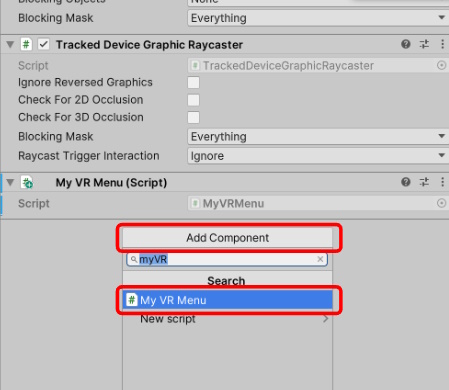
Repeat the same steps in the previous slide, except this time selecting the quit button and choose the “QuitGame()” method.
- Selecting the “Quit Application” button and finding the “button” component
- Press ‘+’ to add an action to the event list
- Drag and Drop the “UI Sample” object into the reference slot
- Select the function MyVRMenu -> QuitGame()
Playtest your recent changes and make sure that the buttons are interactable and that the scene can be reset. Remember, QuitGame() will NOT work while in the editor.
End of Project - Final Touches
We now have all the foundational knowledge needed to complete the VR Escape room project! At this point, we have:
- 2 Interactive rooms with grabbable 3D objects and puzzles that can be solved by searching around the environment.
- Each puzzles has triggers and uses GameEvents to call certain actions to take place
- We have used asset packs to populate our scene with game ready art
- We have added ambient music to our game, as well as sound effects to certain actions
- We have added particle effects to enhance certain visual effects
- We have an interactive UI that can call additional methods such as resetting the scene or quitting the application.
Whats next?
The next step will be for you to complete your Escape room using the knowledge you have gained! Here are some different Ideas to help you start:
- Design one more puzzle room so you have 3 full puzzles to work through
- Replace any placeholder artwork with art from the asset store or created personally by you!
- Add different ambient sounds per room using 3D environmental audio
- Add sound effects to each action in the game to enhance the user experience
- Add additional lighting effects to each room