
Lesson 01: Installing Unity
In this tutorial, we will create a sample XR project that covers the basics of using XR interactions. Learn by creating a playable XR Demo!
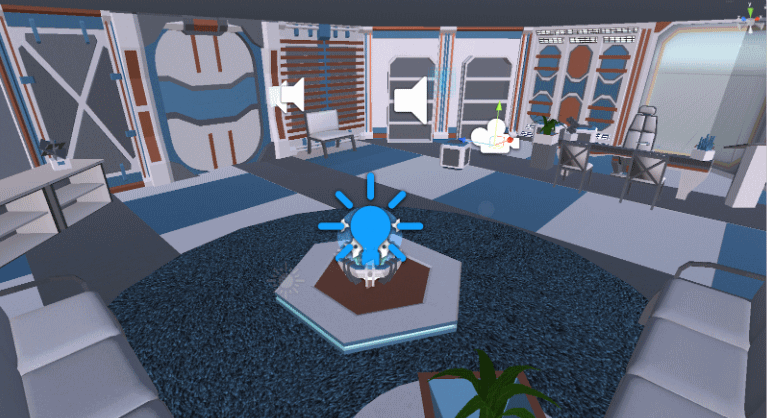
This project is inspired by other popular VR experiences “The Last Clockwinder” and “Keep Talking and Nobody Explodes”. Both of these experiences rely on physical interactions, which VR makes incredibly immersive!
VR Experience Plan
The plan for our XR project will be to create a VR Escape Room. This covers:
- XR Movement and locomotion
- XR Interactions with controllers and buttons
- XR interactable user-interface
- Puzzle design and asset creation
- Events and event listeners in Unity
- Animating 3D Objects
- Extra optional features to expand the user experience
In This lesson, we will cover installing Unity / Unity hub, and making sure we have the correct modules needed for making VR content.
Installation
Watch an up-to-date video of setting up Unity for VR with KatVR Support here.
Unity Hub
If we have not already installed Unity hub, we can do so by going to Unity.com and downloading the installer.
After downloading the installer, follow the instructions required to install Unity Hub to your device. Once installed, open UnityHub and login to a valid account. This can be done by either creating a new account, or by logging in with a Google account.
Unity Hub acts as our launcher for our Unity projects, while also allowing us to install different version of Unity, and selectively install modules as we need them.
Unity Hub - Creating a new project
Start by opening up Unity Hub and navigating to the Projects tab
From here, either select your existing project or create a new project
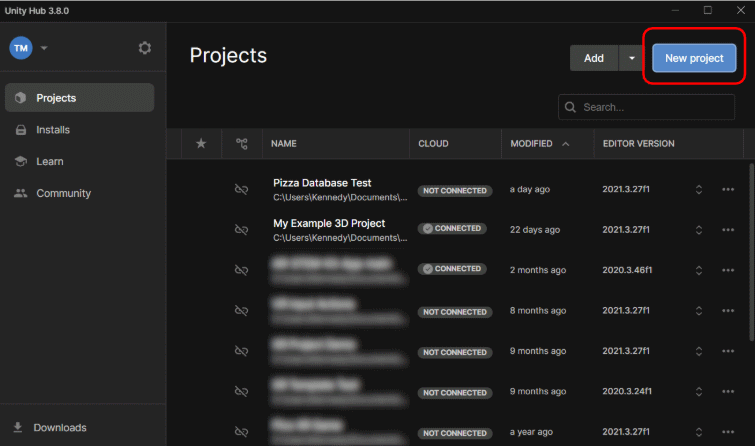
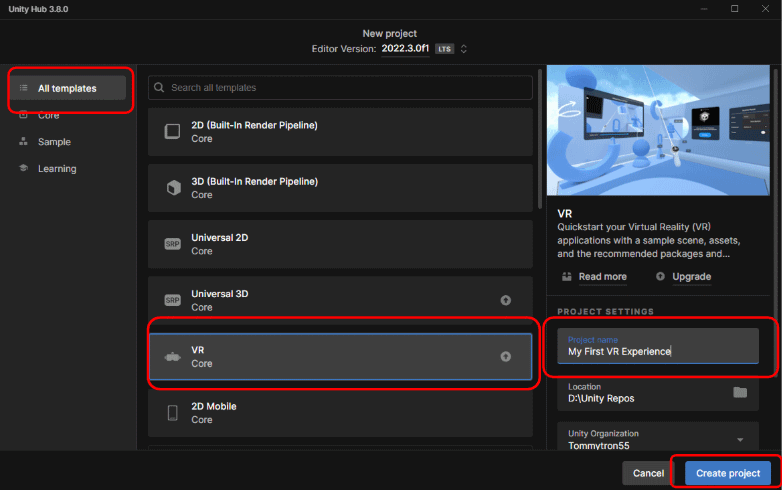
When creating a New Project, select the VR Template to get started. You may need to Download the template before using it.
We are choosing to use the VR Template as this will automatically setup all of the XR Interaction settings.
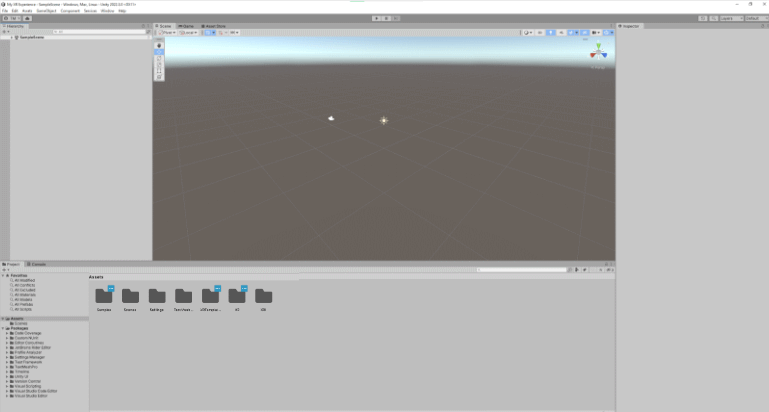
We should now have a brand new blank project that looks something like this:
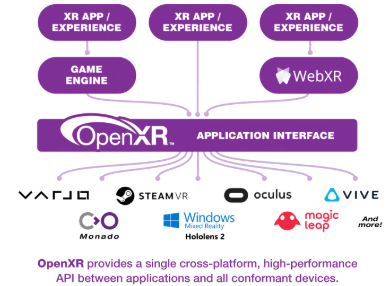
OpenXR - What is it?
OpenXR is an open, royalty-free standard developed by Khronos that aims to simplify AR/VR development by allowing developers to target a wide range of AR/VR devices. This Plugin directly links into the new XR Plugin management created be Unity in newer versions (2019 and above)

Testing OpenXR
Next we will test to make sure we have installed and setup everything correctly:
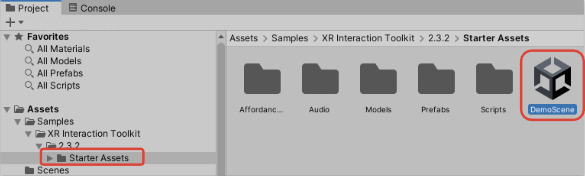
- In you Assets, Navigate to Samples->XR Interaction Toolkit -> 2.x.x -> Starter Assets
- Open the Demo Scene asset
- Confirm that the scene has opened
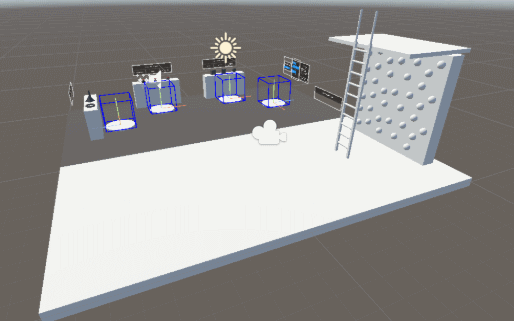
This scene contains everything needed to test out a standard XR device setup. To being testing, Make sure SteamVR is running and then click the Run button at the top of Unity.
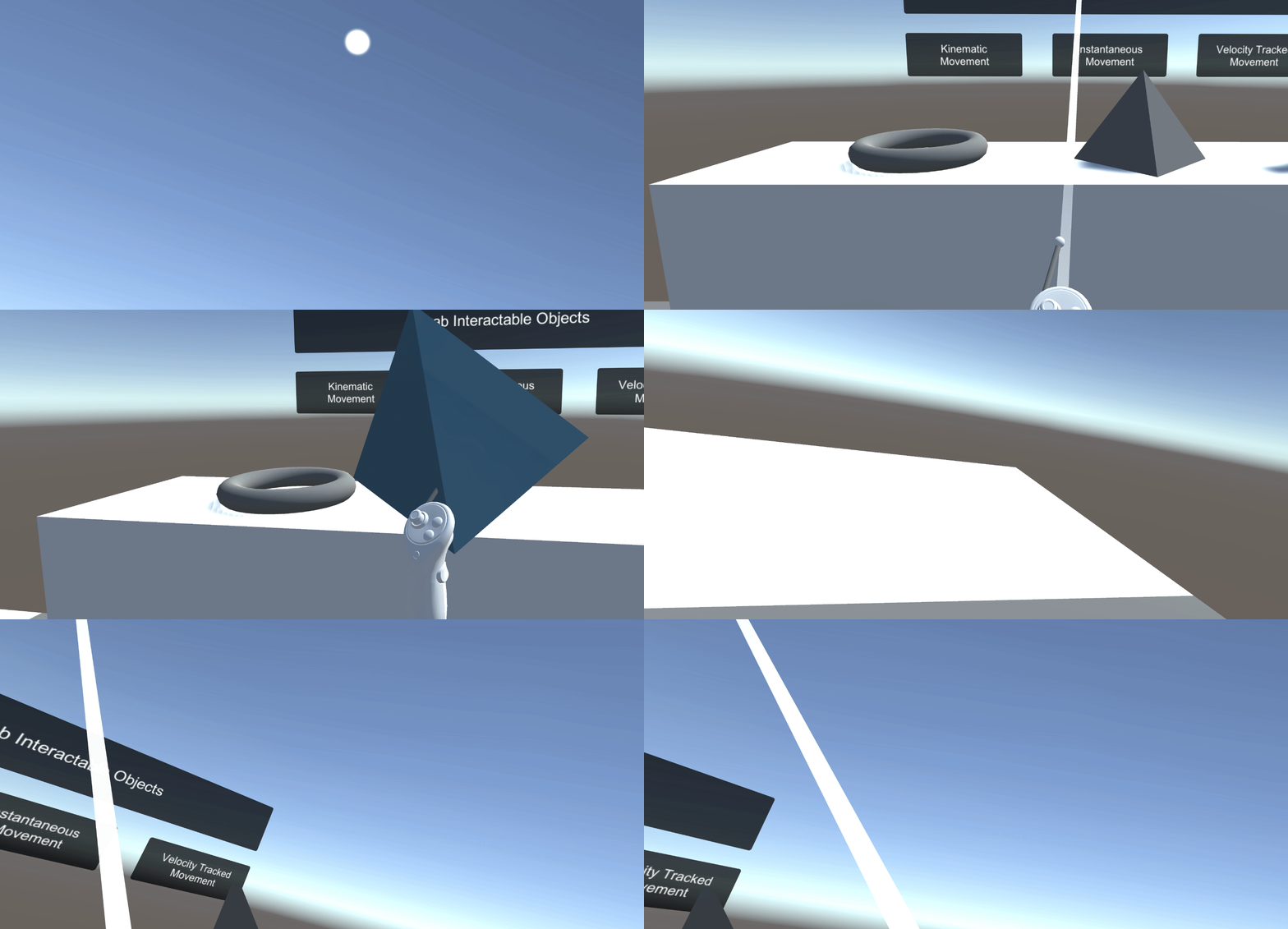
If you are having trouble with having your controllers appear while play-testing, try these following tips:
- Confirm the controllers are tracking in SteamVR
- Check the OpenXR Settings in Edit -> Project Settings to confirm one of the preloaded interaction Profiles contain the controllers you are using. If not, add your controller by clicking the ‘+’ and selecting it
- Check for any other error or warnings related to XR or XR Interaction Toolkit and try searching Unity FAQs for more
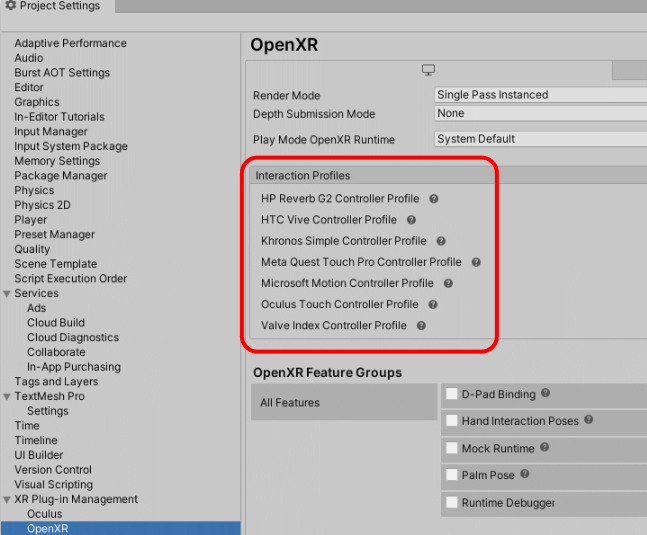
Simulating OpenXR
If you don’t have a VR headset currently plugged into your computer (or it is being shared with someone else), you can use the XR Device Simulator instead. This method allows you to test your games, while also keeping all your interactions VR specific
- Start by Navigating to the Edit -> Project Settings -> Package Manager
- Search for “XR Interaction Toolkit” and Import the XR Device Simulator Sample
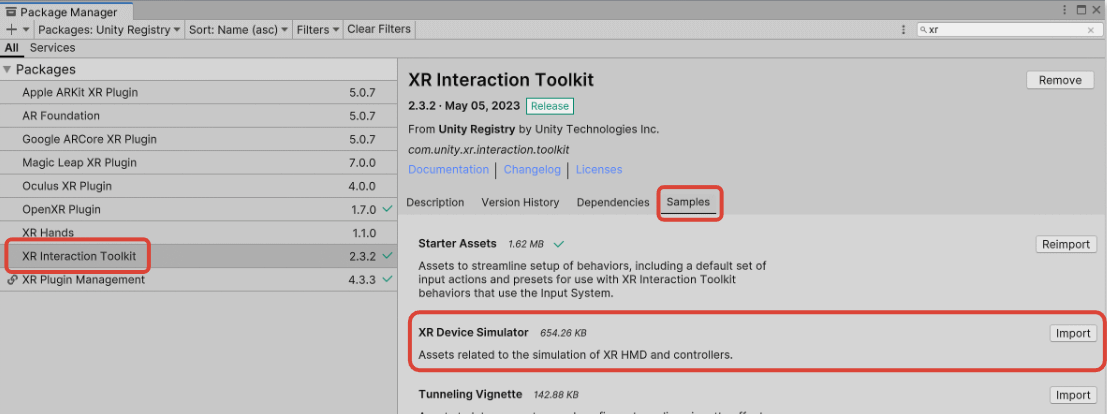
Once imported you will notice a new folder appear in your ToolKit folder:
- Open Samples-> XR Interaction Toolkit -> 2.3.x -> XR Device Simulator
- Locate the XR Device Simulator Prefab
- Drag and Drop the Prefab into your current scene
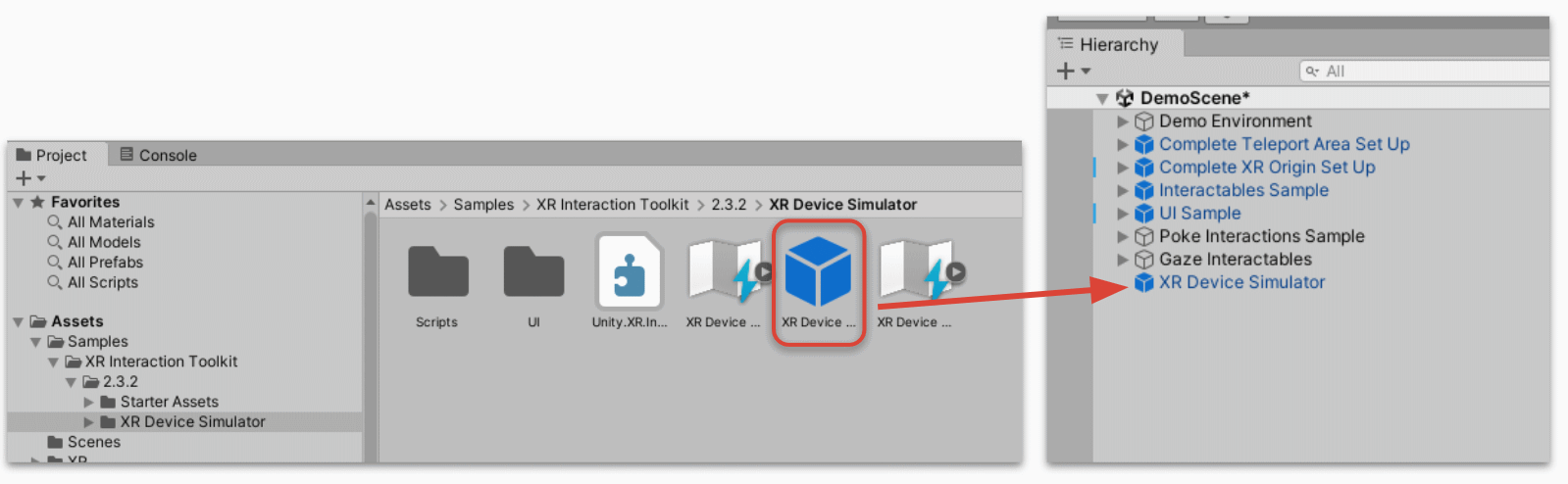
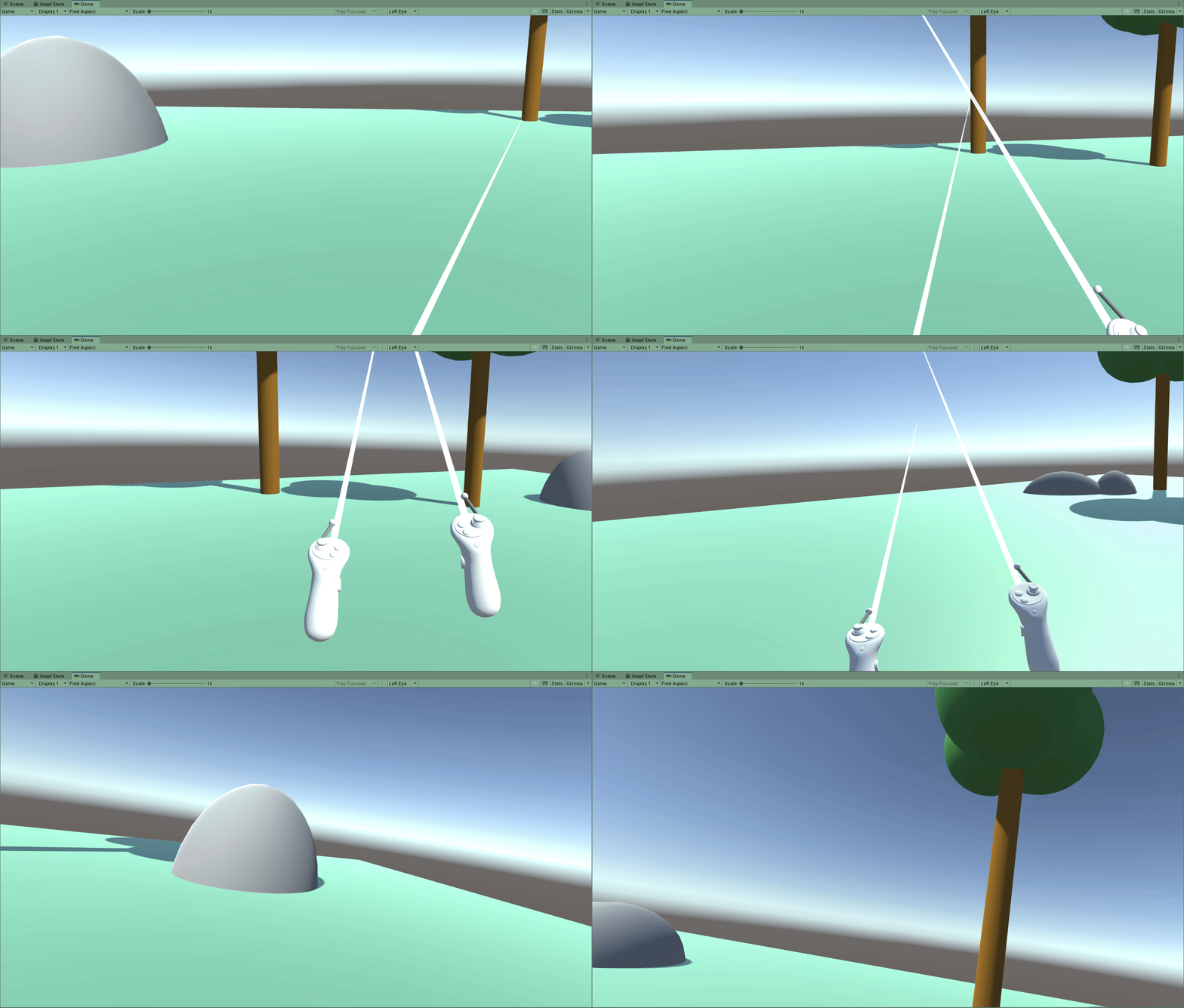
Done! Try running your game again. This time you will see the XR Device Simulator appear and be able to control your devices using Mouse and Keyboard.
Give it a try!
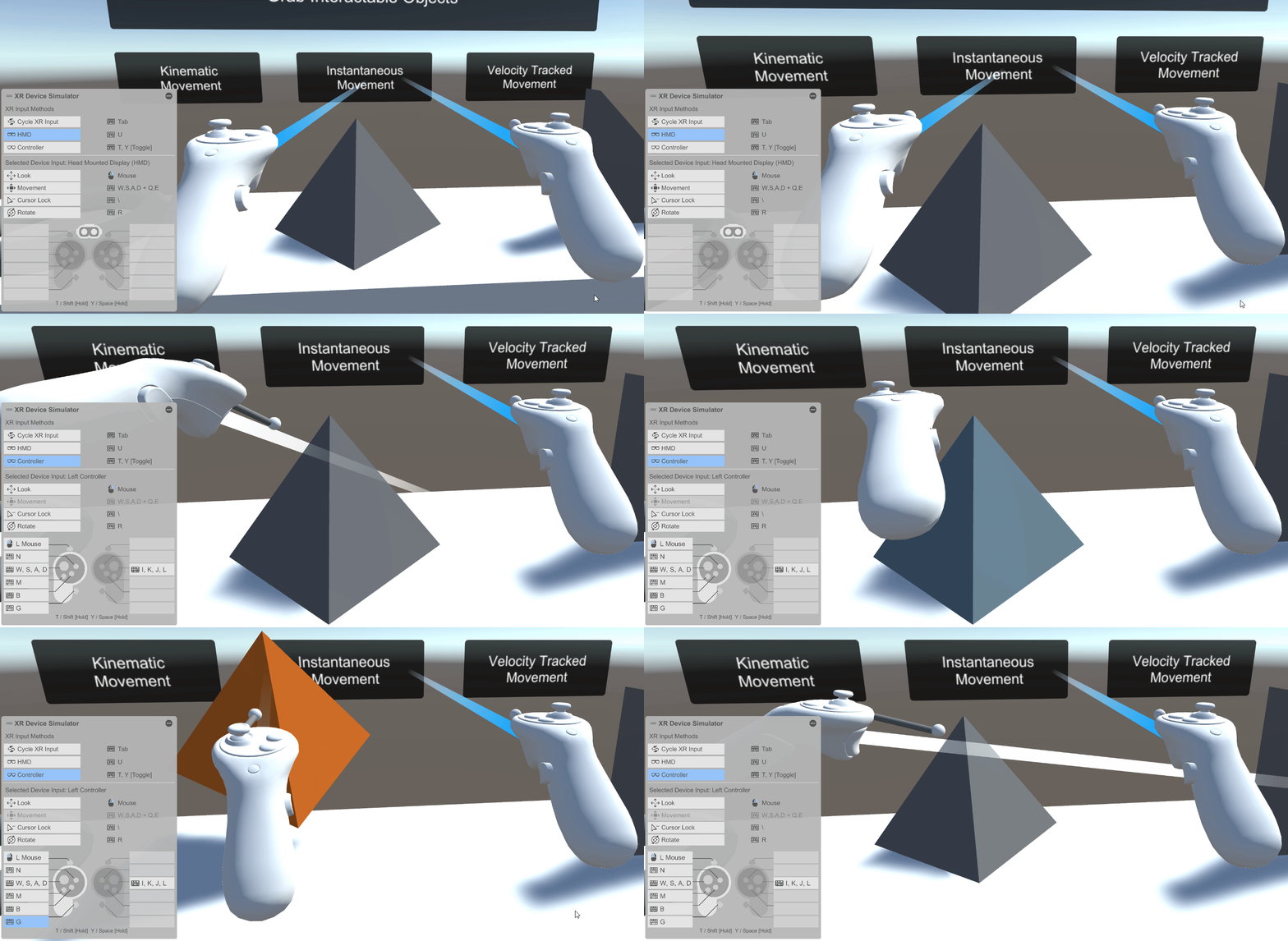
Setting up our own Scene
Lastly, lets try setting up our own scene to practice how to add everything needed for XR.
In your Asset folder, Right Click -> Create -> Scene.
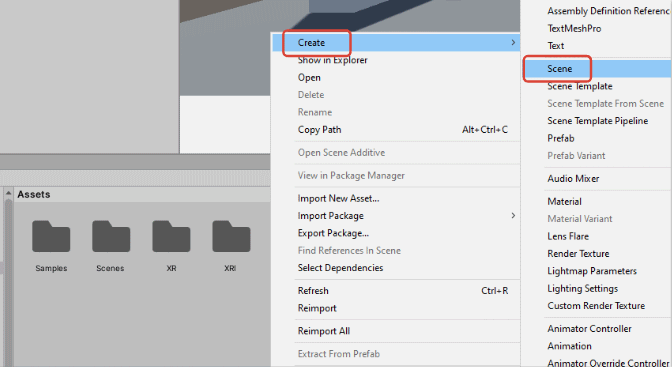
Try giving it a name to make it easier to identify:
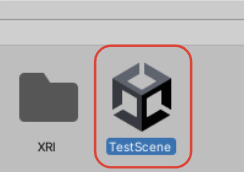
With your new scene Open, start by adding some simple objects:
- Create a floor by using a cube
- Add some additional objects around to give a feeling of space
- Optionaly, add some materials to the scene for some colour
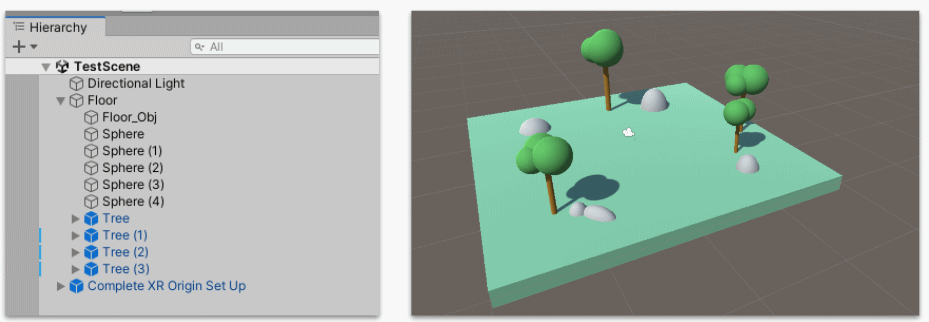
Next, we will get the scene setup for XR:
- Delete the Main Camera. (This interferes with the XR Camera)
- Drag and Drop the "Complete XR Origin" Prefab into the scene from the Starter Asset Prefabs folder.
- Optionally, also add the XR Device simulator if needed
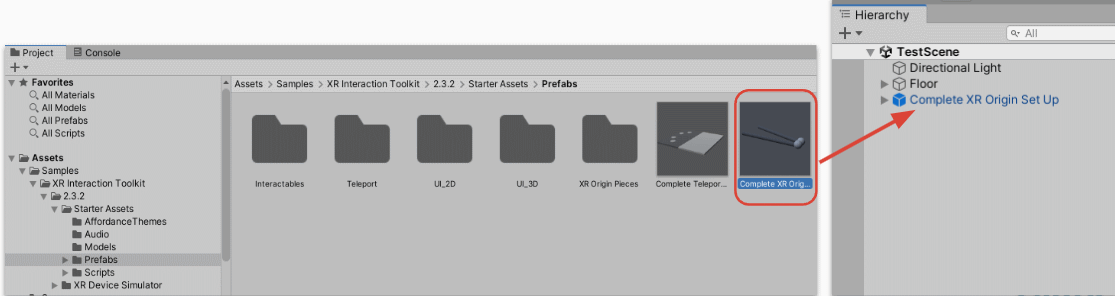
Done! The only thing needed for XR Development is the XR Origin Prefab. This handles tracking the Headset and both controllers. The Prefab also has scripts built-in for things that are commonly used, such as locomotion and rotation using the joysticks.
Playtest your scene to make sure everything is working correctly.
Next lesson we will cover the XR origin in more detail, and add intractable objects to our scene!