Final Lesson: Export your VR Project
In this tutorial we will cover how to export your Unity projects so that they can be played on different devices.
Alternatively, Watch an in-depth video tutorial here, which also covers setting up your VR project from scratch.
Checking XR Support is enabled
Before we export our project, we first need to check if it will recognise VR hardware by itself. To do this, we need to check that the correct XR settings are enabled. For a more detailed overview, revisit Lesson 1.
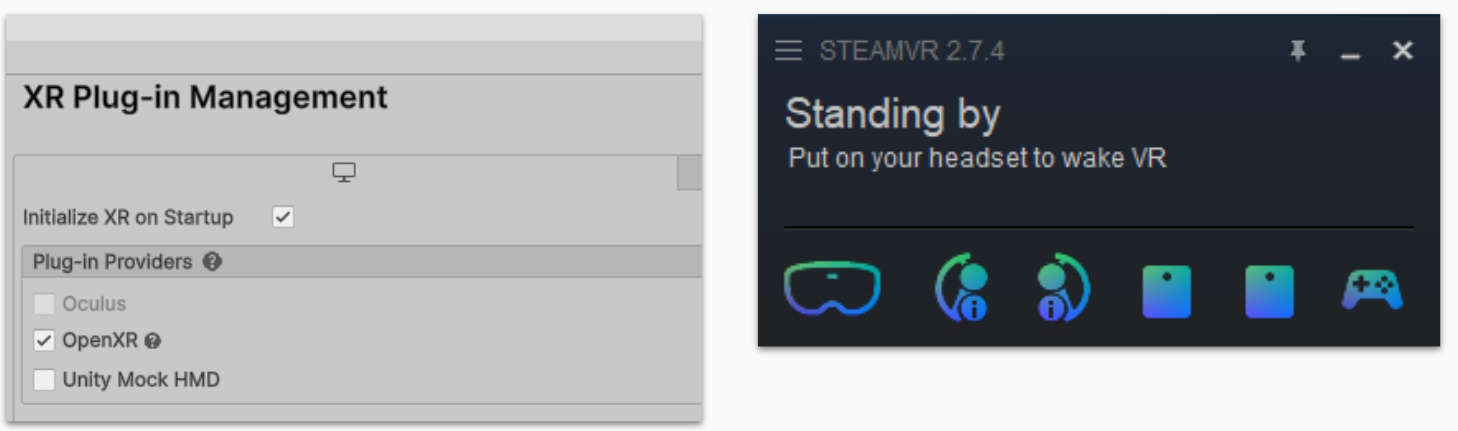
Check the OpenXR Settings:
- Go to Edit -> Project Settings
- Select OpenXR under XR Plug-in Management
- Confirm one of the preloaded interaction Profiles contain the controllers you are using.
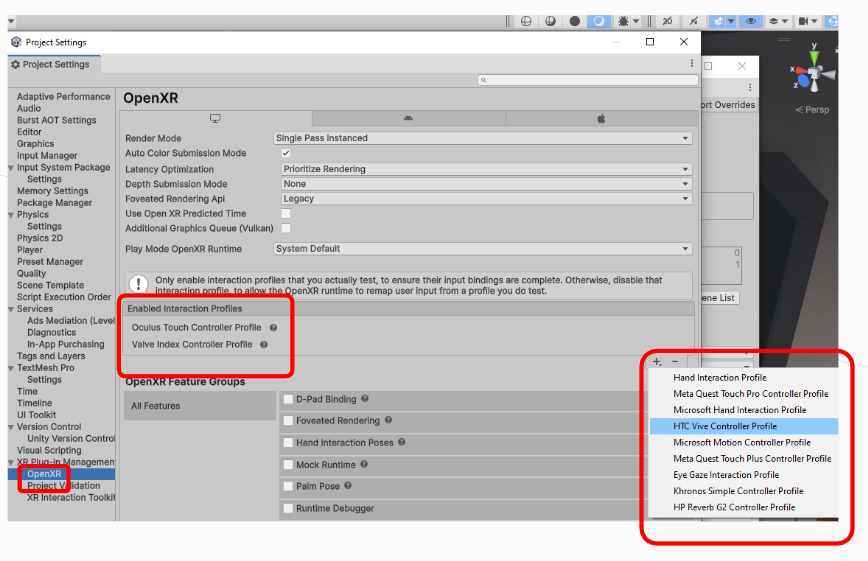
Next, we need to make sure sure that OpenXR is selected as our target platform of choice for VR
- Go to Edit -> Project Settings
- Select XR Plug-in Management
- Confirm that “OpenXR” is ticked under the “PC” platform icon.
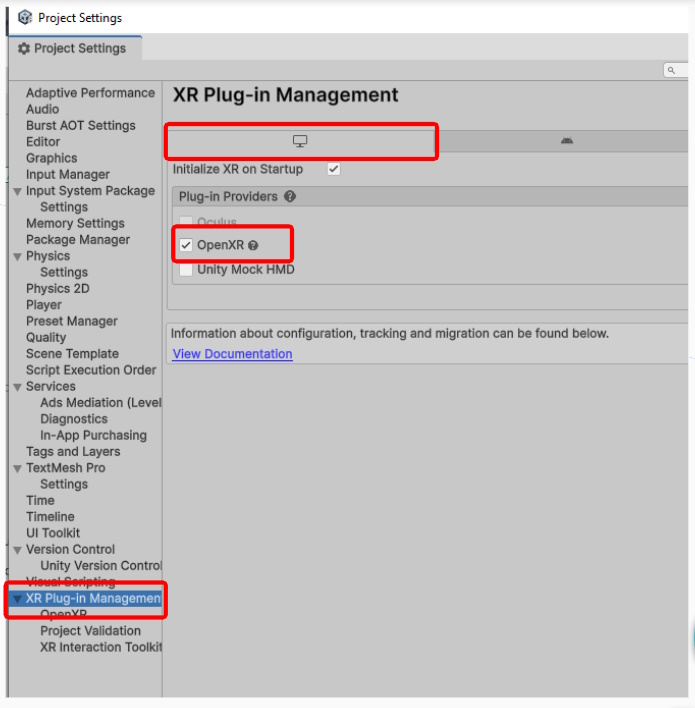
That’s it for the XR Settings.
Exporting From Unity
The last step is to now build your project, which is what Unity calls exporting.
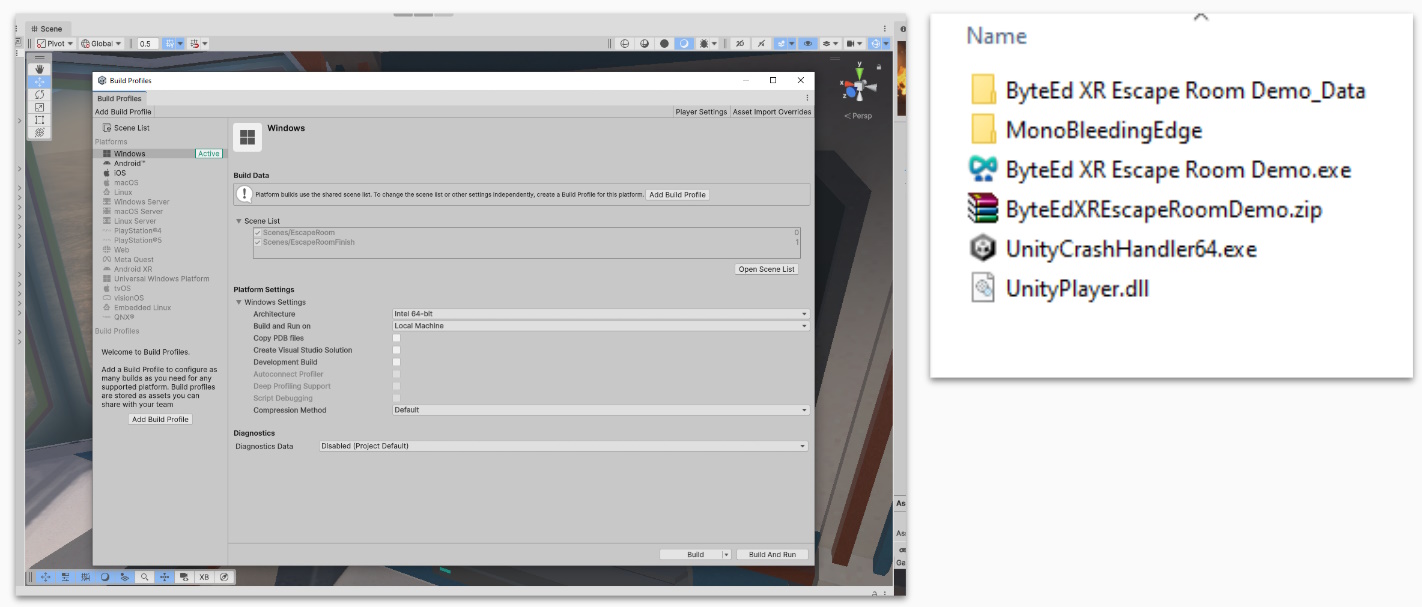
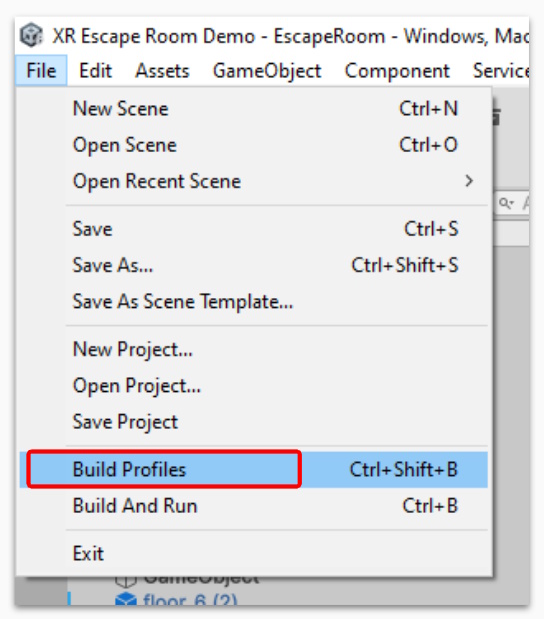
Open up the Build Profiles window by selecting:
- File -> Build Profiles
From here we can prepare out project for exporting.
Most PC-VR platforms use Windows as their operating system. Make sure its says Active next to Windows in the platform list.
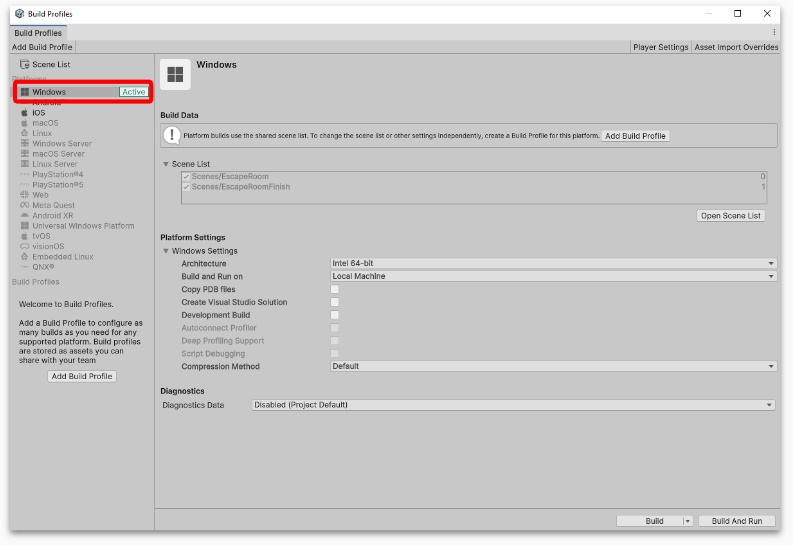
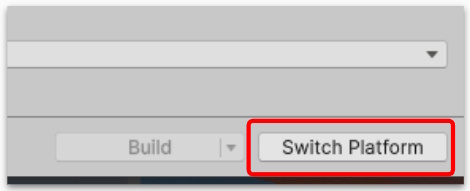
If windows is not active, select Windows from the platform list. Then select “Switch Platform” that will appear in the bottom right corner.
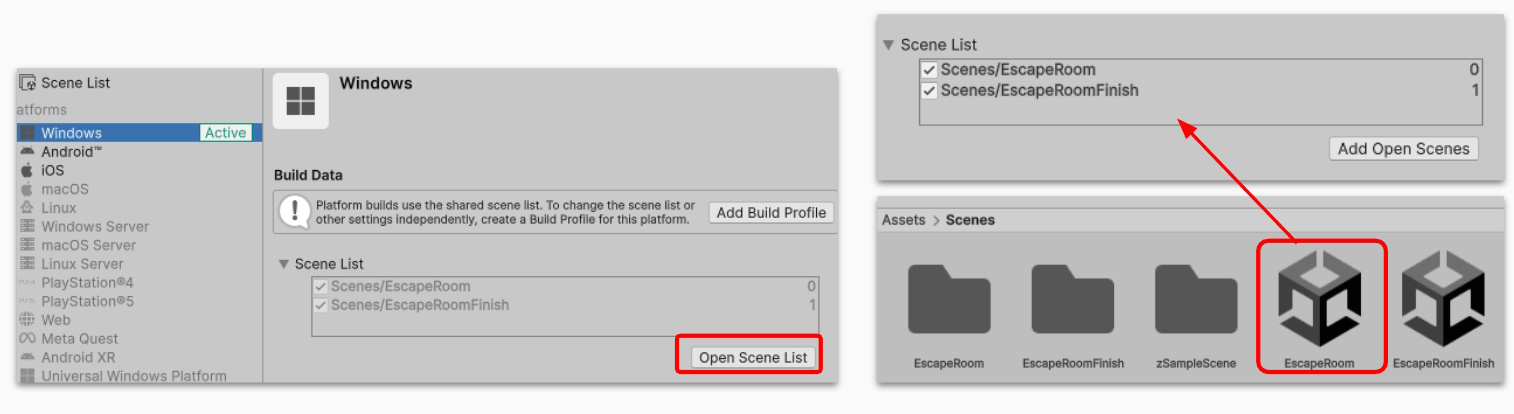
Next, we need to select which scenes will be included in the exported project.
Select “Open Scene List” and drag and drop which scenes you want in your Project. (These are your scene files that are found in the Assets folder)
Note: The top most scene is the scene that users will load into first.
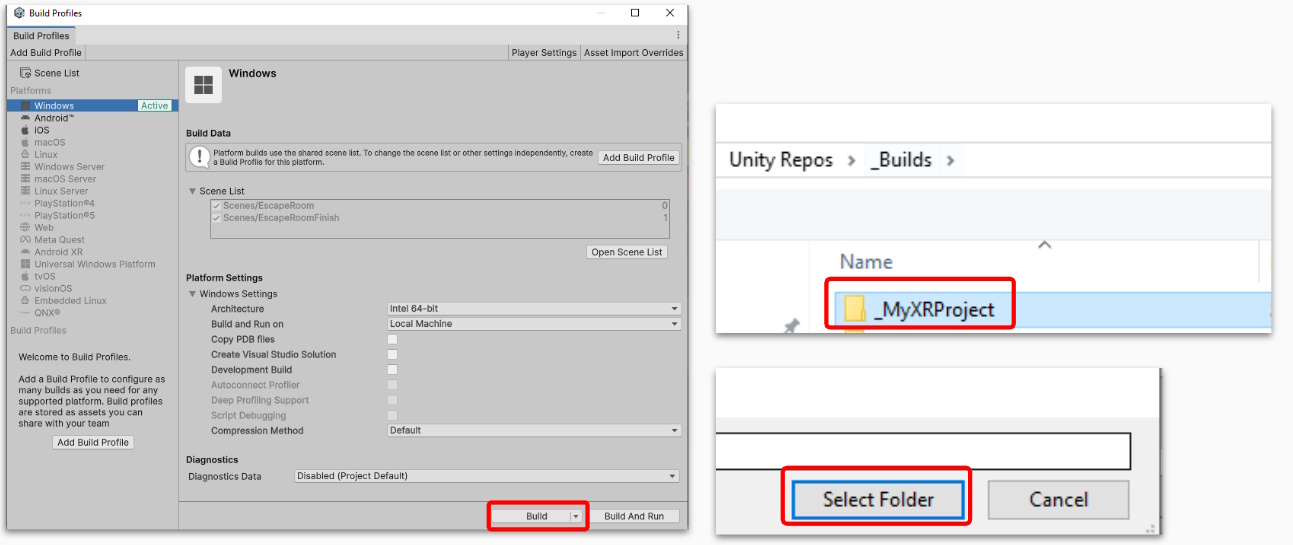
Next, close the Scene list window, and re-open the build profiles. From here we can click Build. This will ask you for a location to save. I recommend creating a new folder for this, so that everything is neatly contained.
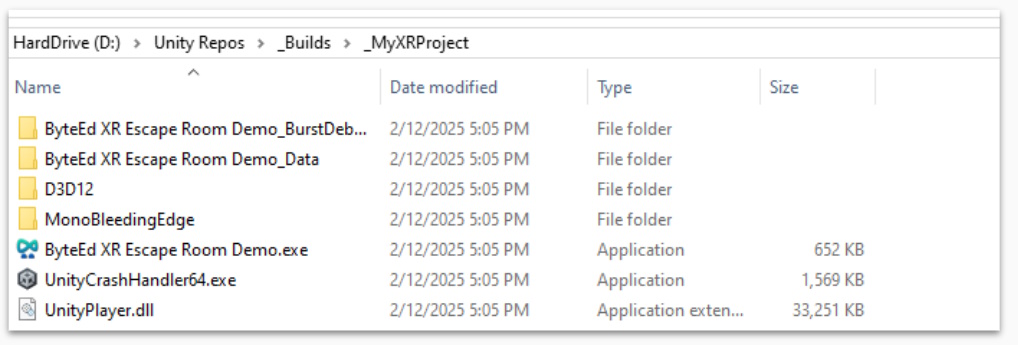
If all went successfully, you should now have a folder with your project file in it. To run your project, double click on the .exe file and your project will load up and search for a VR device to connect to.
To share this, you can either copy the entire folder (“_MyXRProject”) onto a USB, or upload it to the cloud, and download it on another device.
Bugs and Errors
Sometimes building your project make some of the more quiet bugs or errors appear, ones that usually don’t stop you from testing within the Unity Editor.
Unfortunately, because these bugs and errors can vary, you will likely have to use Unity’s documentation or Search for answers yourself.
If its related to one of your scripts or components you created, double-check that you have saved the script, and head back into Unity to load the newest changes.
Optional - Naming and Icons
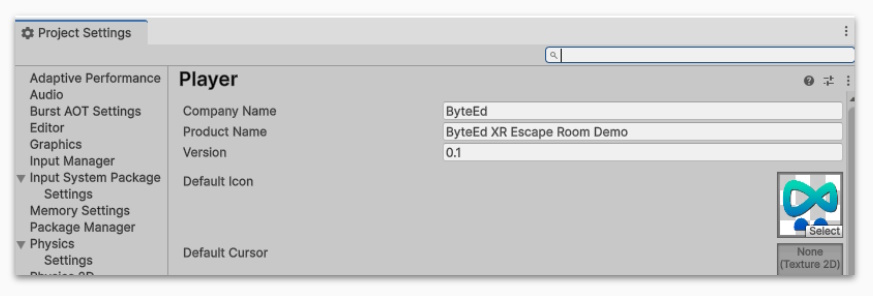
Because we are creating an .exe file, we can also change the name and icon from within Unity.
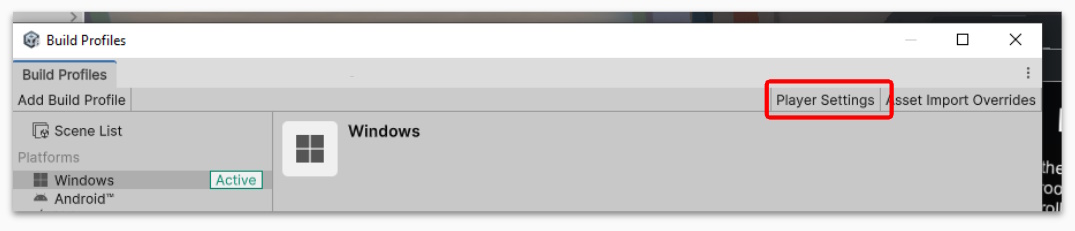
Go into “Player Settings” from the Build Profiles window, and you can change the Product name as well as choose the Icon and Cursors.