
Optional Lesson: Export 3D models into Unity
In this tutorial, we will cover how to export your 3D models from Blender into Unity
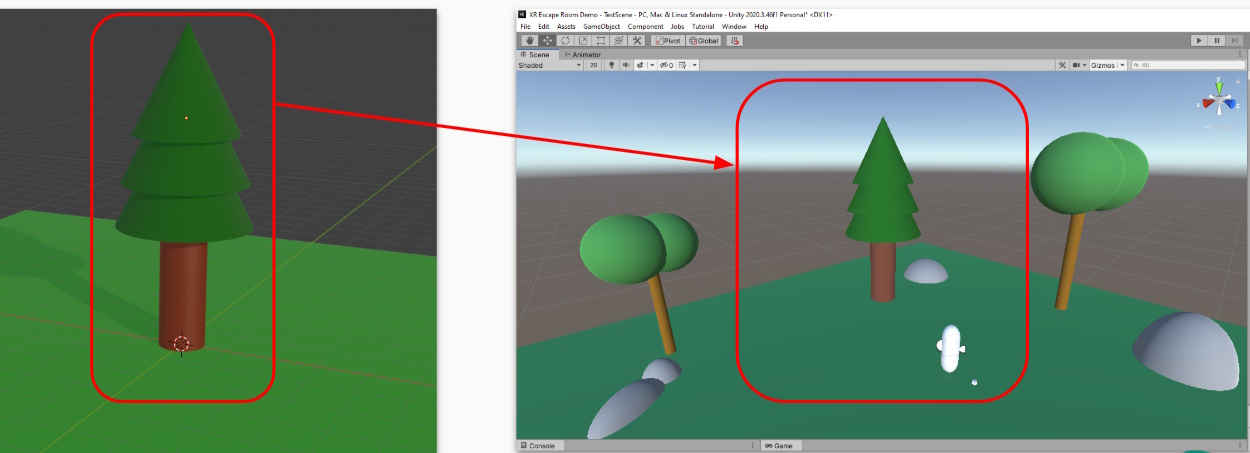
Exporting from Blender
Start by opening your blender file and find the model the you want to export.

When exporting from Blender, we need to make sure that only the model that we want, gets exported. To do this, we need to check that our model is setup correctly. There are two main methods for doing this:
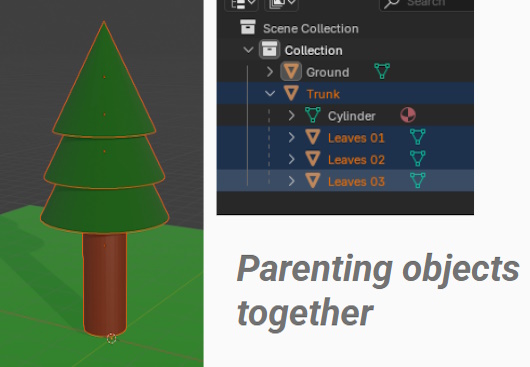
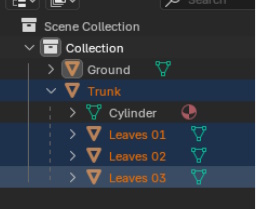
Parenting method
Parenting objects together works best if you still want to be able to control or manipulate the individual objects separately, such as for animation purposes. If you don’t need your model to do this, follow the Joining method instead.
Reminder, to parent your object :
- Select the child object first
- Shift-Click the parent object second
- Right-Click to bring up the context menu, and select Parent->Object
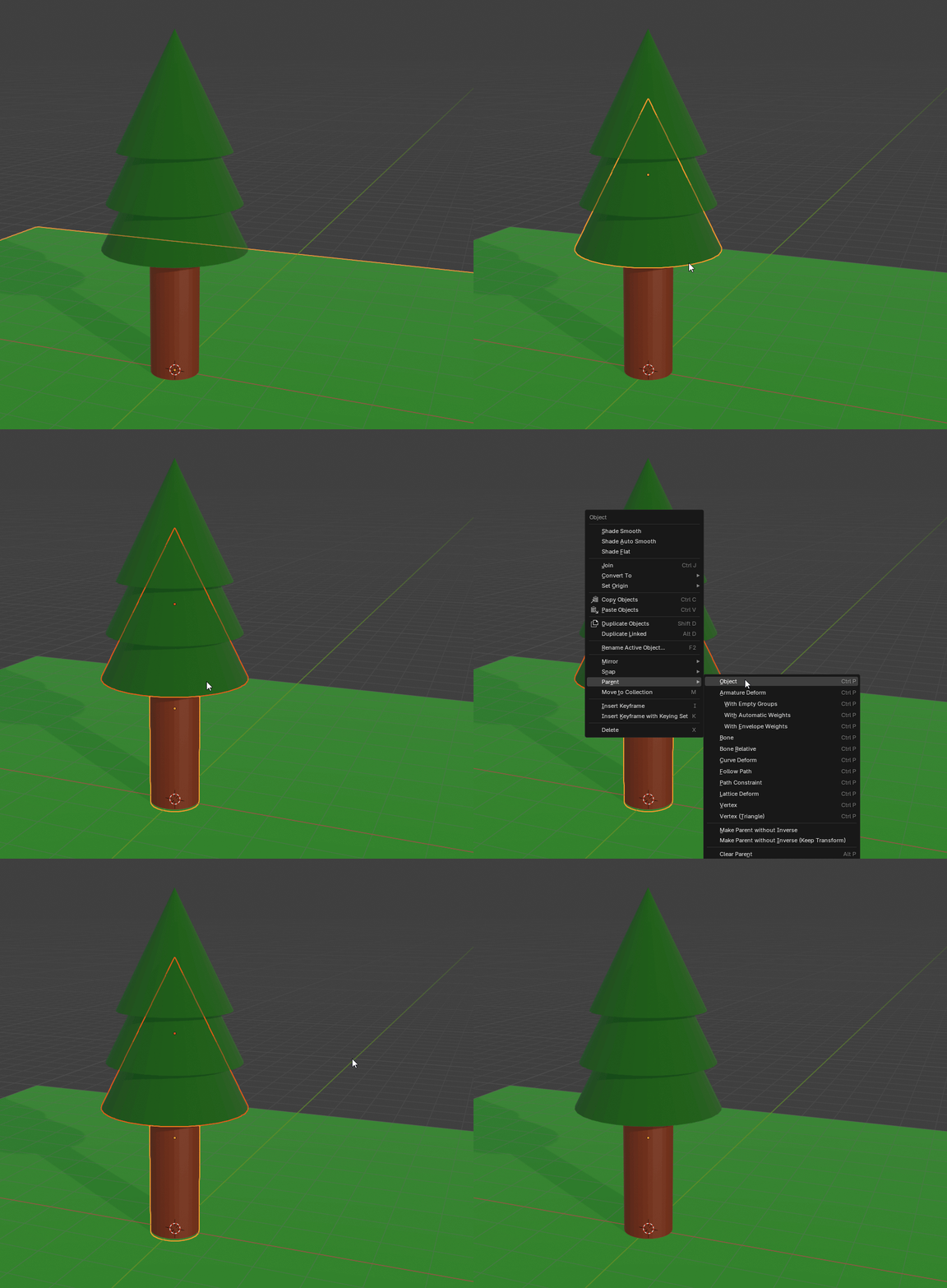
- Repeat for all other child objects
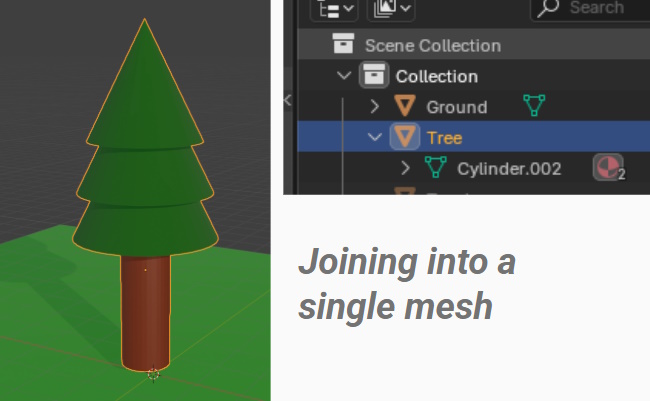
Joining method
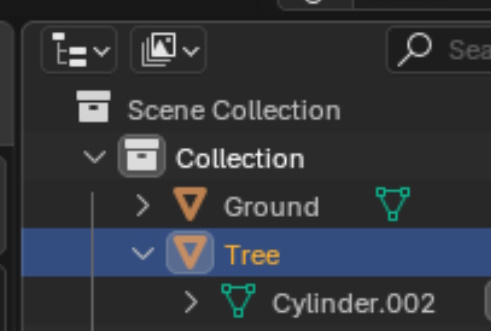
The Joining method works best if you have a static model that isn’t going to move or animate. Joining is a process that merges the meshes together, which makes the model more optimized, as it becomes a single mesh only.
Reminder, to Join your objects :
- Select the child object first
- Shift-Click the parent object second
- Right-Click to bring up the context menu, and select Join
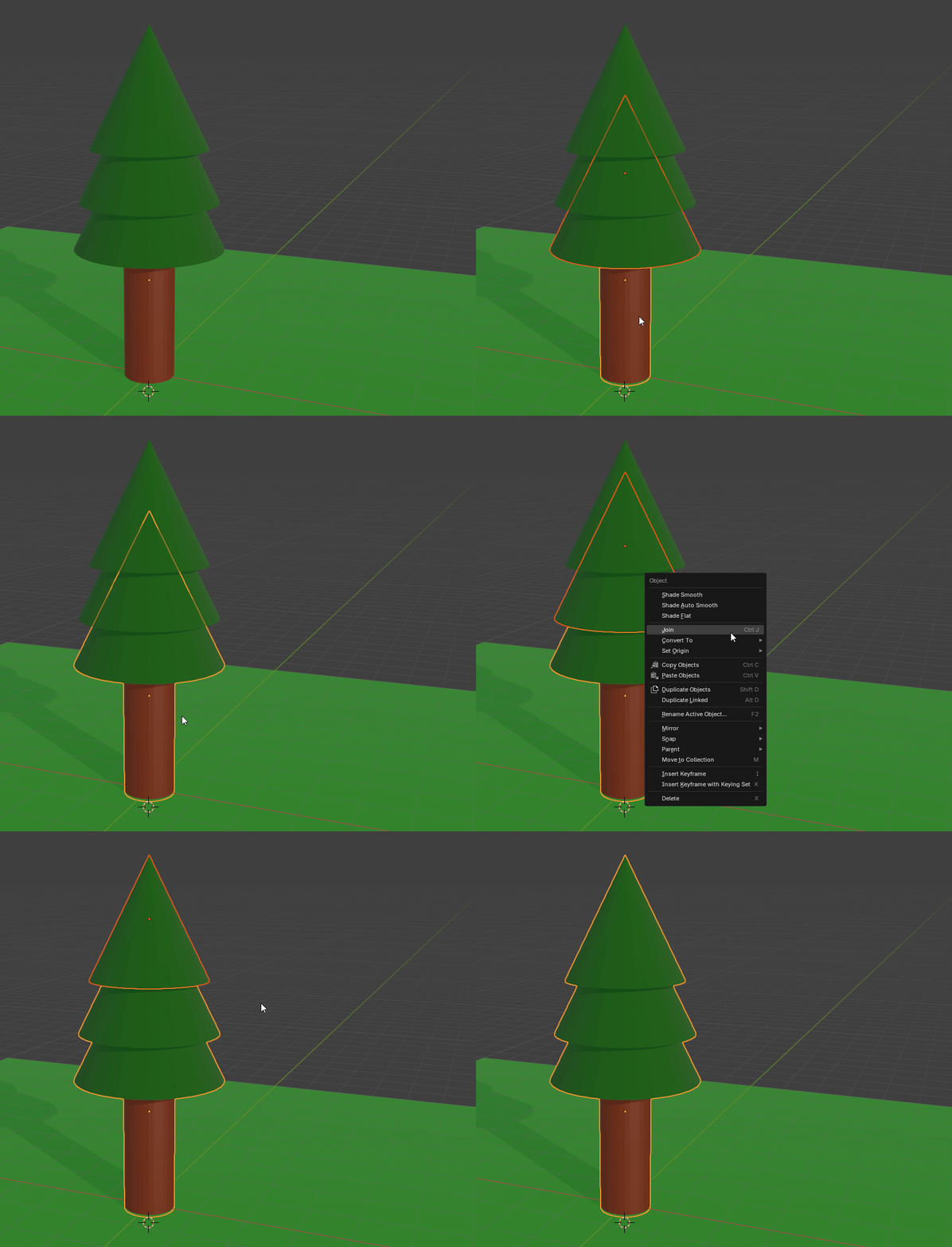
- Repeat for all other child objects
Exporting the Model
Now that the model is setup, we are ready to export!
- Select the model (and any child objects attached to it) so that it becomes highlighted.
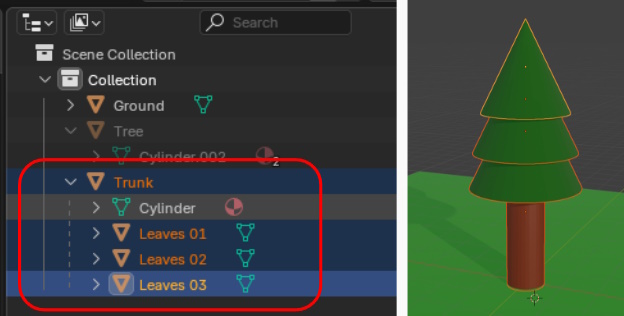
- Then Select File -> Export -> FBX (.fbx)
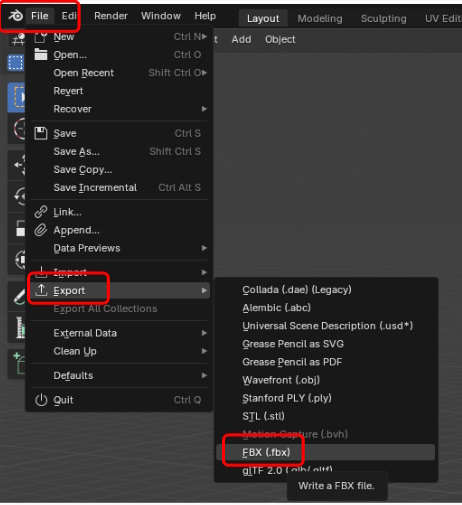
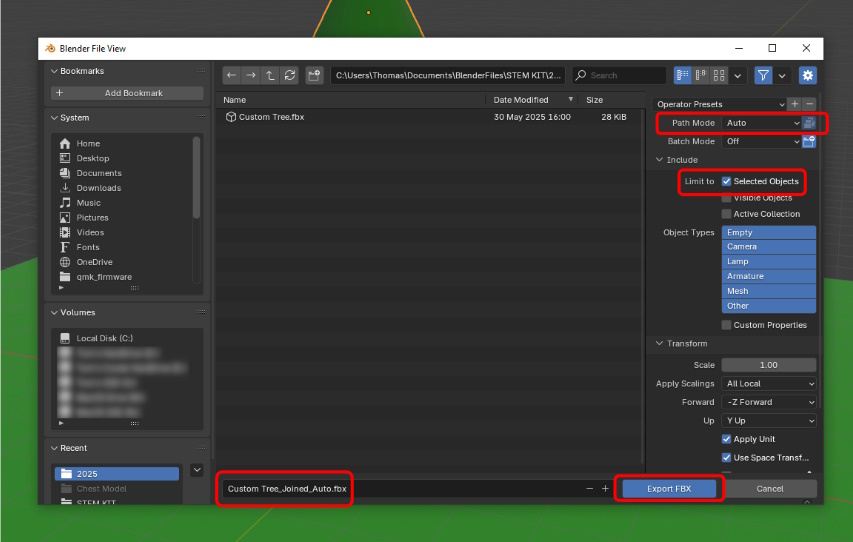
Choose a location to save your exported model too. Then check the following settings:
- Path mode is set to Auto.
- Limit to Selected Objects.
- Provide a name for you file.
- Leave other settings as default.
- Click Export FBX.
Importing into Unity
That’s it! Now we need to import it into our Unity project. Open your existing Unity Project, or Create and new one using one of the templates:
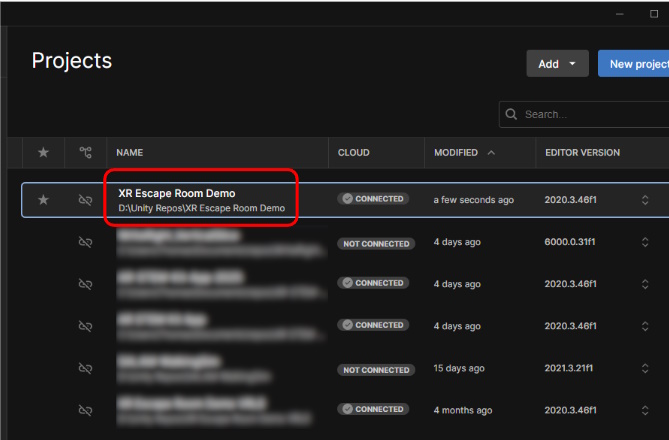
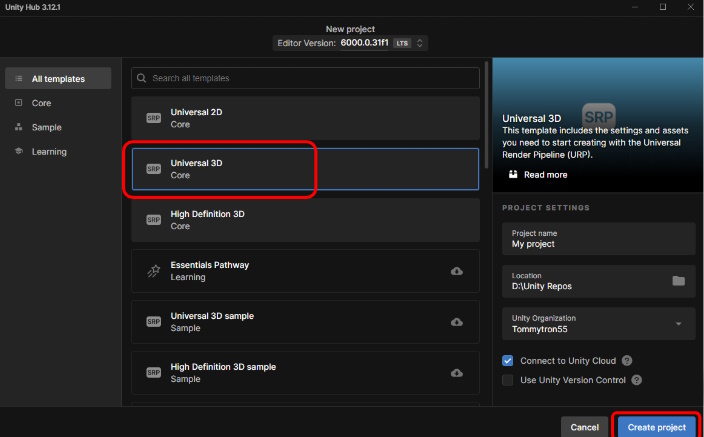
Once open, you can Import your custom model, by dragging it into the Assets panel.
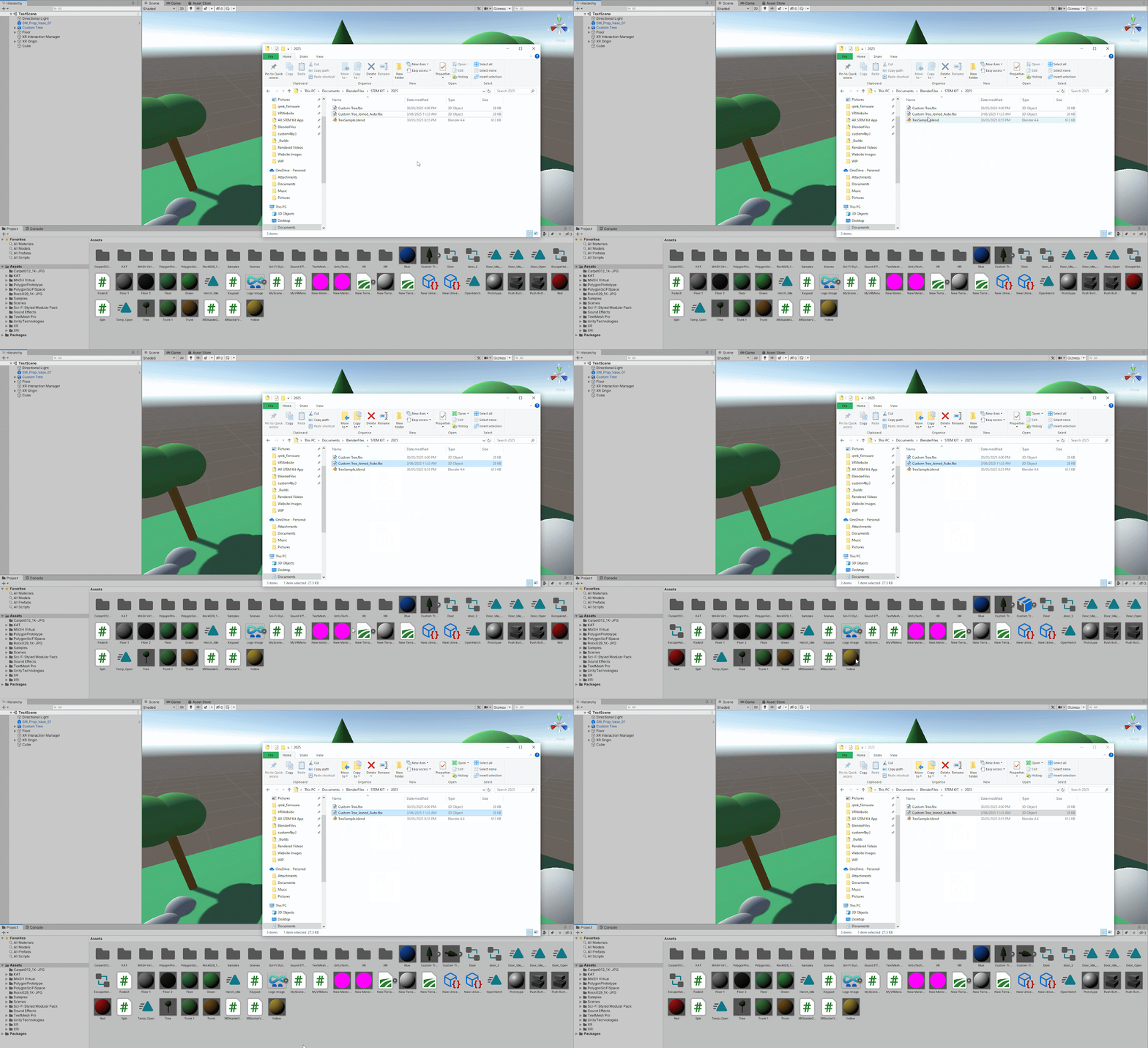
That’s it! You now have your model in Unity. Drag and drop the model into your scene and change the scale if needed.
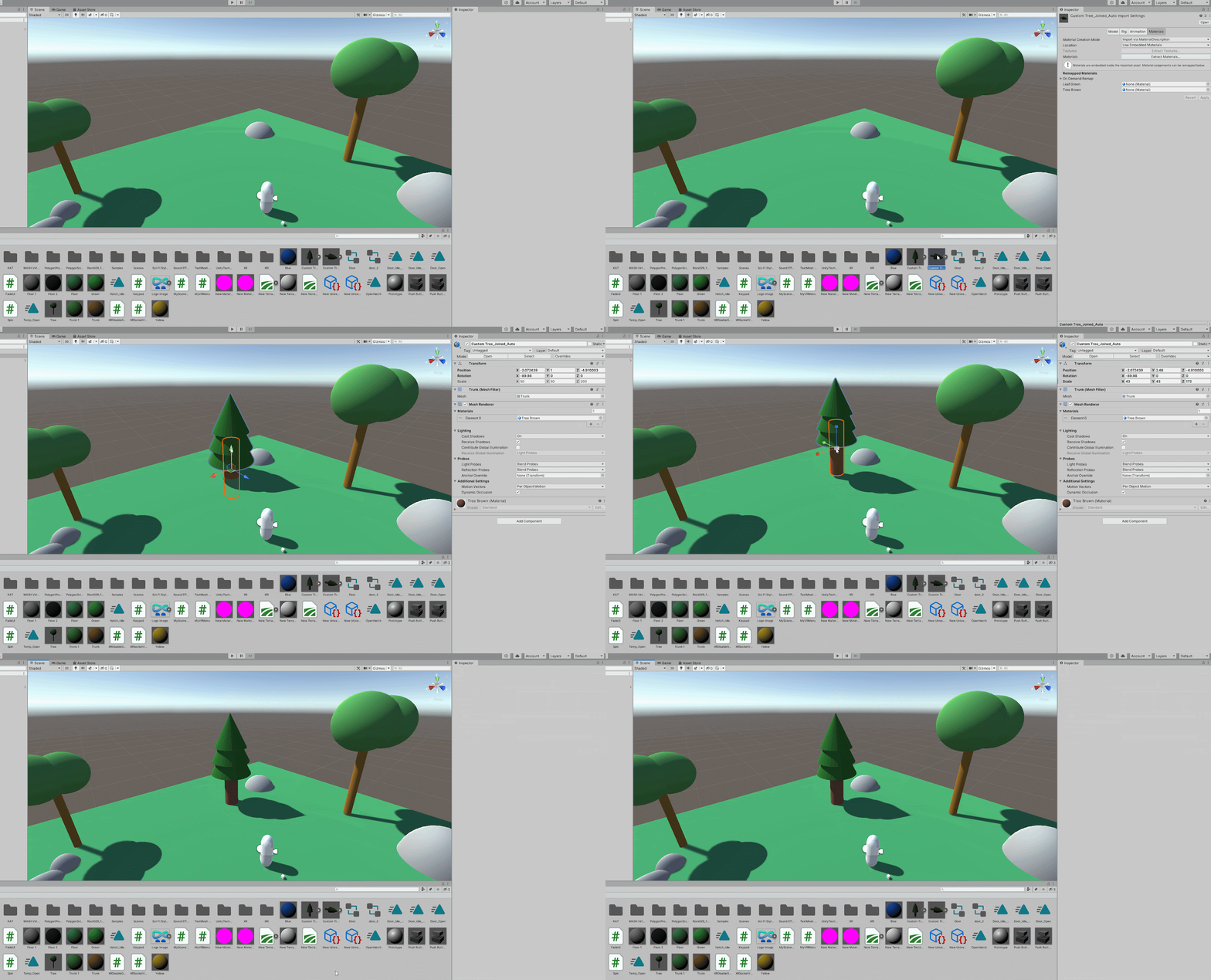
If your model is missing textures (or you would like to add custom ones in Unity), follow these next steps.
If no materials have been loaded, we can try and unpack them from the FBX file. Unity will automatically assign them, as long as we follow the correct steps.
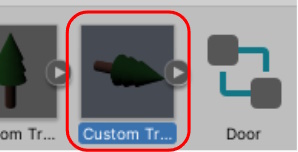
- Select the Object, then choose Extract Materials.
- Select a folder to save these materials to.
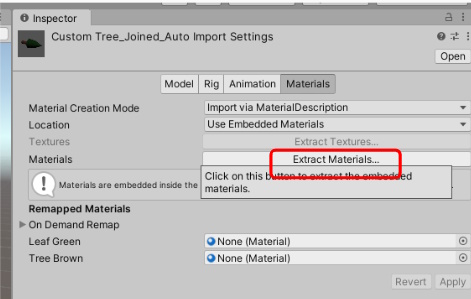
- Repeat for Extract Textures if needed.
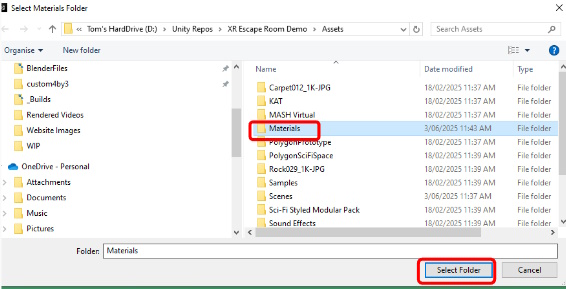
With the materials extracted, your model should now have colour! If not, you can modify the extracted materials directly in Unity to override the colour/textures.
Give it a try!
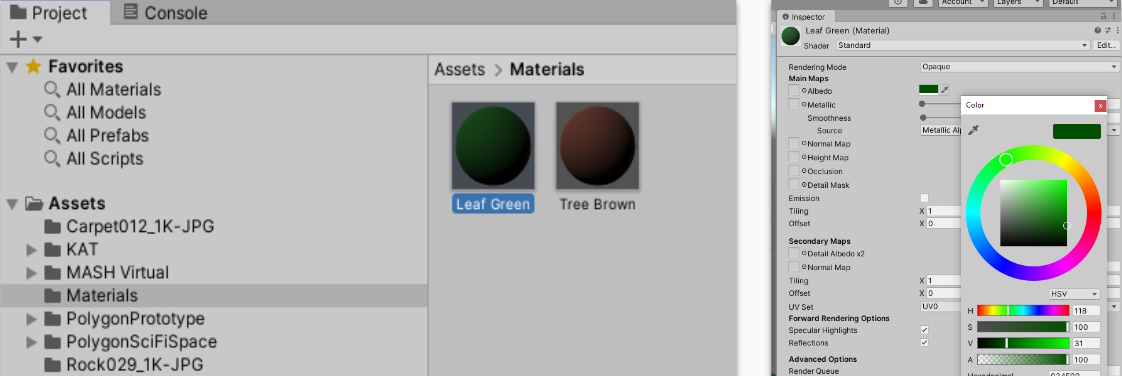
Still not working? Try following these steps when Exporting the model.
If your model hasn’t exported with the correct materials or textures, this could be due to the Export Process. Try the following:
- Select your Model(s) in Blender
- Select File -> Export -> FBX
- Change Path Mode to “Copy”
- Toggle the “Embed Textures” button next to Path Mode
- Export your model and try import into Unity again (Extracting materials if needed)
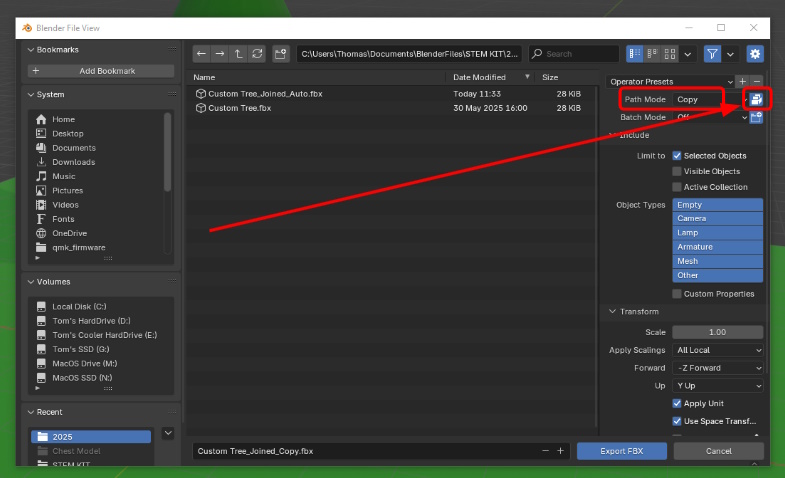
Thats it! You should now be able to see your model in Unity and any textures alongside it. If you are still having issues with your model, try searching online if you’re using a different kind of 3D model file.