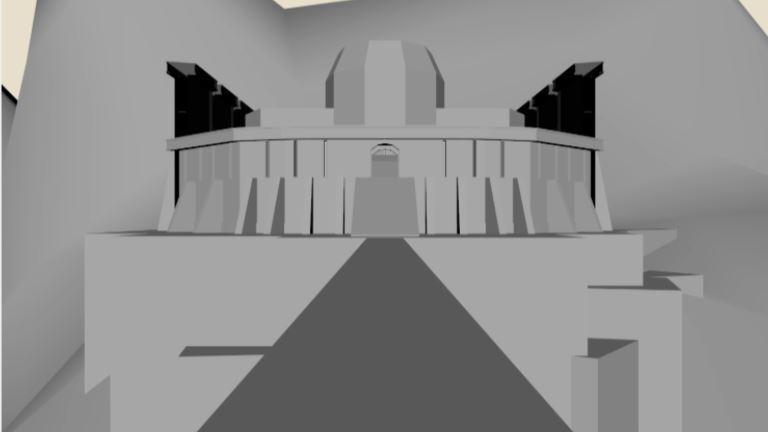
Lesson 13 - Small Project
Small Project
 Kua reri? - Showcase a story from your local area.
Today you are going to start to use your research to generate ideas for your diorama in Blender.
You need to:
Choose if you wish to work on your own or with a partner.
- Use research to create initial sketches and designs of your 3D models - annotate and analyse the models.
- Consider the message you are going to tell with this story.
- Create a storyboard to tell the story - what will be animated? what could happen?
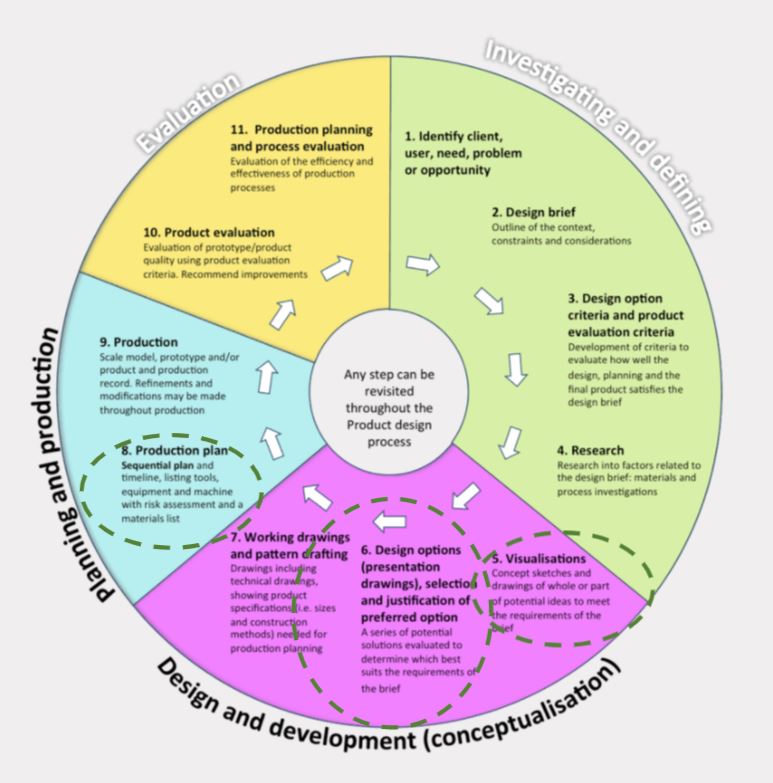
Student Task: Storyboard
Create a storyboard.
Think about how you can tell your local story by creating a 3D diorama in Blender.
Where will this take place?
When does the story take place?
Who are the characters?
What could the animation be?
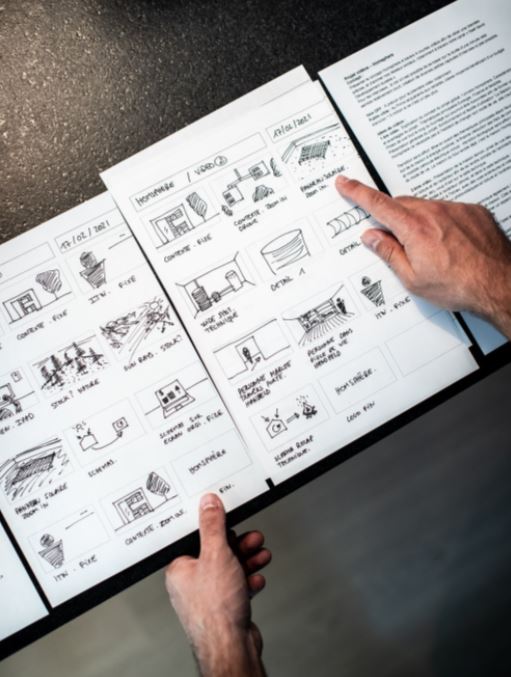
Story board: https://unsplash.com/photos/idiRDLFPH6A
 Design - hoahoa
Student Task: Initial Ideas
Use your research to design and sketch ideas for:
The environment
The 3D models
Characters
Animation
Annotate the sketches (label & explain)
Analysis the ideas - link back to the design brief & attributes
Do the designs meet the need? are they suitable?
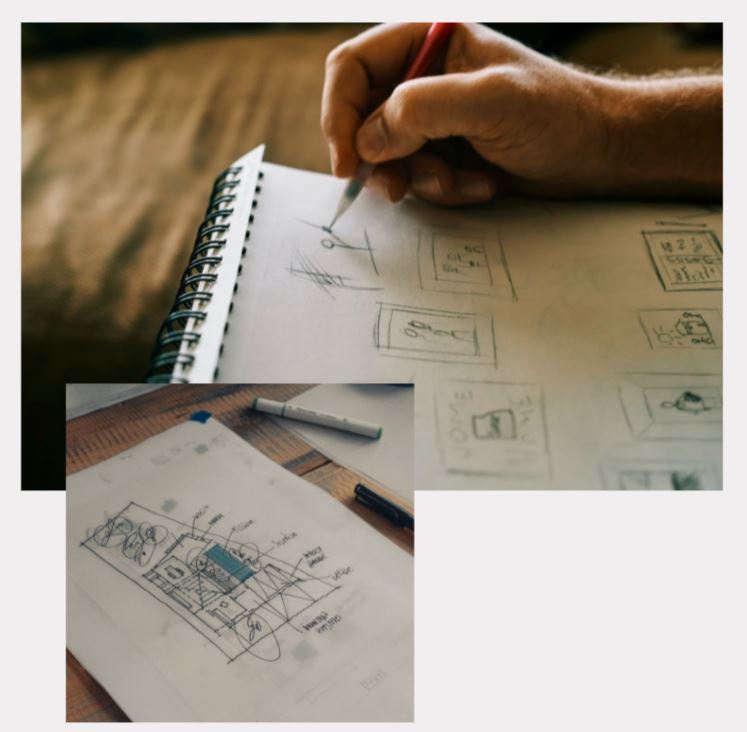
Sketching: https://unsplash.com/photos/8DTIQ_Klxho
annotated sketch: https://unsplash.com/photos/0w1MiTY78h0
 Blender tools & techniques
This lesson, it will mainly be focused on you coming up with ideas and experimenting!
Even if you don't know what to create, ask around and see what ideas other people might have that could make you inspired!
That being said, there are a few things to consider...
There’s only one new button to learn in this lesson, and it’s this…
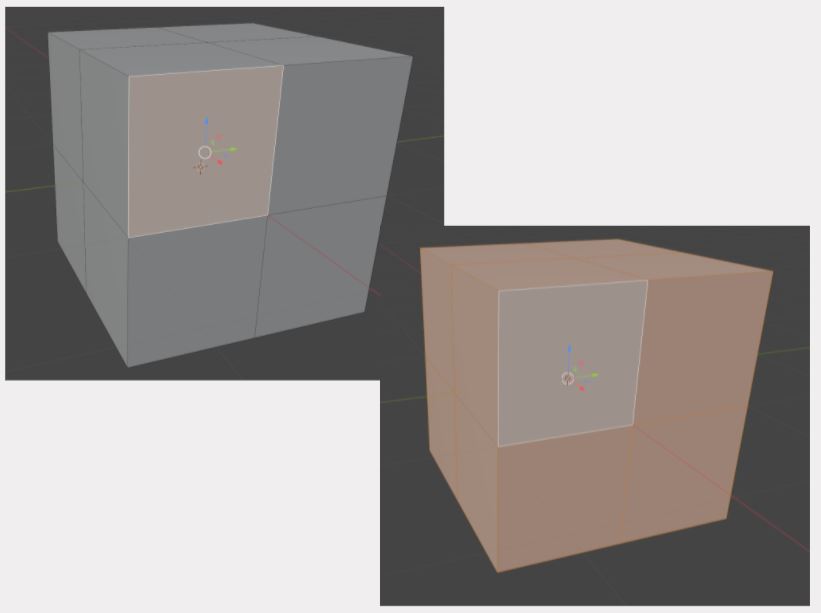
When in Edit Mode, holding down ALT on your keyboard, and it will select an entire line of Edges at a specific angle that you chose. It can also do the same with Faces and Vertices. However, what if you want to select the entire model?
Be in Face Mode and select a single Face on your model, hold down CTRL on your keyboard and press the letter L on your keyboard.
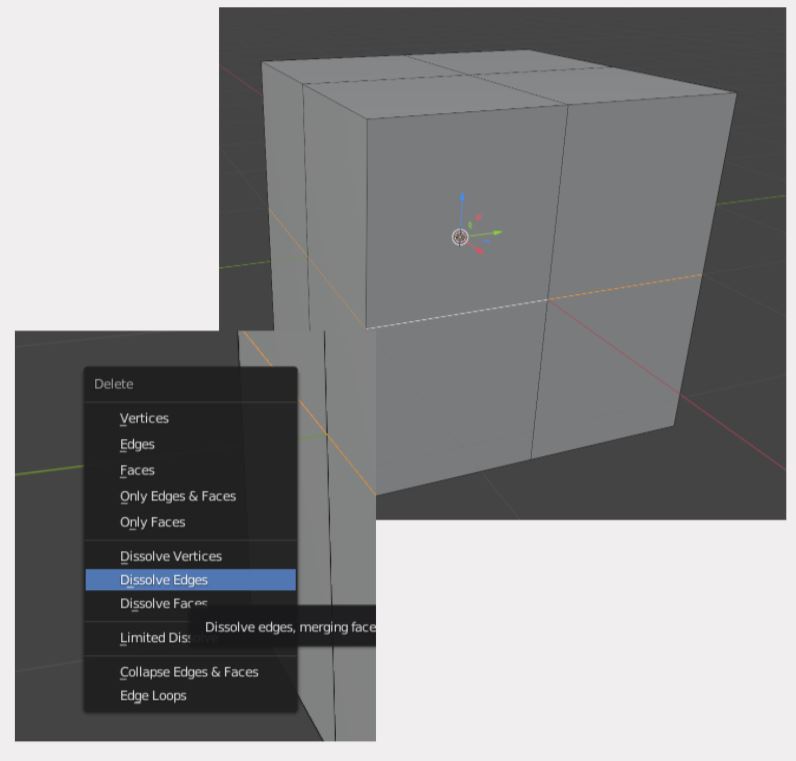
Delete the right way and not the wrong way…
If you want only to remove an Edge Loop, select Dissolve Edges. Otherwise, it will remove the mesh as well.
You can add images into Blender and experiment with some basic shapes to create ideas!
Go to Add, then Image and then References to add any image that you have in your computer.
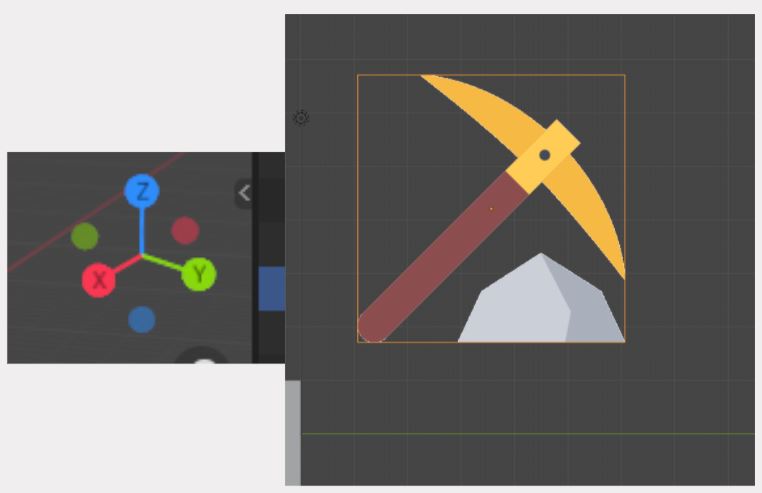
Remember to be in one of the fixed view modes by either clicking on one of the X-Y-Z Axis or holding down ALT on your
keyboard and middle mouse button at the same time when looking around in Blender.
If you’re not good at sketching, then you can create some ideas in Blender instead!
When adding colours, remember that all of your models will start with the same material, White colour.
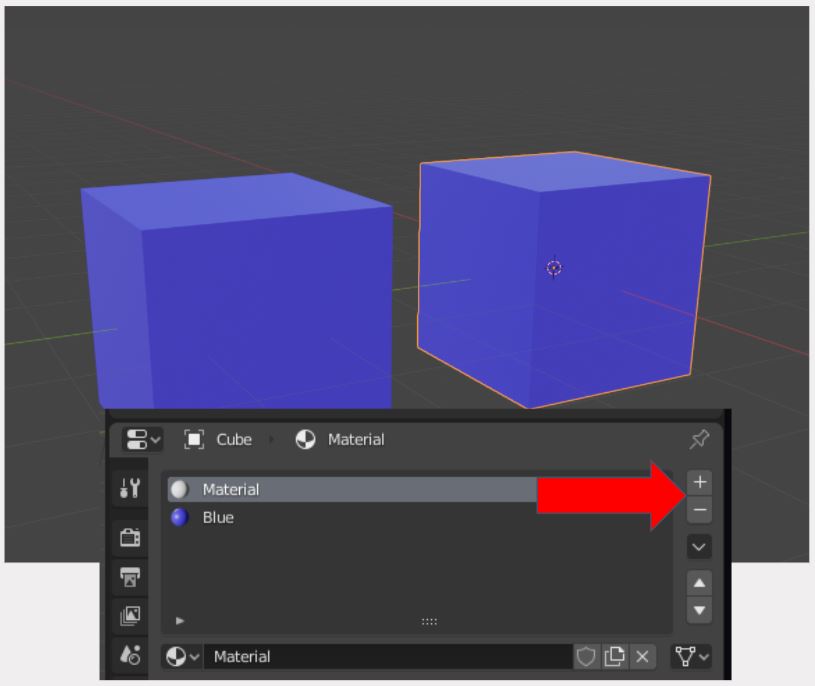
If you can’t see the colours you assigned to a specific model, you have multiple colours materials.
As you can see in the picture, the base material is still there, so we can remove it with the minus icon,
and you should be able to see the actual colour.
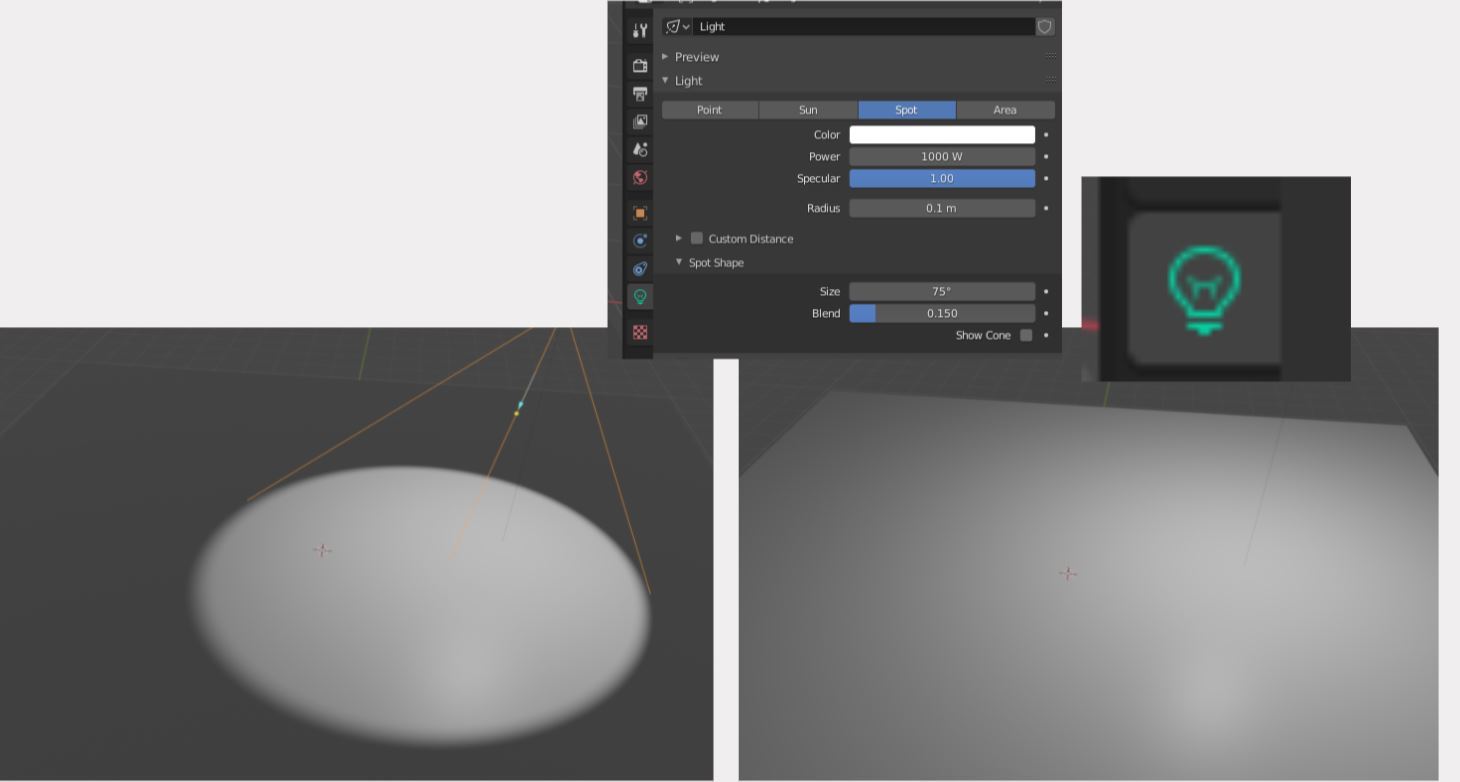
When adding lights into your scene, you can change it to be either Point or Spot, and it will change the mood of your scene. Remember,
if you can’t see the light, you need to change the Power up to 1000 W, play around!
When animating, you can either do it by pressing ‘‘I’’ on your keyboard to create a keyframe or have Auto Keying on.
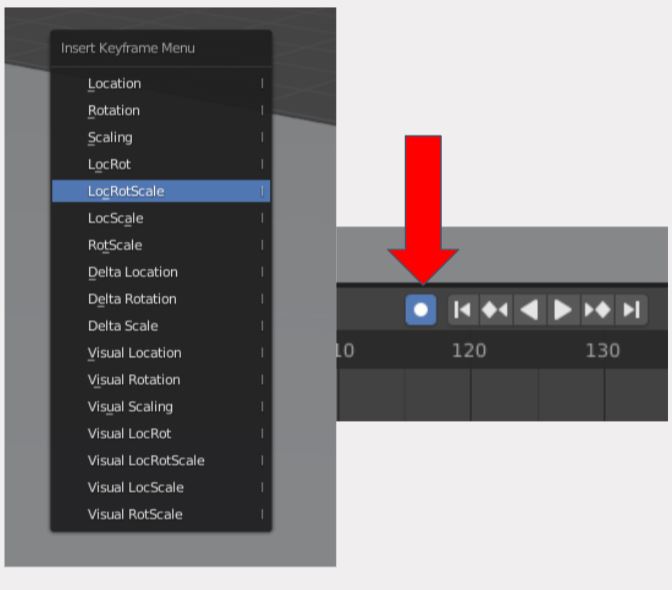
When doing it manually, always select LocRotScale, and it will make sure that you
will be animating by either moving it around, rotating it or scaling it.
If you can’t see your keyframes, have your mouse cursor on the timeline and press HOME on your keyboard.
Other than those,
go ahead and conceptualize your ideas and see what you can come up with before creating the
actual model. Remember, in this lesson. You are to sketch and test out what you want to make, so don’t worry about
any finer details for now.