
Lesson 18 - Diorama Character Item
Diorama
 Kua reri? - Objects for the character
Designing an item for your character.
Consider what would your character use in your story?
Could they...
...tell the story from a book?
...hold an item that is significant to the story?
...wear an object/item that helps with the story telling?
...have a special item of clothing?
Create some quick sketches of your ideas for this model.
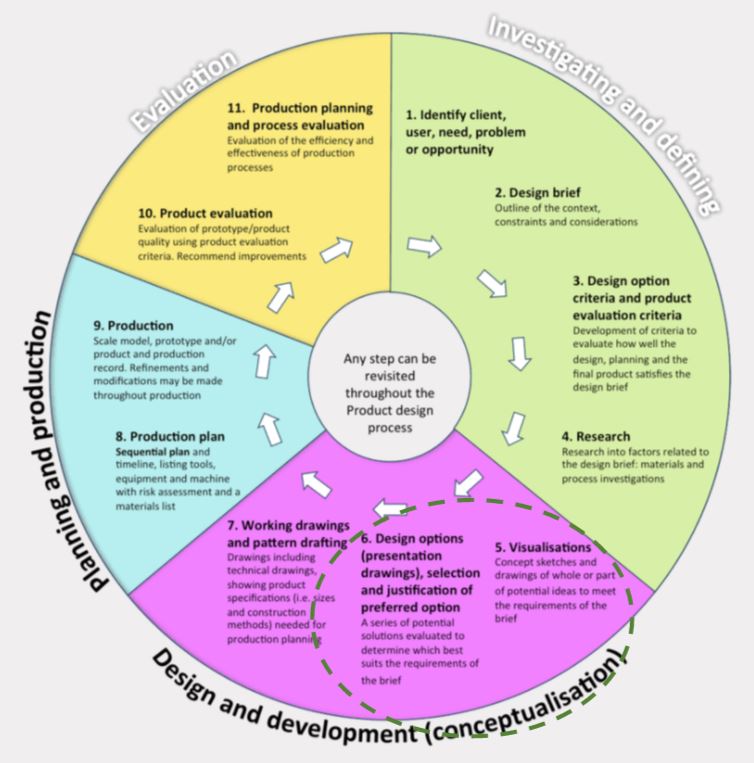
Produce an item for your character.
Use Blender to create an special item for your character.
Add the item to your character model.
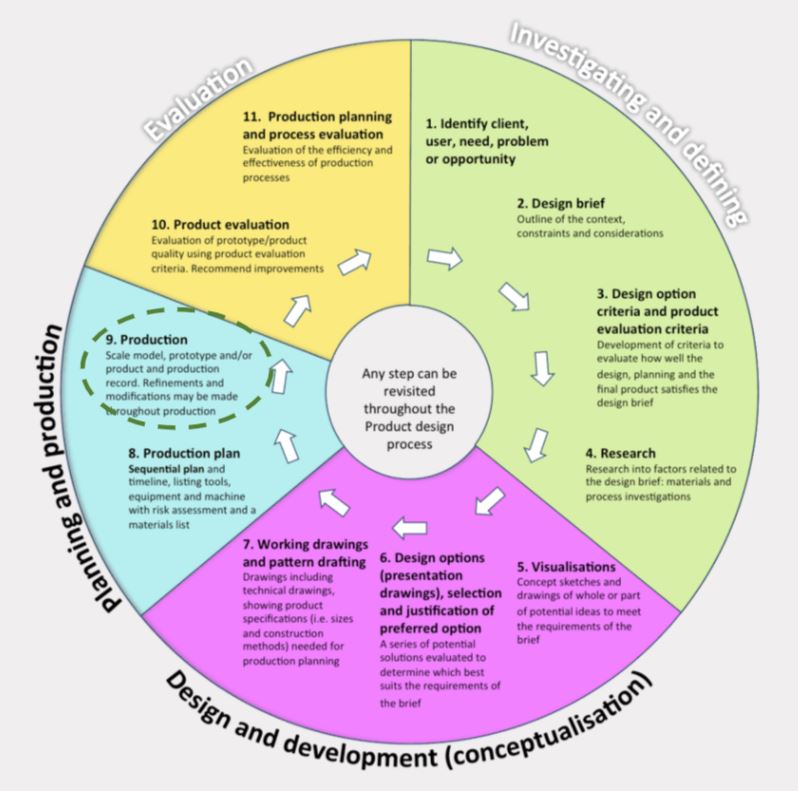
Blender tools & techniques recap for creating objects…
A character’s item or accessory can come in many different forms… Sometimes it can be an object that the character has to hold, wear or just have it on them.
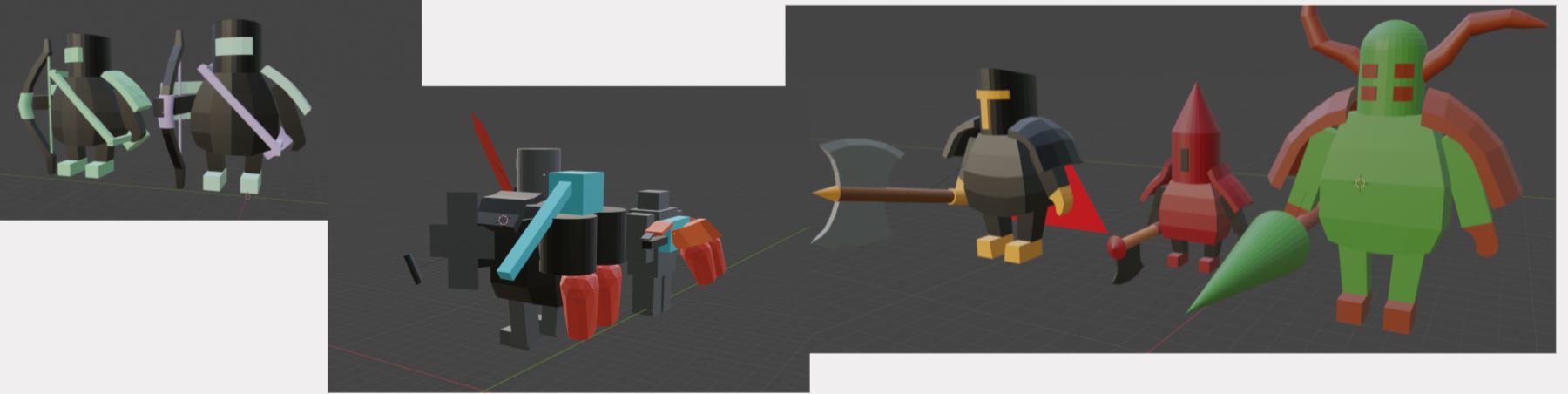
However, a character shouldn’t have an item for the sake of having one.
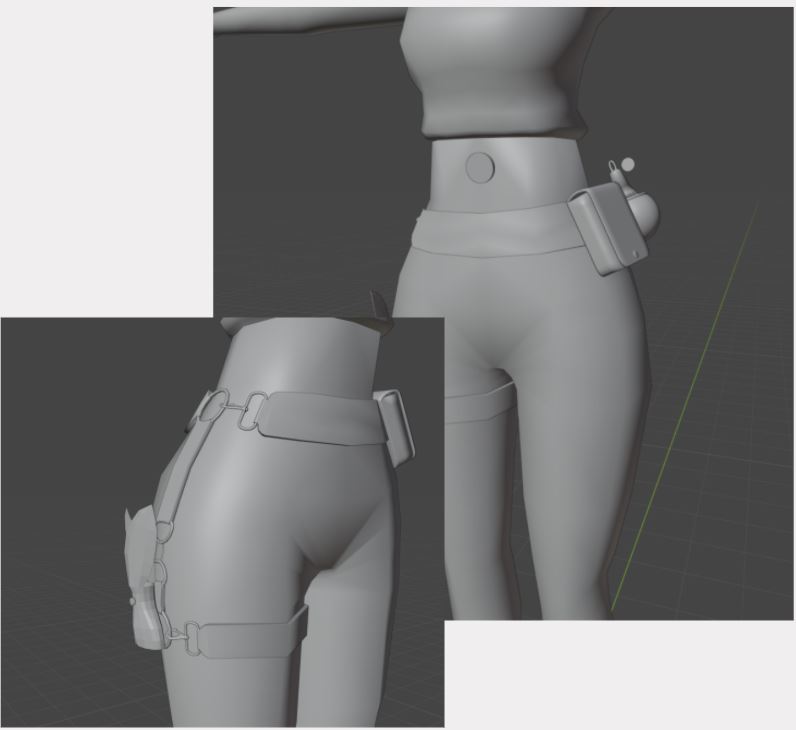
An item should be important to the character that it is wearing or holding.
Think of it this way, why does the character hold or wear this item?
Is it important to the story?
Here are a few things to consider when creating an item…
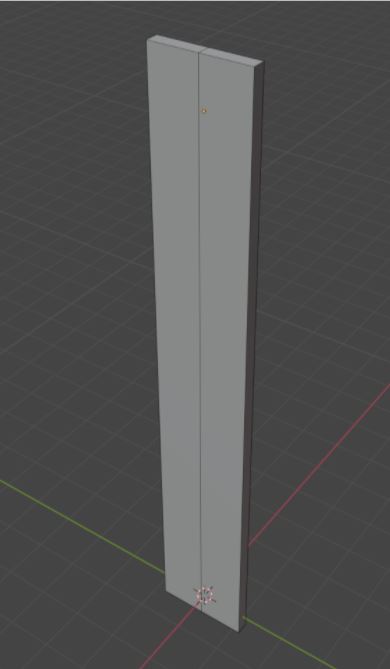
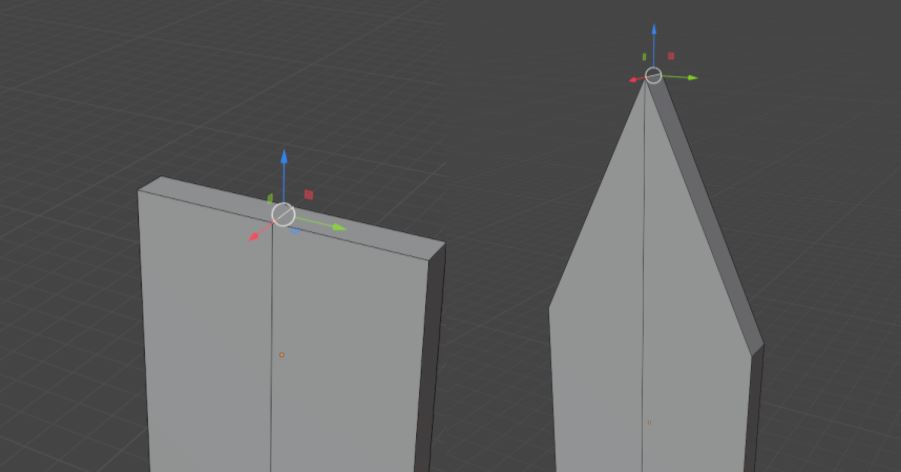
If you want to make something pointy or sharp like a sword, make a thin rectangle like in the picture, and then add an Edge Loop right in the middle of the mesh vertically.
Pull the middle Edge at the very top of the model up, and we’re done!
You can use this technique one other various models, like buildings or flowers, that require pointy ends.
If your character has a hole in their item…
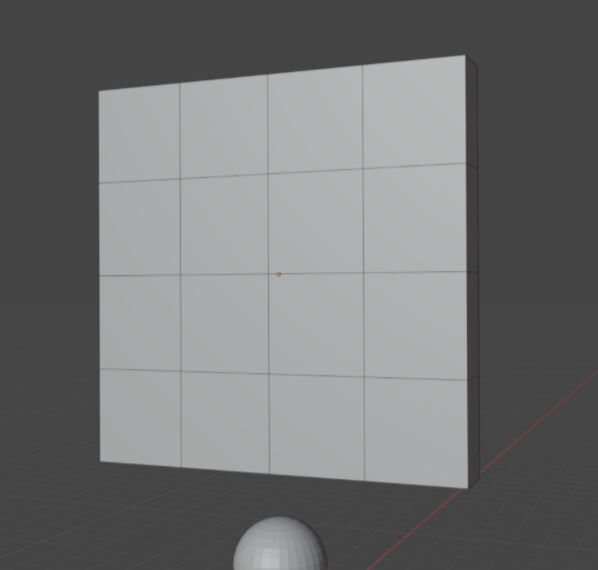
Have a model with at least the same amount of Edge Loops as shown in these pictures, three horizontally and vertically.
You can then select the middle four Faces and delete them. Remember to do that on the backside as well!
(Don’t use Dissolve Face, just select Face when deleting them.)
Once the Faces are gone, we’re going to Bridge Edge Loop the in-betweens of our mesh.
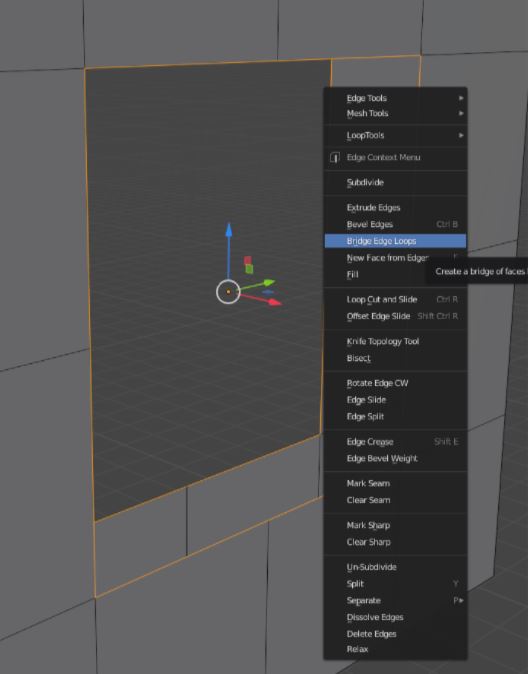
You can do this by selecting all of the Edges on the hole on both the front and back of the mesh, right-click and select Bridge Edge Loops.
And you mesh should now have closed the insides of the model but leaving the middle hole opened.
If your character has something as complex as this but is still just a single model…
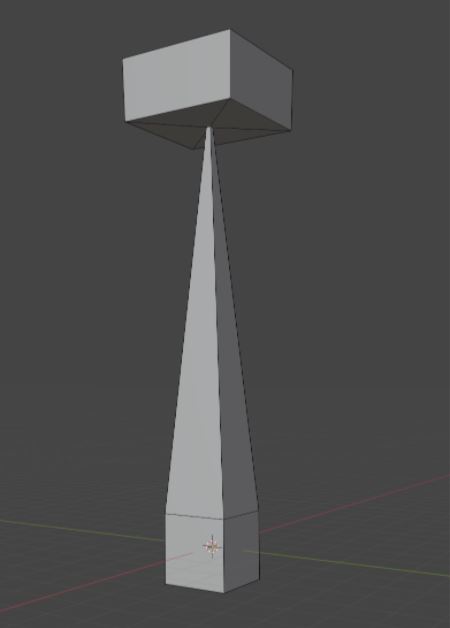
You have to add Edge Loops to specific locations on the model.
In this case, you’ll only need about three Edge Loops, two almost at the top and a single one at the bottom.
Something like this!
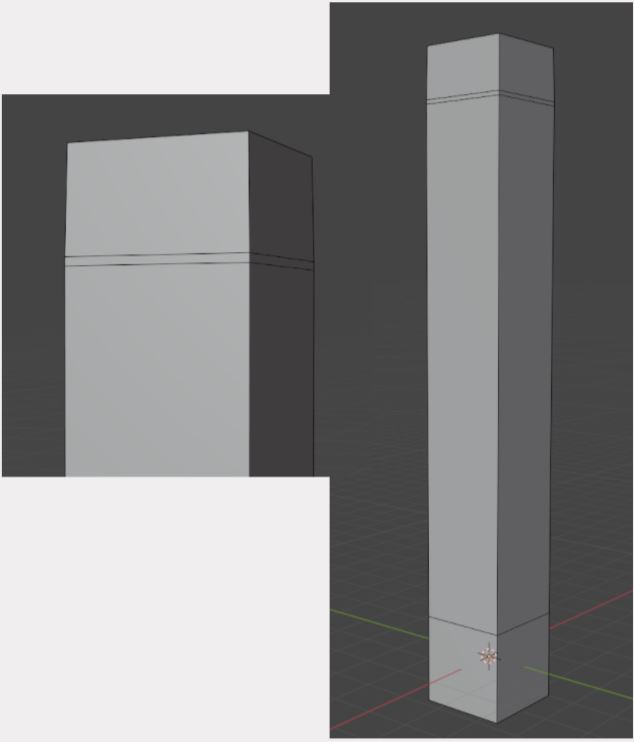
The two Edges at the top are very close to each other, which will give us the results shown in the previous picture.
All you have to do from here is select all the faces at the top of the model and scale them up.
When you’re done with the first item for your character, create another one if you have time!
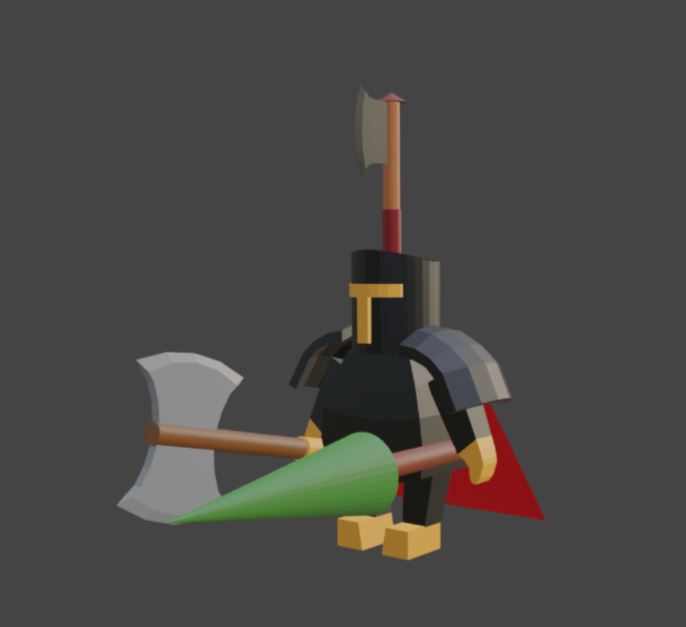
If you created your object for your character quickly then make another one…
Does your character need another item?
Remember not to combine the items with the main character!