
Lesson 19 - Diorama Character Animation
Diorama
 Kua reri? - Animating the character
Let's give the character some personality!
Use animation techniques to bring your character to life. You could:
- make the character move around the environment
- make the character interact with the audience, e.g. wave
- have the character complete a task in the story
- make an animation with the character and its object
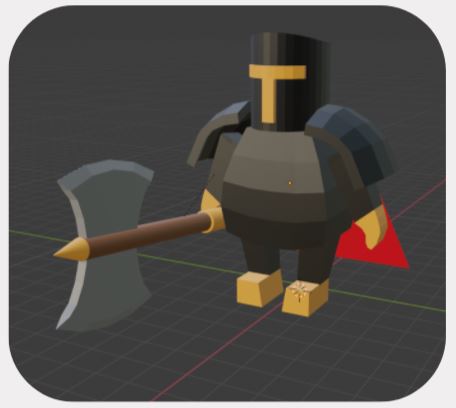
Now it’s time to animate the character!
However! Before all of you jump into doing it…
…we have to set it up so that it will be easier for us to move our characters!
Parent and Child.
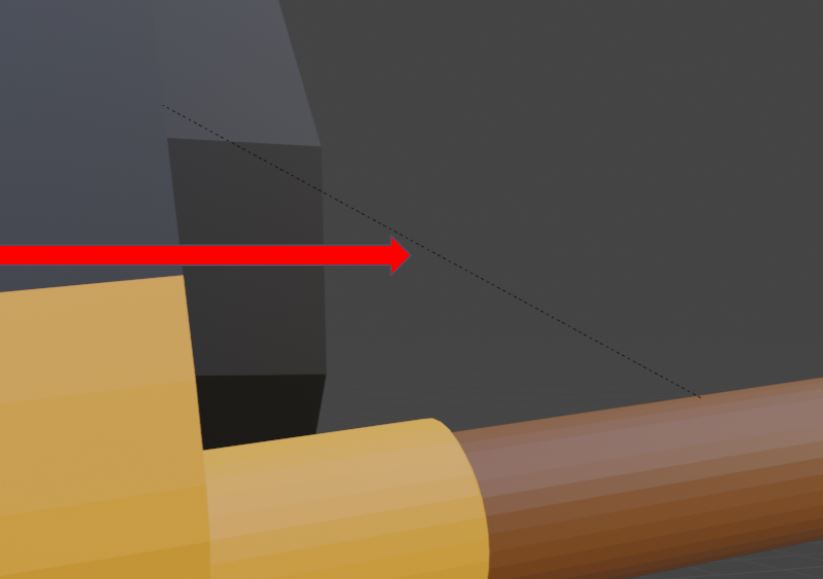
In 3D, there’s a thing called Parent, and in Blender, they will show you visually if an object is Parented to another object with black lines.
It essentially means that if I Parent an item to the arm, every time I move the arm, the item will follow it, then the item will now be a Child object to the Parent Arm.
If your character has a main body, two arms, legs and a head…
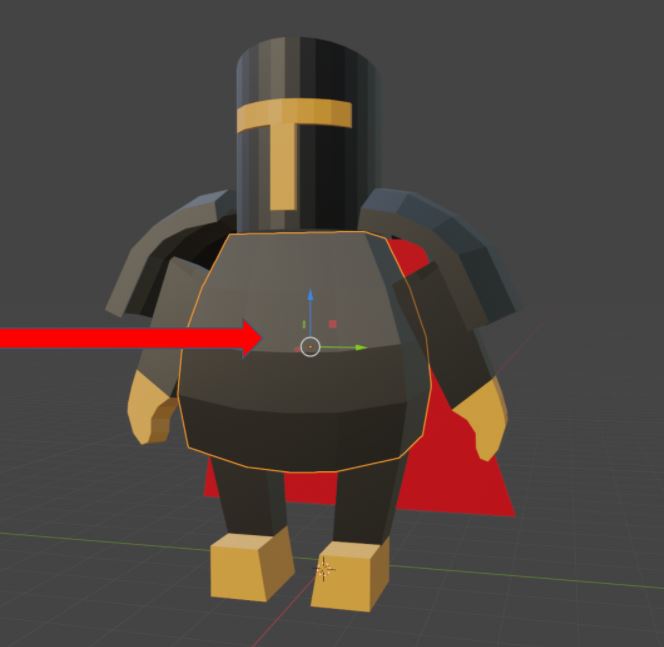
We want all of the body parts and items to be the child of the main body.
That way, every time we move the main body, the rest will follow.
Pretend that the main body is the master of all movements.
To Parent, all we need to do is, select one of the body parts, in this case, the arm, SHIFT select the main body, press CTRL and P on your keyboard and select Object. And you’re done! Move the main body and see what happens! If something weird happens, select Object (Keep Transform).
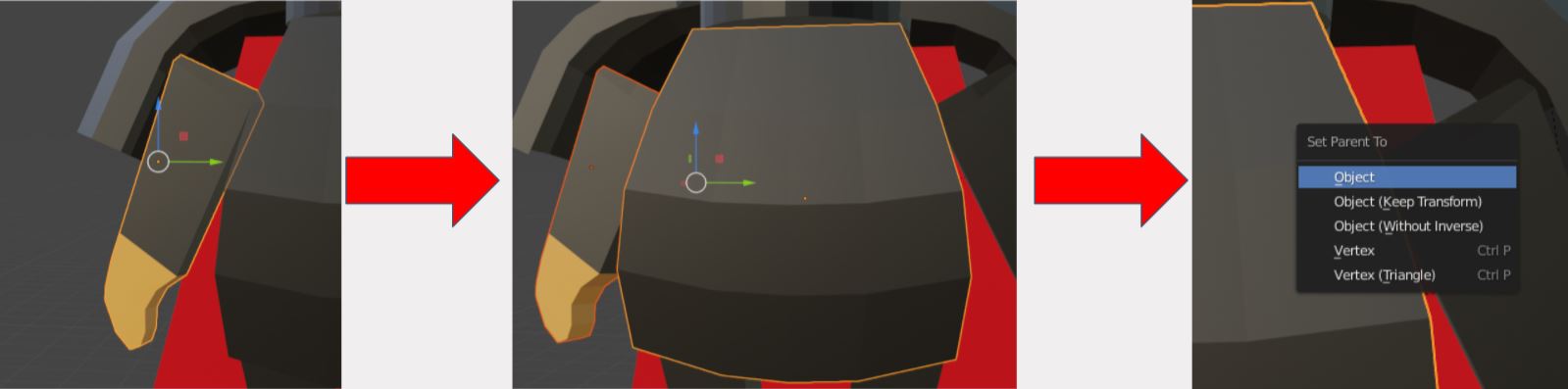
Now do the same thing for the rest of the other body parts!
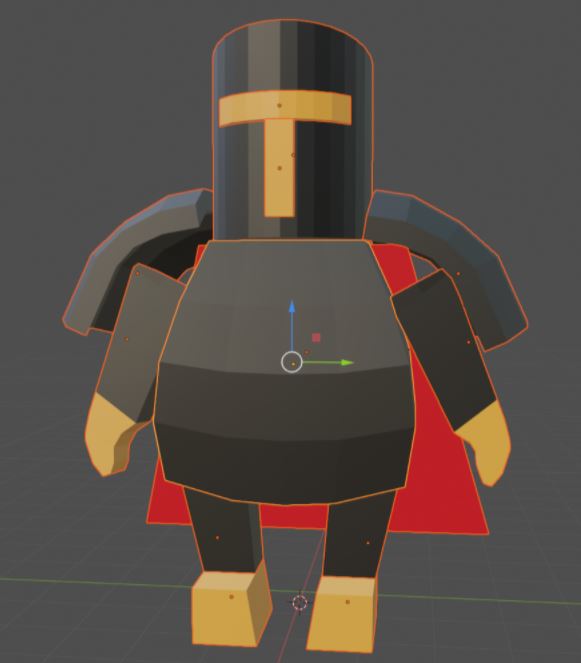
Remember to select the main body, the last to make sure the other parts will follow the main one.
When it comes to items, Parent it to whatever body part you want to influence it.
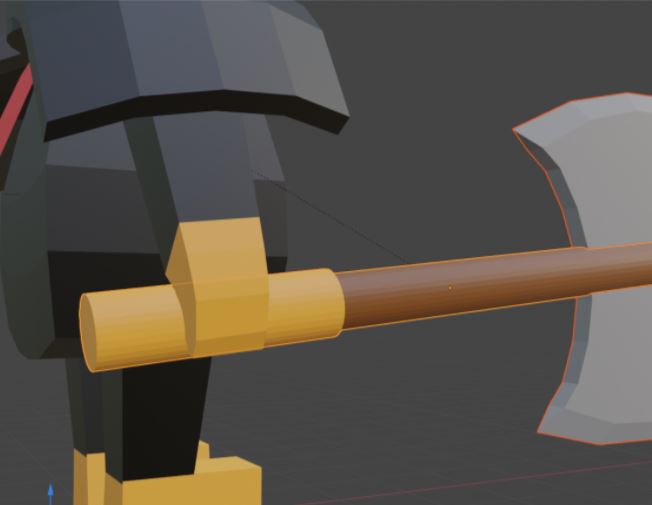
In this case, the weapon will be Parented to the arm so that when it’s moving, the weapon will follow the arm.
However, because the arm is also parented to the main body, the arm and the weapon will follow it.
To animate the character… There are a few ways that you can do this.
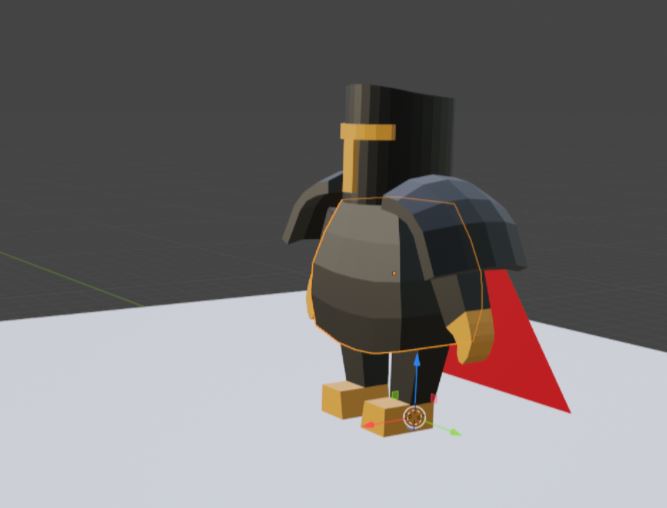
Since the main body is the Parent/ master, animate the main body first before moving the other body parts.
Otherwise, some of the motions might not look right.
For example, let’s move the main body.
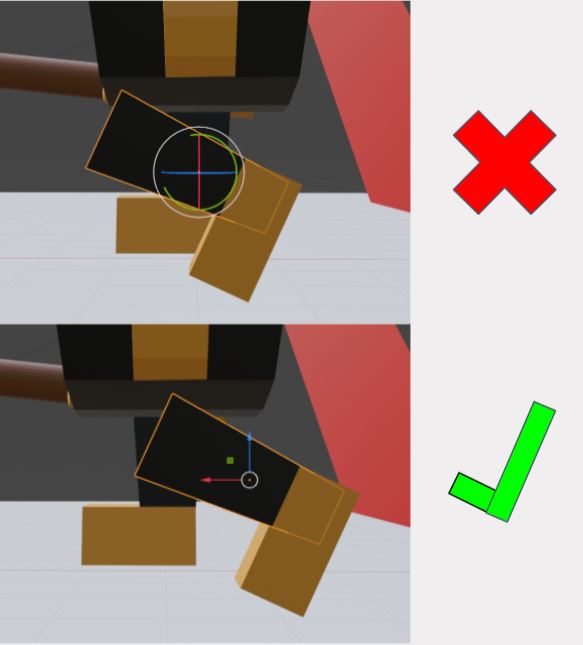
After the body moves forward, we can select the legs and move back and forth to simulated walking.
You may also notice that when you move the legs, it will look like it’s broken, and if you want to look better, try to move the legs so that the top is near the middle of the main body.
Timeline too short? We can change that, of course!
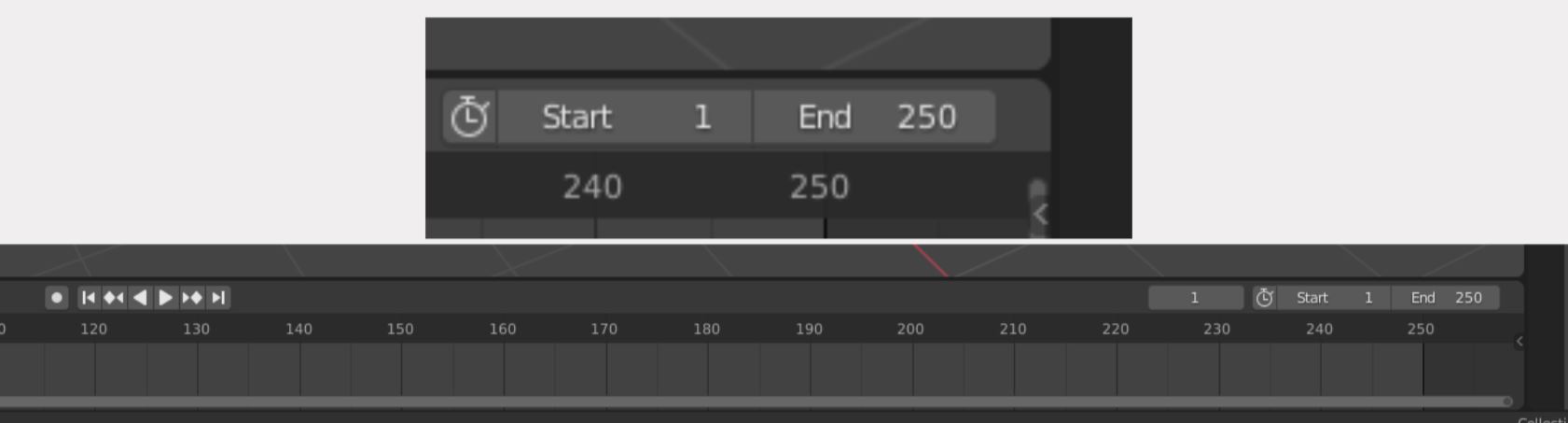
When you’re animation is too long for your timeline, you can change the number at the End panel from 250 to however long you want it to be!
However, your animations don’t need to be that complex.
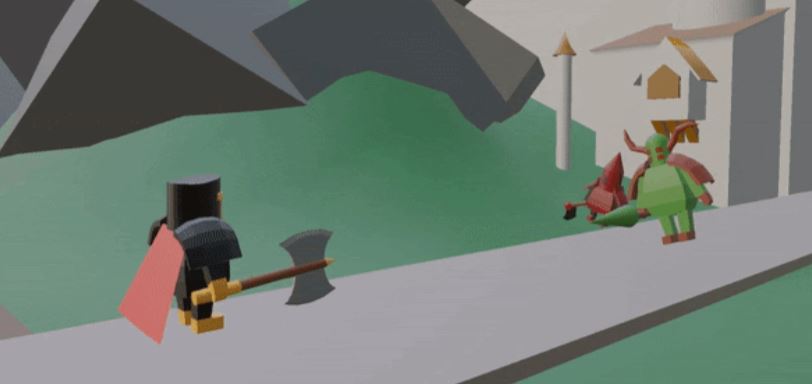
As you can see here, the characters are jumping as they are walking, and that’s all you need!
(Your teacher should be able to show you in the slides)
Go crazy and remember to save every 5 to 10 minutes or even less than that so that you won’t lose any progress!