
Lesson 17 - Diorama Character Creation
Creating a character
 Kua reri? - Character(s)
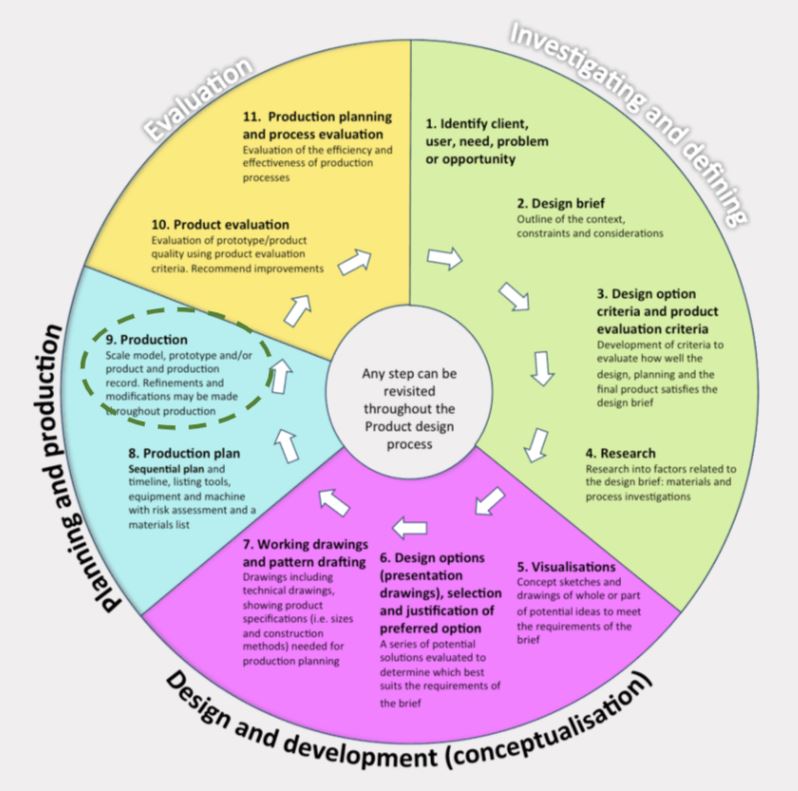
You are going to continue to make your diorama in Blender.
Create the main character for the story:
- use geometric shapes to create the model,
- add colour and texture
- consider lighting and shadow
- modify to add finer details to the character and its costume.
</b>
Blender tools & techniques - recap creating characters in Blender
Now it’s time to create the character!
Take your time when creating the character, as we don’t want to rush anything.
You can do this in two ways: create the character in the same Blender file as your diorama or make a new file,
finish the character there, and import it later to the diorama file.
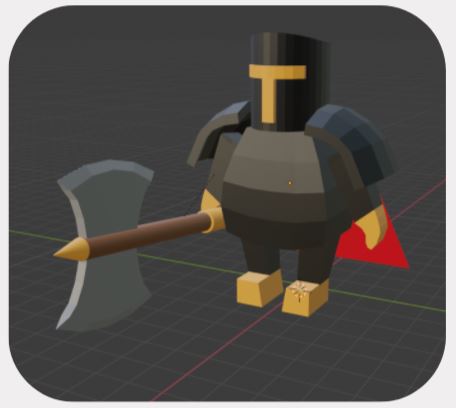
Same as when creating the environment, we should start with the big models first before doing the smaller ones.
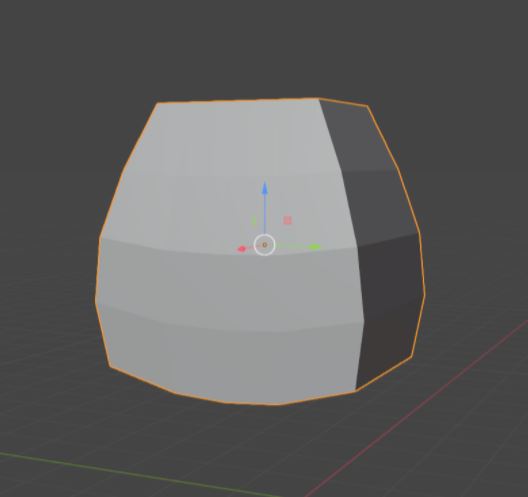
Usually, when creating something like this, you should start with the big models first.
Before you even start with the small models, you want to know how the whole thing will look like first, the size and lengths.
As for the detail for the model…
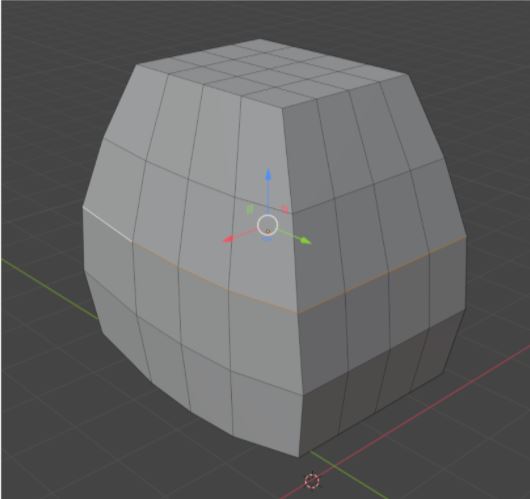
You can make a very high detailed model with many polygons if you want to feel challenged.
But to make things easier, try to keep it Low Poly. Imagine that you’re creating lego characters!
Remember also to name your models, similar to the picture.
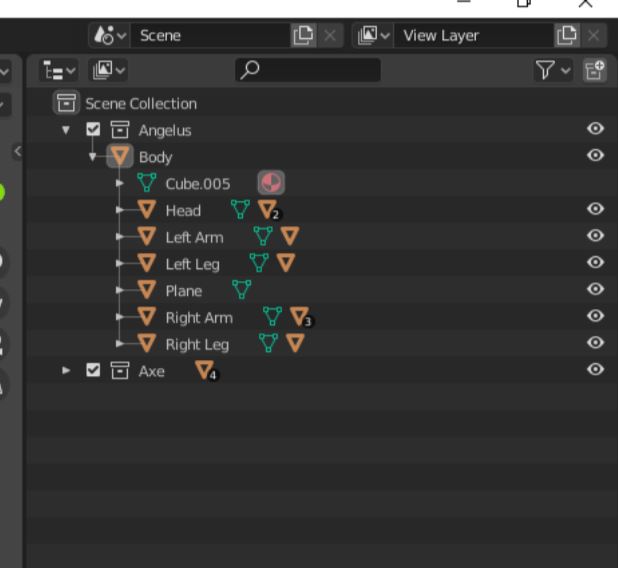
Name each body part with the correct name.
Have multiple Collections, name the first Collection your character name (if it has one), and then make another one for accessories/gear. Put all of the body parts into the first group, and we’ll come back to the second collection later.
One body, two legs, two arms and one head.
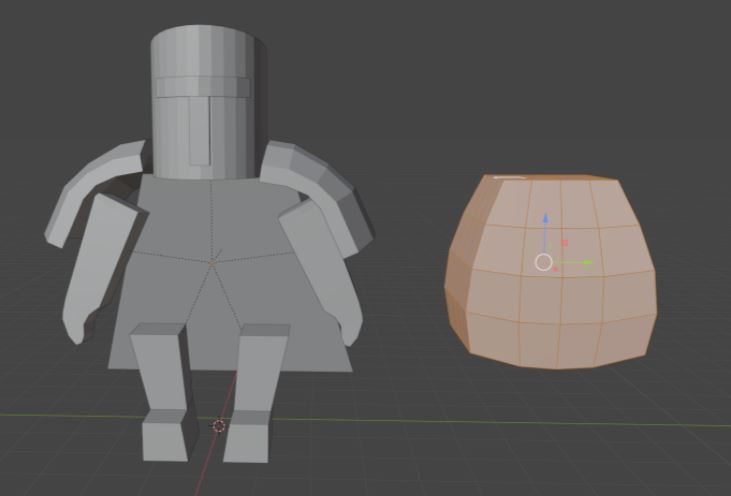
As said in the previous lesson, it’s best to keep the legs, arms and head separated from the main body.
This is because it will make it easier for us when animating the character.
Let’s say you have a character with multiple models on the face or head, and remember to keep them separated for now.
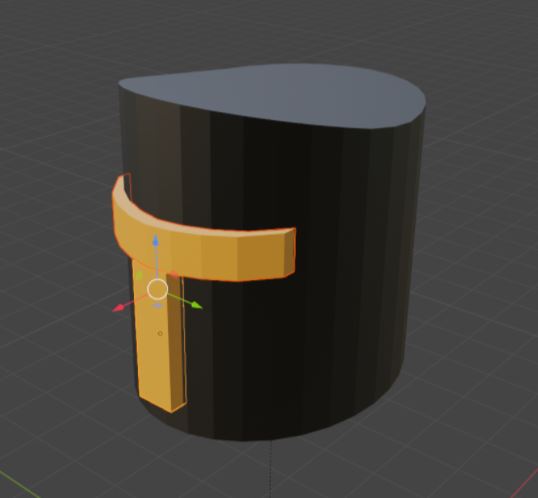
Create the main head first, then the more minor details, colour them all
individually, and then you can combine them with CTRL and J on your keyboard.
Otherwise, it will be a hassle trying to colour them if they are already combined…
If you feel like you’re already finished…
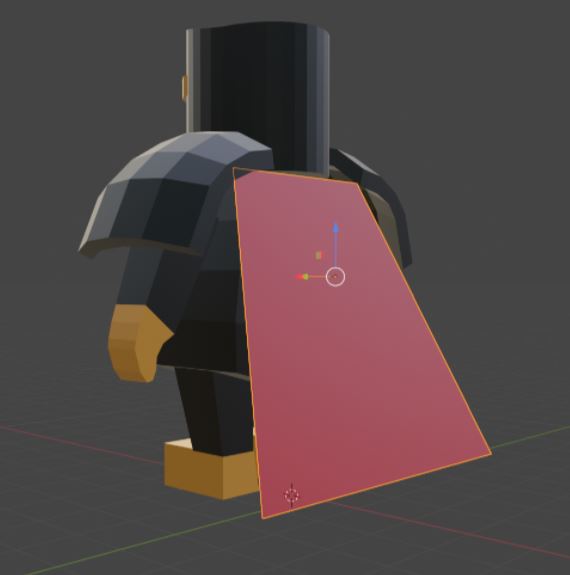
- You can always improve your model.
- You can make it look more detailed.
- Does it have enough models?
- You can add an accessory to your character.
Once you have finished your character, don’t jump into posing your character just yet!
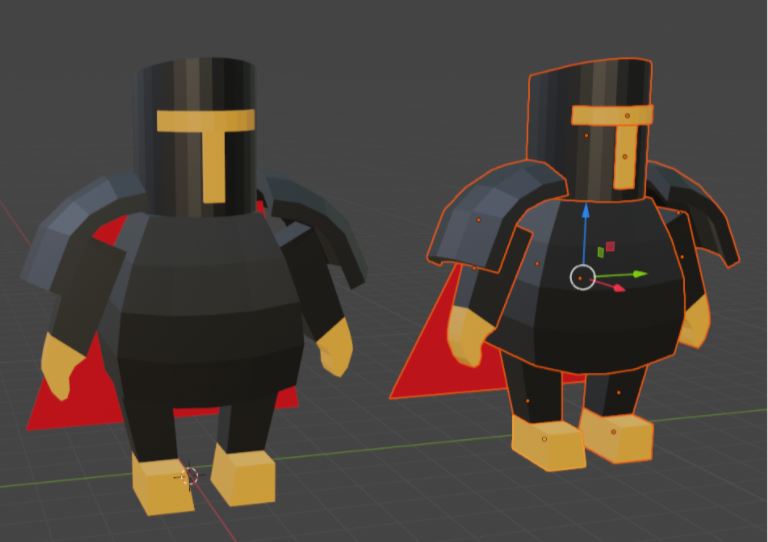
The model might be done, but not the whole set-up for it yet.
You can, however, select your whole model and make a copy of it to play around with it, as long as the original model isn’t being touched.