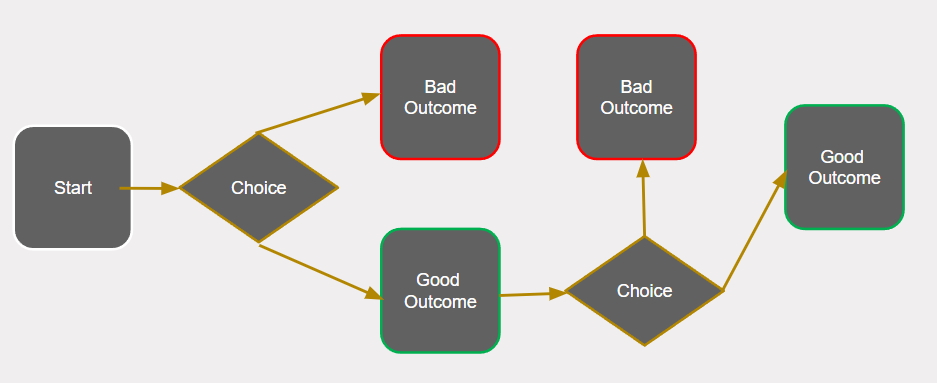
Lesson 03: Product analysis & Mini game project in Unity
 Kōrero Mai: What stages of the design process did you cover last session? What did you decide?
Product Analysis
Today, you are going to do some deeper research as part of your design thinking process…
….you are going to do some product analysis.
Kōrero Mai: What is product analysis? Why to designers and developers analyse other products on the market? How will it help us with our game?
Digital Breakout games
 Context - horopaki
- Angry Birds Pop
- Bubble Witch
- Papa Pear
- Bubble Blaze
- Panda Pop
- Bubble Mania etc…
What is product analysis?
Every technological outcome is designed in a particular way - product analysis enables us to understand the important materials, processing, economic and aesthetic decisions which are required before any product can be manufactured.
In digital technologies we can also look at look at the functionality and efficiency of the outcomes.
Why do designers analyse products?
Information from analysing existing products can be collated and used to inform your own design specifications and design ideas. It can also be used to identify any potential ‘gaps’ in the market that your product may fulfill.
 Kua reri? - Ready? it's your turn... Product Analysis.
Choose at least 2 digital breakout games to explore further. Look at the game first - if you have time/ability then play the game!
Summarise your key findings - are there any features that you think could work well for your design brief? Is there anything that you think could be made better?
Inputs - Recap
What is Input?
An Input is something that when processed, leads to an output. This applies to all technology systems, digital or not.
What Inputs can a keyboard and mouse produce? Some examples are:
- The Left Mouse button was pressed
- The Up Arrow Key was pressed
- The Letter “A” was pressed
- The Left Mouse button was pressed for 1 second
- The Mouse was moved to the right

What other information can we receive from them?
Using Input through Unity
Using the Update() method
To get Input from the user in Unity, we will need to use the Update() method. This is a method that Unity will automatically call every single frame. For example, if our game ran at 60 Frames per Second (FPS), our Update() method would be called 60 times a second!
We can use this method to check whether a particular button or key has been pressed.
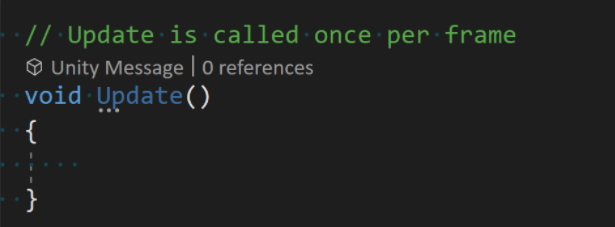
Note: It’s important to not put too much in the Update() method when making larger games, as running the code 60+ times a second can slow it the application down.
Getting Input from devices
We can use the Update() method to check every frame if we received input from the keyboard.
We will use a function called Input.GetKeyDown(Keycode). This will return a boolean that is either true or false if we pressed a certain key. As it returns true or false, we can use this in an IF statement!
Kua reri? - Ready? it's your turn... Output a message by using an Input
Create a run your own script with the following code.
Change "Space" to another key to check for other keys or buttons. All useable inputs are listed here.
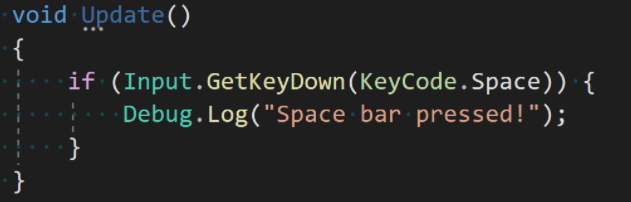
Note: Remeber to make sure this script is saved and attached to an object in the scene before testing.
Text adventure game outline - Mini Game Project
Let’s practice our Input skills by creating a text based adventure game. These games rely on simple input to navigate around a world described to you through text. Some example of text based game adventure are:
These games use commands such as “move east” or “move south” to move through different rooms. To make things simple for us, we will instead bind each command to a single button press.
 Kua reri? - Ready? It's your turn... Creating a Text Adventure
Start by creating a new script in an empty Unity project. This new script will hold all of the logic for our rooms. Use an appropriate name for this script such as "Room". Each room needs to be able to hold two types of information:
When creating new variables in a script, we often declare them at the top of the class. This is so these variables can be used anywhere within this specific script.
Variable Scope Recap: Variable scope is like an area where a variable can be used in a computer program. There are different kinds of scopes, like global (works everywhere), local (works only in a certain part), and block (works only in a small section). We can figure out a variables scope by looking at the block it was created in. This block is signified by the set of curly brackets
{ } that it was created inside of.
If you try to use a variable outside of the block it was created in, it will throw an error. By placing variables at the top of the script in the class section, we can use these variables anywhere within this specific script.
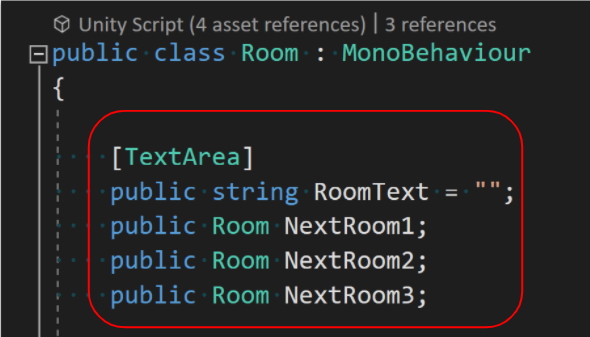
Copy the above code to get started.
To display our room's text when we enter it, we will use the Start() method from Unity. This method gets automatically called when the script activates for it's first time. Copy the Log statement below.
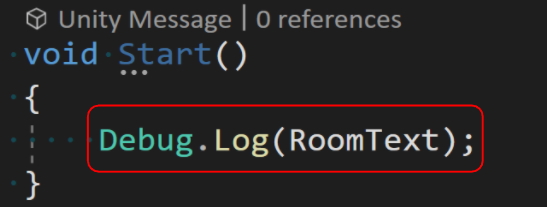
In programming, we can also use a class as the type of data for variables. In the example below, we create a variable of type 'Room'. This allows us to store a reference to a copy of a 'Room' that we will create later on.
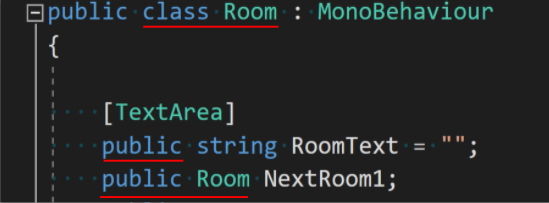
The public keyword allows us to view these variables from the Unity Editor. Think of public meaning "open for other programs/ scripts to see"
Creating a method to change rooms
Next, we will create our own method. Think of a method as a collection of code that runs everytime we call it. Methods also have the ability to use data passed to it and even return data back to where it was called from.
Programmers generally create methods whenever there is a portion of code that will run more than once. Creating a "LoadRoom" method is a perfect use of this principle.
Create the following method that also requests an int be passed into it whenever it is called.
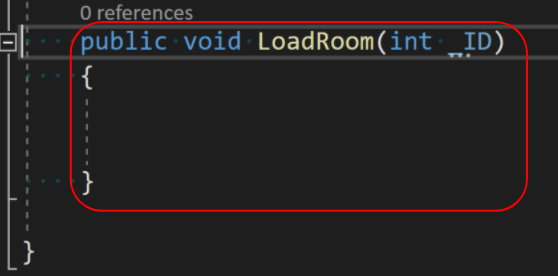
Note: Remember to work within the class's brackets.
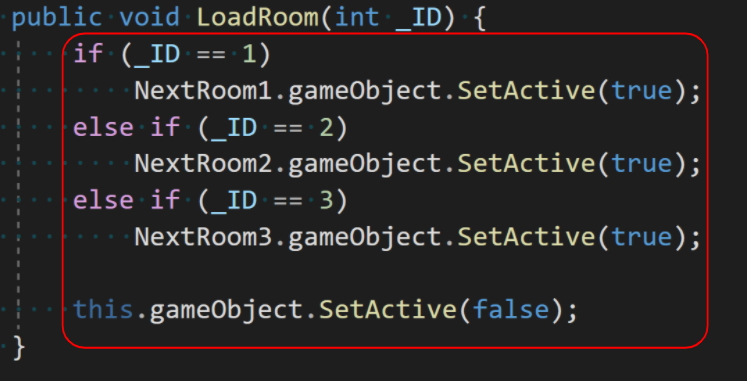
Inside of this method, we will create some logic that activates certain rooms depending on the int that was passed into it. "IF the Int ID is equal to 1, activate room 1."
Copy the following code to load up to 3 different rooms. Feel free to add more rooms if needed. At the end of method, we will Deactivate this room, so that the new one can take over.
Using Input to move between rooms
Next, add an IF statement to the Update() method to check for input from the User. You can set this input to be whichever key you like. In the example below, we've used the key "1" to call our method "LoadRoom" and passed a value of "1".
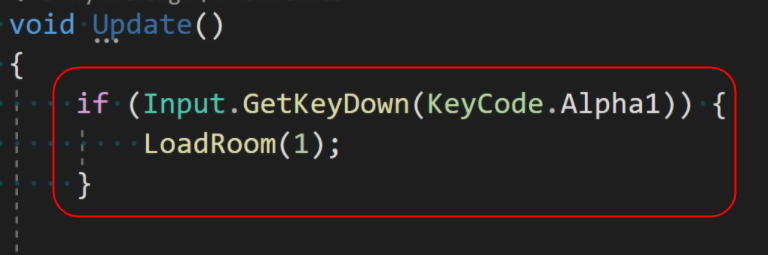
Kua reri? Ready? It's your turn...
Add the remaining IF statements to be able to load Rooms 2 and 3. Each IF statement should check for a different input key.
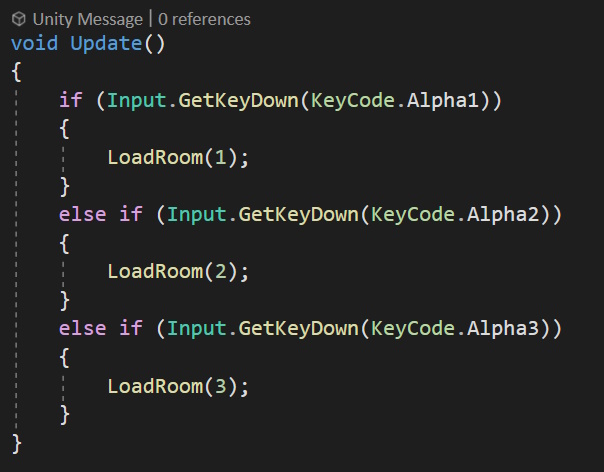
Creating multiple rooms
Save your script and open Unity. Our next step is to create multiple rooms using Object Oriented Programming (OOP).
Some programming languages offer the ability to create classes (such as our "Room" class). Think of a class as a blueprint.
For example, let's say we have a class named "Car". This class could have variables for its colour, model and brand.

We can then create as cars with this blueprint, but each car could have its own unique colour, model and brand. In the example above, each car has a "colour" variable, but the value inside of each variable differs. Can you spot any other differences or similarities?
We can use OOP to create multiple rooms using our "Room" blueprint. Each room has the same functionality, and contains the same variables. But the data in each variable can be different. For example, each room has a "Text" variable, but the message inside of the variable will be different for each room.
Start by creating an Empty gameobject in our scene by clicking the "+" icon in the Hierarchy and selecting Create Empty.
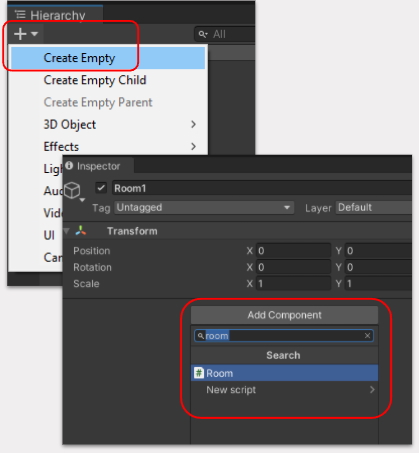
Select this new object. In the Inspector tab, feel free to rename this object. We can add our room script to the object by selecting "Add Component" and searching for the name of our script.
Note: If your Room script is not appearing, check if you have any errors (red lines or marks) in your code. You might need to fix any errors and save before it appears in Unity
After adding the room script to your object, you should see all your public variables appear. Now that we've created a new room using the blueprint, we can edit this rooms data. Begin by editing the room text.
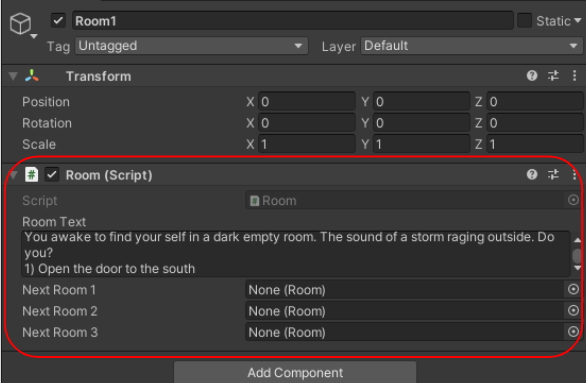
If these variables are not appearing, then either:
Create more rooms by copy and pasting the existing one, or by duplicating the object by selecting it and pressing ctrl + d (cmd + d).
Remember to change the display text of each room so that it appears different.
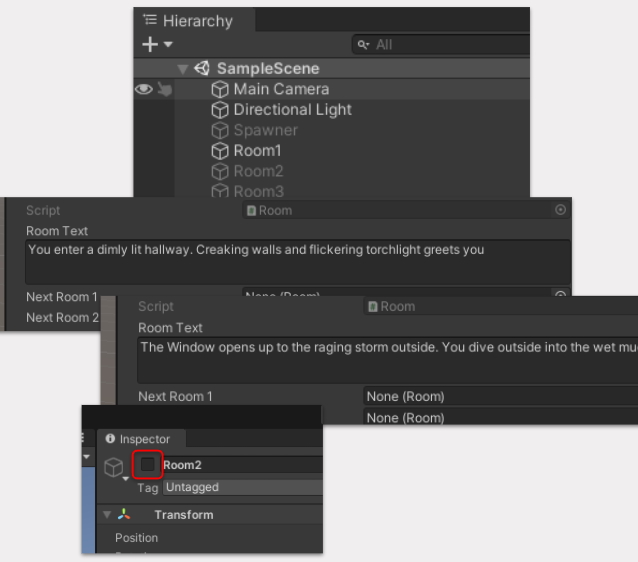
Note: Disable every room that isn't the starting room so that we don't run into any bugs later on. You can do this by unchecking the box next to its name.
Linking each room to each other
Our last step is to link these newly created rooms together. This will use the public room variables we created. We can do this by dragging and dropping the room object, into the empty variable slot on any other room.
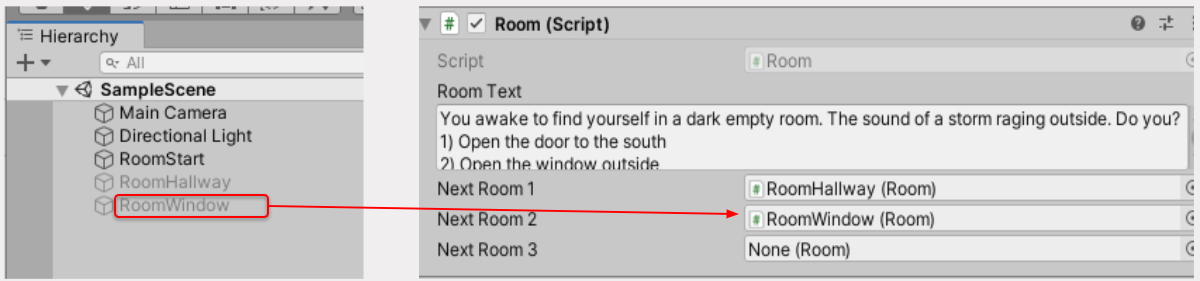
In the example above, our "Room" script (right) is requesting a reference for each of it's 3 room variables. By dragging and dropping an object that contains a room script, Unity will automatically make the connection for us. In the image above, we are assigning "RoomWindow" to our second Room variable slot. This means if we press "2" on our keyboard, we should be taken to that room.
Try playtesting and see what happens, Click the "Run" button at the top of Unity to begin testing. Press the correct inputs that you set up in your script (ie, '1', '2', '3' ...)
To insure that input works correctly when testing, try clicking inside of the game view of Unity. This will "focus" the game and make sure all input is correctly received.
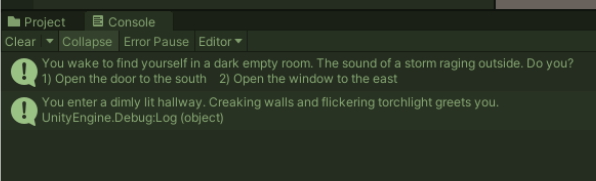
Is your game working correctly? Are there any warning or error messages appearing?
If so, try debugging the issues yourself and coming up with theories as to why this may be happening. Below is a list of common Unity errors that can happen.
Solve this by making sure the variable in use has data assigned to it (Likely still empty in the editor, possibly a room variable with nothing there)
This means that there are currently errors in the scripts you have created. Go back and fix any C# errors that may have occurred (missing semicolons ';' Brackets not connected ' { } ')
Kua mutu? Finished? What to try next...
Practice your Unity skills further by creating a full story with more rooms. Try creating a flowchart to layout the choices that need to be made.