
Lesson 04: Initial Concepts. Using U.I elements in Unity
Design brief & criteria
 Design brief - mahere hoahoa
Today, you are going to use your research to re-define and revise your given design brief.
Take five minutes to summarise your research…
- …what are the key things that you have discovered?
- …what types of research did you complete?
- …have you made any decisions?
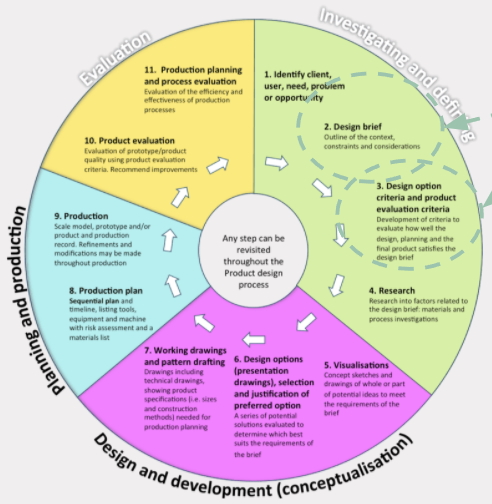
You are going to use this information to revise the given brief. This will make sure your game will suit your chosen stakeholder (client).
 Kua reri? - Ready? it's your turn... Revision of a design brief.
Original Context and Design Brief:
Need: Children need to practise developing their fine motor skills to enable them to succeed in everyday tasks. Precise movements using small muscle groups such as hand/eye coordination, agility, reaction time, speed are needed for all children from toddler to adolescent. To aid the development of these skills you are going to design and prototype a 2D breakout game for a chosen stakeholder.
Given Design Brief: To design and prototype a 2D game design that develops fine motor skills in children.
Look at your research summary...can you add/change this given design brief to suit your own project? If so, re-write the design brief.
Kua reri? - Ready? it's your turn... Revision of a Specification.
Original Specification:
Once again use your research to help you to refine the original specification.
Can you make it more specific?
Can you add any more attributes that can help you to test and evaluate the designs to make sure the game is fit for purpose?
Now you have created your own design brief and specification for the game design context.
You will use these (and your research) to help you to start to create initial ideas for your break out game.
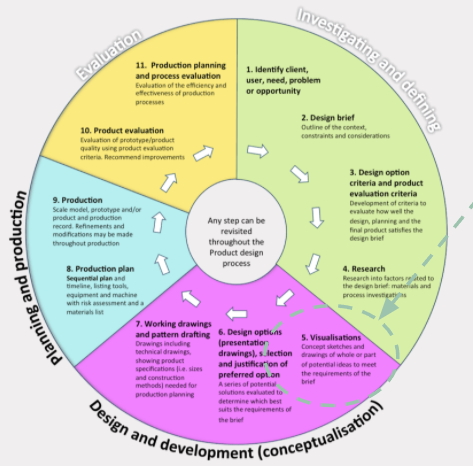
You can create ideas in lots of ways…can you name any?
 Kōrero Mai: Types of conceptual ideas
How many of these techniques have you used before?
 Kua reri? - Ready? it's your turn... Create your own initial ideas
Use a range of techniques to quickly generate lots of ideas for your game. Consider design, colour, themes, user interaction, etc
Remember to:
Did you know analysis is a very important part of designing?
It helps you to find the best solutions to problems and helps to trigger new ideas and thoughts.
Digital Technologies: User Interface
Kōrero Mai: What are some examples of User Interface? (U.I)
User Interface (U.I) are elements of an app or program that the users interact with directly or indirectly.
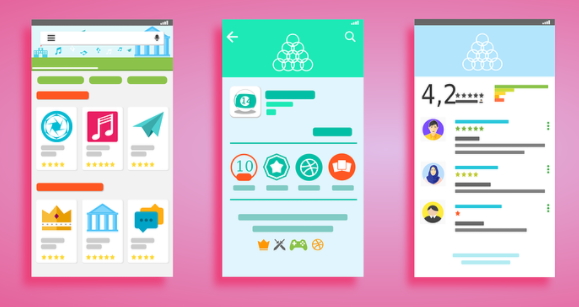 Kōrero Mai: What are some UI elements in the image below?
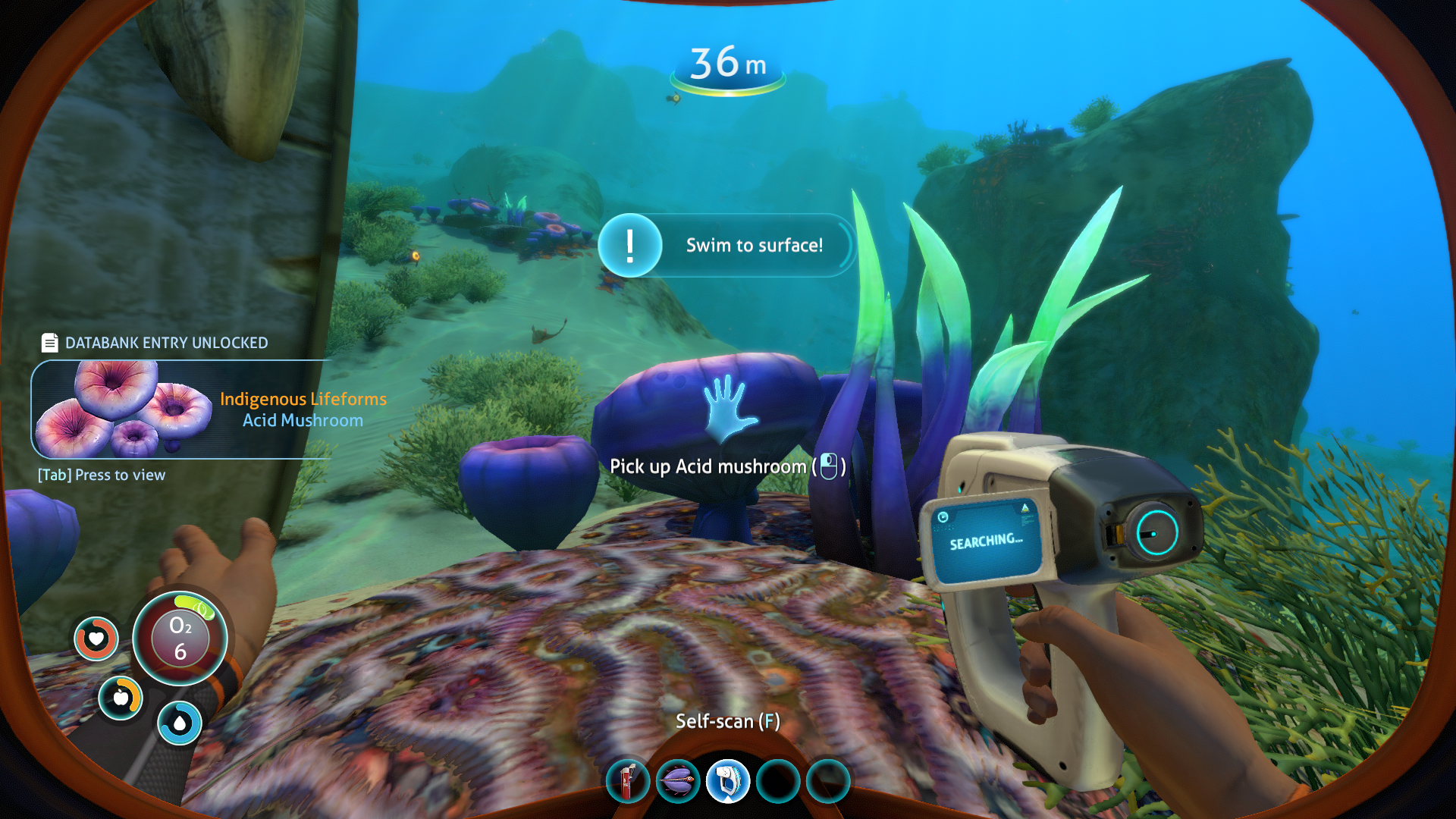
Kua reri? - Ready? it's your turn... Plan your own User Interface
Let's take our text adventure games to the next level in Unity by adding our own User Interface! Start by planning out the layout of your U.I. To keep things simple, use only a single square like shape for the outline of our game.
Plan the following:
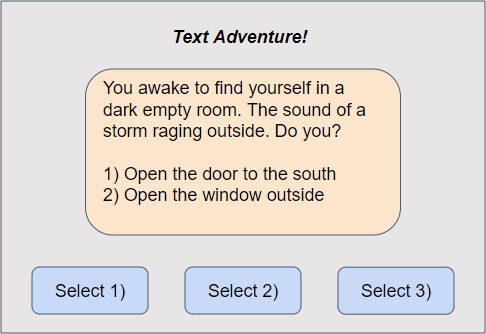
 Kua reri? - Ready? It's your turn... Iterating on our Text Adventure
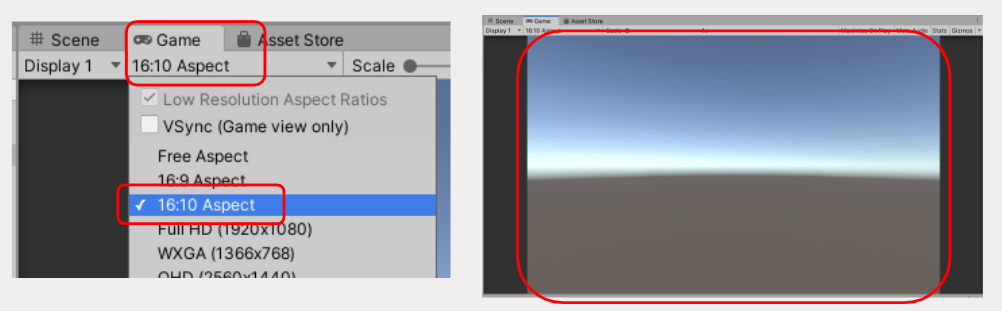
Follow along these next steps to add U.I to your Text Adventure. Ensure you have your project open. Our first step is to set our games Aspect ratio. This will make sure the size of our game window stays the same size. This is important as U.I elements rely on screen for their position and size values. Choose any aspect ratio you like.
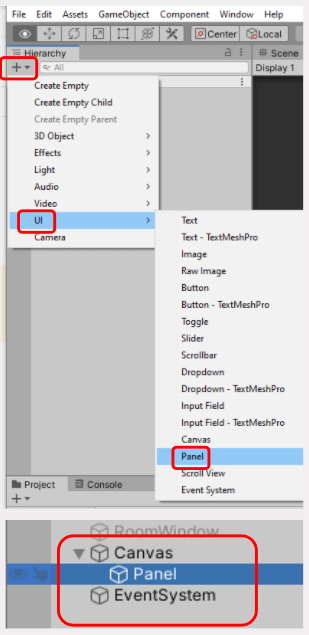
Create your first U.I element by selecting the Add (' + ') Icon. Select UI -> Panel. This will create a number of Objects for us.
Remember, to change an objects properties, simply select the object and look in the Inspector tab.
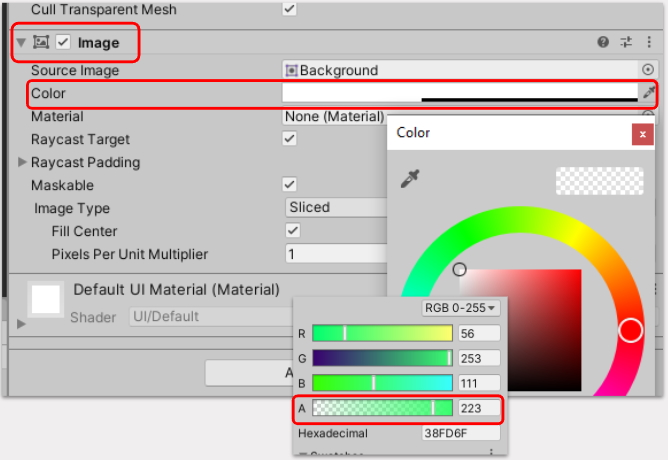
Note: the "A" bar at the button dictates how "see through" the object is.
To add Text to our U.I, follow the same process as Panel, but select text instead.
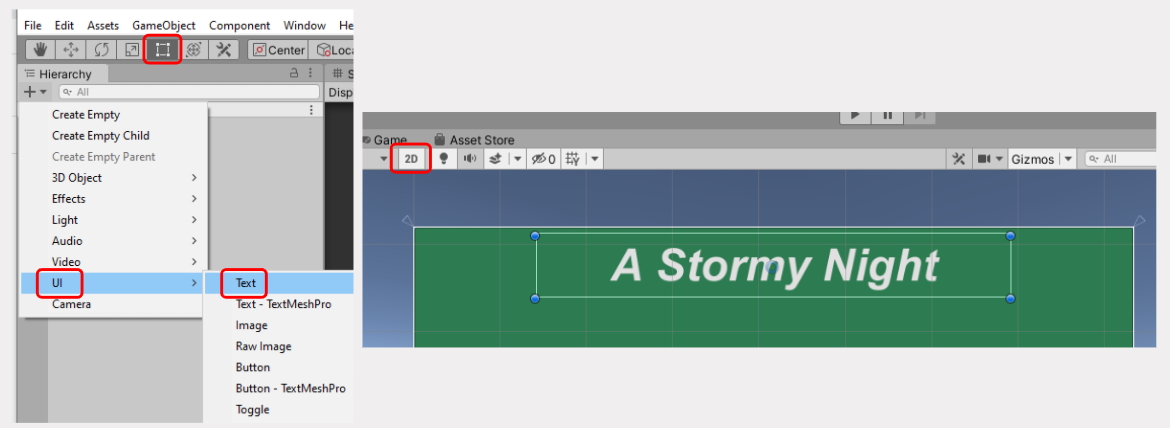
Note: When working with U.I, it's best to use the "2D" option for the scene
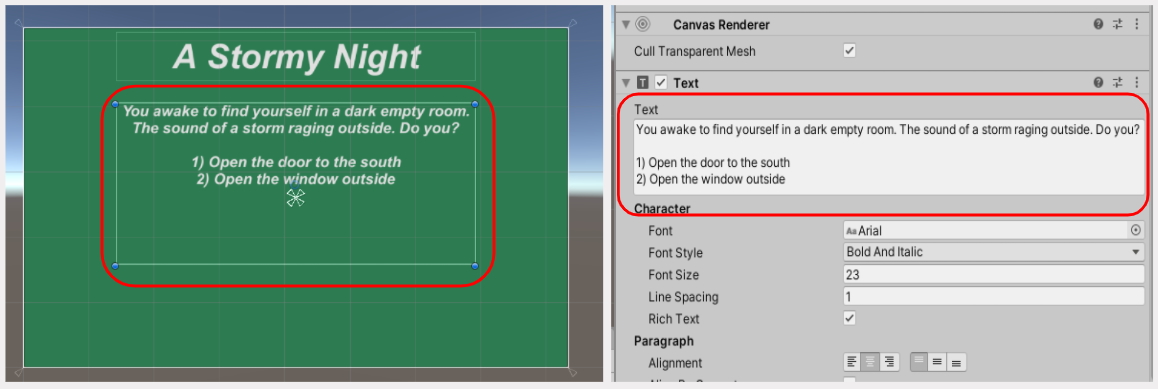
Create another Text element for the room's main text. This text element should be larger so that it can display all of the room's text. You can test this by adding your room's text to the text box to see if it fits.
To add buttons, Select Button from the U.I dropdown menu.
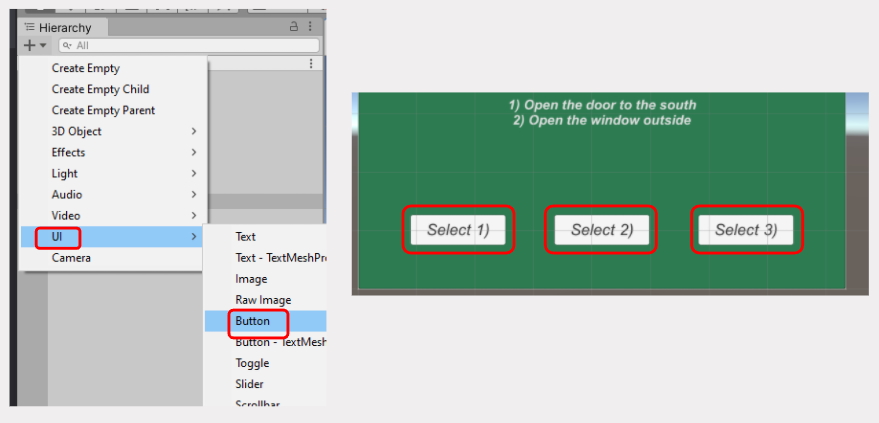
Note: We will link the buttons to code later in this lesson
U.I Buttons in Unity have the ability to call methods from almost any component in Unity. For this to work, the method in question must use the public keyword so that the button can access it. Many other Unity components have public methods, such as playing a sound effect on an audio component, for this very reason.
However, how will the Button know which Room to reference? Especially since we change Room's often.
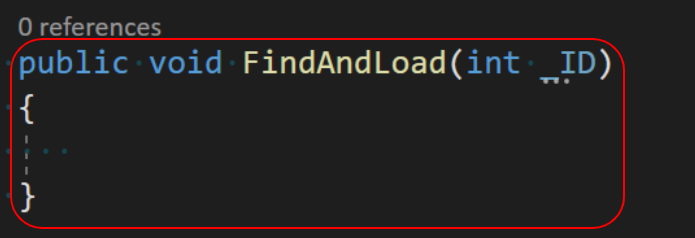
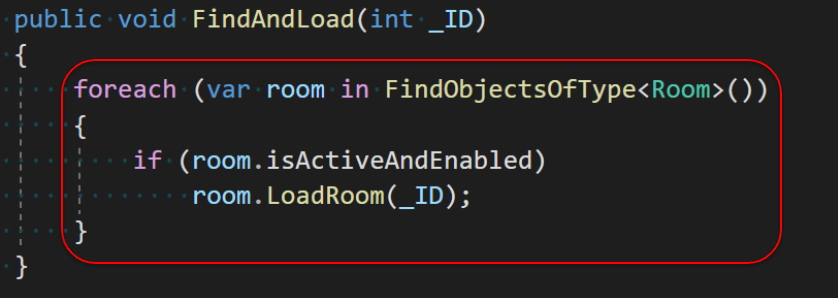
Let's create a new public method that will find and load the correct room.
We will use a type of loop called a foreach loop. This is an extremely useful loop that allows you to loop through a list of objects, and do something which each object in the list. In this case, we will loop through all the rooms in the scene and check IF it is active and enabled.
If the Room is active, this means we've found the correct room, and can call the LoadRoom() function as normal.
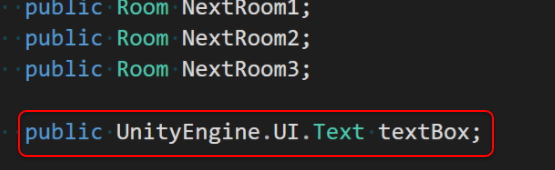
Next, we need to change were the text is displayed. It should be displayed using our new Text U.I. We can do this by making a public Text variable using the code below. This variable will be used as a reference, similar to the room variables, and will require us to set up through Unity.
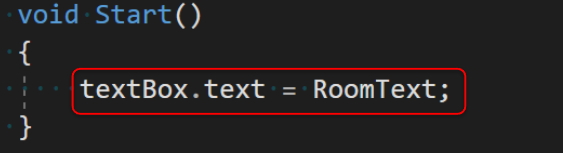
Then, change the Start() method to the code below. This will set the Textbox's text component, to the room's display text.
Save your changes and head back to Unity
With Unity open:
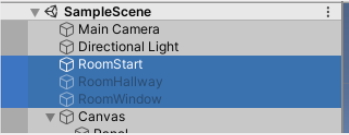
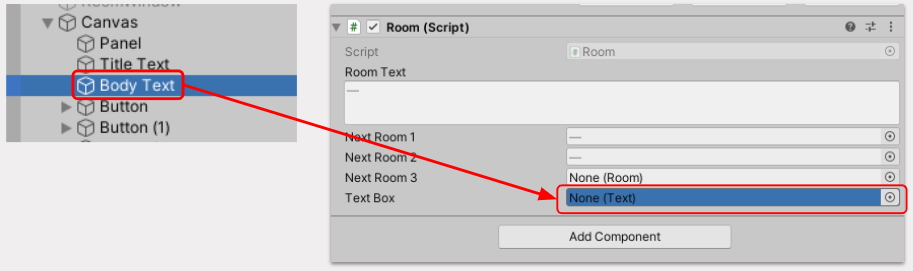
If no new variable is appearing, check that your code is saved and no errors are present
Next we need to do the same with the UI Buttons. With Unity open:
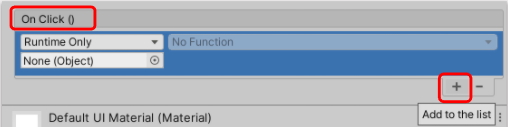
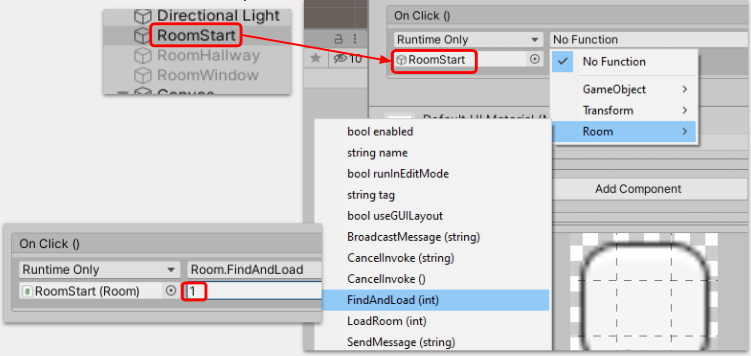
Give your game a test run! Do the buttons function correctly? Is your text appearing when you change rooms? If not, double check you have the references in the inspector set up correctly.
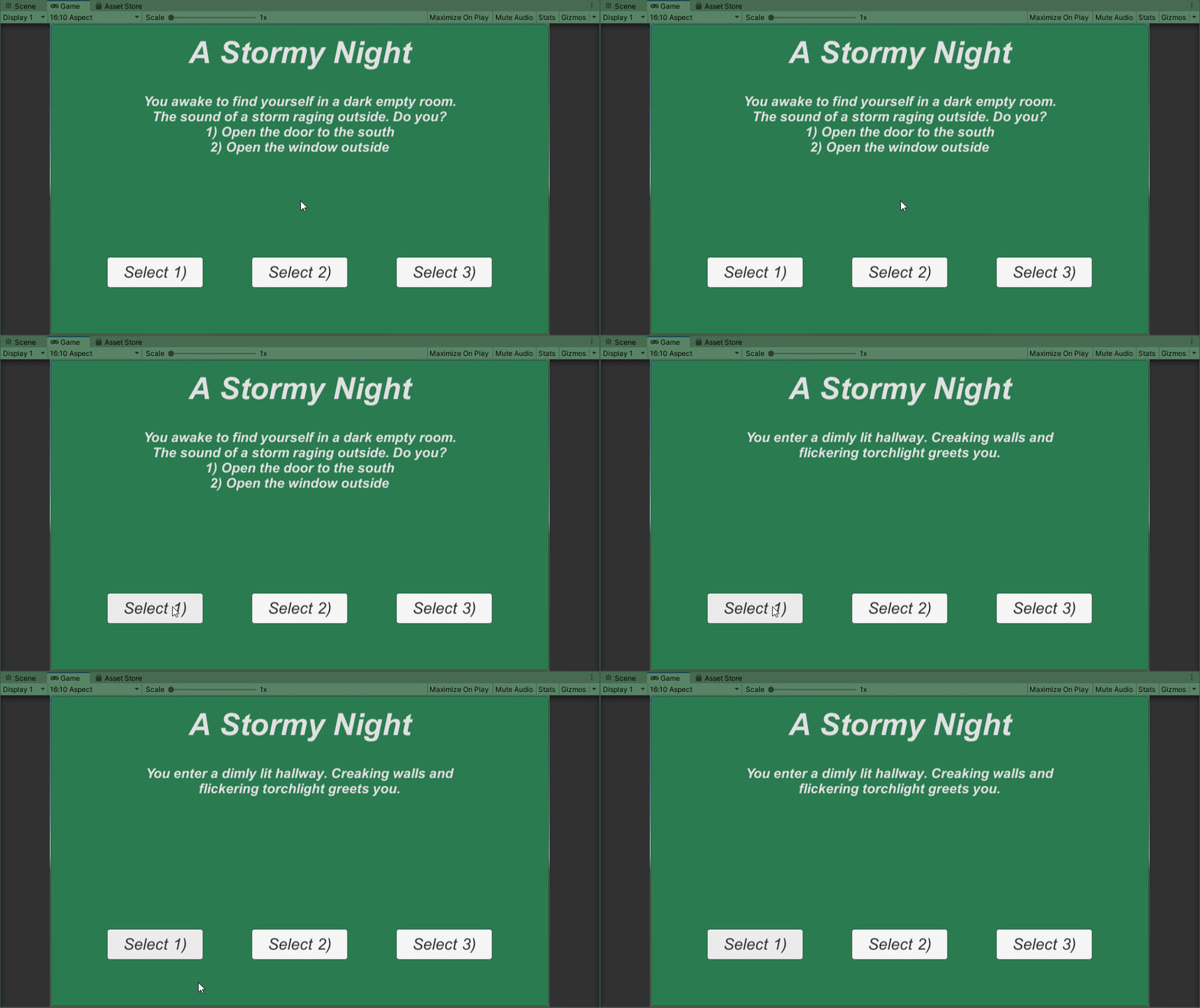
Kua mutu? Finished? What to try next...
Congratulations! Ka pai!
You've completed your first game project!
Take it a step further and add additional rooms to your game a create an interesting ending.