
Pixel sprite: obstacles
Learning Outcomes
Learning intention: how to create pixel characters (sprites) for digital outcomes.
- To understand images can be made from pixels.
- To convert a design into a graphical image.
- To use drawing software to create sprites.
- To import graphical images into a program.
 Pixel - tongi
Programming - papatono
Making obstacles for your country!
How could you make your game more interesting to play?
Use your research into your chosen country to design an obstacle for your character sprite to move around.
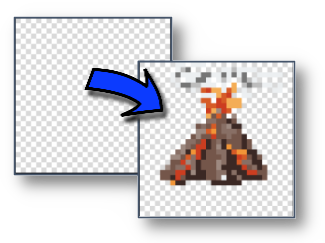
This will make it more challenging for your character to explore the country, while still learning about the features in a country!
Recap: Creating a sprite in PixilArt
 Once you have designed your obstacle, sprite head back to Pixilart to make your sprite:
 When you’re at PixilArt, you will again see this box pop up:
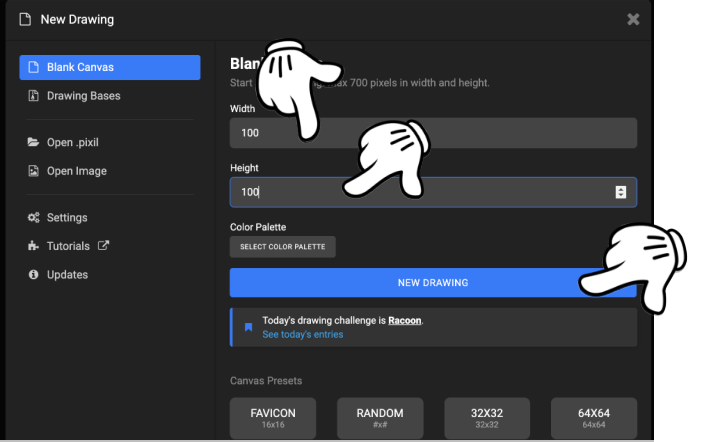
 You need to change the sizes of the grid to match your pixel design as before:
- Change width from 100 to 30
- Change height from 100 to 30
 You can select a colour palette if you wish, or just leave the standard one.
 Now click the new drawing button.
If you forgot how to use PixilArt, then watch the video to recap.
Just remember, we’re not making an emoji! We want to create an obstacle this time (like a volcano or lake).
Download our obstacle!
Click on File in the menu bar…
Click on Export/Download:
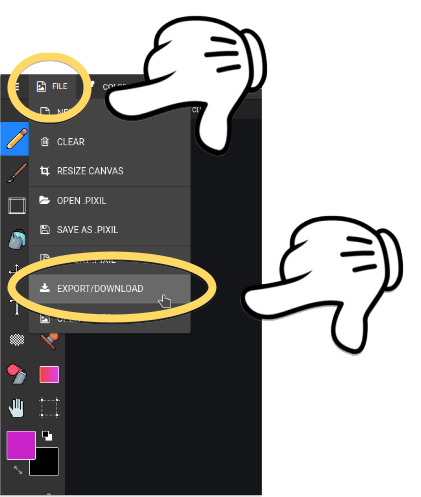
Now click on Download .png:
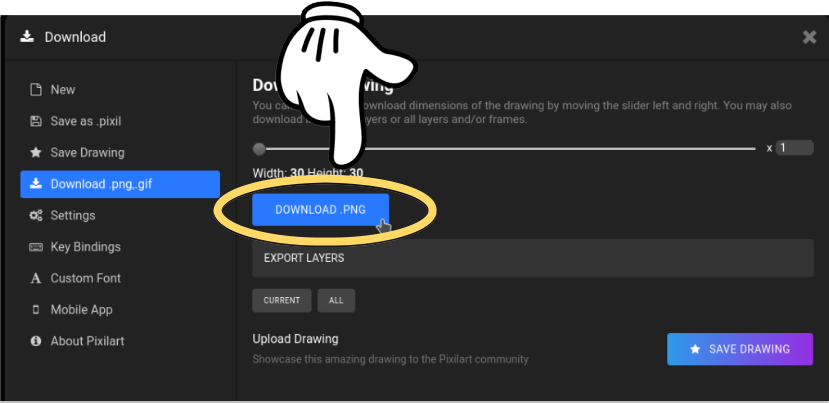
Go find where you downloaded your drawing.
Rename it to something like: volcano.png
Time to upload our obstacle into Repl!
Click on these 3 dots:
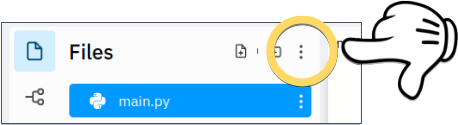
Click on Upload file:
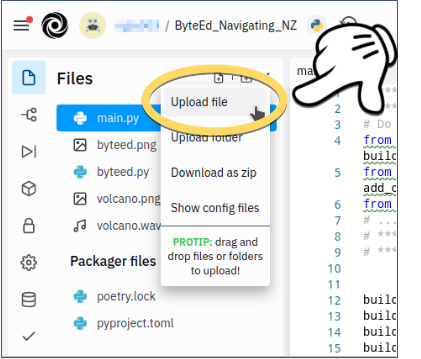
Then select the image you downloaded from PixilArt.
Check it’s there!
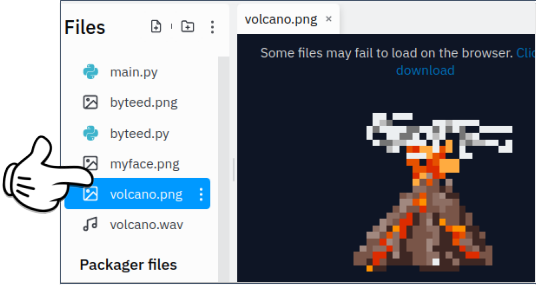
Tell our program to use our new image!
Add the following code to your program. You will need to specify two things:
- The name of the file representing your obstacle (e.g.
volcano.png), and - The coordinate you’d like it to be (e.g.
H9).
But remember, we need to surround each of these in double quotes! For example:
add_obstacle("volcano.png","H9")
You should place just after you build the land, but before you move:
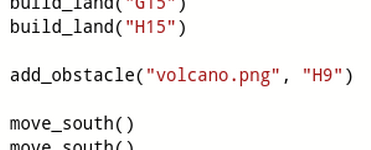
Run your program again, and check your obstacle is there.
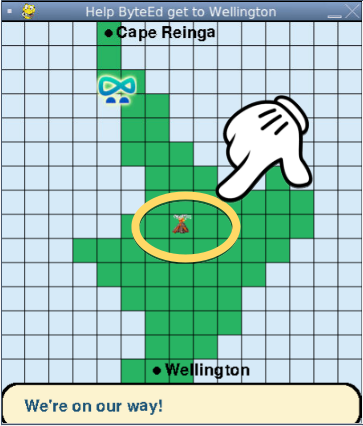
Watch out for the obstacles!
Modify the program such that…
ByteEd hits the obstacle:

ByteEd avoids the obstacle:

Add more obstacles!
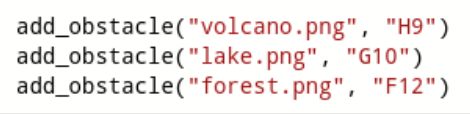
Let’s make some noise!
Would you like to hear a sound when ByteEd hits an obstacle?
Follow these steps:
Find some sound effects, for example from https://freesound.org
Download the sound you would like to use.
Upload it to Repl, just like you uploaded all those images you created.
Update your add_obstacle() code, by specifying the sound you added as follows:

Testing and trialing
Once you have made your game, it’s time to test it.

You can do this in two ways:
- You test and check the program:
- Does it work?
- Could you add anything?
- Does it fulfill the design brief?
- How could you make it better?
- Get someone else to check your educational game:
- Can they understand it?
- What have they learned?
- Could they suggest any improvements?
Design brief & attributes
Design Brief: To design and make an educational online game to teach other students about countries of the world through the use of computational thinking.
Attributes: The educational game must:
- Be created in Python using the techniques you have developed,
- Link to one chosen country,
- Teach students about the country, for example places, people, geological features.
Check your finished game…
- Does it fulfill the design brief?
- Does it fulfill the attributes? How? Why? Why not?
 Kua mutu? Finished?
Evaluation of your game
What do you think about your final program?
Does it work as you wanted it to?
Does it teach someone about another country?
Could it be improved?