
Lesson 01: Design Context & C# Recap
 Game - tākaro
 Kōrero Mai: What is Design Process
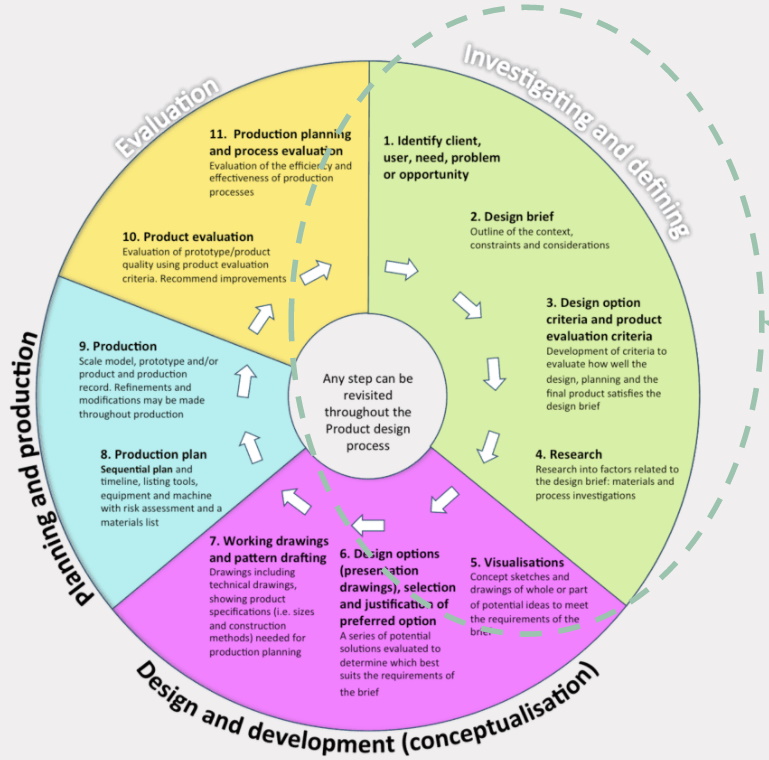
The design process is a method that designers and technologists use to design and develop new concepts and technological outcomes.
Today, you are going to explore aspects of design thinking that are in the green section of the process...
Kōrero Mai: Discuss the given context...(what does this mean?)
Identifying client, user, need, problem or opportunity...
Need:
Children need to practise developing their fine motor skills to enable them to succeed in everyday tasks.
Precise movements using small muscle groups such as hand/eye coordination, agility, reaction time, speed are needed for all children from toddler to adolescent.
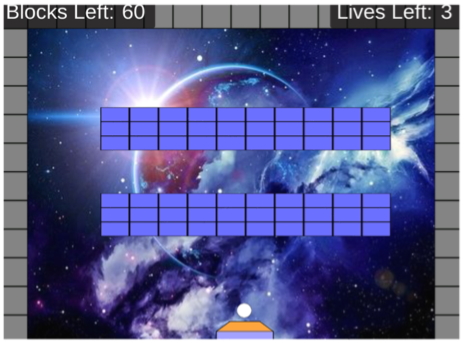
To aid the development of these skills you are going to design and prototype a 2D breakout game for a stakeholder of your choice.
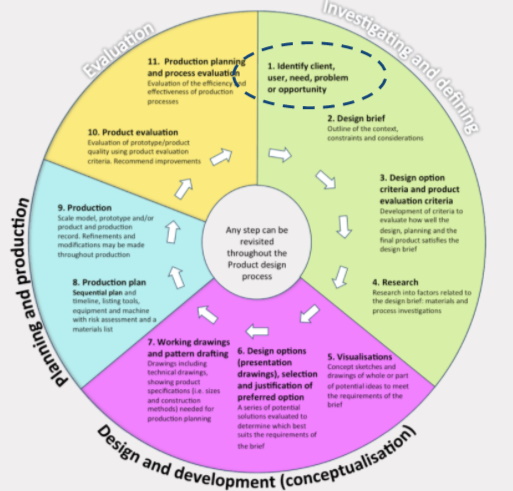
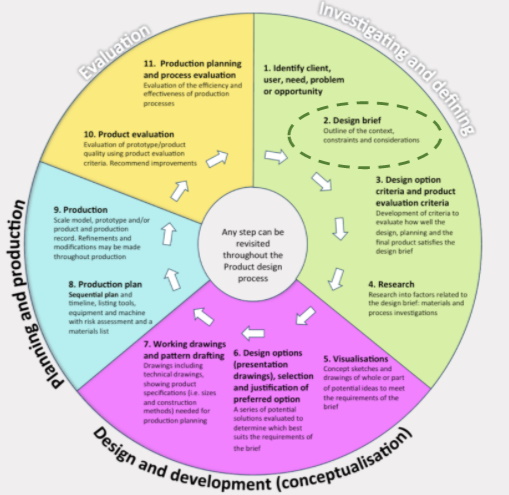
Given design brief for this course:
To design and prototype a digital 2D game that develops fine motor skills in children.
Given Specification:
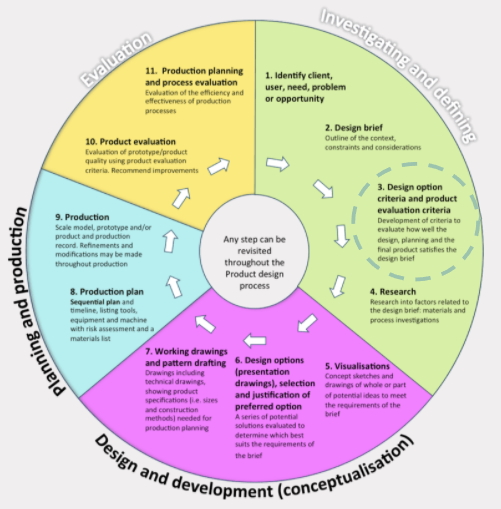
Today's research
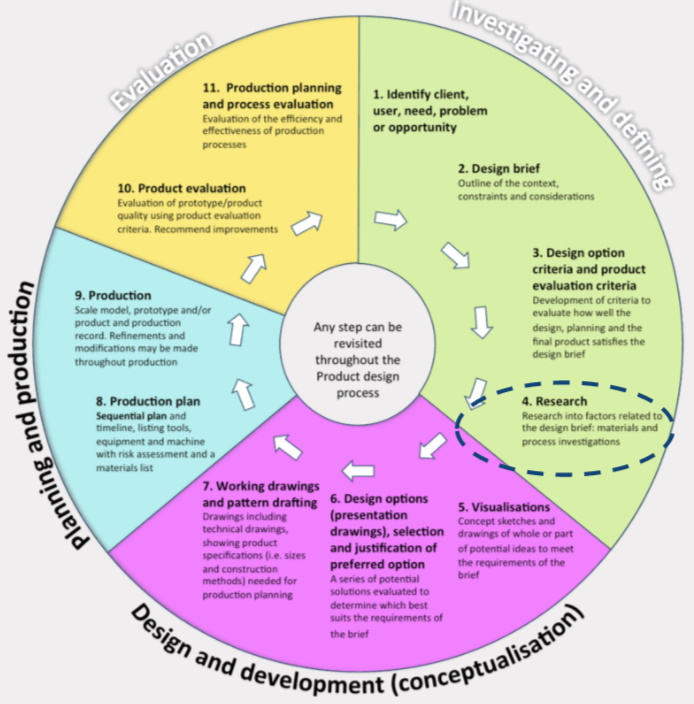 Research - rangahau
 Kua reri? - Ready? it's your turn... Types of games.
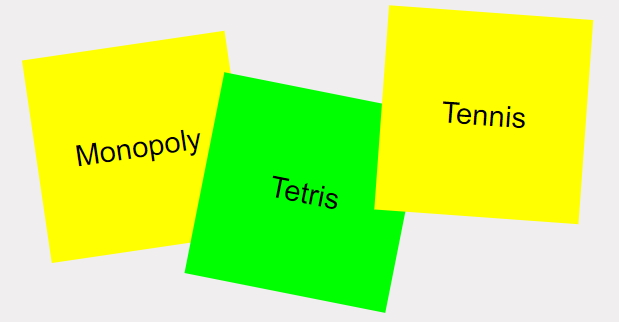
In groups, you have 5 minutes only to brainstorm as many different games that you can think of! Write the names on post it notes...
On the wall, put your games into one of 3 categories:
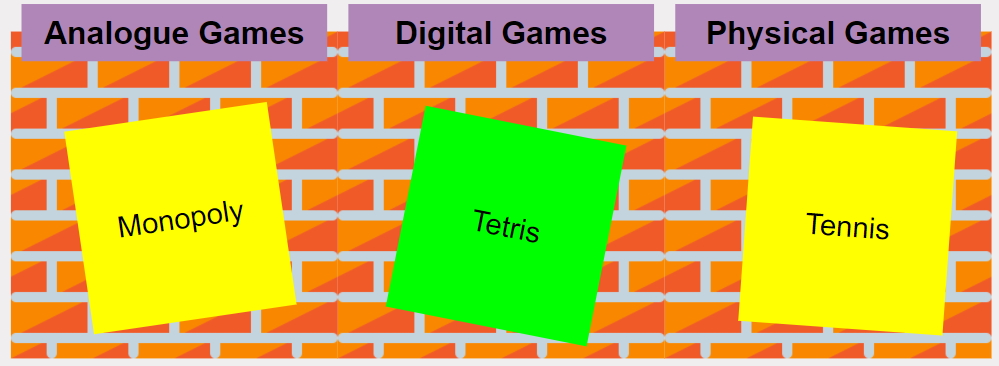
What do you notice about these groups? do any games have similarities in each category? What are the main differences between the categories & games?
Kua reri? - Ready? it's your turn... Features of games.
Choose one game from each of the categories. Use the game characteristics cards to describe each of your chosen games...
Kōrero Mai: Digital Breakout Game
Now think about your given design brief:
To design and prototype a digital 2D game that develops fine motor skills in children.
Which features or game characteristics do you think would suit this game? Why?
Digital Technologies: C# Revision
Revising how algorithms work
An algorithm is a sequence of instructions that when followed, lead to a desired outcome. Examples of algorithms are:
- Following a recipe
- Assembling furniture
- Weaving flax
Each of the above uses sets of ordered instructions to lead to their specific outcomes.
Algorithms recap
Kōrero Mai: What are some examples of algorithms you can think of?
Algorithms and Programs
A computer program is a list of instructions that tell a computer what to do. Programming is the act of turning an algorithm into a program that a computer can understand.
Algorithms are often used as a starting point for creating a computer program, as it helps list the order that the instructions need to be in.
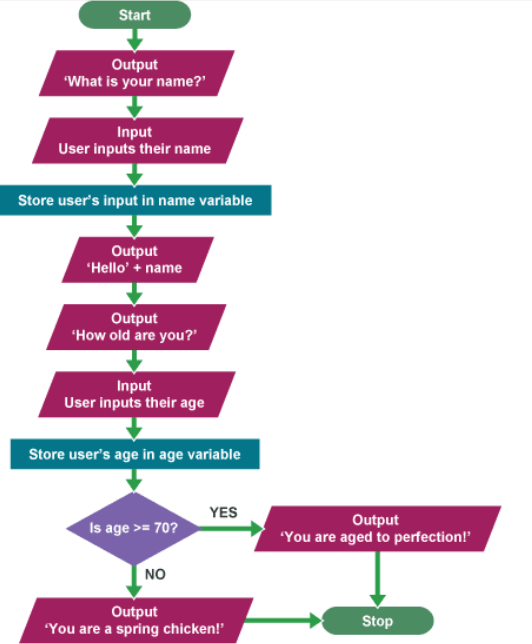
Algorithms are sometimes written as a flowchart or in pseudocode:
OUTPUT 'What is your name?'
INPUT user inputs their name
STORE the user's input in the name variable
OUTPUT 'Hello' + name
OUTPUT 'How old are you?'
INPUT user inputs their age
	STORE the user's input in the age variable
	IF age >= 70 THEN
		OUTPUT 'You are aged to perfection!'
	ELSE
		OUTPUT 'You are a spring chicken!'
Revising our Digital Tech knowledge
Data - raraunga
Let’s revise the different skills and knowledge about programming, starting with variables and data types.
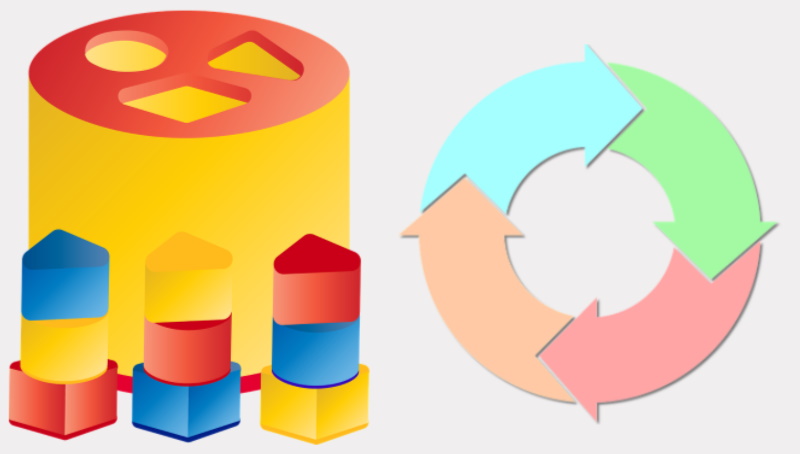
Variables are best thought of as a container that can hold information for the program to use at any time.
The data inside of the variable can vary, meaning it can be changed while the program is running.
Each variable needs to know what type of information they are storing.
The 4 main data types of programming
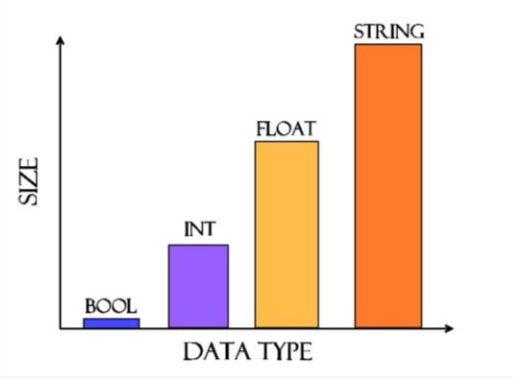
Lets recap that 4 main data types that we use while programming:
- Booleans are used when we need to store or use a true or false response.
- Integers are used to store whole numbers, best suited for counting.
- Floats are used to store decimal numbers, best used when accurate values are needed.
- Strings are used to represent text such as words or *sentences.
Basic C# Principles
Because writing code for a computer has to be done a certain way, there are a number of rules we must follow when writing. These rules are specific to C# but many other languages also share these principles.
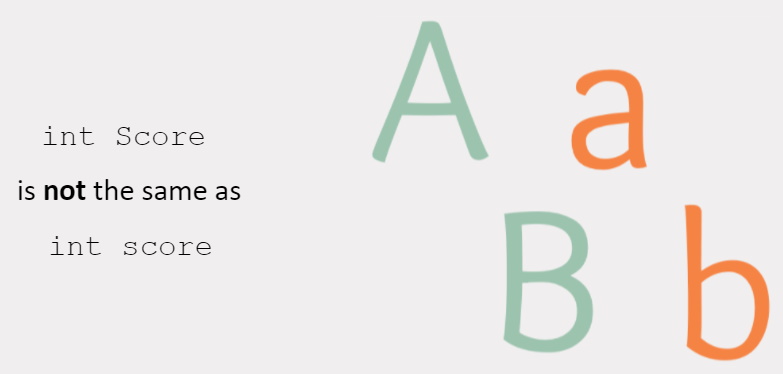
The first is case sensitivity. Code is very case sensitive, which means you must pay attention to where you place upper and lowercase letters when typing.
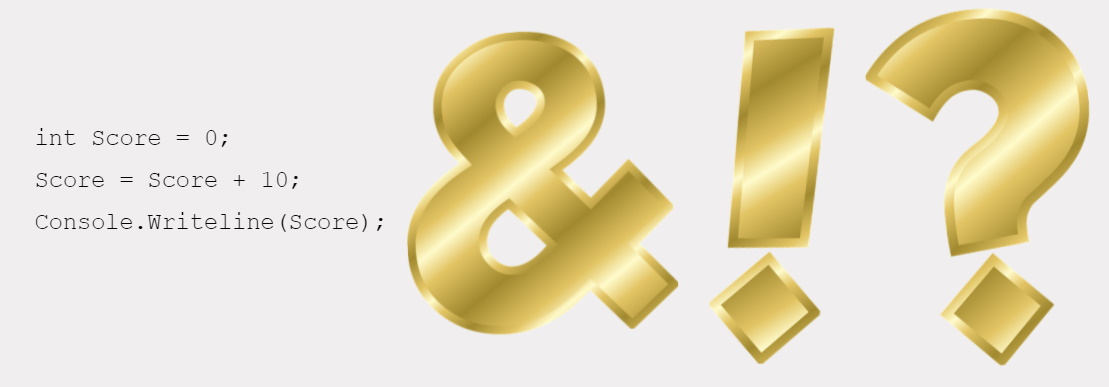
Just like in most spoken languages around the world. Coding also uses a character to represent the end of a sentence or instruction. In C#, each instruction must end with a semicolon ‘ ; ‘.
The last main principle is the use of brackets. Brackets are used for a number of reasons. They can be used to create a section of code. Or they can be used to specify the input for a given function. Take a look at the example below:
Can you identity all 3 coding principles covered in this code?
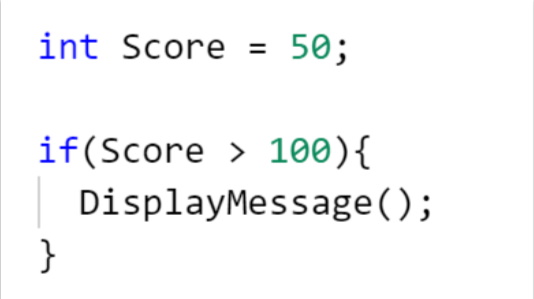
Remember: Brackets will always come in pairs. If a bracket is missing a pair, issues can occur.
Getting started with Unity
Download and Install Unity Hub if you have not done so already. Once downloaded, install a stable version of Unity to work with (all projects and screenshots of Unity are using version 2020.3.x(LTS), feel free to install and use any version newer than this)
Do this by clicking on “Installs” and selecting “Add”.
If given the option, make sure you select “Install Visual Studio”. This will install and link our main programming interface to Unity.
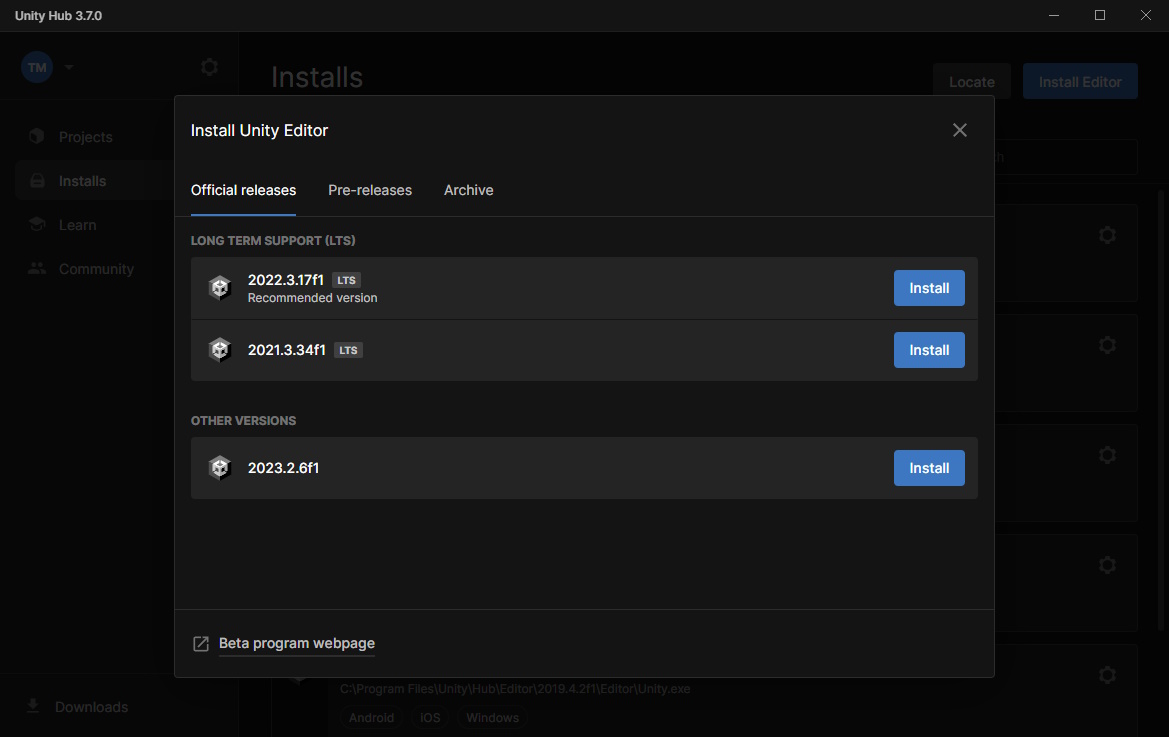
Note: You may need to sign-in and activate a licence before continuing. if so, follow these instructions to activate a free to use licence .
Creating a project file
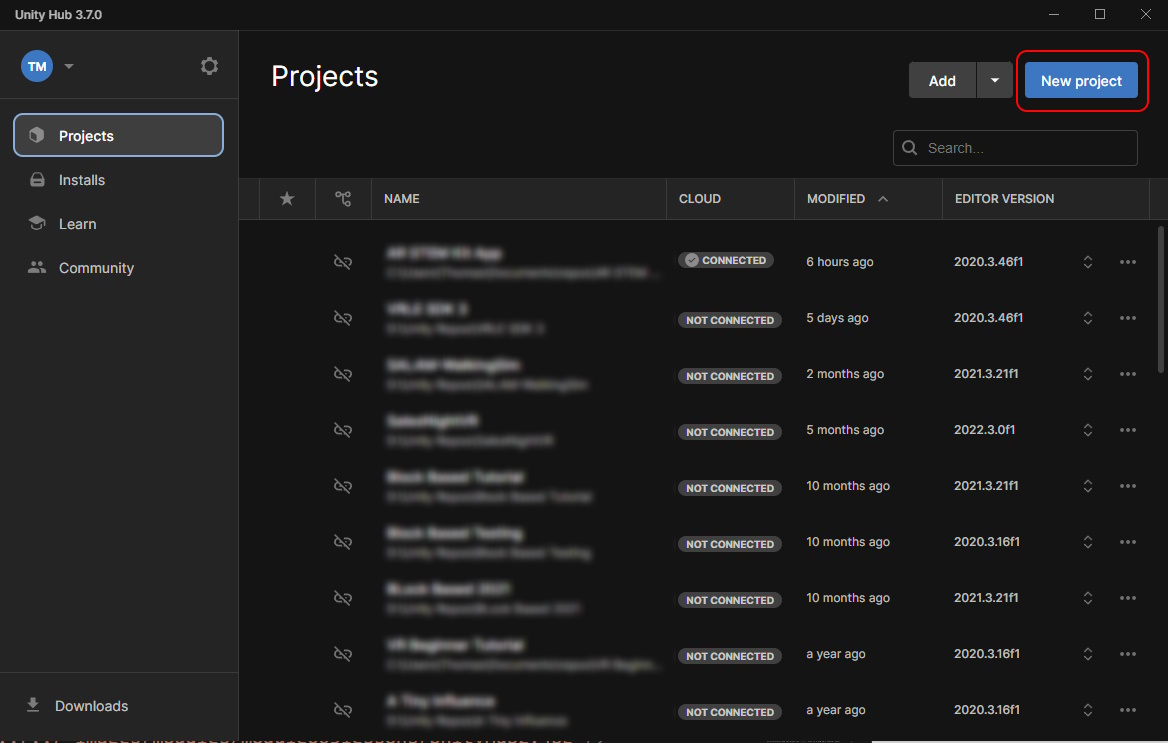
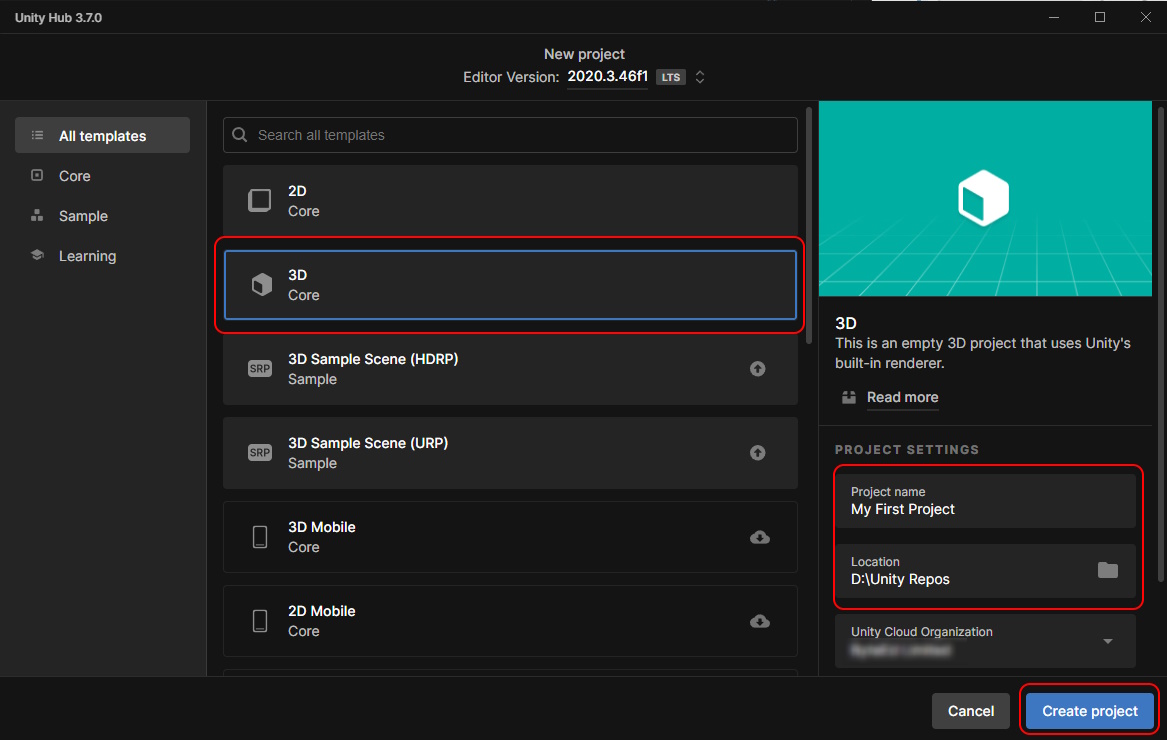
Let’s create our very first script in Unity! To begin with, we’ll need a brand new Unity Project. To do this, open up your Unity Hub program and select New. Give your project a name and a location on your computer to save too. Then simply click on Create.
Creating a script
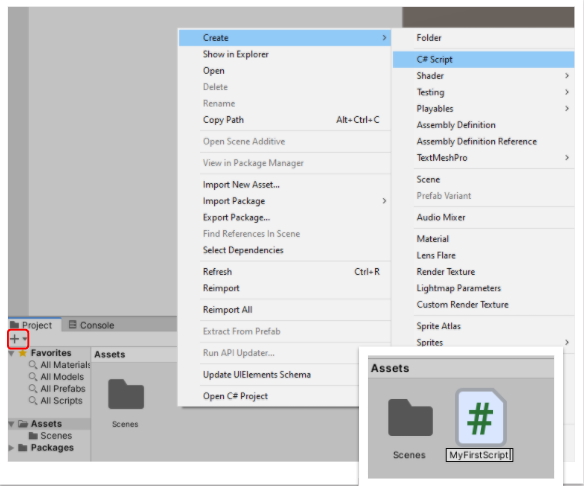
To begin coding we need to create a script to hold our code for us. Let’s create one now.
Right Click in your assets folder (Located at the bottom of Unity) and select **Create -> C# Script **
Alternatively, you can press the ‘+’ icon to bring up a similar menu.
Give the script a name right away!
Viewing it in Visual Studio
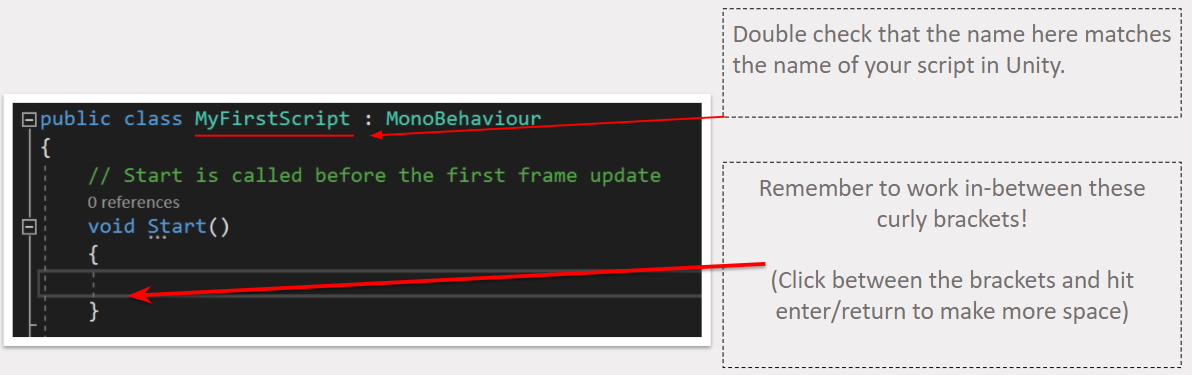
To open up our new script simply double click it. Visual Studio or your coding studio of choice should appear.
Our first piece of code will be in our “Start()” function. This is a function that gets called ONCE when the game starts for the first time.
Writing our first C# code for Unity
We will use a function Unity provides for us. In our start function, write the following:
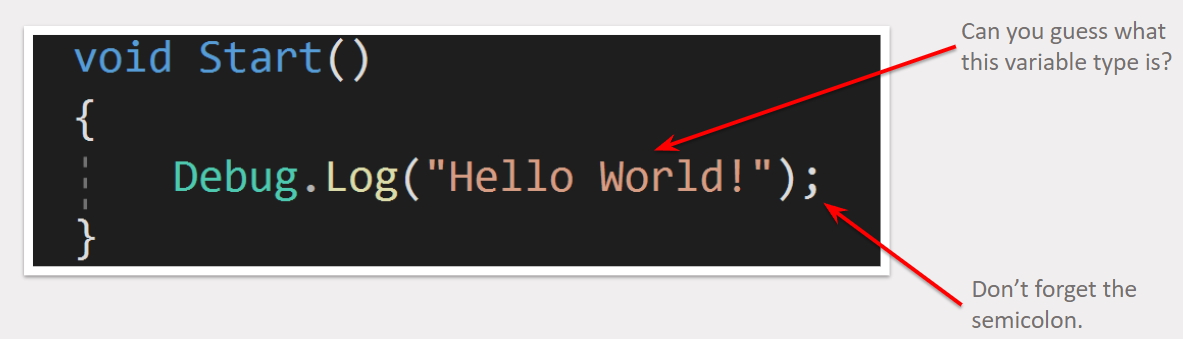
This code will output a message to Unity’s console. Feel free to output any message you want!
Testing our Script
Next, we need to save our changes to our script. If we don’t save our changes, then the script won’t be updated. Save it like any other document.
Go up to the top and select File -> Save or press CTRL + S.
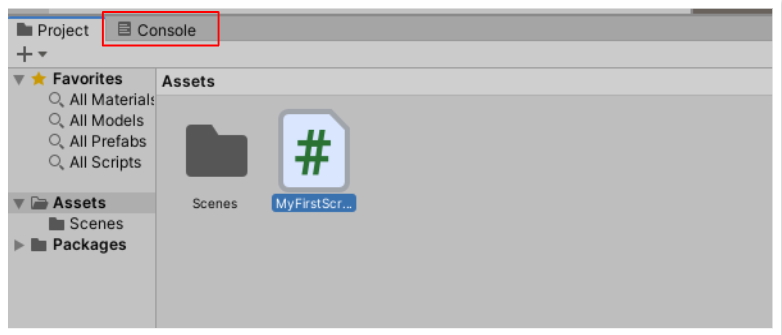
Go back into Unity and click on the console tab near the bottom. This is where our message will appear.
Press the run button to start the game and see what happens! Did anything appear?
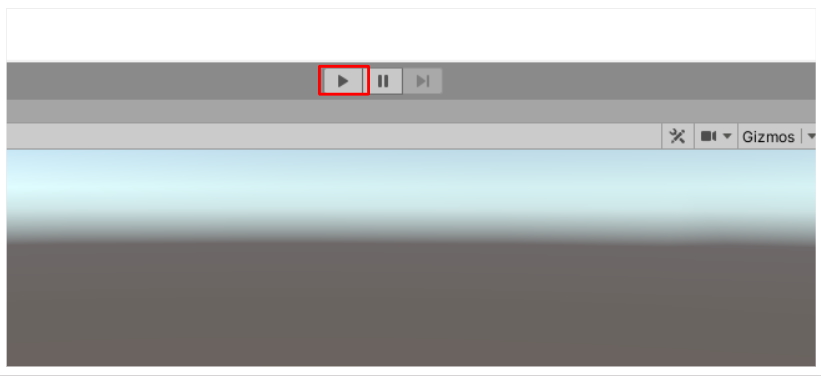 Kōrero Mai: Why didn't anything appear?
We have created our first script and we have put code inside of it. Unity should also let us know if there are any compiler errors that need to be fixed (e.g missing semicolons, brackets, etc...)
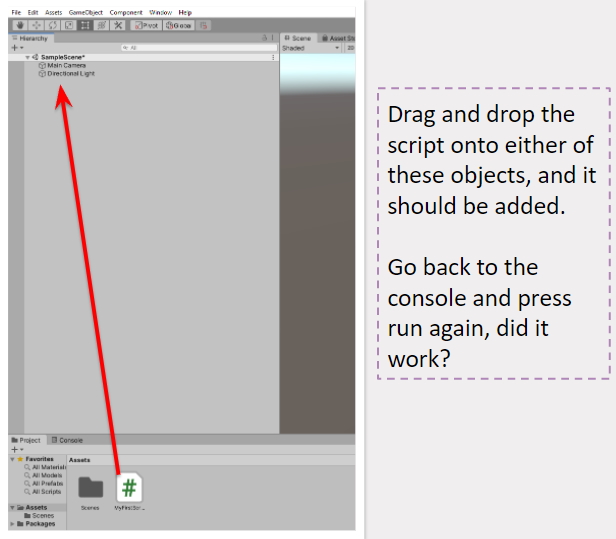
 Kua mutu? - Finished? What to try next...
Add additional outputs to your program. Try using variables to store and output data. E.g Names