
Lesson 05: Variable Scope and basic VR environment
 Kōrero Mai: How do computers know what data belongs to each program?
Computers always know what data belongs to a program. This is called variable / data scope. Without this, programs would be able to access all kinds of data easily which could lead to bad things happening.
So how does this work?
Programs, unless told otherwise, actually only store the data they are using temporarily. When the program is finished, all of that data is then lost unless saved.
Variable scope in C#
Something similar happens to our variables. When a certain section of code finishes, any data that was temporarily created inside of that section, is again lost. The best example of this is creating a function.
In the example, we use two variables. Direction and JumpForce.
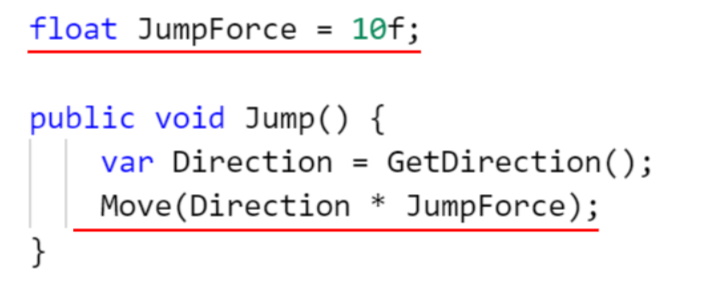
As Direction was made inside of Jump(), that data is lost when the Jump() function ends.
As JumpForce was created outside the function, it will continue to exist even after the Jump() function finishes.
The easiest way to to determine variable scope is to look at which set of brackets the variable was created in.
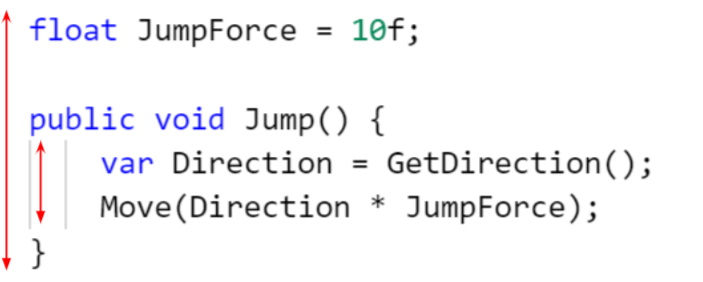
JumpForce is created outside of the brackets. This means it actually belongs to the whole document.
The Direction variable is created inside the Jump() brackets, so it belongs only to the function.
Because of this, we can’t use variables outside of the brackets they were created in.
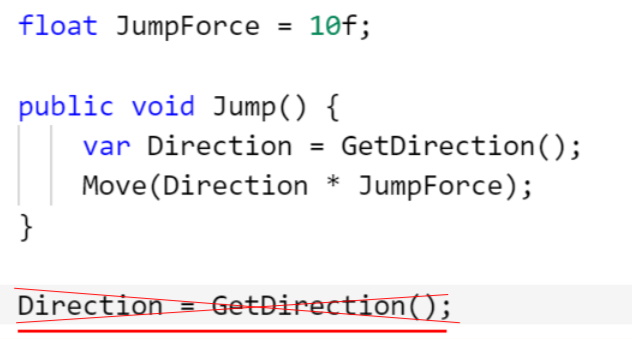
Trying to do something like this would create an error.
Direction can’t be used outside of it’s brackets as it will no longer exist by the time our computer gets to that line.
This is why we tend to create variables that are often used at the top of the code. We can use these variables inside any subset of brackets.
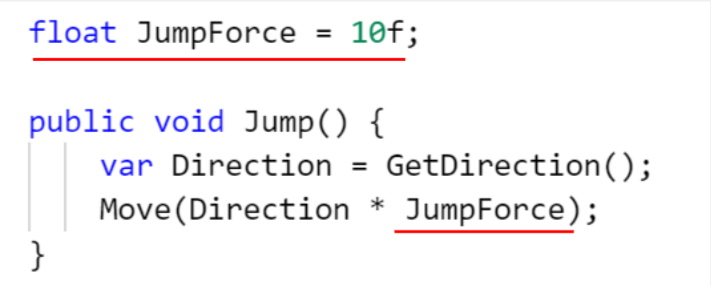
We can use JumpForce inside and outside of Jump() because it belongs to the whole code, not just the Jump() section.
 Kua reri? - Ready? It's your turn... Which variables are in the wrong position?
Taking our knowledge of variable scope, analyse the code snippet and determine which variables are correctly placed, and which are incorrectly placed.
Hint: Look for the set of brackets the variable was created in to determine its scope
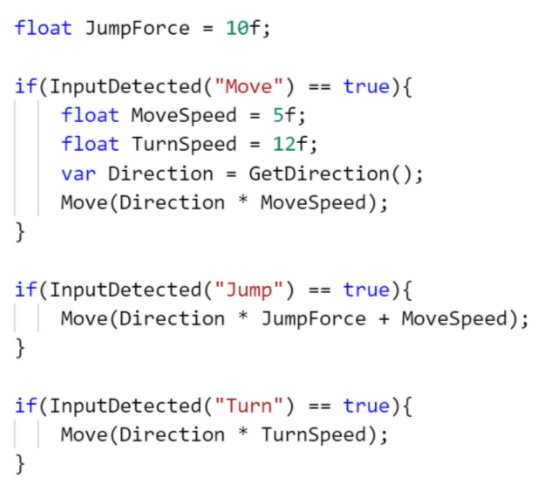
Note: The Methods InputDetected() and Move() are not standard C# and are used only to make the code more readable.
Creating a VR world using a-frame
in our previous module, you designed your own VR world. Let’s learn how to create a mock-up of it using a resource called a-frame. This allows you to create 3D VR experiences that can be played through a browser!
First start by creating a copy of a-frame’s default environment. Once you have your own version of it, feel free to start editing things!
Click here to go to glitch.com. This is a website that will host your projects for you for free! This link will automatically create a copy for you to start working inside of.
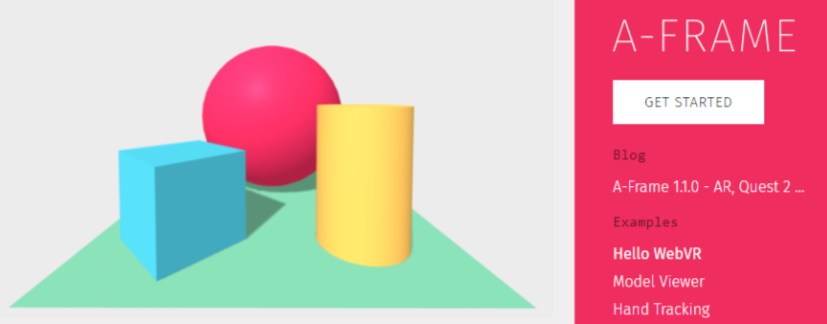
Note: Sign-in OR save a copy of the URL at the top of the page to Save your project’s progress.
On the left hand side, you are presented with different files similar to repl.it. Select “Index.html” to view the code.
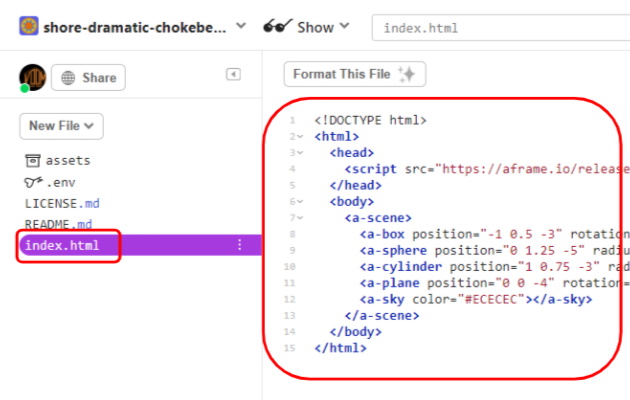
To create more objects in the scene, copy and paste the same format used by the other objects. Keep these new objects inside of <Scene> and </Scene>. Think of these as your brackets!
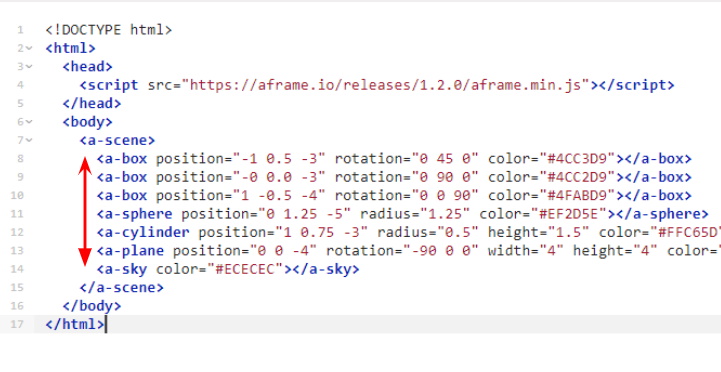
You can use:
<a-box><a-cone><a-cylinder><a-dodecahedron><a-icosahedron><a-plane><a-ring><a-sphere><a-torus>- …..
More at: a-frame.com
To view your world, click Show and select either option. Your code will automatically save and update you game window every time you make a change.
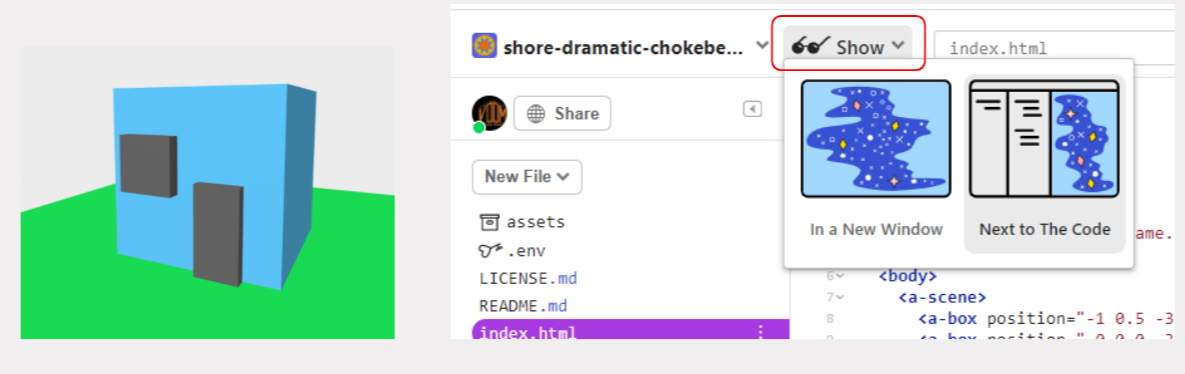
To get more advanced control of your world. Show your world in a new window. Open that tab and then press “Ctrl + Alt + i” on your keyboard. This will open up a 3D editor!
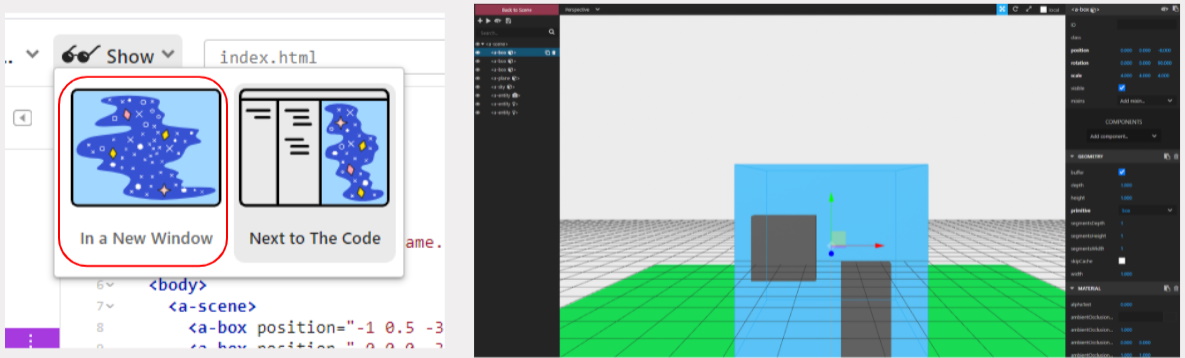
Warning: If you use the 3D editor, saving your scene gets a little difficult.
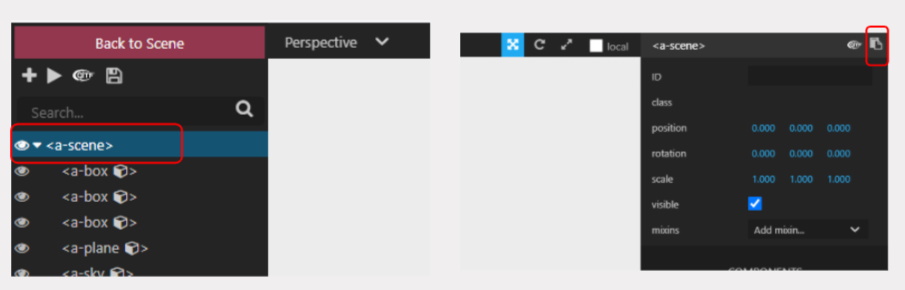
Don’t leave the tab before saving your progress. To save your scene as a whole:
- Select Scene (top left)
- Press the Copy to Clipboard (top right)
- Paste the code in your clipboard to your HTML document
Note: It may be easier coding one line at a time at this stage.
 Kua reri? - Ready? It's your turn... Construct your VR world
Spend some time creating a VR world. Try playing around with different objects types, or even changing their colours too. You could use your game that you planned in Module One for inspiration :)
Get comfortable with the code style and the editor as we will revisit a-frame later in the module.
Kua mutu? Finished?
Share your worlds with each other by sending each other your website links. Try playing with a VR device if you have one (this can be mobiles, tablets or VR gear)