Lesson 13: A-Frame Events
 Kōrero Mai: How would describe an Event?
An event is something that happens or takes place, potentially something of importance. Examples:
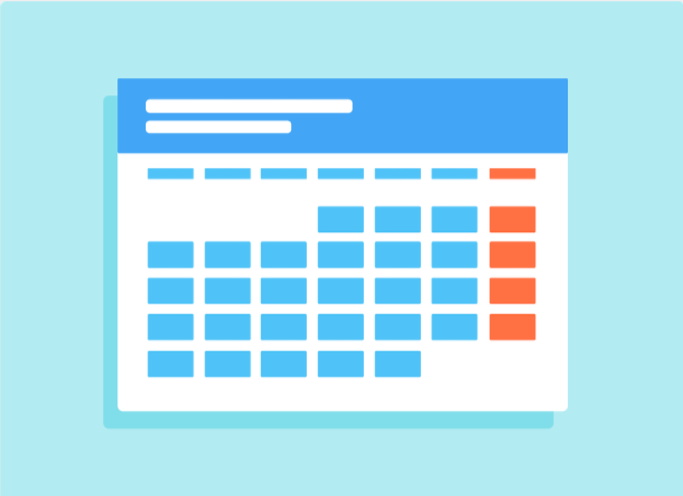
What are some more examples of Events?
How can Events be used in programs?
To understand how computers can use events, we first need to learn how humans use them. Let’s take a look at some examples below:
- “Let’s met up when the concert starts playing”
- “We should go get something to eat after our rugby match”
- “Let’s work on our group project over the weekend”
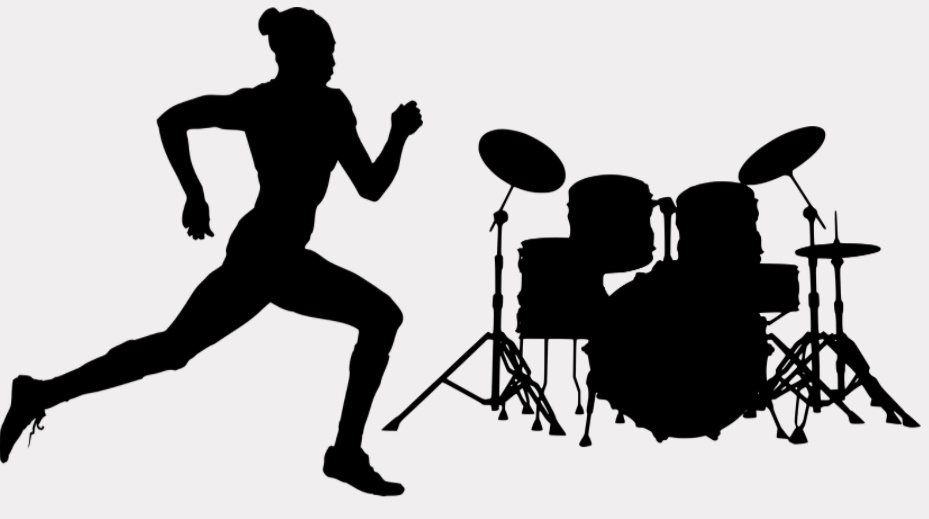
Each of these examples has an event and an action. This action only happens when the event occurs.
Events in programs
When we talk about using event in programming, we talk about setting certain actions to occur when a specific event happens. These events could be:
- The user has pressed the “Jump” key
- The user has clicked on the button
- The user has walked into an object
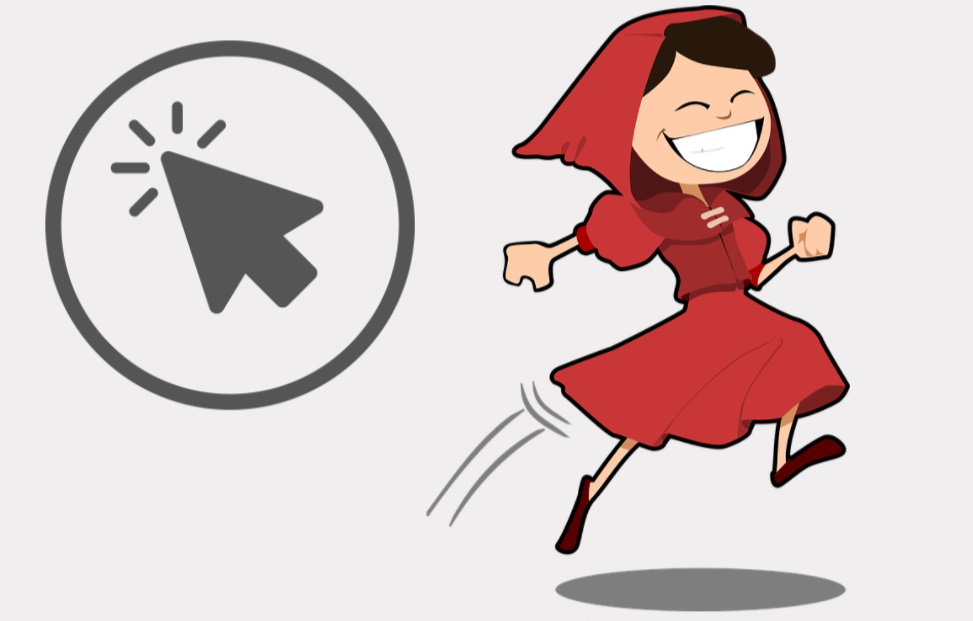
Each of these can be considered and event that we can tie actions too.
Basic events in A-Frame - Cursor
A-Frame gives us many different events to use. Let’s start off by using mouse events to get input from the user. These mouse events will also work for touch screen devices.
To add mouse events to our game, we first need to add a cursor object.
Cursors also need to be attached to a camera to work. Add the camera tag as well.
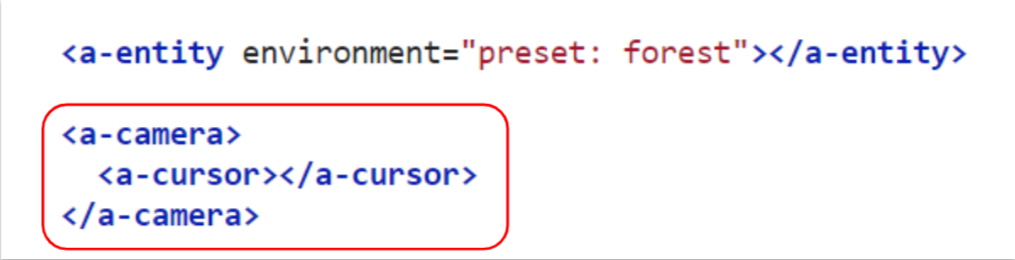
Note: <a-camera> and <a-cursor> are built in objects for a-frame. We don’t need to define them as an entity first.
Cursor Events
Adding a cursor should now also add a small circle to your screen. Think of this as a laser pointer. This is so VR devices can also use these cursor events when looking at objects.
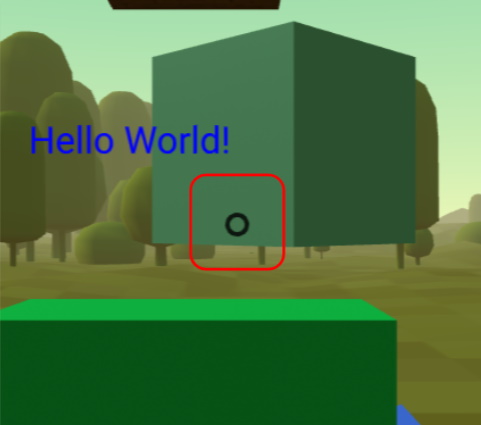
With a cursor, we gain access to 3 events:
- Mouse Enter (when looking at an object)
- Mouse Leave (when looking away from an object)
- Mouse Click (when you click/tap on an object)
Think about the possibilities we now have in our game.
Loading audio assets
A very simple yet effective method of using events is to play sound effects. These sound effects can occur when you click/tap an object, hover over an item or anything else you can think of!
Similar to using images as textures. We first need to download and add our sound effects to Glitch.
Look for some sound effects you would like to use for your game and download them. If you’re having trouble finding some, you can use MixKit.co
Once downloaded, we can add them to our assets by selecting its menu on the left hand side. Drag your sound files into the assets window.
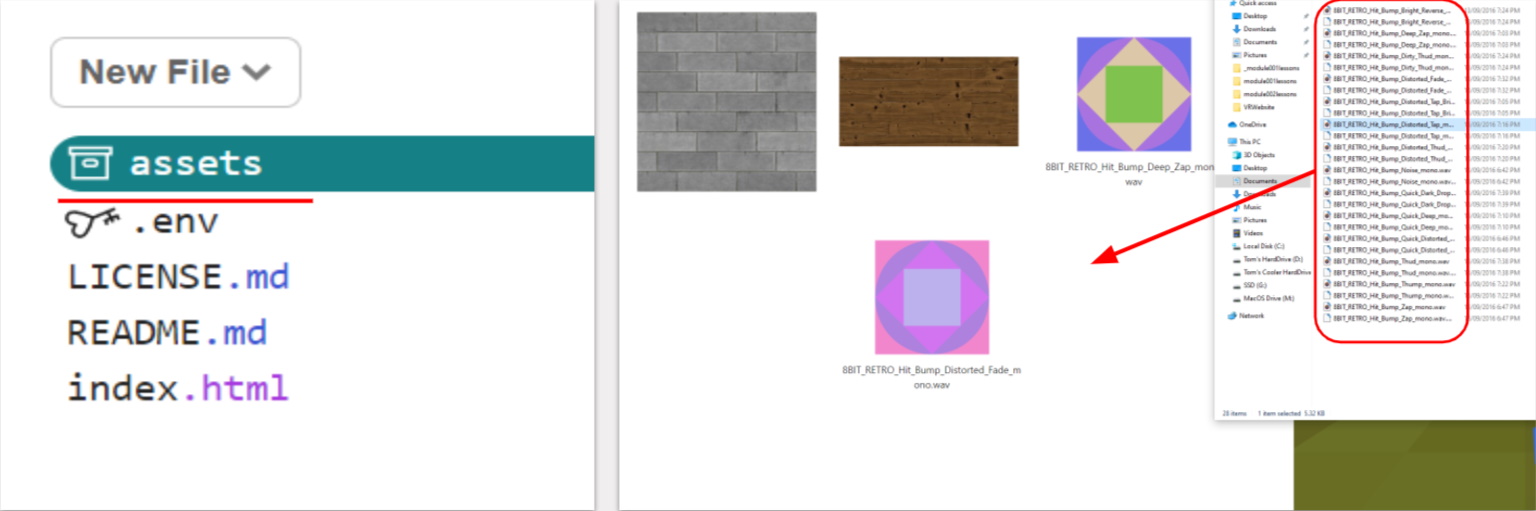
Again, like loading our images from the previous lesson, we need to define them in our HTML code. This is so the audio files will load when users play our game. We’ll write this code in the <a-assets> section.

This time, we will use an <audio> tag. Unlike our <img> tag, <audio> requires a closing </audio> tag to work.
Remember to name the id of the audio as something unique. Similar to variables, these names cannot be repeated.

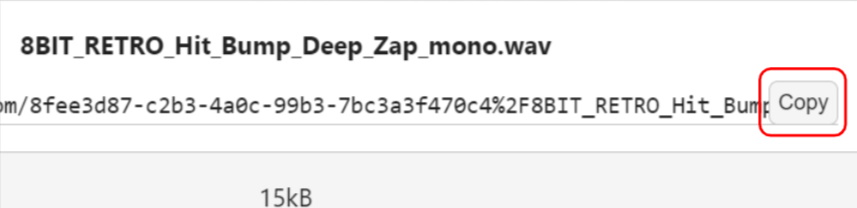
To find and copy the src url, head back to the assets menu:
- select your added sound.
- click on the copy button.
- paste this link back in your HTML document.
Playing sounds with events
To have our entities capable of playing sounds we need to add the ‘sound’ property to it. We add this like any other property to our entity.

To specify which sound to play, we need to change the “src” value. Change it’s src value to your audio’s ID. (Make sure to use a ’#’ symbol before the audios ID)
Lastly, we need to specify the event this sound effect will listen too. To do this, we can add the “on” value to the sound property. Lets add the mouseenter event. (Remember to add the ‘ ; ‘ when using multiple values)

Try it out. Hover over the object you added the sound property too. Does it play the sound?
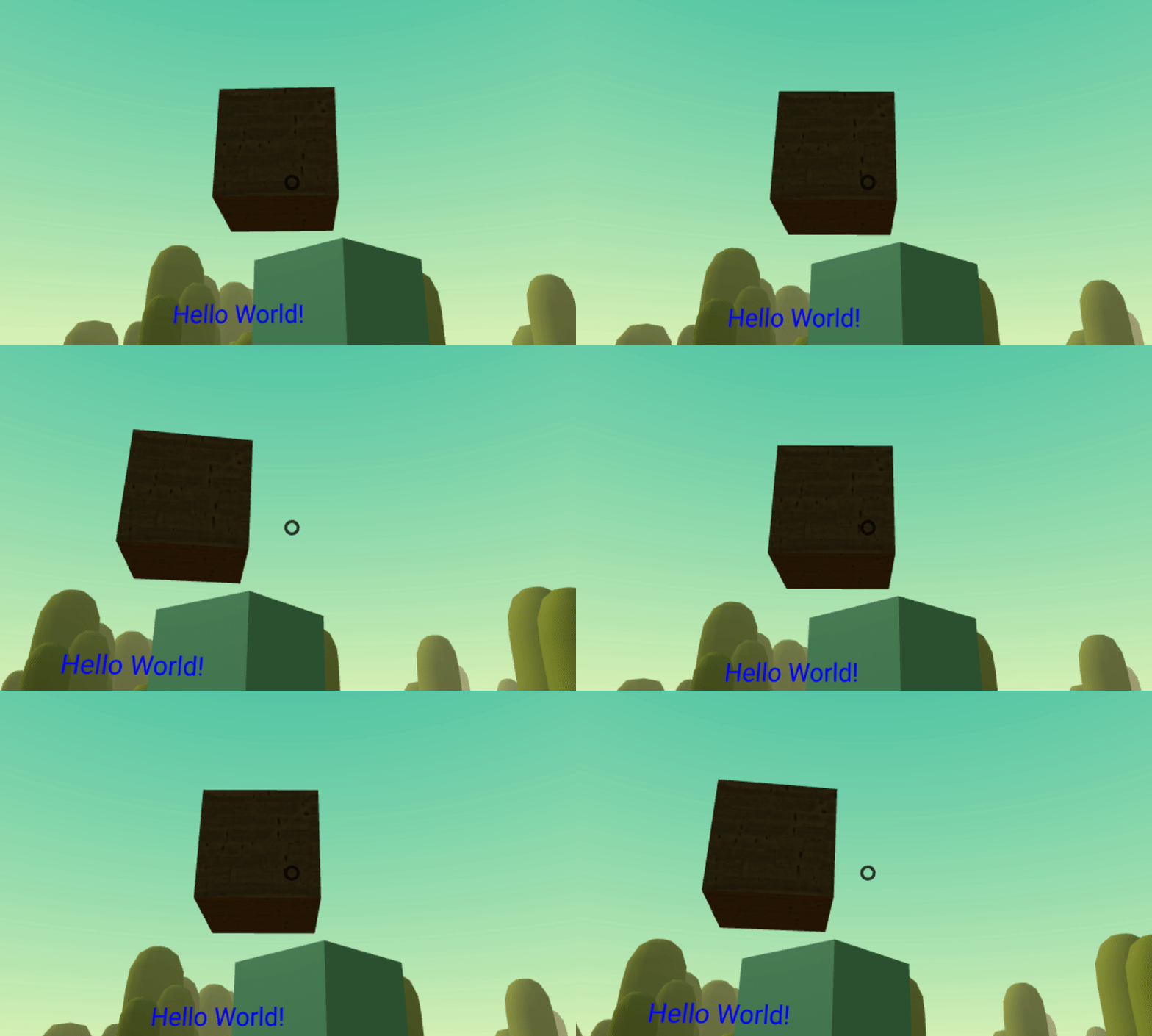
To learn more about the sound property, visit it’s a-frame documentation.
How to create animations
Animations are another method of adding life into an experience. The animation property can manipulate many other properties of an object, such as:
- Its position
- Its size
- Its rotation
- multiple of these at once
- …
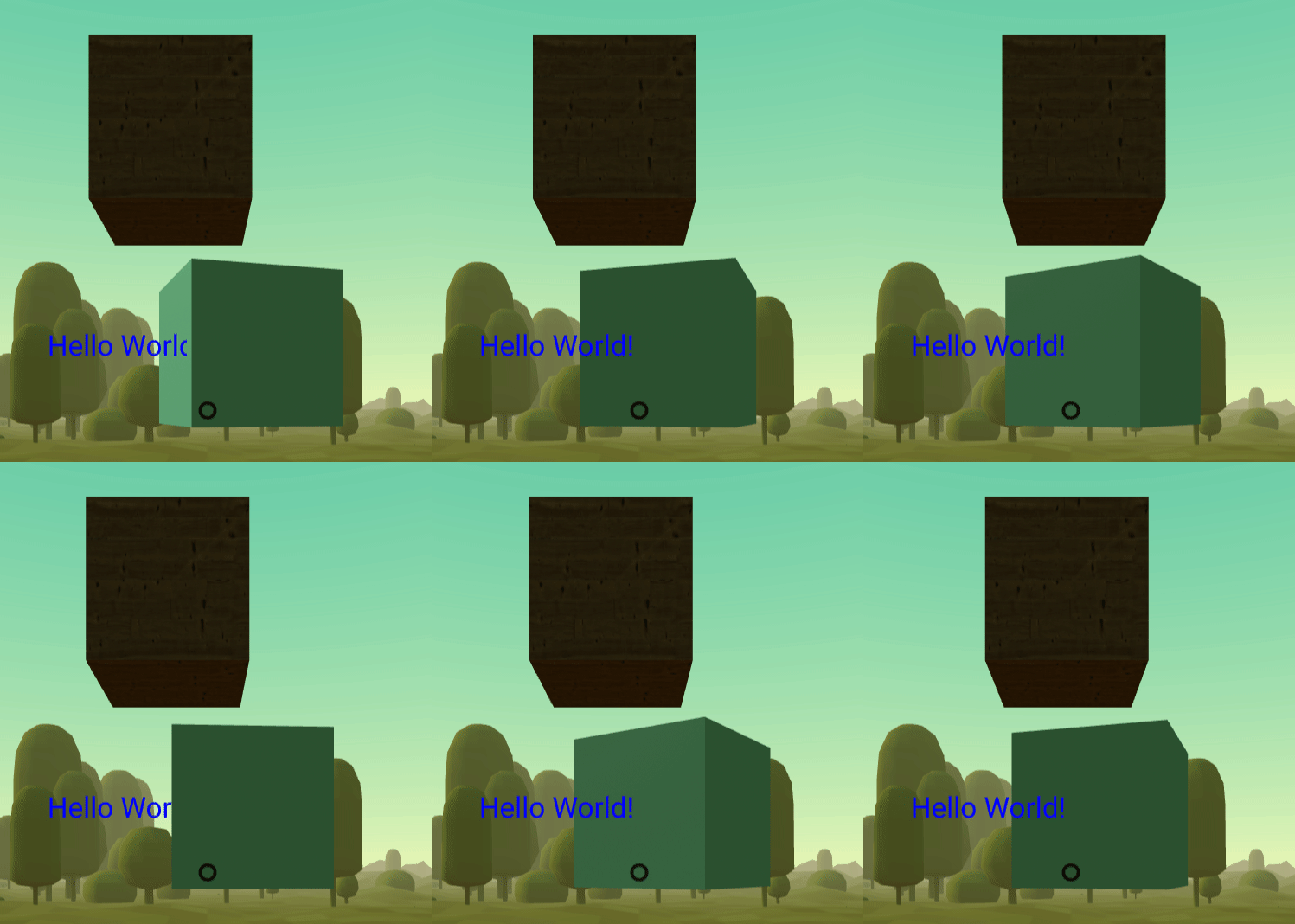
Animations can also listen to events too.
Lets create an animation that rotates an object.
To get started, we need to add the “animation” property to the entity.
Create a new object or attach this to an already created object.

Next we need to specify the which property we would like to animate. We will type in “rotation” for this.

We also need to specify the rotation the animation should start and end at. Think about which axis you would like to rotate along. Follow the example below:

Lastly, we need to specify which events we would like to listen too that activates the animation.

This value can actually be a list that’s separated by commas ‘ , ‘ . This allows us to listen to multiple events at once!
We should now be able to activate the animation when we click/tap on the object. Give it a try!
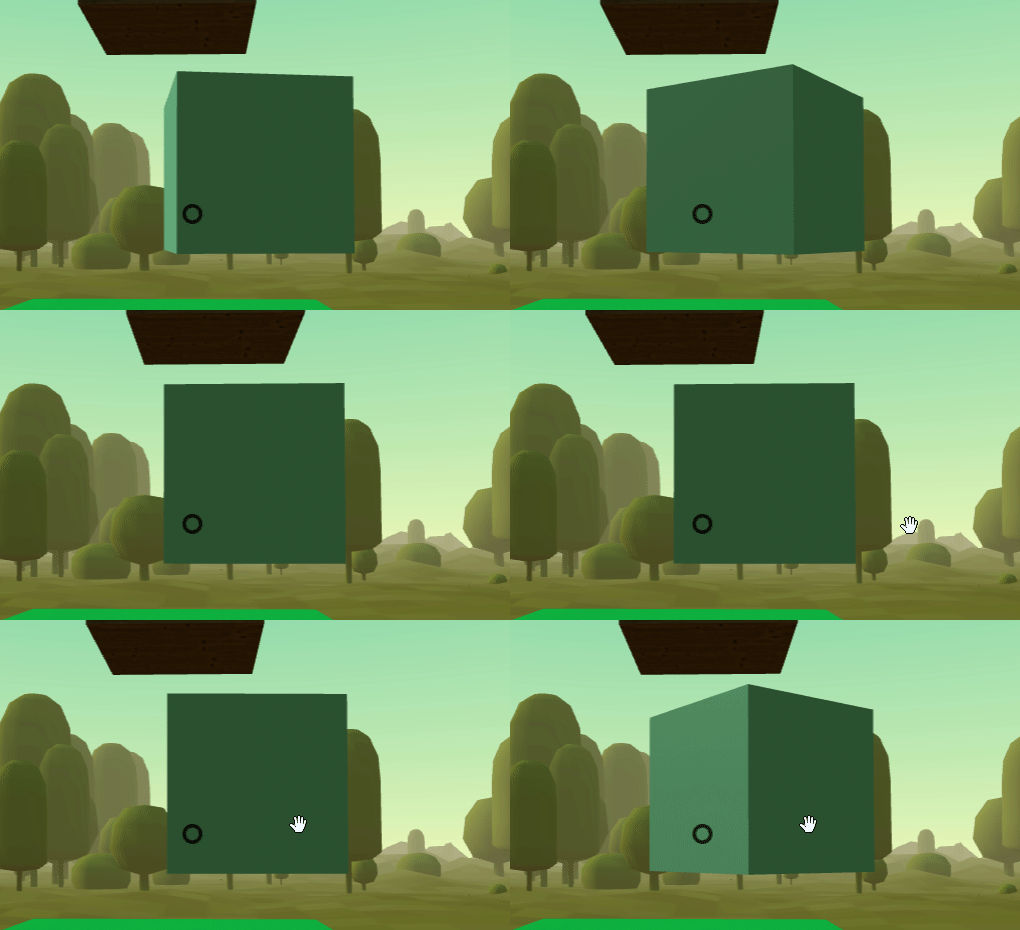
To learn more about animations, visit it’s A-Frame documentation
Kua mutu? Finished? - What to try next…
 Kua reri? - Ready? It's your turn... Mini project idea
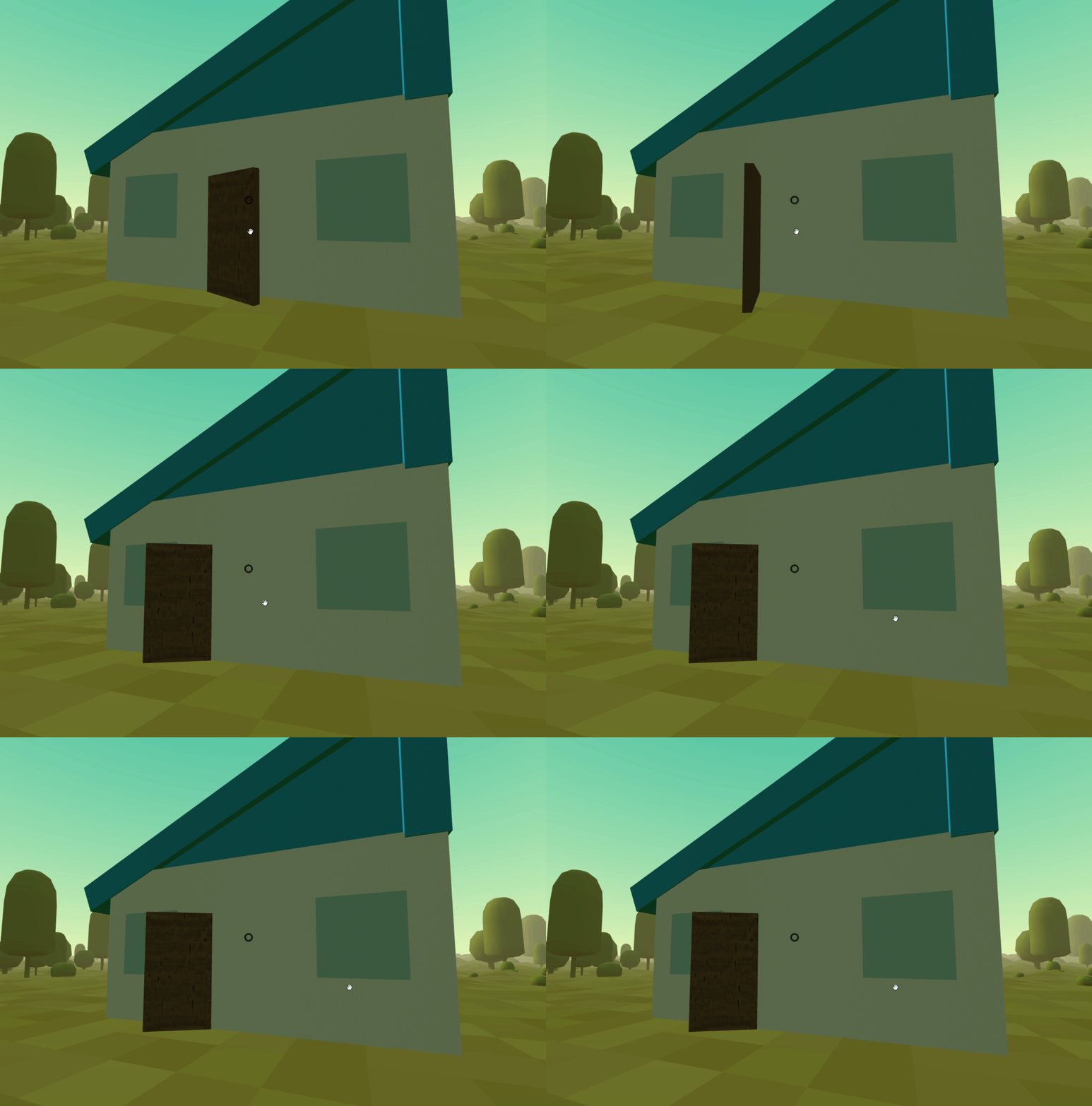
Try creating a house out of basic shapes such as cubes. Add textures or colours to each object. Create a door that opens through an animation when clicked on. Try playing a sound effect too