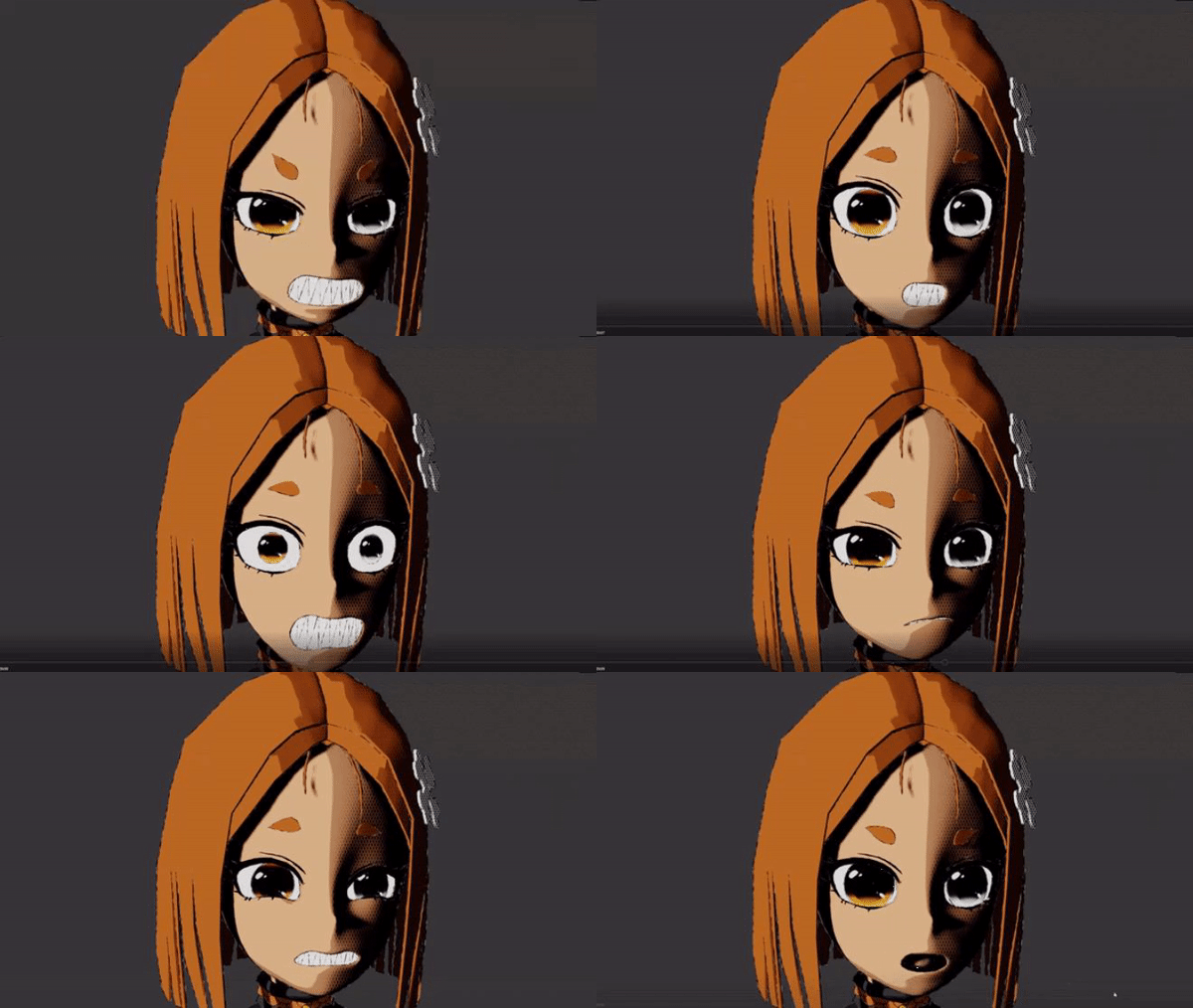
Bit Size: 3D facial expressions
Lesson outcome
By the end of this ByteEd Bit you will have produced…
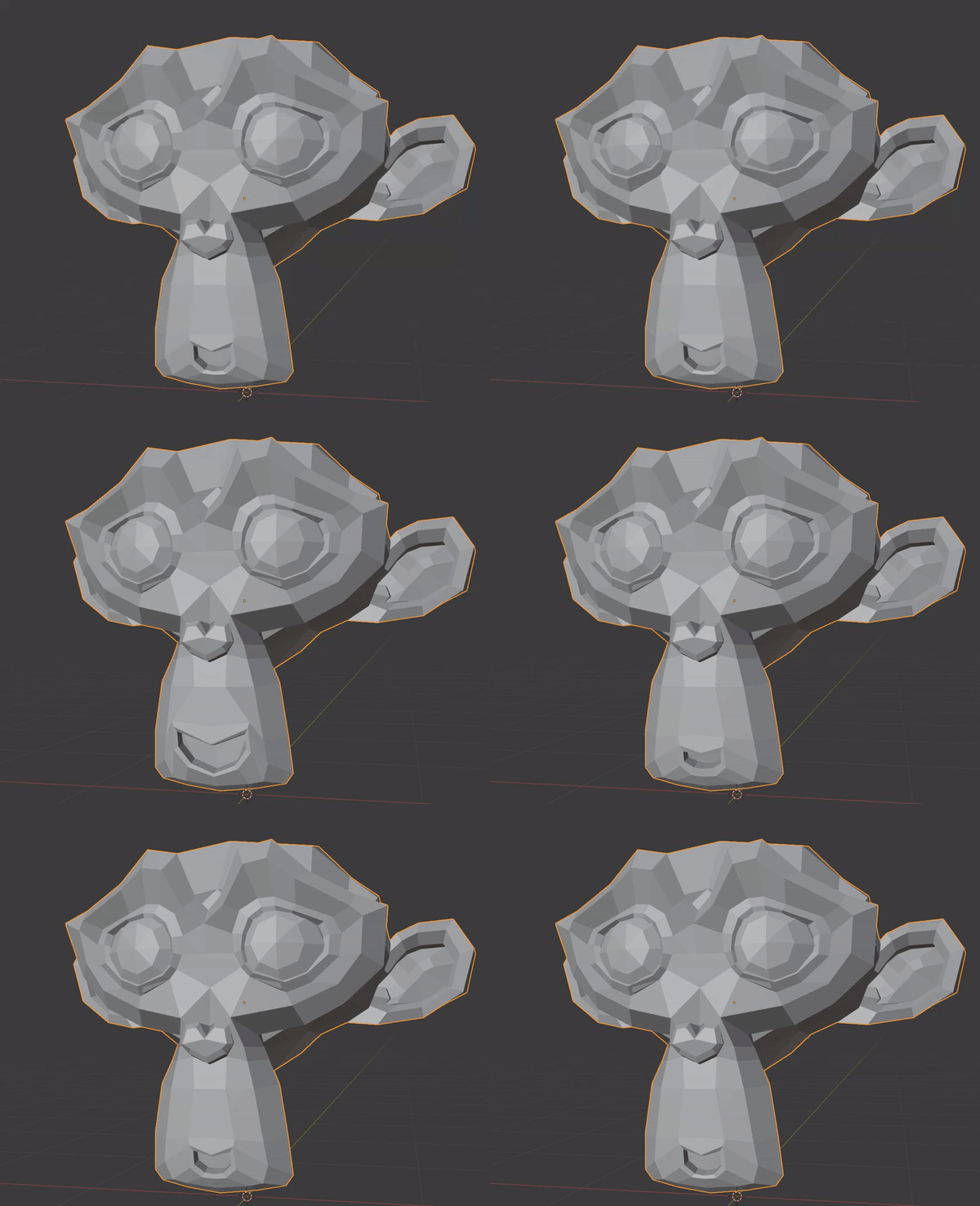
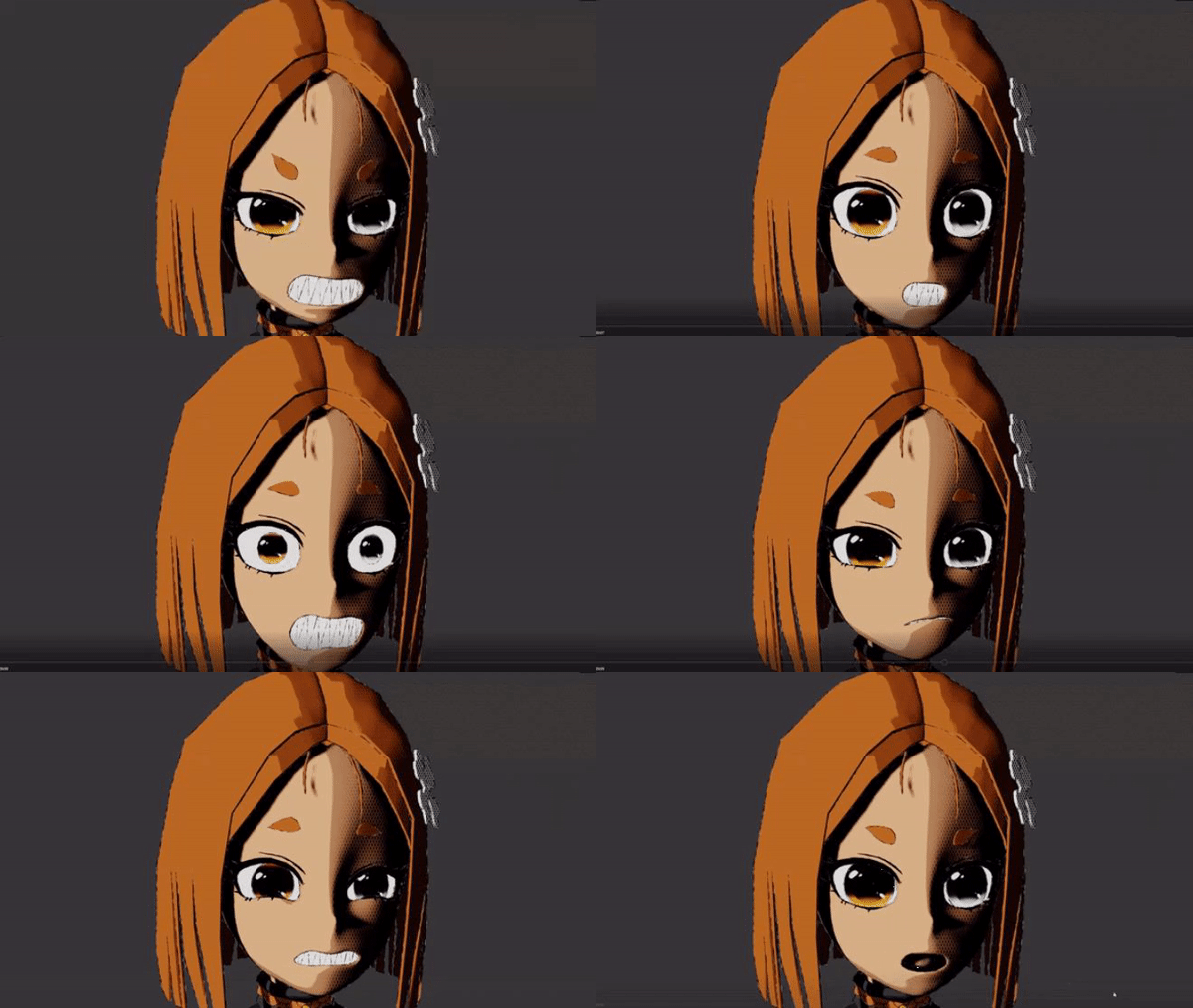
… Facial expressions for your 3D character!
 Kōrero Mai: 3D modelling
In 3D, when animating a character's face, you usually have a rig.
A rig is used to manipulate the bones and controllers to make the expressions you want.
However, creating a rig for the face is very difficult and can take a long time to set up.
When creating a character with a face, it’s crucial to ensure that the character’s face is resting in a neutral expression.
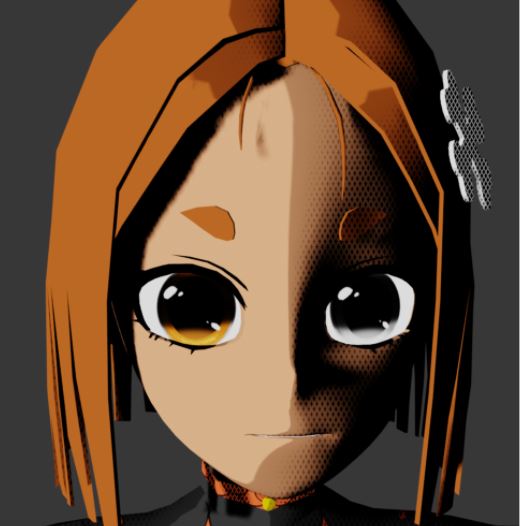
This means that the face shouldn’t smile, have one of the eyelids lower, or one of the eyebrows are higher than the other.
Everything should be symmetrical!
This is because it’s the BASE pose. When the character is smiling, it can then go back to its neutral base pose.
You shouldn’t make a character’s facial expression asymmetrical for its base, because it will make creating the other facial expressions much more difficult.
Shape Keys
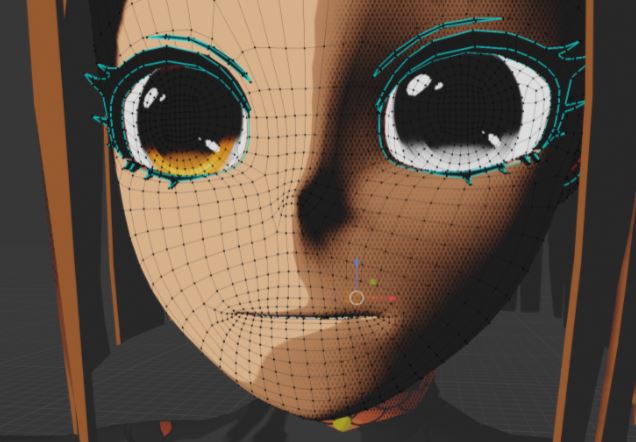
To create some expressions for a 3D character, we are going to use a method called Shape Keys.
That means that we will manipulate the vertices in our mesh to create the expressions that we want.
This can take a very long time to finish depending on how many expressions you want to create and how many polygons your characters have…
This is why we’re only going to create a few ones in this Bit 5 Lesson.
To save time, you are going to use Blender’s pre-made monkey head!
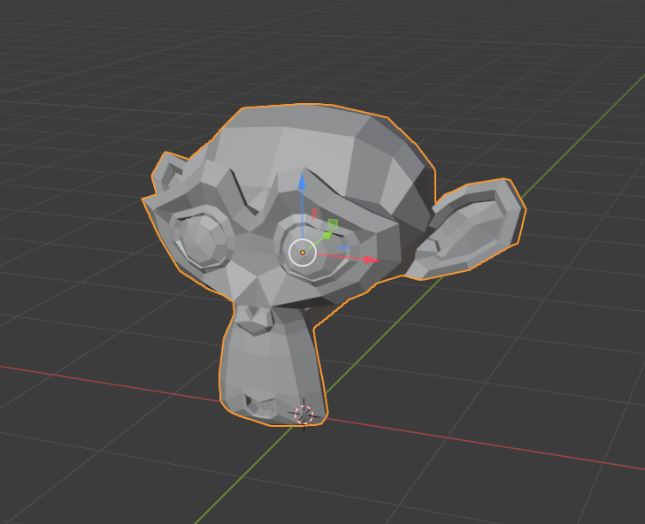
Shape Keys require a detailed face to work with, and creating one would take a lot of effort and time.
Luckily, for this lesson, Blender has a pre-made model that we can use!
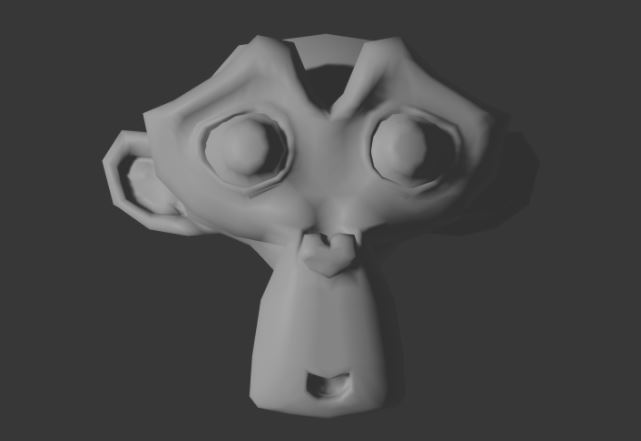
The Monkey head is perfect for us to use and practice with.
As it is a low-poly 3D model, it will make it easier for you to manipulate the vertices.
Shape Keys
 Kua reri? - Ready? It's your turn... Monkey Head
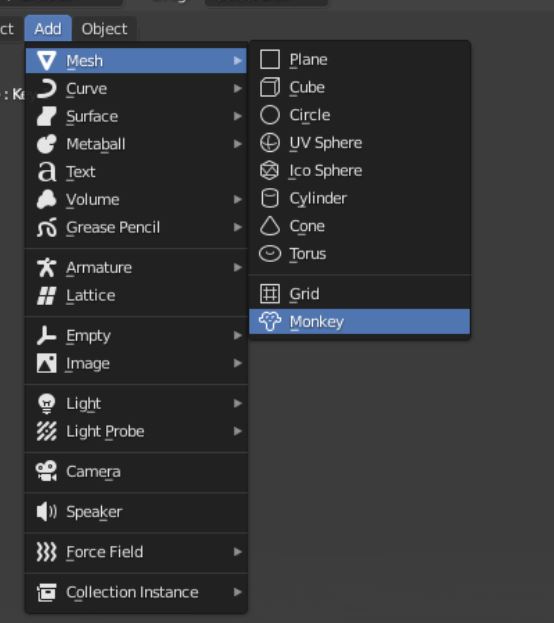
The monkey head is located in the Mesh tab and at the very bottom of the options.
Don't edit the Monkey head in Edit mode just yet as it will make certain aspects of Shape Keys harder to perform.
Follow the video at your own pace, or complete the steps on this webpage.
Smile
The first expression that we will do is a smile!
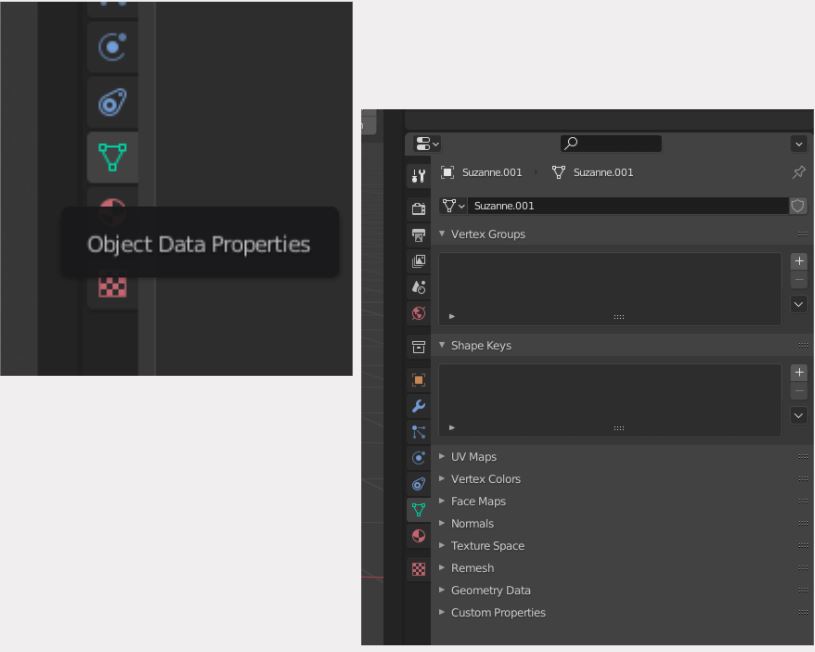
To start, select your Monkey head and go to the Object Data Properties that’s on the right side of your Blender.
You will get a bunch of menus that you can open allowing you to change your mesh in different ways.
However, the only important one is Shape Keys, which should already be opened like in the picture.
Vertex Groups will be important later… (check out other Bit Lessons)
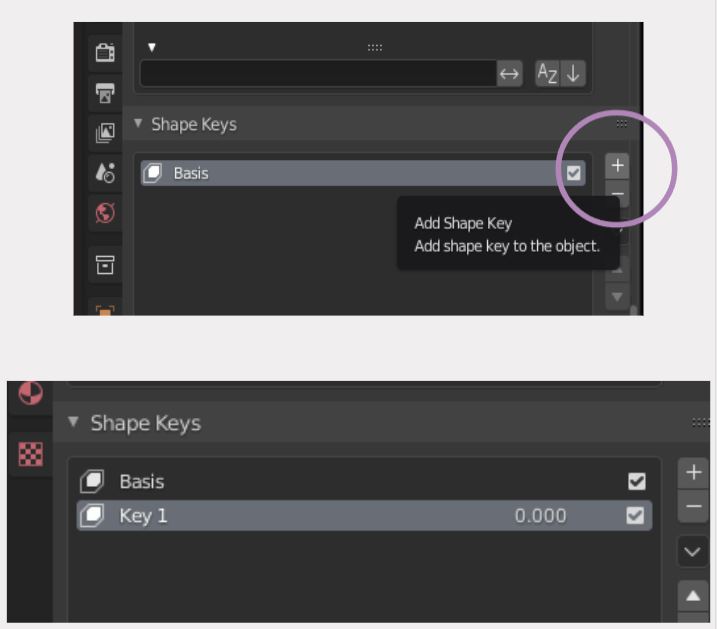
This is very important! Press the plus sign first to create the base Shape Key.
The first Shape Key is automatically called Basis, and it’s important that you do not change or touch it.
This is because you’re now telling Blender that this is the Monkey head’s neutral expression!
This is so that when we make multiple Shape Keys, we can change it back to its original shape.
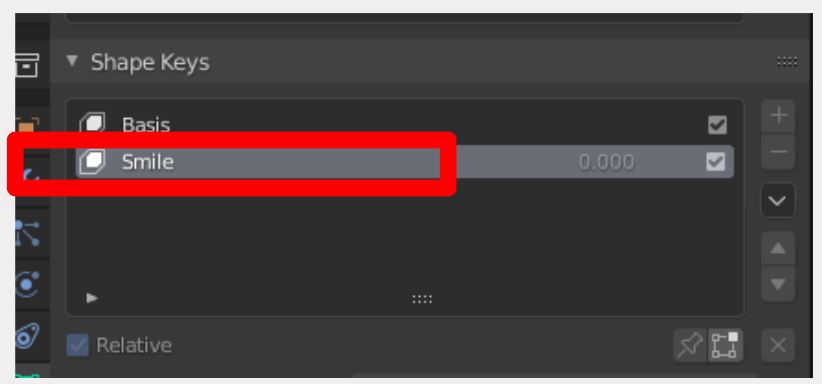
Click on the plus sign again, and a new Shape Key will appear named ‘‘Key 1’’.
Rename your Shape Key to “Smile”
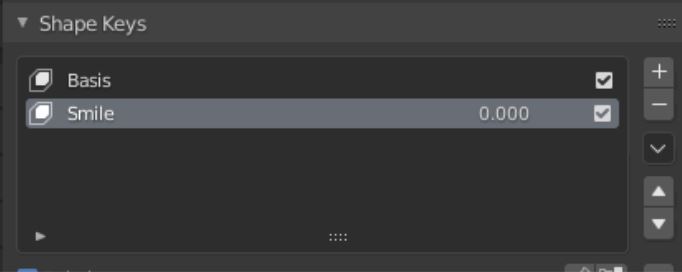
Just like with materials and such, we have to name everything to make it easier for us to know which Shape Key does what expression.
Otherwise, it’s going to look messy and can be unorganised when you have a lot of Shape Keys and emotions…
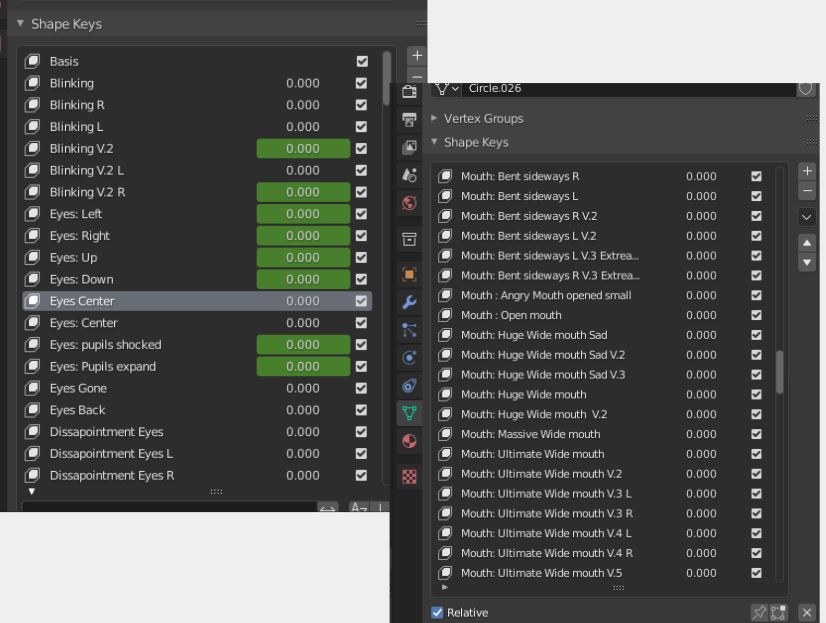
It’s going to be near impossible to know which Shape Key does what if you do not label each one well enough…
When doing more advanced animations sometimes, you’ll have hundreds (if not more) Shape keys to give your character
life when showing emotions!
While still in Edit Mode, click on your Smile Shape Key, and be sure not to have Basis selected.
It’s time to move the vertices! Don’t choose Edge or Face Mode because vertices give us more control over our mesh.
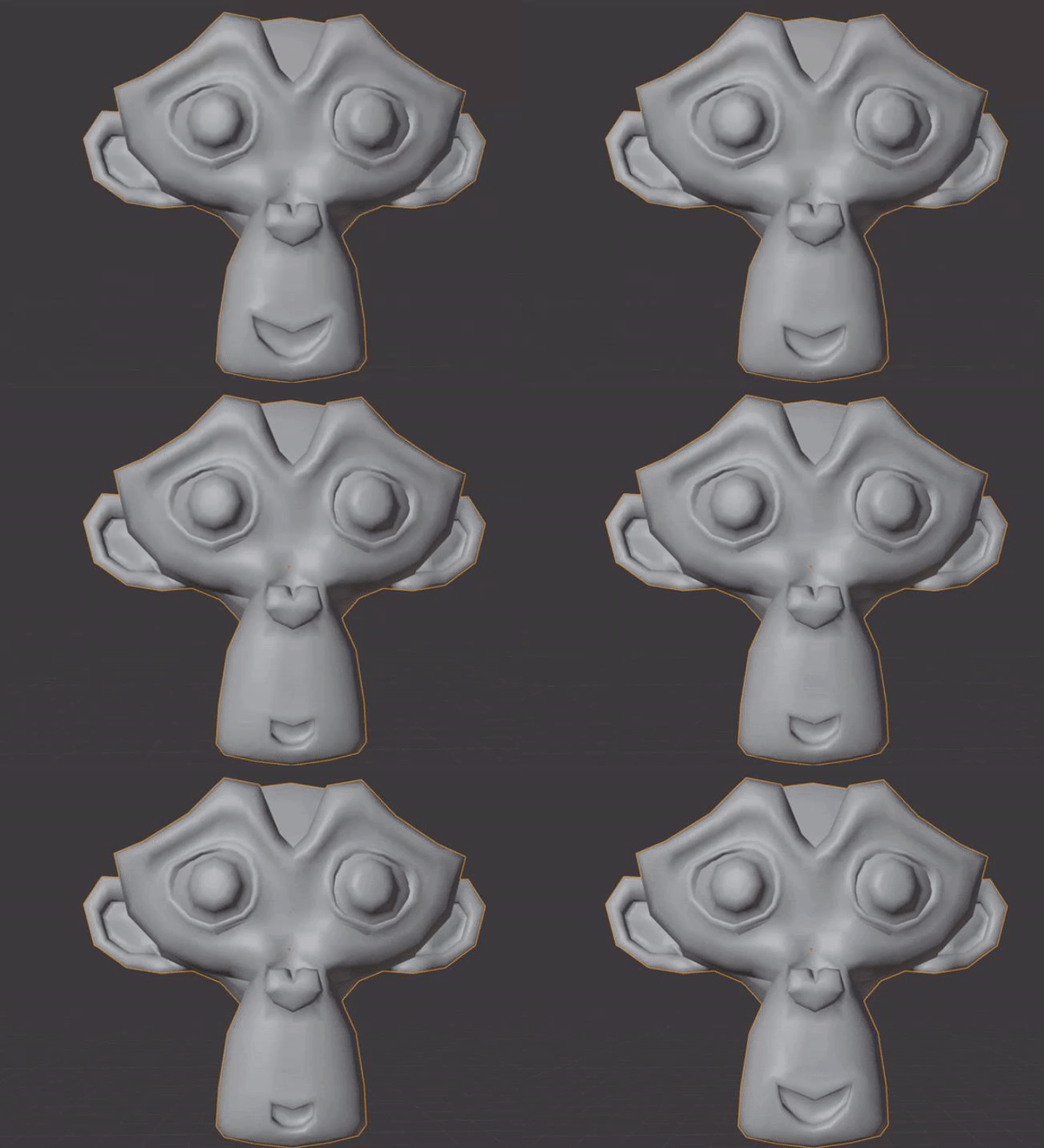
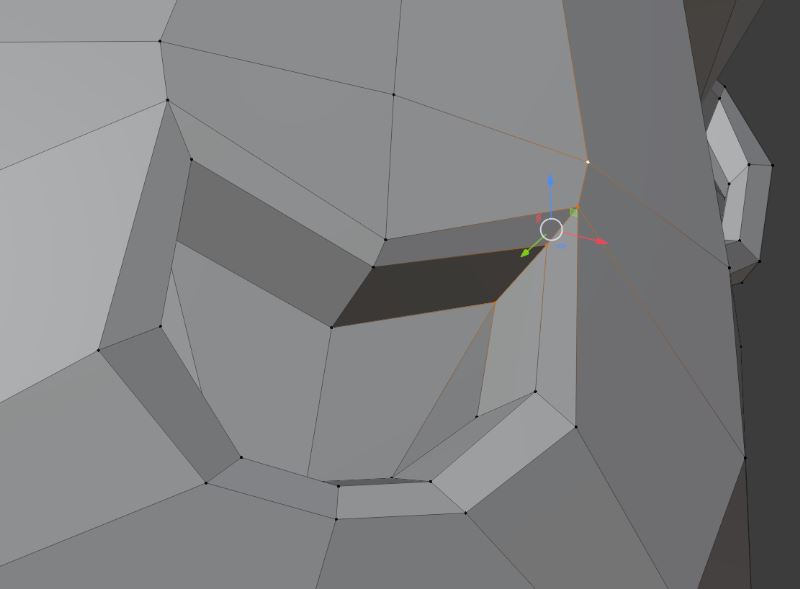
On your Monkey head, select these four vertices shown in the picture.
And before we move them, we’re going to turn on Symmetry.
How does Symmetry work? if we move the vertices on the right side, the vertices on the left will move as well!
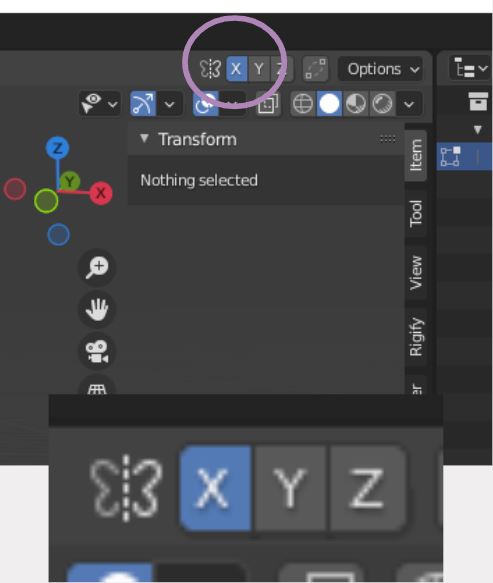
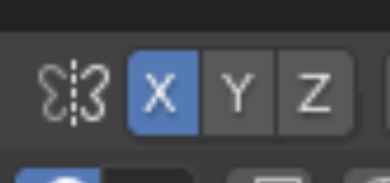
To turn Symmetry on, there’s a X-Y-Z letter that you can click on the top right side of Blender.
Select the letter “X”, and now that it’s turned on, try to move your vertices on your model.
What happens?
The vertices on the opposite side of our mesh will move in sync with each other.
This will speed up the process when creating facial expressions.
Remember to turn it on and off for different expressions!
Y and Z will do the same thing depending on your model and angle!
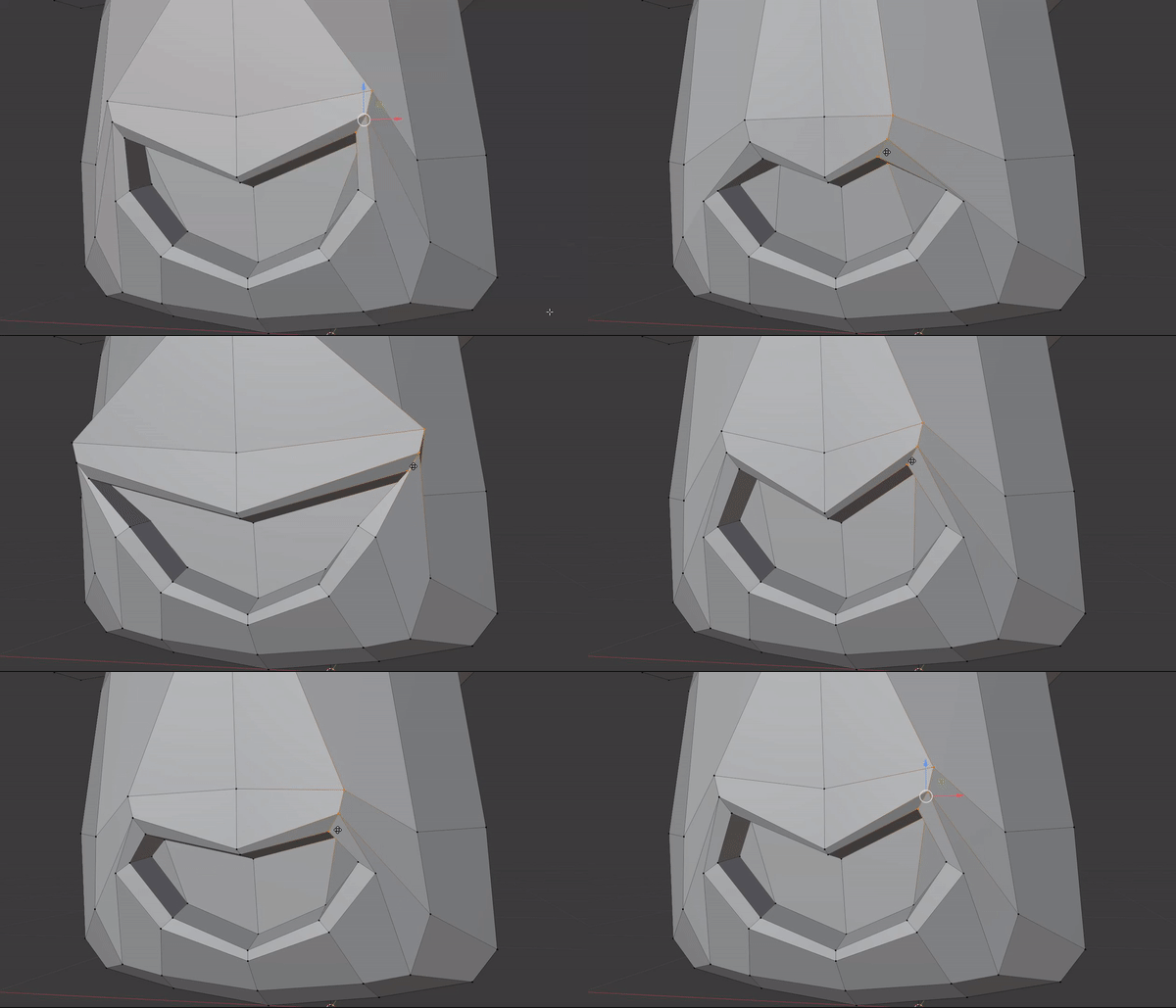
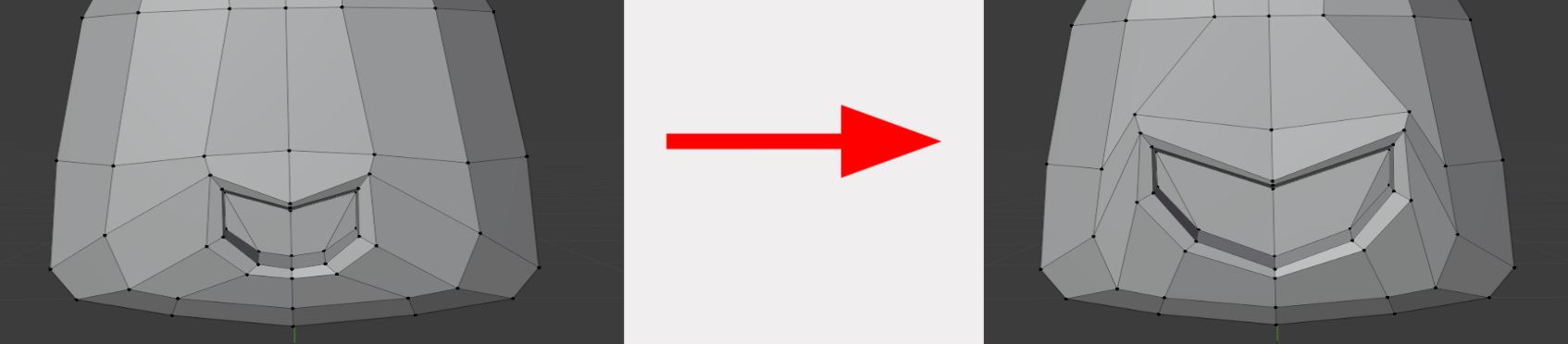
Now try and create a bigger smile than the base one…
You’ll notice that in Edit Mode, when you select different Shape Keys, your mesh will automatically change its vertices to whatever expression you have made.
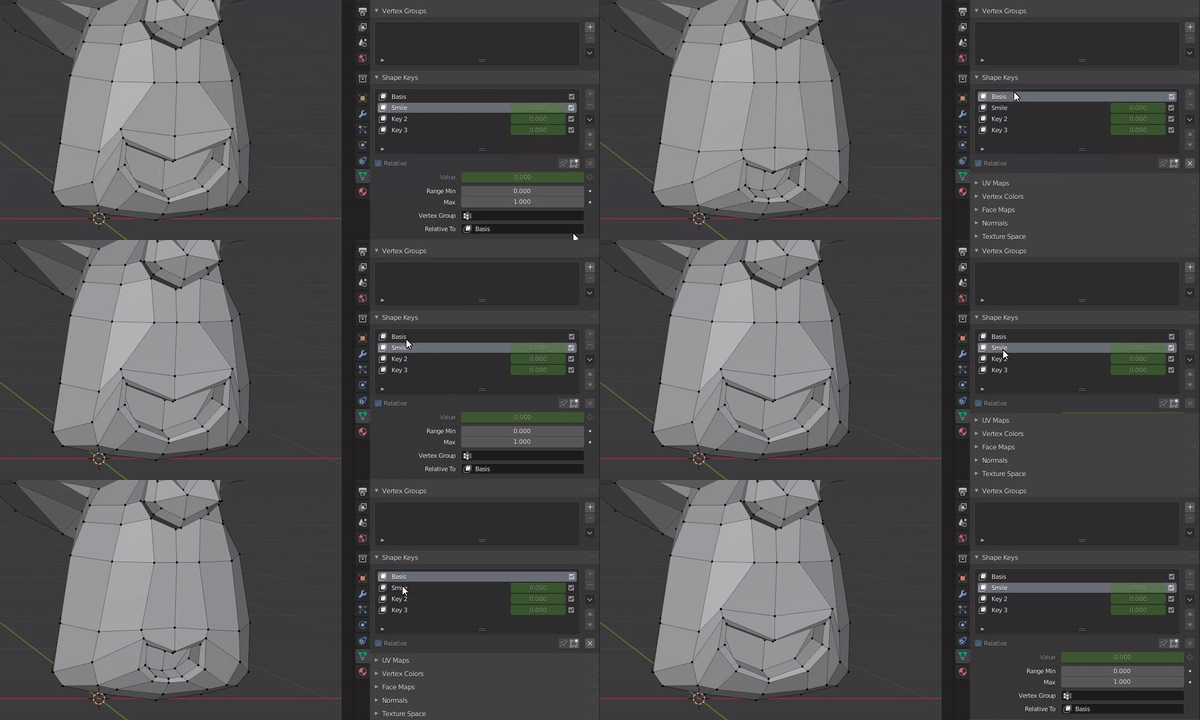
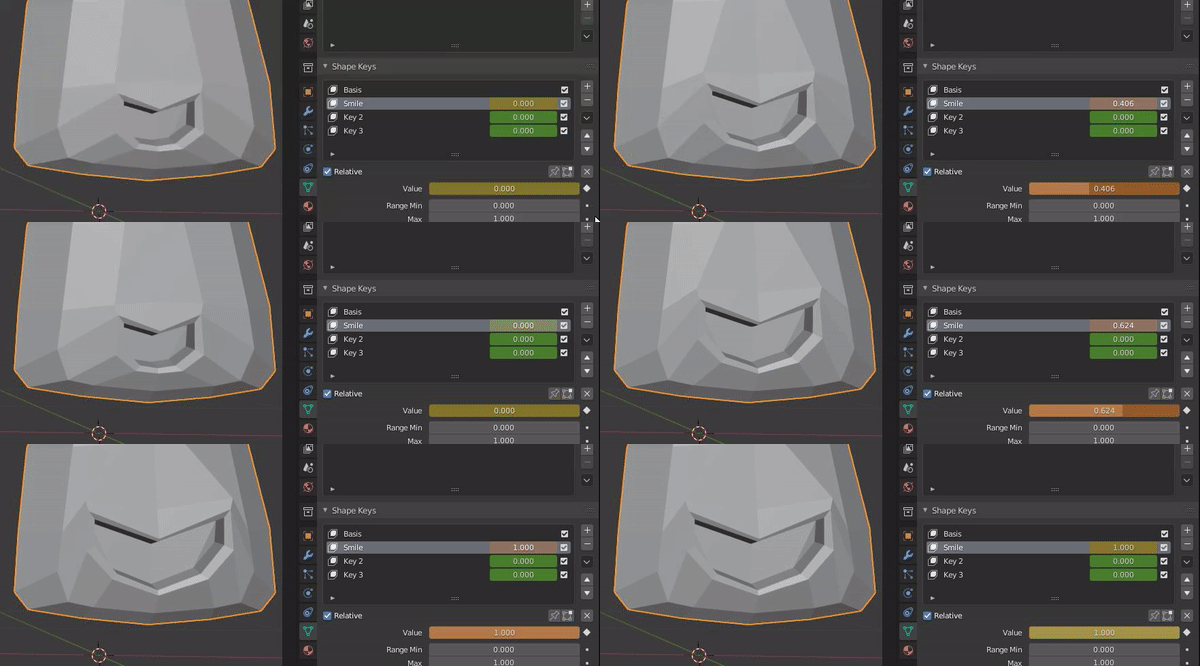
Once finished, switch over to Object Mode, and you can now change the value of your Shape Key to morph your mesh into the expression that you just created. Give it a go!
In this Bit course, we won’t go over how to animate using Shape Keys just yet… (check out other Bit Lessons)
Here’s a little challenge… The Blink!
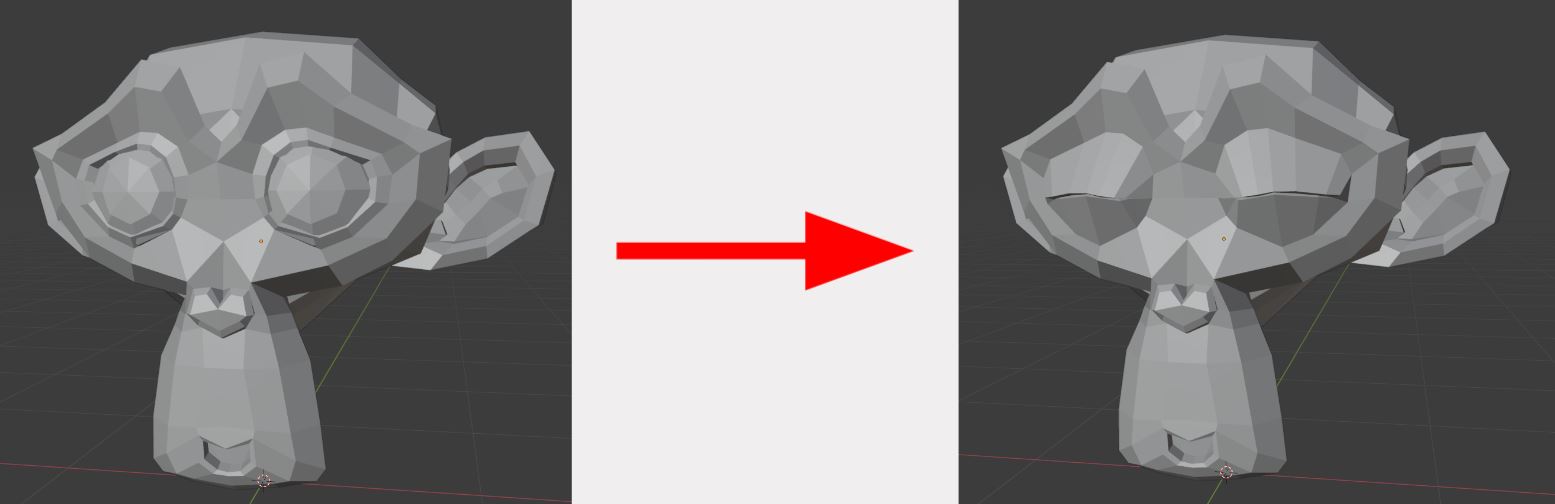
Before you create the blink…
-
Instead of creating a single Shape Key for it, we will create two Shape Keys for each eye. Why?
-
This will give us more control over the mesh’s expressions so that the Monkey can wink.
-
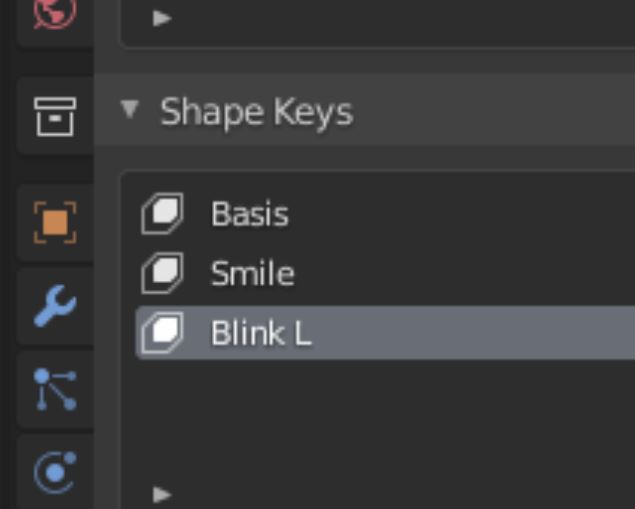
Create a new Shape Key and call it Blink L. (L = Left.)
Once the left eye is done, instead of recreating the blink on the right side from scratch, we can mirror what we have on the left to right!

It’s important to set the value of Blink L to 1.000.
This tells Blender that we want to copy this specific Shape Key!
Click on the icon below the minus sign and select ”+ New Shape from Mix” within the menu.
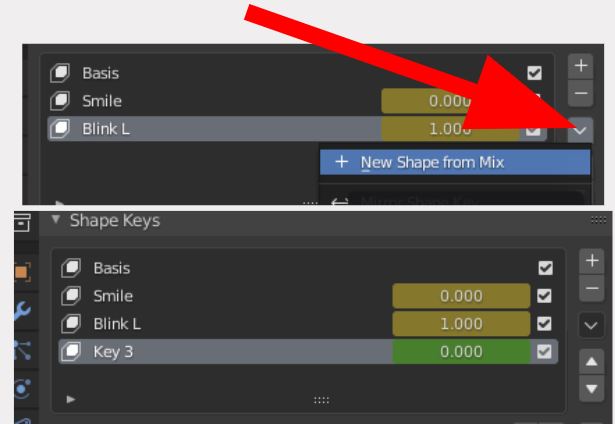
This will create a copy of the Specific Shape Key that you have on at the moment. In our case, it’s Blink L.
Remember to set your Blink L Shape Key back to 0.000. Otherwise, if you activate Key 3 now, it extends Blink L
even more. Rename Key 3 to Blink R.
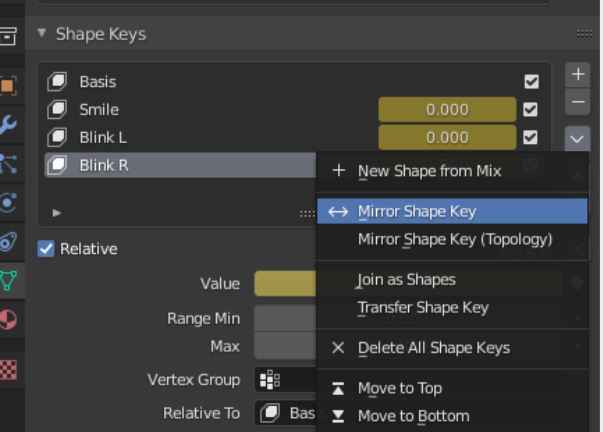
And last, but not least, activate Blink R. Click on the drop-down menu again under the minus icon, and select the first ”<-> Mirror Shape Key”.
This should now have mirrored your new Shape Key to the opposite side!
Now you can blink both eyes individually (i.e. wink)!
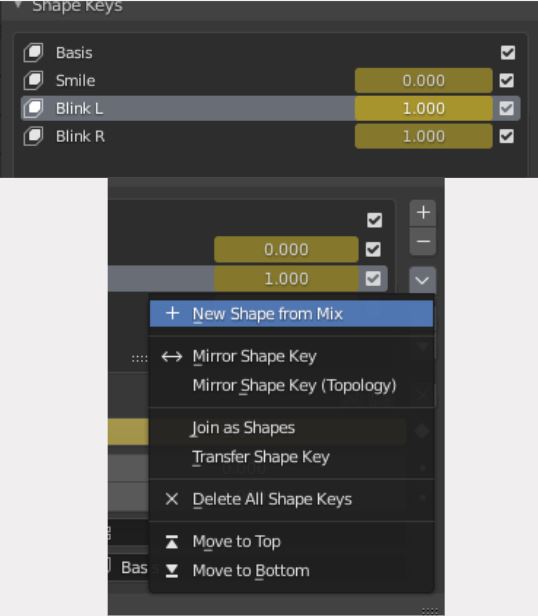
Knowing the basics of Shape Keys, you can now create a new one that will control both eyes when blinking!
Remember to have both Blink Shape Keys on before creating a new Mix out of them!
And there you go!
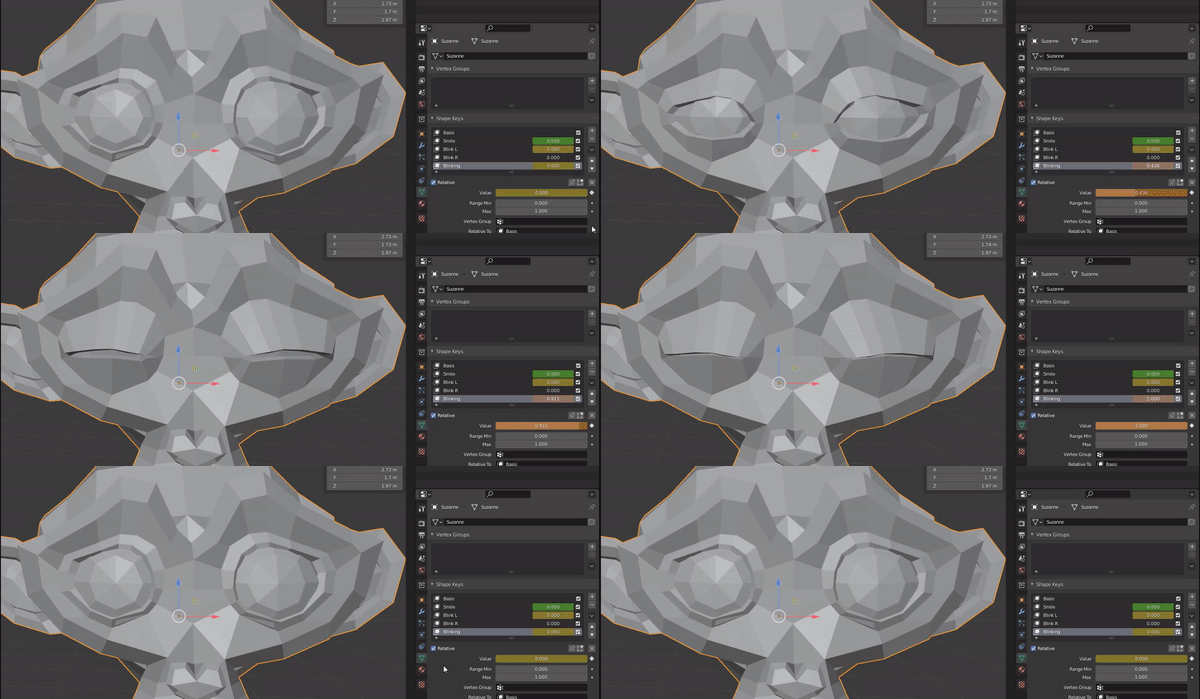
Create your own expressions for your Monkey head!
You can go online to find interesting facial expressions if you can’t come up with any.
Or, you can look at yourself in the mirror and see what types of facial expressions you can create from it!
This is what animators did back in the day, and they still do today…
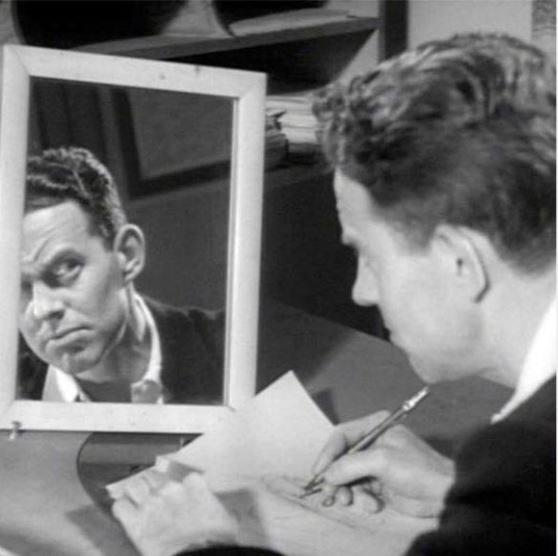
https://www.traditionalanimation.com/2016/do-you-use-a-mirror-when-you-animate/
Kua mutu? Finished? What to try next…
Kua reri? - Ready? It's your turn... Facial Expressions!
Create your own facial expressions!
See how many you can create!