Bit Size: 3D modelling and animation - soft surface modelling
Lesson outcome
By the end of this ByteEd Bit, you will have produced…
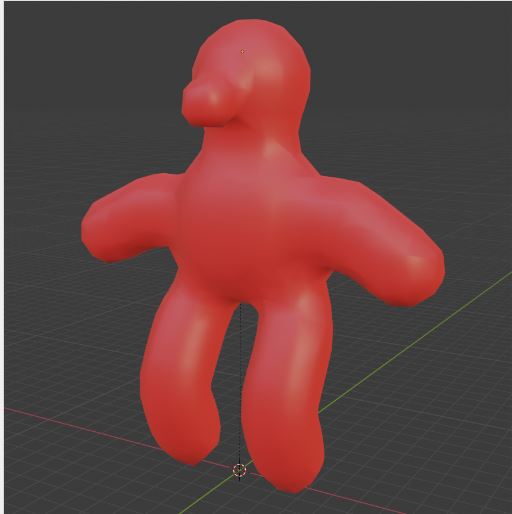
…a smooth and round 3D character. (rather than a low poly geometric one!)
 Kōrero Mai: 3D modelling
Throughout Module 4 we created Hard Surfaced models.
Which one of these models do you think is a hard surfaced model?
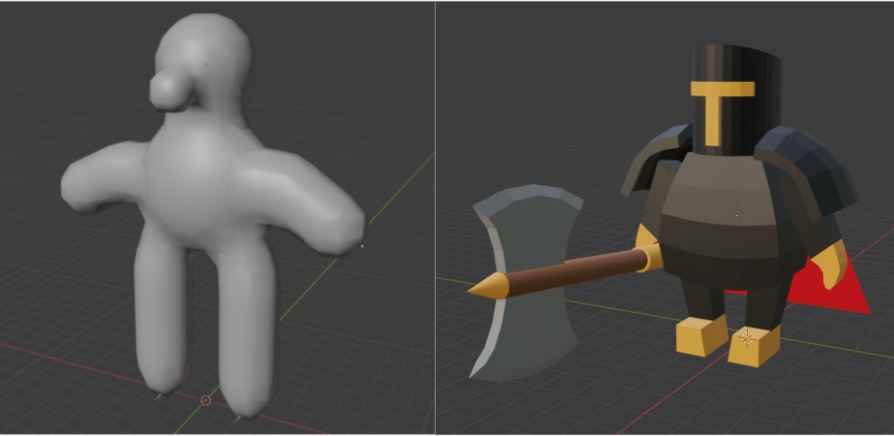
How do you think this is made?
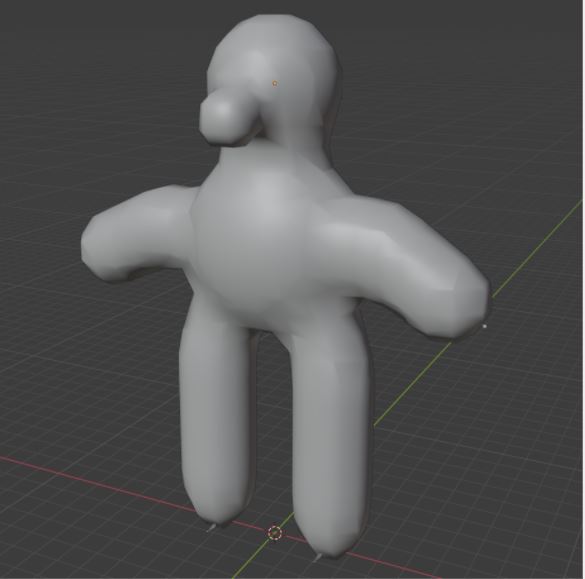
Soft Surface modelling can be complex sometimes because it requires us to think differently to create a new model.
Now, everything has to morph and merge instead of being like lego blocks.
This course is to give you an introduction to what Soft Surface modelling would look like.
We’re going to use Metaball modelling!
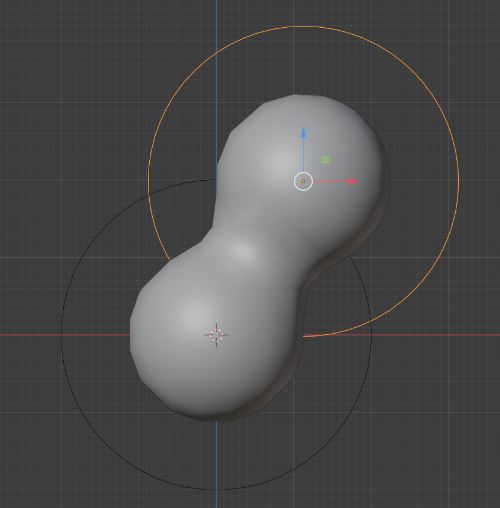
Metaball modelling is a method that will allow our meshes to merge multiple models automatically - we can use this to create effects like slime blobs.
When creating a 3D character, we generally want to have as much control over our mesh as possible, however, it gets a bit complicated when we are using Metaball. While it’s easy to create a character, it’s not the best for animation, more on this later.
Soft Surface Modelling
 Kua reri? - Ready? It's your turn... How to add Metaball
To add a Metaball, go to Add and head over to the Metaball menu, where you will find a few different choices.
All of these options will do the same thing, just in different shapes.
However, this lesson, we're going to choose ''Ball''.
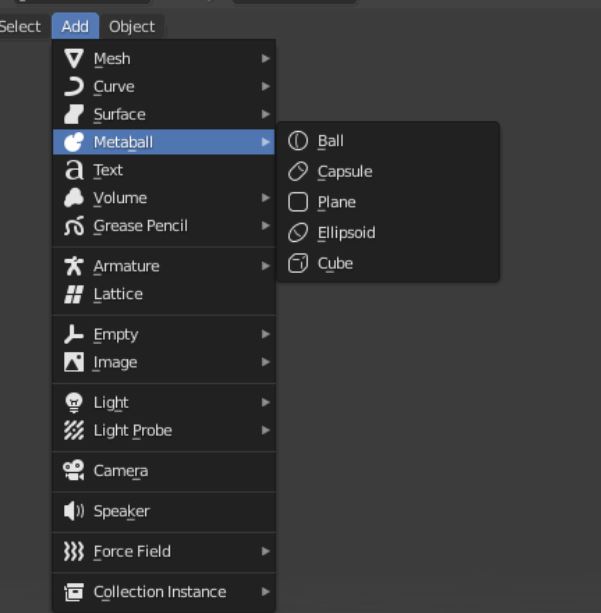
Follow the video at your own pace, or complete the steps on this webpage.
Metaball
This will appear, a sphere with a thin round circle.
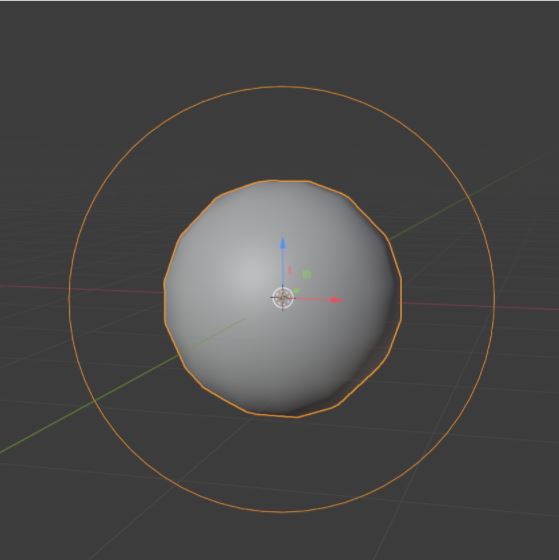
The circle indicates that it’s a Metaball.
Remember! The first Metaball you add is the ‘‘master Metaball’’,
and it will control how high the Polycount will be on your mesh!
If you duplicate your master Metaball and move the copy up, you’ll notice how the mesh is trying to morph out of each other. It is like holding a ball of plasticine and pulling it apart!
The shape becomes thinner the further away you drag the copy away from the original Metaball.
It is automatically connecting the vertices.
By scaling the master Metaball up and down, you can see that the duplicated Metaball is changing its Polycount.
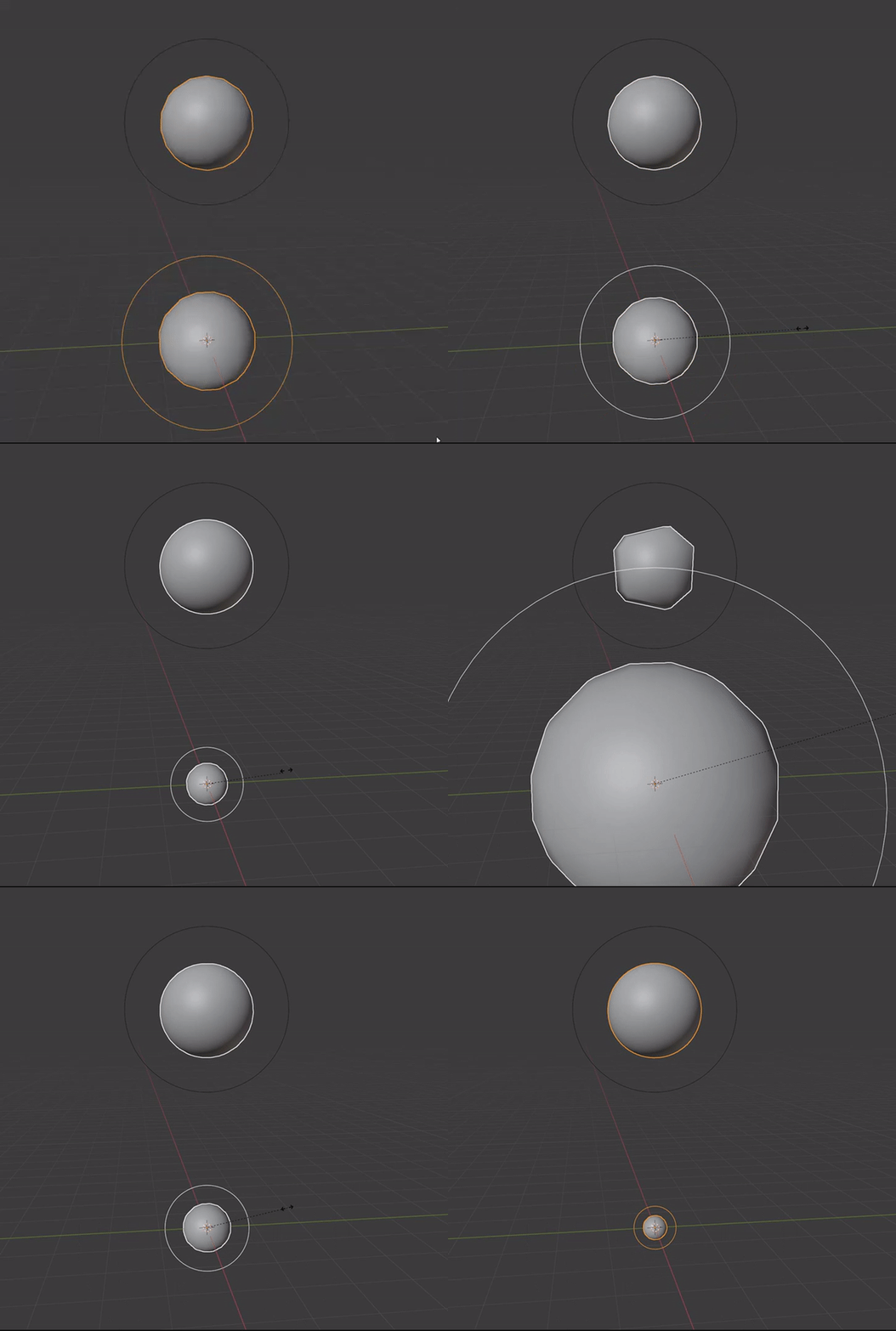
Notice that only the duplicate is changing itself from High to Low Poly, and if you get more Metaballs, they will all react to the size of the master Metaball.
If you scale the duplicated Metaball, nothing will change on the original one.
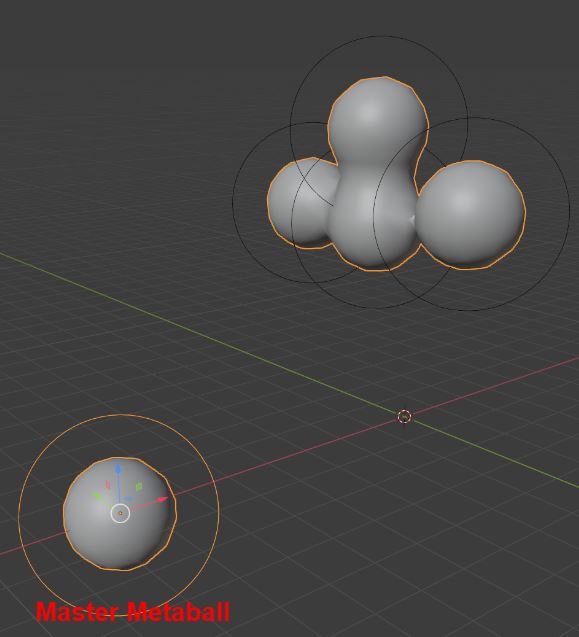
It’s a good idea to move the master Metaball away from where you’re going to create your model.
Keep in mind, select the black circles of the Metaballs that you want to copy. If you click on the mesh itself, it will duplicate the master Metaball instead, even if you have a cube Metaball.
The same thing goes for when you’re deleting a Metaball, so always select the black circles.
Now… have a go at creating your own plasticine like character!
Make the master Metaball small to give your model a nice and smooth look, but don’t make it too small, otherwise it will slow your computer down!
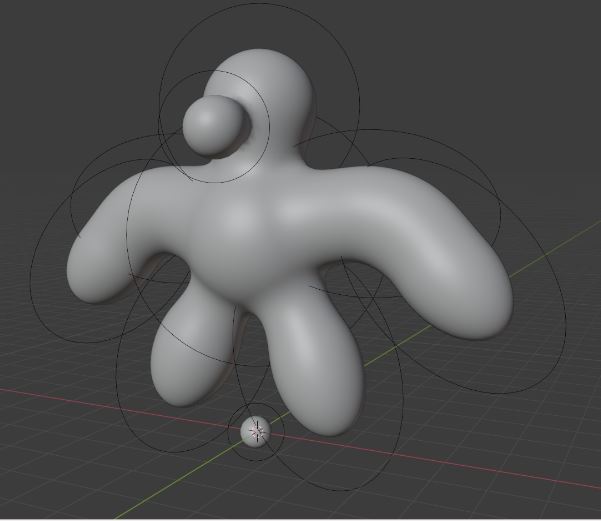
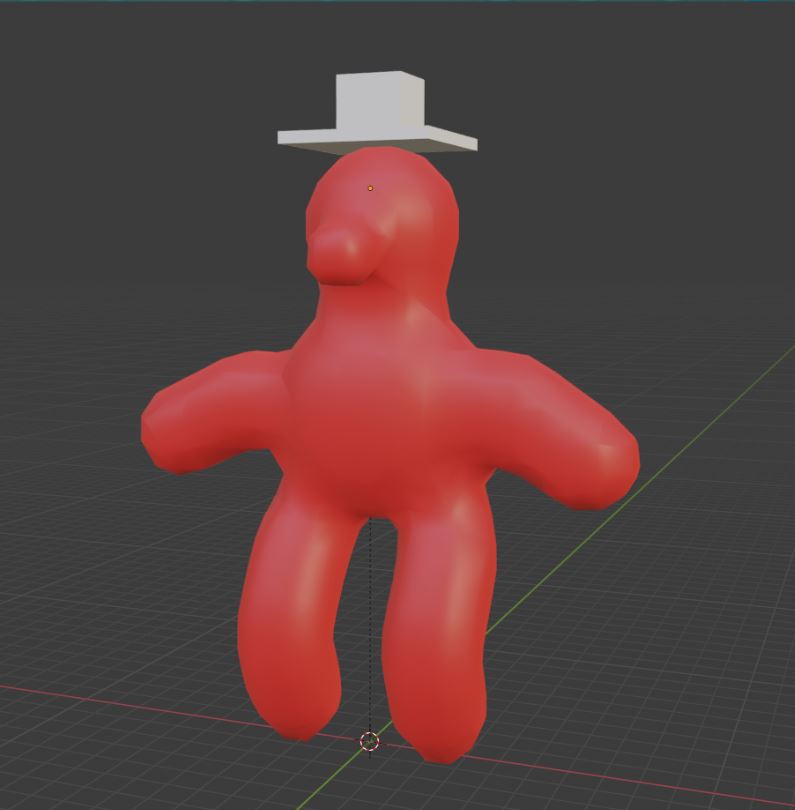
Keep the character standing in a similar position to the picture below:
This pose in 3D is called T-Pose, where you’re standing like the letter T.
There’s another version of this called A-Pose, what do you think this looks like? Can you copy the model and make an A-pose?
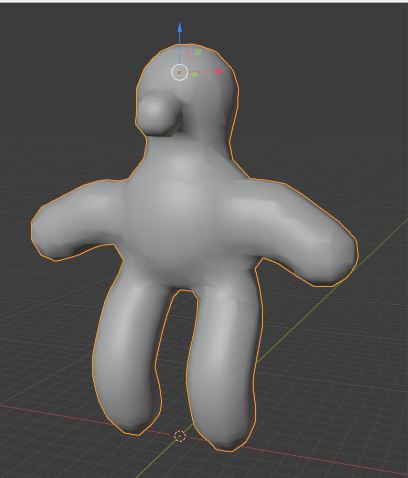
For animal models, be sure to keep the tail horizontally straight, and all of its legs on the ground!
Once your character is done, right-click on your mesh, go to ‘‘Convert To’’, and select ‘‘Mesh’’.
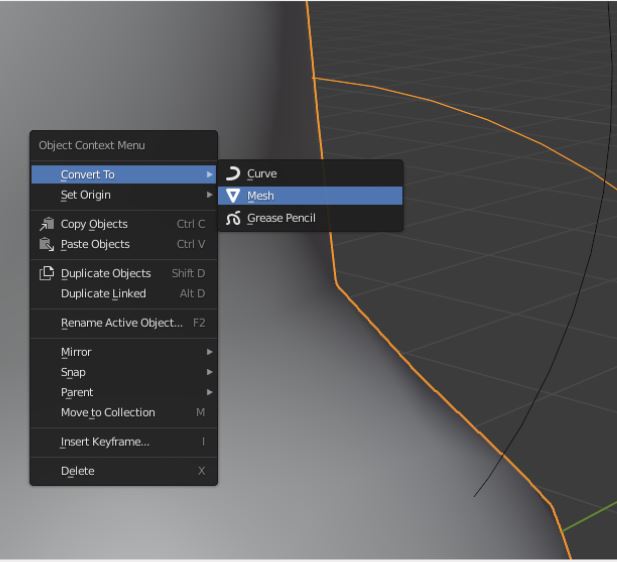
What will happen is that all of your Metaballs will turn into a single mesh.
The black circles will disappear and now you can edit your mesh in Edit Mode.
Remember to delete the master Metaball in Edit Mode!
However, you might notice that your mesh is looking messy when going into Edit Mode…
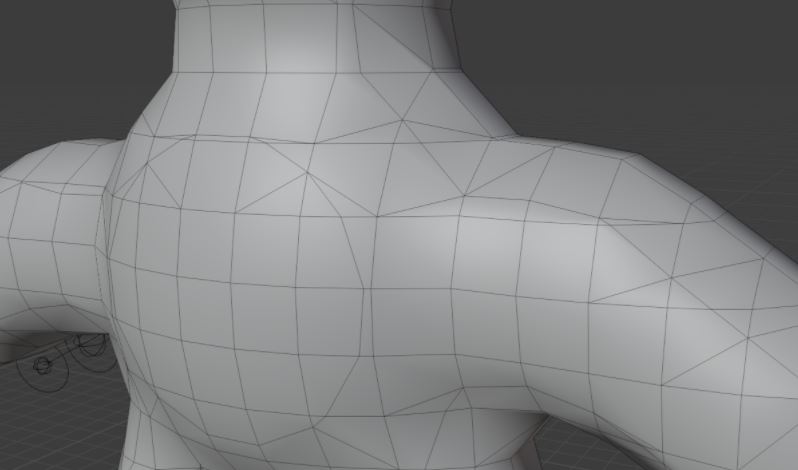
Metaballs will, unfortunately, create lots of edges around your mesh like this.
Generally, animators don’t want models to look like this and take time to clean the model up.
For this Bit lesson you don’t need to worry too much about making the character really tidy.
Now it’s time to colour you character…
…and you have made your own soft surface character that is ready to be animated.
Give your character a name!
With this character, you will be able to take it into the next step in animating, which is rigging! (check out other Bit Lessons)
-
To rig a model for animation we need the character to stand in a T-Pose or in an A-Pose.
-
Even if we weren’t going to rig a character, this is generally the best pose to make the character stand in because it’s the standard pose for a 3D character if we would to rig it in the future. If we had our character stand in a different position it would make it more difficult to animate it.
Kua mutu? Finished? What to try next…
Kua reri? - Ready? It's your turn... Accessory
Create a 3D model accessory that will fit your character.
Use the accessory to make your model more unique!