
Bit Size: A-Frame basics
Lesson outcome
By the end of Bit 1, you will have produced the following:
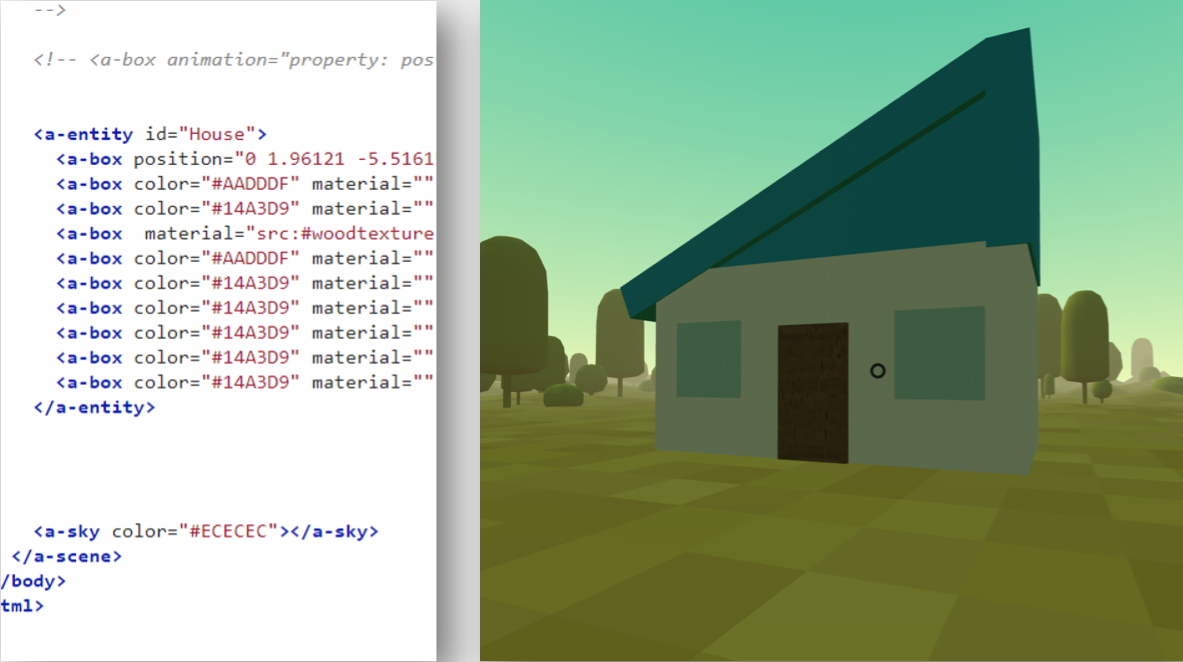
Using these techniques:
-
Creating 3D objects
-
Manipulating 3D properties
-
Adding and applying textures
What is A-Frame?
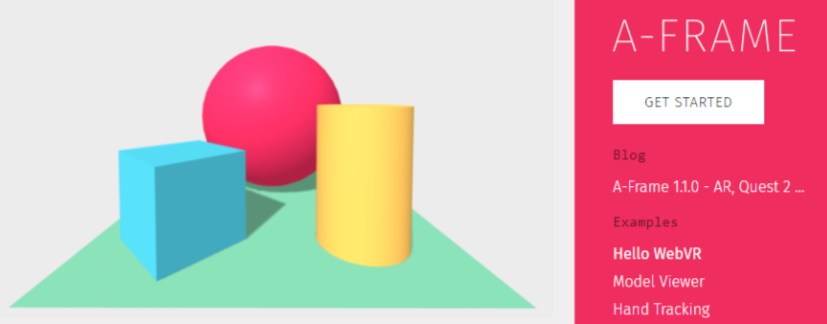
A-Frame is a framework that allows us to create VR content that can be played through a web browser!
All programming will be done using HTML and a small amount of JavaScript, which we will teach you along the way!
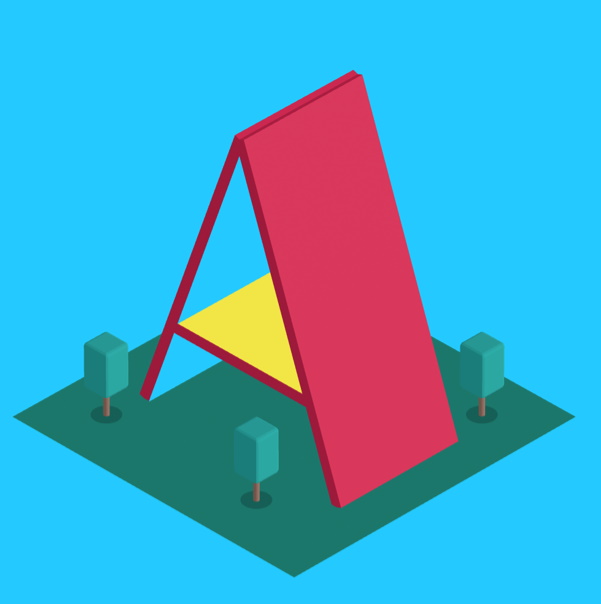
You can play your game through a computer, mobile, tablet, Chromebook or even your own VR Headset!
 Kua reri? - Ready? It's your turn... Follow along with your own A-Frame project
Make sure you have a working copy of an A-Frame environment that you can follow along with. Previously we used Glitch.com to save and host our A-Frame project.
If you would like to create a fresh template from scratch then click here.
Note: Save your URL OR Bookmark the page to keep your progress!
What is HTML?
HTML is the language behind constructing websites. It stands for HyperText Markup Language.
HTML uses tags to define certain areas of the code. Just like brackets in C#, tags require an opening tag and a matching closing tag. Can you Identify the tags below?
<html>
    <head>

    </head>
    <body>
        <h1> Welcome to my website! </h1>
        <p> This is a line of text that will appear in my website </p>
    </body>
</html>
<body> is an opening tag for the “body” section.
</body> closes the “body” section.
Visit W3Schools to learn more.
What is an Entity?
Think of an Entity like an object. This object could be:
- a box that’s green
- a sphere that bounces
- a 3D model with an animation
- a light source inside a building
- a position to play a sound effect from

Essentially, an Entity can be whatever we want! it’s the term used when we describe an object instead of just some code.
A-Frame default Entities
A-Frame gives you the ability to dynamically create or alter your own entities. To begin with, it might be easier to use basic entities first before exploring further, such as: a box, sphere or cylinder.
You can also use:
<a-box><a-cone><a-cylinder><a-dodecahedron><a-icosahedron><a-plane><a-ring><a-sphere><a-torus>
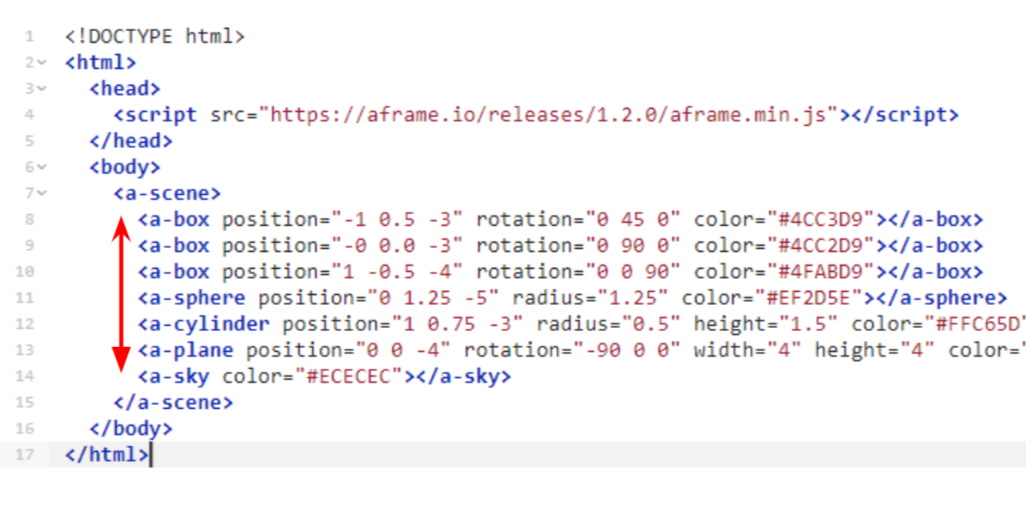
Remember to work between <a-scene> and
</a-scene>. These are our “brackets”
Basic entity properties - 3D Position
Entities contain all information about an object. This includes the position of the entity itself. As we are working with 3D objects, we have 3 Dimensions to worry about. X, Y and Z.
You can use the Right Hand Rule to better visualize the 3 different axis.
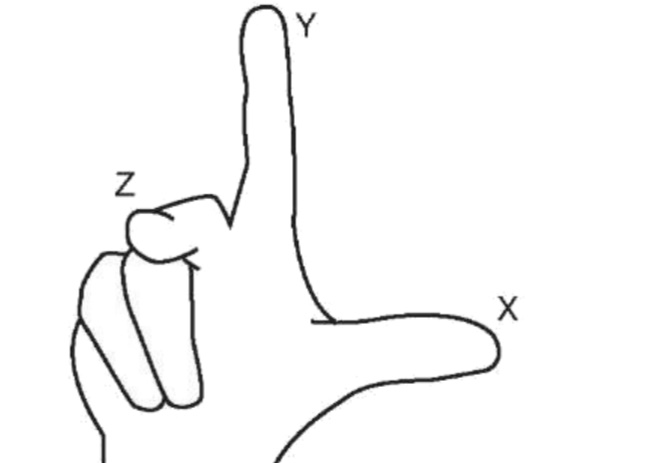
source: what-when-how.com
These are generally described as:
- X-axis - Left/Right movement
- Y-axis - Up/Down movement
- Z-axis - Forward/Back movement
Creating some 3D objects
Kua reri? - Ready? It's your turn... Creating some 3D objects
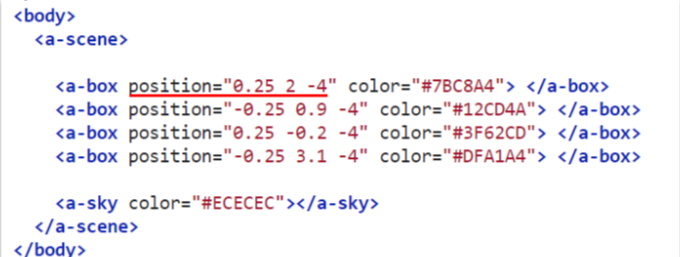
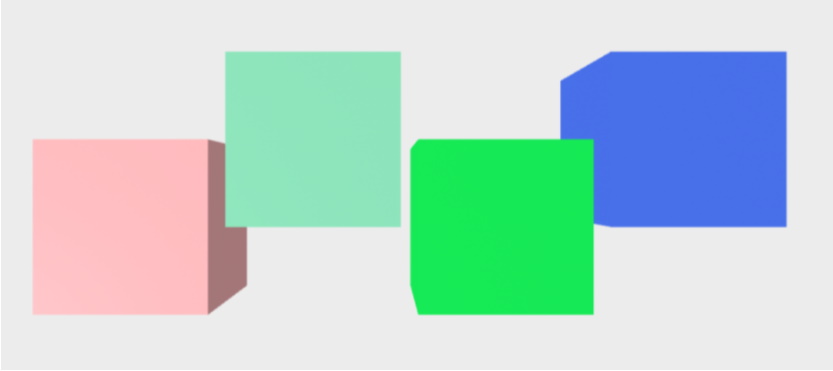
Try adding a few more 3D objects to your scene. You can use template objects such as
< a-box > and < a-sphere > to do this.
The position values are saved in the format: position="x y z"
Try editing their position values to get familiar with 3D space
Editing other 3D properties
Entities have 2 other properties that also use 3 dimensional properties. These are:
- Scale (The size of an object)
- Rotation (The orientation of an object)
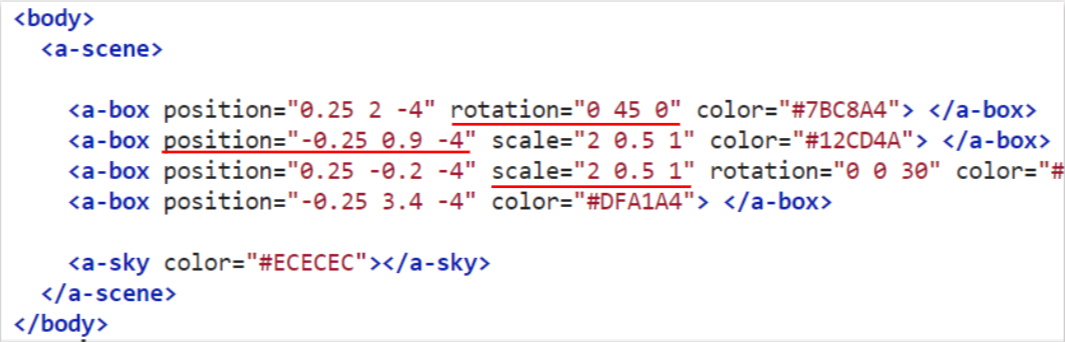
Again, they follow the same format: property=”x y z”

Adding in an Environment
A-Frame allows developers to create and share reusable components for others to easily use. We will use this environment script that procedurally generates an environment for us to use with only a single HTML line!
Add it in by doing the following:
- Link the script at the top of your file
<script src="https://unpkg.com/aframe-environment-component@1.2.0/dist/aframe-environment-component.min.js"></script>

- Create an entity in the scene using the new environment property.
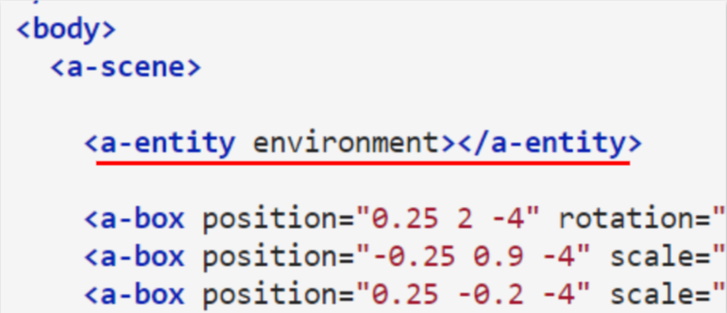
Editing the Environment
We can also edit the Environment, just like editing an entities position. We simply need to specify the property and the value we wish to assign it. For now, let’s change the preset.
<a-entity environment="preset: forest"></a-entity>
These presets give us a great building block to change the tone of our game. All presets you could use instead:
- default
- contact
- egypt
- checkerboard
- forest
- goaland
- yavapai
- goldmine
- threetowers
- poison
- arches
- tron
- japan
- dream
- volcano
- starry
- osiris
Note: Visit the environments page to learn more about which properties can be altered.
Text Elements
Another easy to use element is the Text element. Any guesses how it’s added?
<a-entity position="1 2 3" scale="4 4 4" text="value: Hello World!"></a-entity>
Just use the word: text!
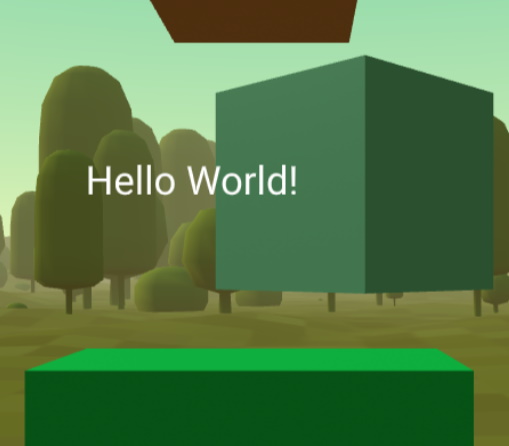
Try placing one into your world and changing what it says.
You may need to scale this larger than you think.
Editing multiple property values at once
Some properties have multiple values that can be edited at once. Let’s use our new text property as an example. To edit an additional value, we need to separate each of them with a ‘;’ semi-colon.
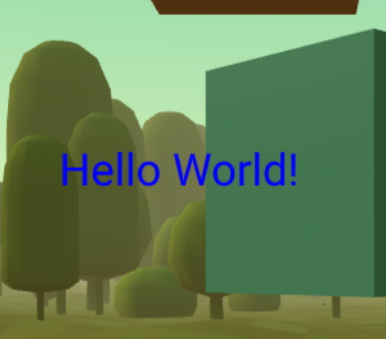
text="value: Hello World!; color:blue"
Change the color of the text value by following the above.
Note: Properties with multiple values do not use ‘=’ equals. Instead, they use ‘:’ Colons to act as ‘=’ equals signs.
Kua mutu? Finished? What to try next…
How to add in texture files
One last thing to cover is how do we add in external files such as textures, models or sounds into our project?
Thankfully, Glitch.Com will host these assets for us and automatically load them for use when someone plays our experience. To add files into glitch, simply drag and drop the file into the asset window.
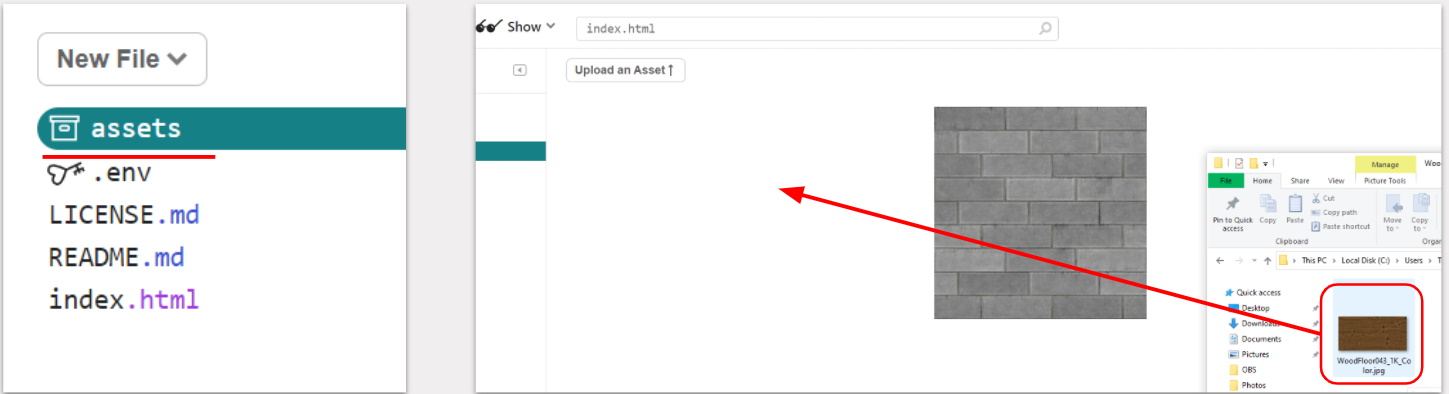
Defining these images as assets
Our next step is to define these images as assets so that they are loaded into our scene. To do this we need to create an assets section at the top of our scene using <a-assets> and </a-assets>.
Inside of these asset ‘brackets’ we can add in things we would like to be loaded before the game starts.
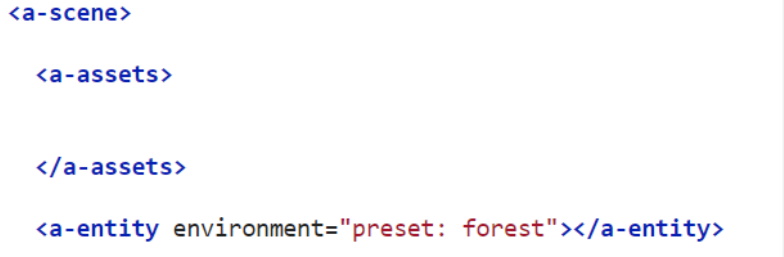
To add an image, we can use the <img> tag.

For now, add this line into your project and change the id for you image. This has to be kept lowercase.
Inside of your new <img> tag is also a src value. This points to the image that it will use. We need to copy and paste a link to the image. Thankfully, we can easily get one through glitch.
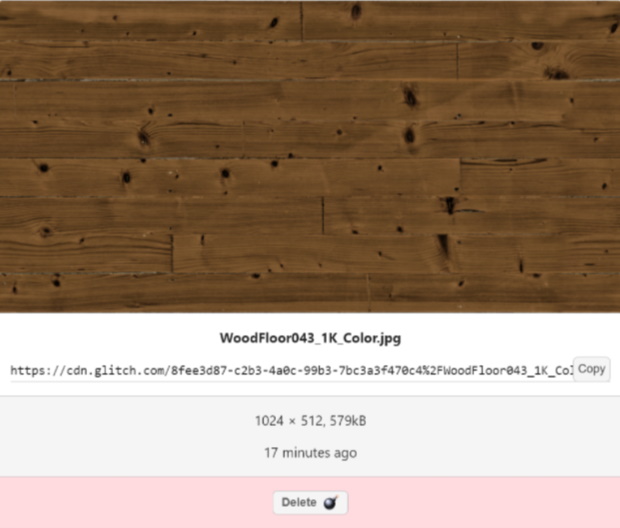
Head to the assets page and select the image you want to use. Click copy next to it’s url. Paste the link into your code.

Using images
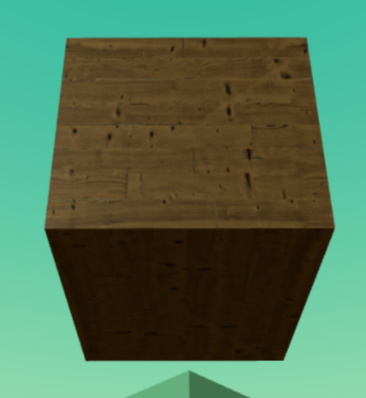
Lastly, to use the image as a material, we need to edit an entity’s properties.
- Add the material property to an entity (try a box first)
- Change it’s src value to your images ID. (Make sure to use a ‘#’ symbol before the images ID)

Editing your world using a 3D inspector (Optional - Intermediate)
To view your world, click Show and select either option. Your code will automatically save and update you game window every time you make a change.
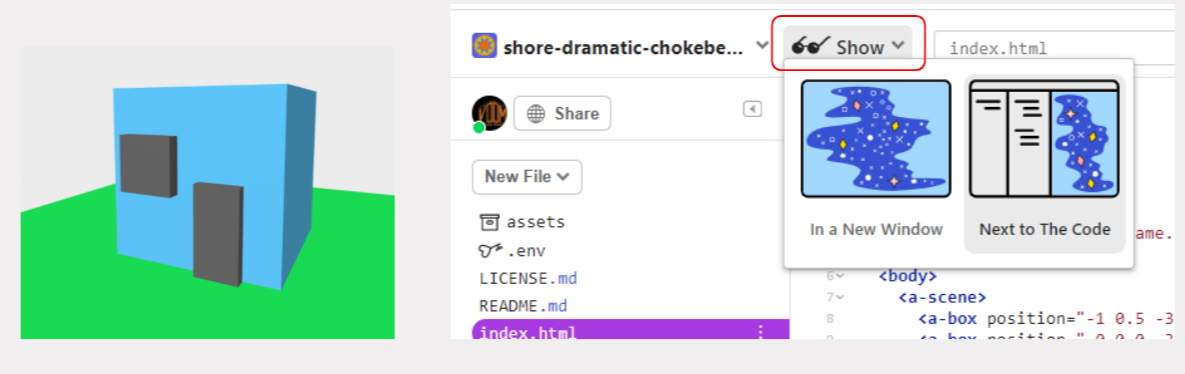
To get more advanced control of your world. Show your world in a new window. Open that tab and then press “Ctrl + Alt + i” on your keyboard. This will open up a 3D editor!
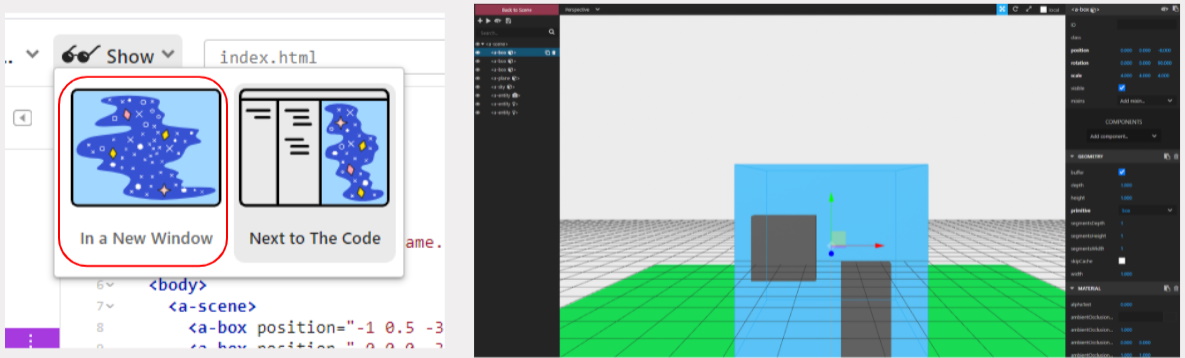
Warning: If you use the 3D editor, saving your scene gets a little difficult.
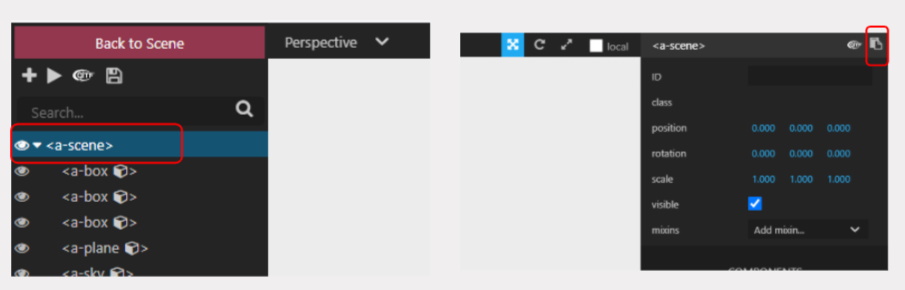
Don’t leave the tab before saving your progress. To save your scene as a whole:
- Select Scene (top left)
- Press the Copy to Clipboard (top right)
- Paste the code in your clipboard to your HTML document
Note: It may be easier coding one line at a time at this stage.
Kua mutu? Finished? What to try next…
Continue exploring A-Frame and constructing an environment.
Try constructing a house with textured materials for each component.
In Bit 2, we will be adding background music and animations to the VR environment!